Create a photo of yourself as a child is a trend stirring up the online community, bringing an experience that is both interesting and full of nostalgia. Using AI technology, you can combine current and past images into one frame, creating a unique reunion with yourself. This article will guide you in detail how to implement this trend simply and completely free.
| Join the channel Telegram belong to AnonyViet 👉 Link 👈 |
Learn about the trend of creating photos of yourself as a child
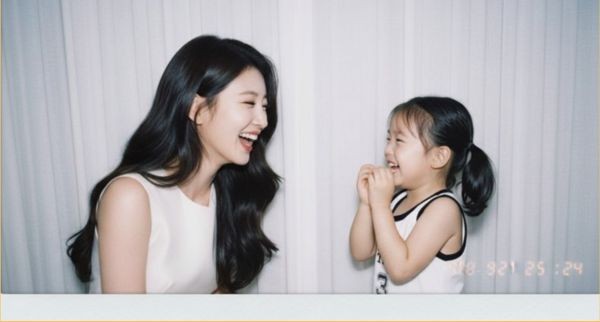
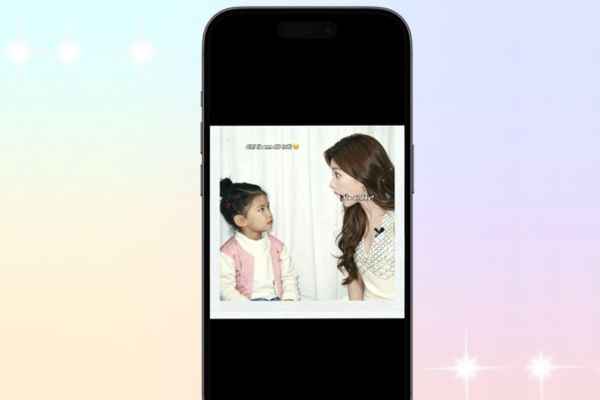
This is a content creation trend where users use artificial intelligence (AI) to combine images of themselves from two different times: as an adult and as a child.
The special feature of this trend is that AI not only simply cuts and collages but also intelligently processes to create a classic Polaroid-style photo. This technology retains original details such as faces and clothes and adds subtle lighting and blur effects, making the photo look like a real moment was captured. Its appeal comes from its emotional value, as a nostalgic bridge that helps you “converse” with an innocent version of yourself.
Instructions for creating a photo of yourself as a child with Gemini
Step 1: Choose suitable photos
You need to prepare two photos: one photo of you as a child and one photo at the present time. For AI to process best, choose photos with clear faces, looking straight and not obscured by obstacles.
Step 2: Upload photos to Gemini
You can visit Gemini via phone application or web version. At the interface, select the image creation feature and upload two prepared photos.
Step 3: Give commands (prompt) to AI
Instead of just asking for a photo collage, describe your wishes in detail. Here are 2 prompts you can use:
Prompt 1:
Merge the two images into a single Polaroid-style photograph. The final picture should be in landscape orientation, clear yet naturally realistic, without any noticeable props or staged elements. Apply a subtle blur and ensure the lighting is uniform, resembling a camera flash in a dimly lit room. Keep the faces unchanged, replace the striped curtains with plain white ones, and have the two people facing each other, sharing a natural, joyful laugh.
Prompt 2:
Ghép hai bức ảnh lại thành một khung hình duy nhất được chụp bằng máy ảnh Polaroid, trong đó xuất hiện cả hai người từ mỗi ảnh. Bức ảnh cần mang vẻ tự nhiên, rõ nét nhưng vẫn giữ được cảm giác chân thực, không có đạo cụ hay chi tiết dàn dựng rõ ràng. Thêm hiệu ứng mờ nhẹ và giữ nguồn sáng đồng đều, giống như ánh đèn flash trong căn phòng tối, lan tỏa đều khắp khung hình. Giữ nguyên khuôn mặt, thay rèm sọc bằng rèm trắng, và để hai nhân vật hướng nhìn về nhau, cùng bật cười tự nhiên.
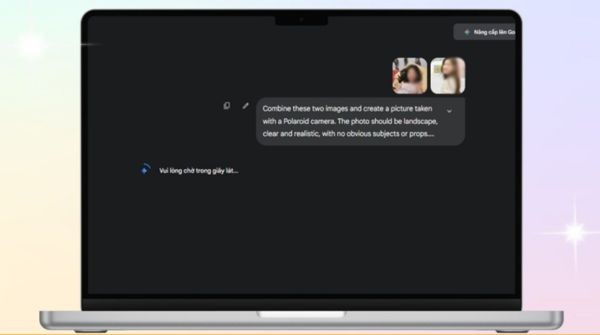
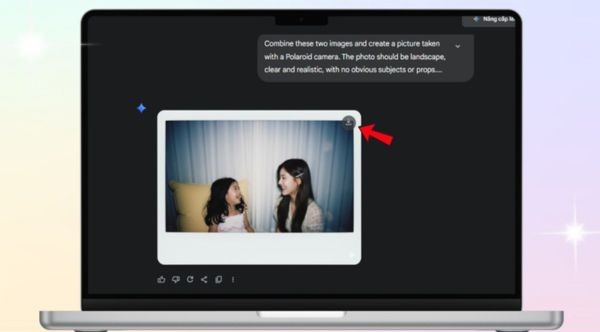
Step 4: Select results
After entering the command, you just need to press the create button and wait for AI to process it. If the results are not satisfactory, don’t hesitate to try again with another more detailed command. Once you have a photo you like, save it to your device.
Step 5: Complete and share
To make the photo more nostalgic, you can use applications like Lightroom for gentle color correction. Finally, post on social networks with a meaningful song to spread your emotions.
Make the variation more vivid with video on CapCut
If you want your encounter with yourself to be more vivid, CapCut is the perfect choice for creating short videos.
Step 1: Please open the CapCut application and type the keyword “photo of myself as a child” into the sample search bar. CapCut will suggest a series of trending sample videos.
Step 2: After browsing and choosing a video model you like, click “Use templates“. The interface will ask you to upload two photos: a childhood photo and a current photo.
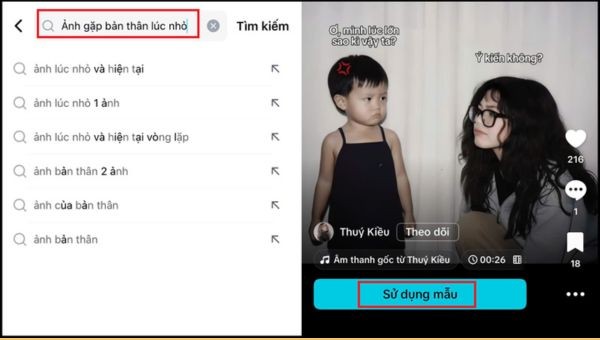
Step 3: CapCut will automatically stitch your photos into the template, add transitions and music. You can preview the results and if satisfied, just press “Export” to save the video to your device and be ready to share.
Tips to help your photos be authentic and emotional
- You should prioritize photos that are high quality, bright enough, and unsharp so the AI can recognize and process details better.
- The more detailed the commands you give the AI, the more accurate the results will be, so be clear about the style, lighting, and emotion you want to convey.
- Try choosing photos with similar angles between the two versions to create a natural connection, avoiding facial distortion.
- To add more depth to your work, you can ask AI to put photos in a familiar context such as an old home yard or a corner of a commemorative room.
- After getting results from AI, don’t hesitate to use photo editing applications like VSCO nice Lightroom to fine-tune colors, making the photo more harmonious and professional.
Conclusion
With the above instructions, work Create a photo of yourself as a child is no longer complicated. This is not only an entertainment trend but also an opportunity for you to look back on your past journey and connect with childhood memories. Try today to create your own unique work and share this meaningful moment with everyone!