New way to activate Siri will help you unlock the full potential of Apple Intelligence on iOS 27 operating system. The combination with the Gemini model has turned this tool into a true chatbot, far beyond what we have ever known. To avoid being “obsessed” with these great features, you need to know how to install them correctly. Let’s go together AnonyViet Start doing it now!
📢 Join the channel Telegram belong to AnonyViet
Update new articles, cool tools and IT tips fastest
The spectacular transformation of Siri on iOS 27
At this year’s WWDC event, Apple made the entire technology world admire when it officially introduced a completely new version of Siri. No longer a mechanical Q&A tool, Siri is now powered by Google’s Gemini platform model, turning it into a true artificial intelligence.
The most popular point of this version is the on-screen awareness ability. Whether you are surfing the web, viewing photos or reading messages, you just need to call Siri and ask about what is being displayed, the system will understand and process immediately. In addition, Apple also launched an independent Siri application, which works similarly to today’s popular chatbots such as ChatGPT or Grok, helps you solve complex multilayer tasks smoothly.
Comparison table between the old version and the current AI assistant
To clearly see the difference before starting installation, let’s take a look at the quick comparison table below:
| Evaluation criteria | Old version of Siri (iOS 26 and earlier) | New Siri AI (iOS 27, iPadOS 27, macOS 27) |
| Core foundation | Basic voice recognition algorithm | Google’s Gemini large language model |
| Screen awareness | Not supported | Yes, clearly understand what is being displayed on the screen |
| Task processing | Can only do simple, single-class commands | Smoothly handle complex, multi-layer command sequences |
| Application interface | Just a small icon that appears when calling | There is a standalone chatbot app on the home screen |
| Display effect | Bright ball on the bottom edge of the screen | The lighting effect surrounds the entire screen border |
Instructions on how to activate the new Siri on Apple devices
To experience the above great features before the official release in the fall (around September 2026), you need to participate in the developer testing program. Below is the most accurate way to activate the new Siri that you can do yourself at home.
Step 1: Check device compatibility
The Apple Intelligence system requires extremely powerful neural processing power (NPU), so not all devices are supported. You need to make sure your device is in the following list:
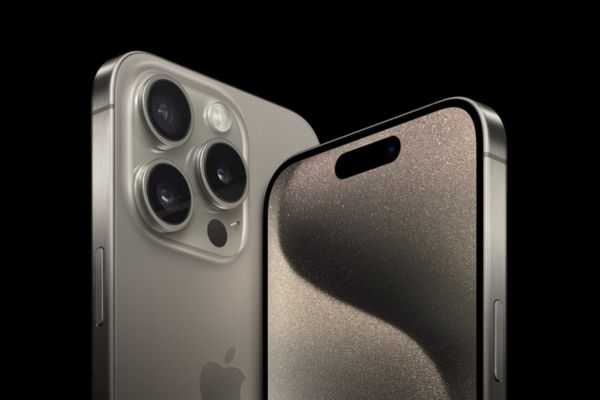
- For iPhone: Required from iPhone 15 Pro series or later.
- For iPad: iPad lines running Apple Silicon chip (M-series) or iPad mini equipped with A17 Pro chip.
- For Mac: All Mac computer lines use Apple Silicon chips (from M1, M2, M3, M4 to the latest generation M5).
Step 2: Reset language and country region
Currently, Apple’s AI is only optimized for English. Therefore, for the new way to activate Siri to go smoothly and without errors, you need to change the language settings.
- Visit Setting > Apple Intelligence & Siri > Languagethen select English (English – United States preferred).
- Continue in Setting > General settings > Language & Regionswitch your Region to USA (United States).
Step 3: Upgrade to OS 27 Beta operating system
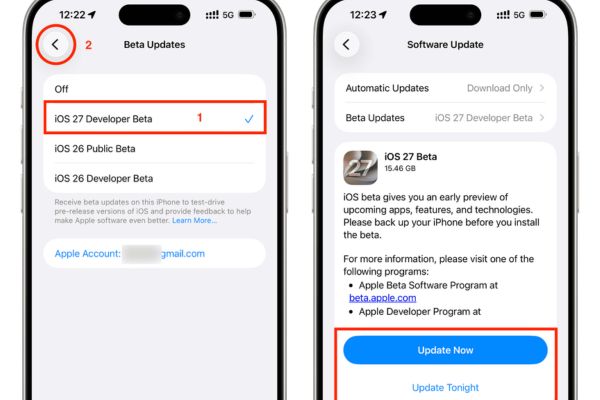
You need to update your device to iOS 27, iPadOS 27 or macOS 27 Golden Gate Developer Beta. Go to Software Updates and enable the option to receive Beta updates. Note that experimental software often comes with some lag or battery drain errors, so consider carefully.
Step 4: Register to join the waiting list
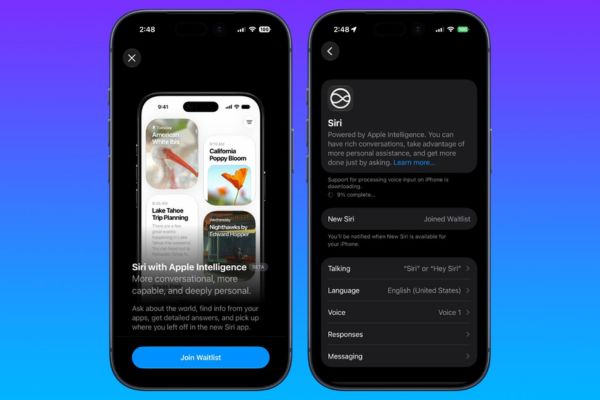
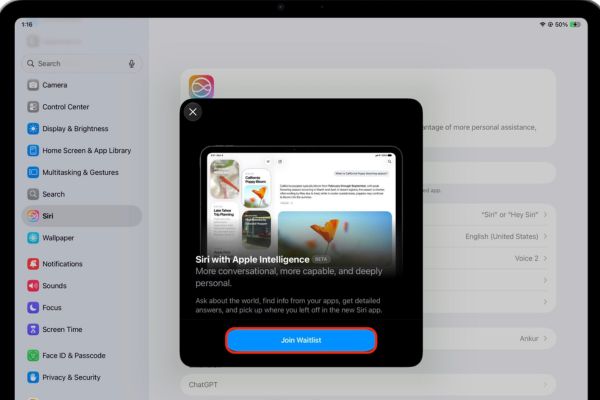
After the device has booted to OS 27, enter Setting (or System Settings on Mac) > Siri. Here, you will see the button Try New Siri. Click on it, an Apple Intelligence introduction screen will appear. You continue to choose Join Waitlist (Join the waiting list).
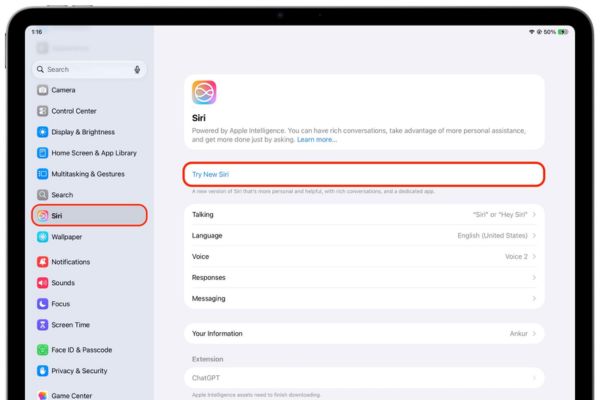
A small tip that makes activating the new Siri more leisurely is that you only need to register on one device. If you share an Apple Account, when you sign up on your iPad, your “Waitlist Joined” status will automatically sync to your iPhone and Mac. Waiting time can range from a few minutes to more than a day depending on your dignity!
Step 5: Start experiencing
When Apple approves your account, a notification will be sent to your device, or you’ll see a small banner at the top of the Settings app. If you don’t see it, periodically go back to Siri, when you press the button Try New Siri lights up, click on it.
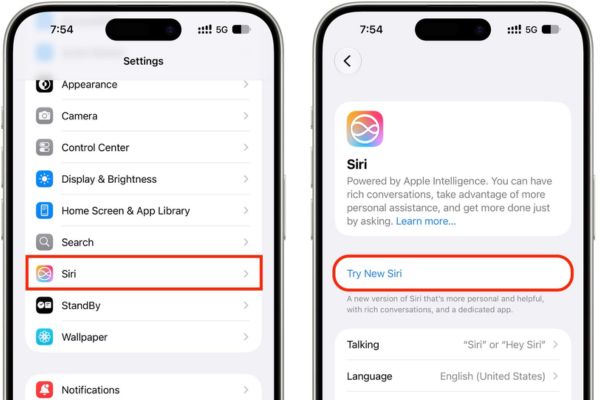
At this point, you just need to click Continue through introductory screens.
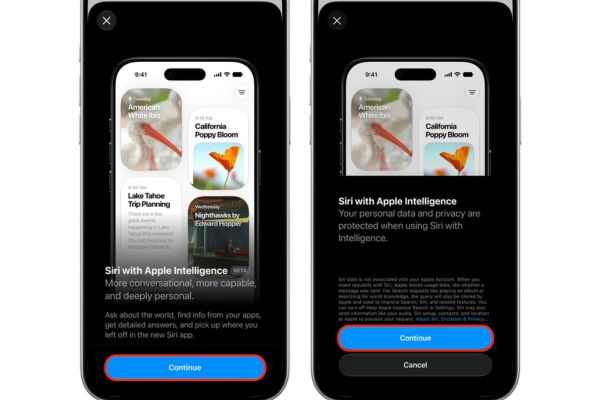
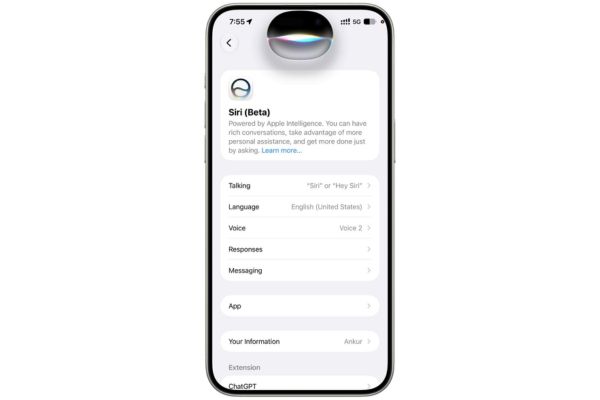
When the words “Siri (Beta). Powered by Apple Intelligence…” appears, congratulations, you have succeeded!
Some important notes when using the Beta version
Since this is a test version, encountering errors is inevitable. Many users, after applying the new method of activating Siri, reported that the device was unusually hot when processing complex AI commands.
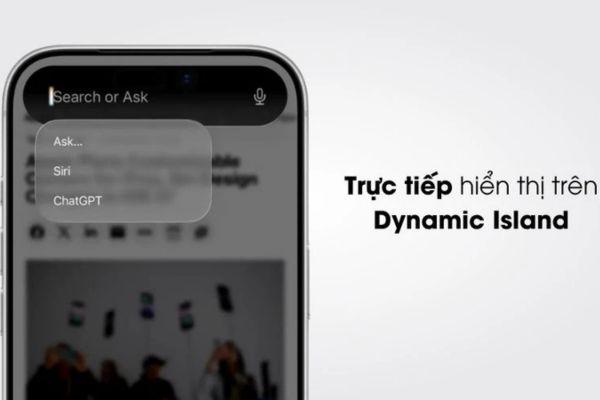
In addition, before implementing the new way to activate Siri, you absolutely must not forget to back up all important data to iCloud or your computer. This gives you a way back, easily downgrading to the old operating system (iOS 26) if you feel the Beta version is too unstable for daily use. Once set up, you can call Siri by voice, swipe down from Dynamic Island, or open the all-new Siri app on your home screen to chat with AI.
Conclusion
Knowing New way to activate Siri will give you a great advantage in optimizing daily work and entertainment. Virtual assistants now not only listen but also deeply understand what is displayed on your screen. Hurry up and sign up for the waiting list to be the first to experience it.
Frequently Asked Questions (Q&A)
1. Can I use Vietnamese for the new Siri AI?
Currently, in the Beta testing phase on OS 27, Apple Intelligence and Siri only support English (US). You will need to wait for the next official updates to be able to communicate in Vietnamese.
2. How long does it usually take to wait for Waitlist approval?
Waiting time depends entirely on Apple’s system. There are users who are approved after only 10-15 minutes, but there are also cases where they have to wait more than 24 hours. Please wait patiently for the announcement.
3. Does my iPhone 14 Pro Max support this feature?
Unfortunately no. Due to the strict hardware requirements for local AI processing, this feature is only available from the iPhone 15 Pro series and later iPhone models.