• Home
  • News
  • Software
  • Knowledge
  • MMO
  • Tips
  • Security
  • Network
  • Office
AnonyViet - English Version
  • Home
  • News
  • Software
  • Knowledge
  • MMO
  • Tips
  • Security
  • Network
  • Office
No Result
View All Result
  • Home
  • News
  • Software
  • Knowledge
  • MMO
  • Tips
  • Security
  • Network
  • Office
No Result
View All Result
AnonyViet - English Version
No Result
View All Result

Delete all Event Logs on Windows to remove traces of activity

AnonyViet by AnonyViet
June 15, 2026
in Tips
0

Professionals can rely on Event Logs to monitor computer activity. Especially tracing or troubleshooting problems with Windows and other applications. However, you can also Delete all Event Logs on Windows to erase traces of your activities on your computer. First, you need to learn about Event Log and Event Viewer:

📢 Join the channel Telegram belong to AnonyViet


👉 Go to Telegram AnonyViet

Update new articles, cool tools and IT tips fastest

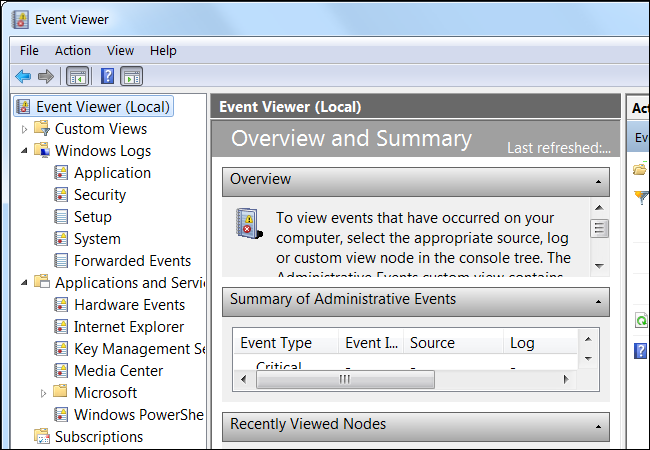
Event Viewer is a tool that displays detailed information in the form of an event log about important events on your PC.

Event logs are special files that record important events on your PC. For example, when a user logs in to a PC or when an application crashes. Whenever these types of events occur, Windows logs the event in Event logs which you can read using Event Viewer.

You can refer How to track computer turn-on and turn-off times using Event Viewer.
Delete all Event Logs on Windows to remove traces of activity

Delete all Event Logs on Windows

  • You must log in with Administrator rights to delete everything Event logs.
  • This will not delete Analytic or Debug. If you have them enabled, the wevutl command will return an error, but all other logs will be cleared.
  • Delete all Event Viewer will also delete it Reliability.

Delete Event Viewer Logs using .bat file

1. Download the file below to your computer

Clear_Event_Viewer_Logs.bat

2. Unzip the file and you will have the file Clear_Event_Viewer_Logs.bat

3. Right-click on the .bat file and select it Run as Administrator

4. A command prompt will open to clear event logs. The window will automatically close when finished.

Delete all Event Logs with 1 CMD command

Open CMD with Adminstrator rights. Copy the command line below and press Enter:

for /F "tokens=*" %1 in ('wevtutil.exe el') DO wevtutil.exe cl "%1"

Delete all Event Logs on Windows using cmd

The process of automatically deleting the Event Log will take place, wait about 1 minute to complete.

Delete Event Viewer Logs using PowerShell

PowerShell can delete all logs in the Event Log very quickly. Open PowerShell and enter the command below:

Get-WinEvent -ListLog * | where {$_.RecordCount} | ForEach-Object -Process { [System.Diagnostics.Eventing.Reader.EventLogSession]::GlobalSession.ClearLog($_.LogName) }

OR

Get-EventLog -LogName * | ForEach { Clear-EventLog $_.Log }

OR

wevtutil el | Foreach-Object {wevtutil cl "$_"}

Event Log will be deleted. You can close PowerShell when finished.

Delete all Event Viewer Logs using PowerShell

Delete each Event Viewer Logs in Event Viewer

1. Press the Win + R keys to open the Run dialog box, enter eventvwr.msc and click OK .

2. Select the type of log you want to delete (eg: Application). Log types will be displayed in the left panel Event Viewer.

3. Click Clear Log in the right panel.

Or

3. Right click Click on the log (e.g. Application) you want to delete in the left pane of Even Viewer. Select Clear Log…

Frequently asked questions

Do I need administrator rights to delete Event Logs?

Yes, you need to be logged in as an administrator to delete Event Logs.

Does deleting Event Logs delete everything?

No, deleting Event Logs will not delete Analytic or Debug logs if they are enabled. Some other logs may still be retained depending on the system configuration.

Is there a way to delete Event Logs one by one?

Yes, you can open Event Viewer (eventvwr.msc), select the log you want to clear and select “Clear Log” or right-click on the log and select “Clear Log…”.


Previous Post

Instructions on how to get the latest 200GB MultCloud for free in 2026

AnonyViet

AnonyViet

Related Posts

Instructions for creating Minecraft-style food photos
Tips

Instructions for creating Minecraft-style food photos

June 9, 2026
Get free Cambridge courses to prepare for IELTS, Starters, Movers
Tips

Get free Cambridge courses to prepare for IELTS, Starters, Movers

June 4, 2026
How to record reaction videos with Android phones, no app needed
Tips

How to record reaction videos with Android phones, no app needed

June 1, 2026
Instructions on how to get Google AI Pro 1 year for free for new accounts
Tips

Instructions on how to get Google AI Pro 1 year for free for new accounts

June 1, 2026
Top free AI tools to help write, test and optimize content
Tips

Top free AI tools to help write, test and optimize content

June 1, 2026
Instructions for receiving Lovable Pro 12 months for free
Tips

Instructions for receiving Lovable Pro 12 months for free

May 29, 2026
0 0 votes
Article Rating
Subscribe
Login
Notify of
guest

guest

0 Comments
Oldest
Newest Most Voted
Inline Feedbacks
View all comments

Recent News

Delete all Event Logs on Windows to remove traces of activity

Delete all Event Logs on Windows to remove traces of activity

June 15, 2026
Instructions on how to get the latest 200GB MultCloud for free in 2026

Instructions on how to get the latest 200GB MultCloud for free in 2026

June 14, 2026
Cách làm mờ khuôn mặt trên iPhone, không cần tải app

Cách làm mờ khuôn mặt trên iPhone, không cần tải app

June 11, 2026
Website to check the World Cup 2026 match schedule intuitively, with automatic calendar synchronization

Website to check the World Cup 2026 match schedule intuitively, with automatic calendar synchronization

June 11, 2026
Delete all Event Logs on Windows to remove traces of activity

Delete all Event Logs on Windows to remove traces of activity

June 15, 2026
Instructions on how to get the latest 200GB MultCloud for free in 2026

Instructions on how to get the latest 200GB MultCloud for free in 2026

June 14, 2026
Cách làm mờ khuôn mặt trên iPhone, không cần tải app

Cách làm mờ khuôn mặt trên iPhone, không cần tải app

June 11, 2026
AnonyViet - English Version

AnonyViet

AnonyViet is a website share knowledge that you have never learned in school!

We are ready to welcome your comments, as well as your articles sent to AnonyViet.

Follow Us

Contact:

Email: anonyviet.com[@]gmail.com

Main Website: https://anonyviet.com

Recent News

Delete all Event Logs on Windows to remove traces of activity

Delete all Event Logs on Windows to remove traces of activity

June 15, 2026
Instructions on how to get the latest 200GB MultCloud for free in 2026

Instructions on how to get the latest 200GB MultCloud for free in 2026

June 14, 2026
  • Home
  • Home 2
  • Home 3
  • Home 4
  • Home 5
  • Home 6
  • Next Dest Page
  • Sample Page

6789 kv999

No Result
View All Result
  • Home
  • News
  • Software
  • Knowledge
  • MMO
  • Tips
  • Security
  • Network
  • Office

6789 kv999

wpDiscuz
0
0
Would love your thoughts, please comment.x
()
x
| Reply