
• Home
  • News
  • Software
  • Knowledge
  • MMO
  • Tips
  • Security
  • Network
  • Office
AnonyViet - English Version
  • Home
  • News
  • Software
  • Knowledge
  • MMO
  • Tips
  • Security
  • Network
  • Office
No Result
View All Result
  • Home
  • News
  • Software
  • Knowledge
  • MMO
  • Tips
  • Security
  • Network
  • Office
No Result
View All Result
AnonyViet - English Version
No Result
View All Result

Instructions for turning off Meta AI on Facebook and Instagram

AnonyViet by AnonyViet
January 12, 2025
in Software
0

In an increasingly connected digital world, the appearance of AI virtual assistants has become familiar. However, sometimes the excessive “friendliness” of these assistants accidentally becomes a nuisance. Are you tired of unwanted suggestions or the constant presence of Meta AI on Facebook and Instagram? Don't worry, work Turn off Meta AI It's not as difficult as you think.

Join the channel Telegram belong to AnonyViet 👉 Link 👈

Before going into the detailed steps, let's take a look at a few common reasons why users want to “say goodbye” to Meta AI:

Continuous notifications

Meta AI can send notifications about new features, suggestions or simply greetings, sometimes making you feel interrupted, especially when you are focused on work or another conversation.

Inappropriate suggestion

Although designed to be intelligent, sometimes the suggestions or responses from Meta AI are not relevant or helpful to your current situation.

Distraction

The appearance of the Meta AI icon in chats or other areas of the application may unnecessarily attract your attention.

Concerns about privacy

Some users may be concerned about Meta AI's collection and use of their personal data, although Meta has affirmed its commitment to protecting privacy.

It's simply not necessary

For some users, the features that Meta AI brings are not really necessary or they feel more familiar and comfortable with the traditional way of using applications.

See more: How to use Facebook's Meta AI to draw photos free of charge

Instructions for turning off notifications from Meta AI

Step 1: In Messenger's main interface, tap Meta AI icon at the bottom of the screen.

Step 2: Once in the messaging interface with Meta AI, find and click on the “i” (usually located in the upper right corner of the screen). This icon will take you to the chat details.
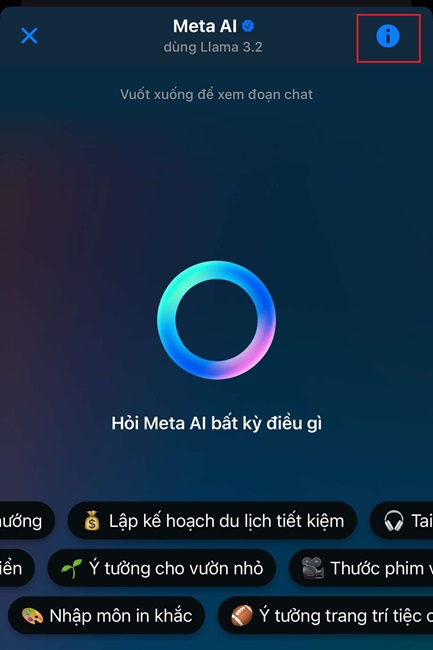
Click on the text icon "i"
Click on the “i” icon

Step 3: In the details section, you'll see options Turn off notifications. Click this option.
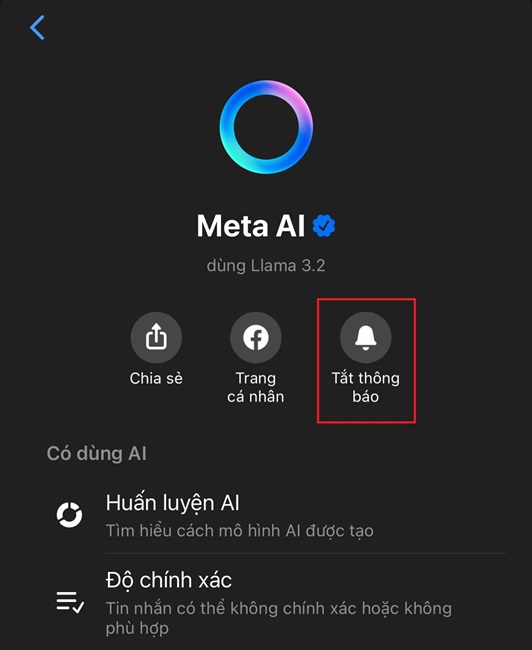
Click Turn off notifications

Step 4: A pop-up window will appear, allowing you to choose when to turn off notifications. To turn off notifications completely until you turn them back on yourself, select Until I change.
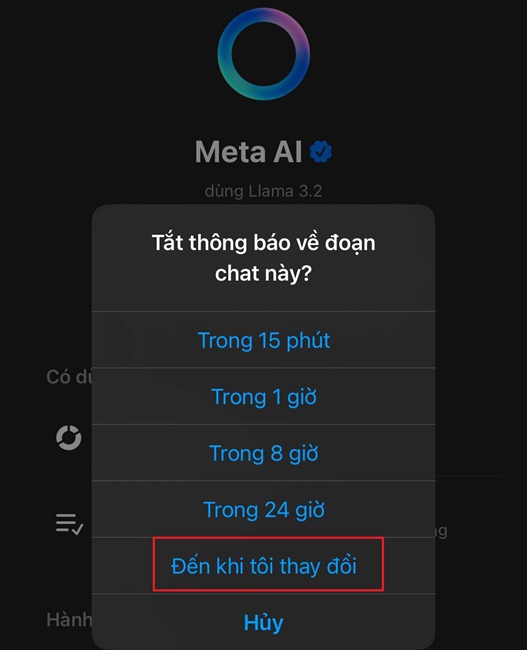
Select Until I change.

How to disable comment summary using Meta AI

Another feature of Meta AI on Facebook is the ability to summarize comments within a post. If you don't want this feature to work, you can turn it off by following these steps:

Step 1: Open the Facebook app (not Messenger) > Tap The menu has an avatar image > Tap the icon gears in the upper right corner of the screen.

Step 2: Select Article.
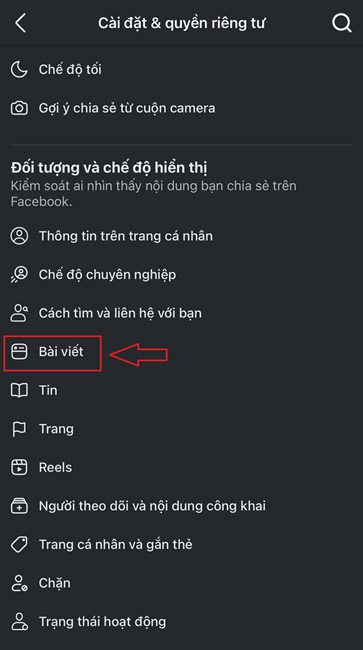
Select Posts
Select Posts

Step 3: Turn off option “Allows displaying a summary of comments on your posts“.
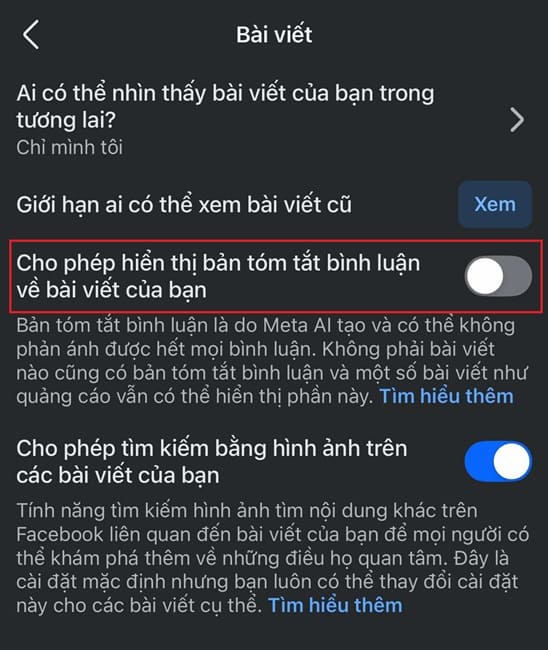
Turn off option "Allows displaying a summary of comments on your posts"
Turn off the option “Allow to show a summary of comments on your posts”

Similar to Facebook Messenger, Instagram also does not have the option to completely turn off Meta AI. However, you can take measures to limit its occurrence.

Step 1: In Instagram's Direct message interface, find and click the Meta AI icon.

Step 2: Tap the “i” icon in the upper right corner of the screen during a conversation with Meta AI.
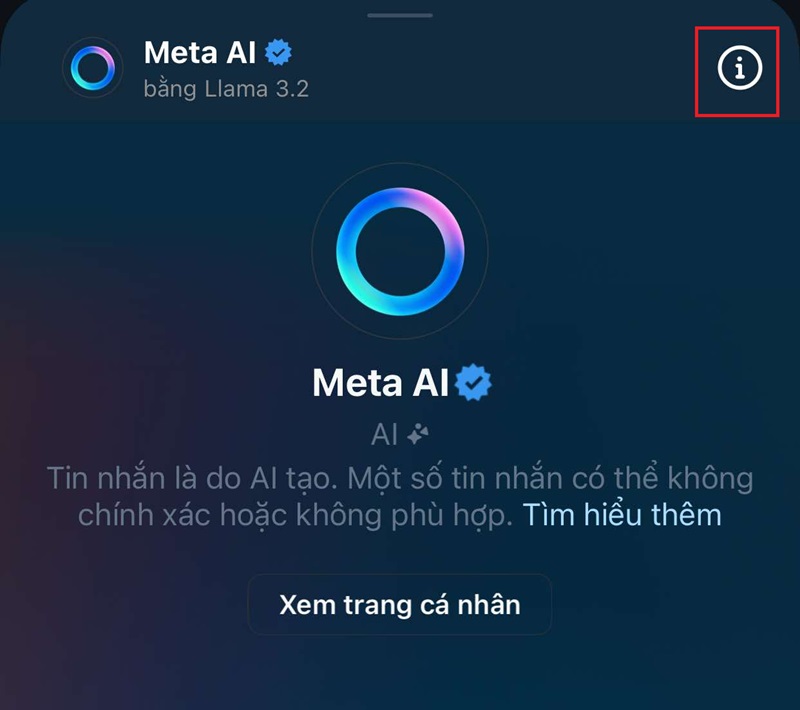
Click on the text icon "i"
Click on the “i” icon

Step 3: Click on options Turn off notifications.
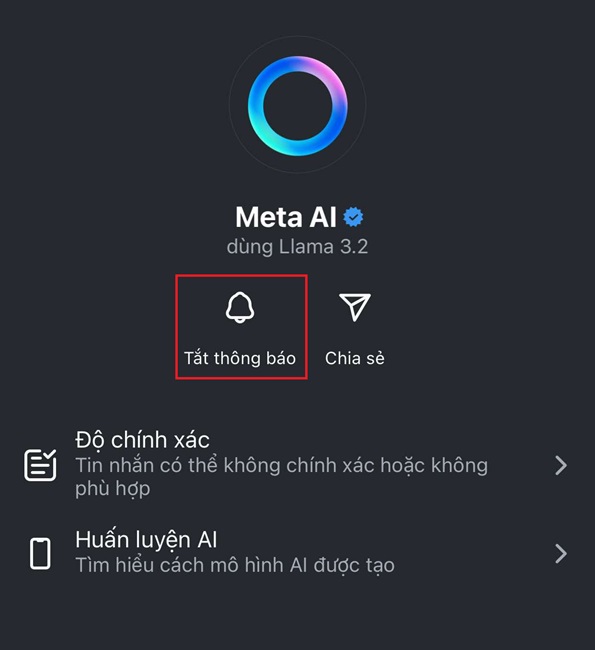
Tap the Turn off notifications option

Step 4: Select Turn off message notifications > Select Until I change to turn off notifications permanently until you turn them back on yourself.
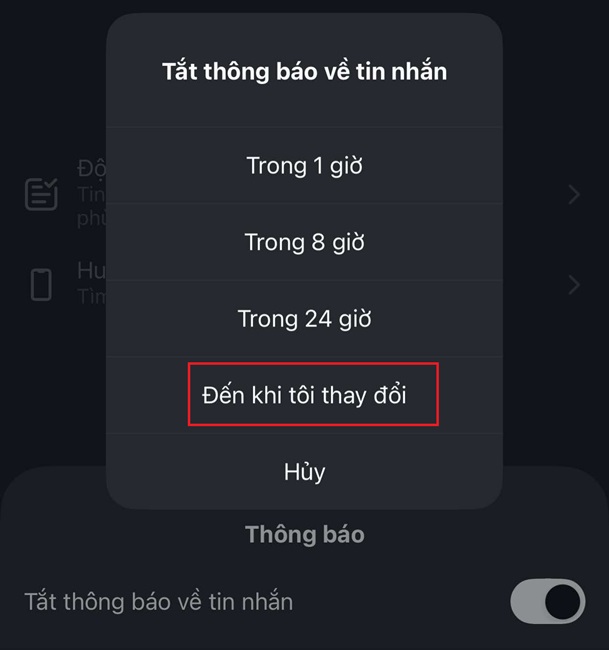
Select Until I change

Step 5: To minimize distractions, you can hide message previews from Meta AI by activating the item Hide message previews.
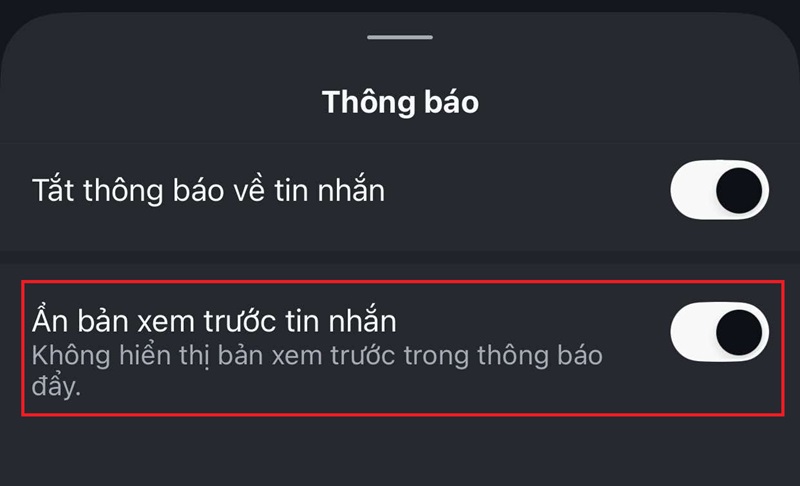
Turn on Hide message previews

See more: Meta AI: Super simple access and usage instructions

Conclusion

In short, although Meta AI is designed to enhance user experience, it is possible Turn off Meta AI or limit its appearance is extremely important. By following the detailed instructions in this article, you'll equip yourself with the knowledge to better control your interactions on Facebook and Instagram.


Tags: FacebookInstagramInstructionsMetaturning
Previous Post

[Lập Trình Game] Instructions for using AutoTile when designing games with Godot

Next Post

How to connect AirPods to Windows computers and Macbooks

AnonyViet

AnonyViet

Related Posts

Instructions on how to get 1 year of VIP Hidely VPN for free
Software

Instructions on how to get 1 year of VIP Hidely VPN for free

July 25, 2026
Instructions on how to block strange devices from accessing your home Wifi
Software

Instructions on how to block strange devices from accessing your home Wifi

July 25, 2026
Instructions on how to get Norton 360 Deluxe for 1 year for free
Software

Instructions on how to get Norton 360 Deluxe for 1 year for free

July 19, 2026
Is Xiaomi Redmi A7 a valuable choice in the popular smartphone segment?
Software

Is Xiaomi Redmi A7 a valuable choice in the popular smartphone segment?

July 14, 2026
Compact design, durable battery, excellent camera: Review of OPPO Reno 16 Pro 5G
Software

Compact design, durable battery, excellent camera: Review of OPPO Reno 16 Pro 5G

July 12, 2026
Download the free 3D Pinball Space Cadet game on the App Store now
Software

Download the free 3D Pinball Space Cadet game on the App Store now

July 12, 2026
Next Post
How to connect AirPods to Windows computers and Macbooks

How to connect AirPods to Windows computers and Macbooks

0 0 votes
Article Rating
Subscribe
Login
Notify of
guest

guest

0 Comments
Oldest
Newest Most Voted

Recent News

Don’t install leaked Windows 11

Don’t install leaked Windows 11

July 25, 2026
Instructions on how to get 1 year of VIP Hidely VPN for free

Instructions on how to get 1 year of VIP Hidely VPN for free

July 25, 2026
Instructions on how to block strange devices from accessing your home Wifi

Instructions on how to block strange devices from accessing your home Wifi

July 25, 2026
Microsoft announced the end of support date for Windows 10

Microsoft announced the end of support date for Windows 10

July 24, 2026
Don’t install leaked Windows 11

Don’t install leaked Windows 11

July 25, 2026
Instructions on how to get 1 year of VIP Hidely VPN for free

Instructions on how to get 1 year of VIP Hidely VPN for free

July 25, 2026
Instructions on how to block strange devices from accessing your home Wifi

Instructions on how to block strange devices from accessing your home Wifi

July 25, 2026
AnonyViet - English Version

AnonyViet

AnonyViet is a website share knowledge that you have never learned in school!

We are ready to welcome your comments, as well as your articles sent to AnonyViet.

Follow Us

Contact:

Email: anonyviet.com[@]gmail.com

Main Website: https://anonyviet.com

Recent News

Don’t install leaked Windows 11

Don’t install leaked Windows 11

July 25, 2026
Instructions on how to get 1 year of VIP Hidely VPN for free

Instructions on how to get 1 year of VIP Hidely VPN for free

July 25, 2026
  • Home
  • Home 2
  • Home 3
  • Home 4
  • Home 5
  • Home 6
  • Next Dest Page
  • Sample Page

say88 tỷ lệ kèo nhà cái kèo nhà cái 5 febet

No Result
View All Result
  • Home
  • News
  • Software
  • Knowledge
  • MMO
  • Tips
  • Security
  • Network
  • Office

say88 tỷ lệ kèo nhà cái kèo nhà cái 5 febet

wpDiscuz
0
0
Would love your thoughts, please comment.x
()
x
| Reply






