Job create GIFs with the Gboard keyboard is currently a favorite trick for many iPhone users to turn dry text messages into more lively ones. Instead of just typing regular text, sending funny animations will help make the conversation more interesting and emotional. Let’s explore the simple process below to upgrade your messaging experience.
| Join the channel Telegram belong to AnonyViet 👉 Link 👈 |
How to set up and grant app permissions
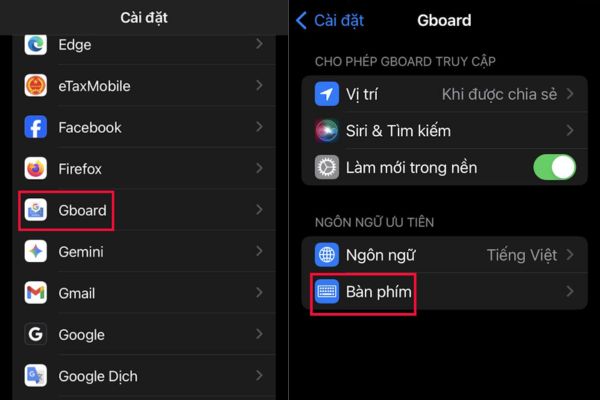
The first step to be able to use the rich animation store is to download the Gboard application from the App Store to your device. Once the download is complete, the user needs to access the section Setting (Settings) on iPhone, navigate to section Gboard and select continue to section Keyboard.
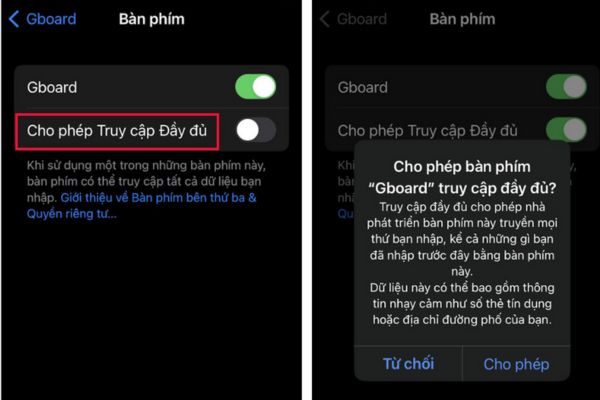
An important note in this step is that you need to flip the switch to turn on the mode Allow Full Access (Allow Full Access). This operation is a mandatory condition for the keyboard to connect to the network, thereby downloading animation data and helping users search for content in the smoothest way.
Detailed process of creating GIF using Gboard keyboard
After completing the basic installation steps in the system, users can start experiencing interesting features through the specific steps below:
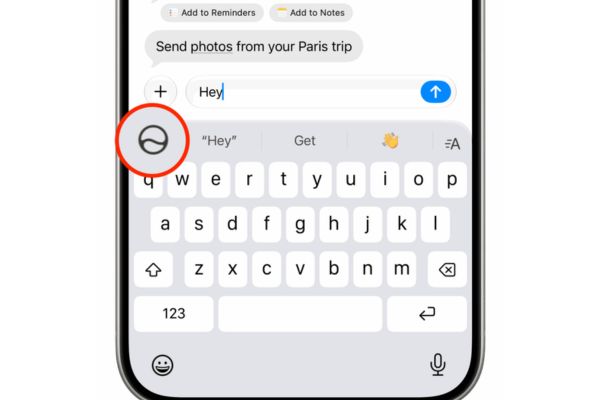
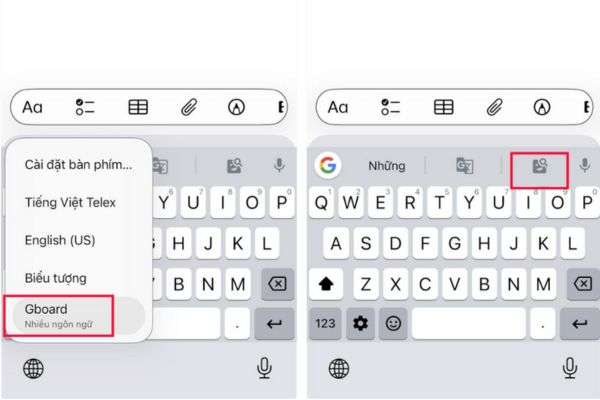
- Once the settings are complete, users should open any messaging application such as Messages, Zalo or Messenger. In the text editing area, press and hold the icon globe shape (or smiley face) located in the bottom left corner of the keyboard, then select Gboard in the list that appears.
- As soon as the keyboard’s interface appears Google appears, users will easily see the icon GIFs located on the toolbar. This is the door to a huge treasure trove of animations, where you can start looking for the images that best suit the story you’re talking about.
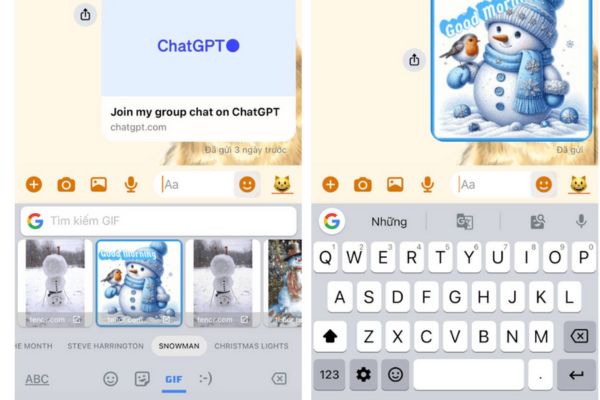
At the GIF warehouse interface, users just need to enter keywords describing the emotions or topics they want to search for. Once you’ve chosen a photo you like, the system on the iPhone works a little differently Android to ensure confidentiality.
Specifically, when touching a GIF image, Gboard will automatically copy that image to the phone’s clipboard. All that’s left is to click on the message input box and select Paste (Paste) to insert the image. Thus, the animation is ready to send, making the message content much more impressive and fun.
Conclusion
Mastering the way create GIFs with the Gboard keyboard will bring a new breeze to daily conversations, helping emotions to be conveyed more fully. Hopefully with the detailed instructions above, anyone can do it successfully right on their iPhone. Try applying it now to see the difference and fun in every message you send!