How to blur messages on Zalo web will help you solve the worry of having your colleagues “look” at your screen. Instead of having to quickly close the tab, the chat content will now hide itself and only appear when you want it. This is a small trick but brings great comfort that everyone should know.
| Join the channel Telegram belong to AnonyViet 👉 Link 👈 |
Instructions on how to blur messages on Zalo web
The mechanism of this script is very simple but extremely effective. The entire text content will be blurred, making it impossible for outsiders to read. However, you can still view the content easily by hovering over the message, and when you take the mouse out, it will fade back immediately. In particular, this tool does not blur the Avatar, helping you quickly identify the sender without unnecessary operations.
To apply this trick, users need to perform simple setup steps on the browser as follows:
Step 1: Install the Tampermonkey utility
The browser needs an environment to run scripts. Tampermonkey is the most popular and safe utility for this. Please visit the Web Store of the browser you are using (Chrome, Edge, or Firefox). Search keyword “Tampermonkey” and press the install button to add the extension to the browser.

Step 2: Activate the blur script
Once you have the management platform in place, the next step is to load the code that handles interface dimming Zalo.
- Direct access to the path containing the script HERE.

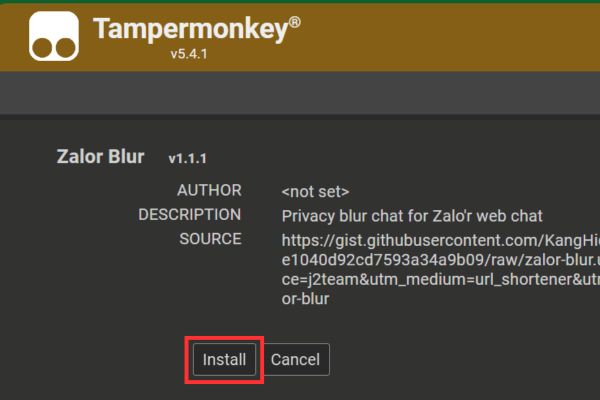
- A new tab appears, click the button Install to install scripts.
Step 3: Instructions for use and status recognition
Please reload the page chat.zalo.me and observe your display name in the top left corner. The color of the name will indicate the current state:
- Black: The script is not working or has been disabled.
- Green: Script is running but dimming is OFF.
- Red: Script is running and blur mode is ON (Messages will be masked).

Step 4: Set up automatic dimming time
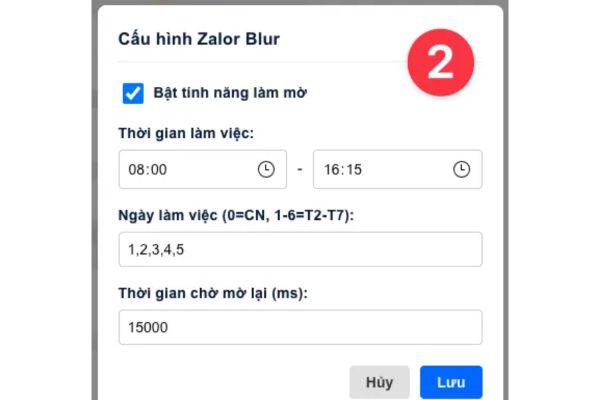
To access the settings menu, click on Avatar, then select your Zalo Name. The settings panel will appear with the following options:
- Enable/Disable dimming: Feature quick activation switch.
- Time setting: You can set Zalo to only dim during office hours (for example, 8:00 – 17:00) from Monday to Friday. Outside of these hours, messages display normally.
- Waiting time (Delay): Adjust the delay so that messages fade back after you’re no longer hovering over them.
For those who like to use bars Sidebar With the convenience of Edge, installing extensions will often be difficult because the Sidebar is not supported, but there is still a solution through ad blocking software. Please use AdGuard software installed on your computer (Windows/Mac) to “inject” scripts into the web.
Step 1: Open the application AdGuard On your computer, go to Settings > Extensions.
Step 2: Press the plus sign (+), select Install from file or URL.
Step 3: Paste the script link (https://j2c.cc/zalor-blur) to install. At this point, AdGuard will act like Tampermonkey.

Conclusion
Hope with How to blur messages on Zalo web just shared, you will have a more comfortable working space. Privacy is essential to stay focused and avoid unnecessary misunderstandings. Try applying it today.