• Home
  • News
  • Software
  • Knowledge
  • MMO
  • Tips
  • Security
  • Network
  • Office
AnonyViet - English Version
  • Home
  • News
  • Software
  • Knowledge
  • MMO
  • Tips
  • Security
  • Network
  • Office
No Result
View All Result
  • Home
  • News
  • Software
  • Knowledge
  • MMO
  • Tips
  • Security
  • Network
  • Office
No Result
View All Result
AnonyViet - English Version
No Result
View All Result

Instructions for changing the default Email on iPhone are easier to use

AnonyViet by AnonyViet
March 15, 2024
in Software
0

Did you know that you can Change default Email on iPhone Are not? This is a new feature introduced by Apple from iOS 14, allowing you to use third-party Email applications instead of the Mail application provided by Apple. This article will show you how to do this simply and quickly.

Join the channel Telegram belong to AnonyViet 👉 Link 👈

Benefits of changing default Email on iPhone

iPhone is one of the most popular smart devices today, with a series of convenient pre-installed applications, including Email. However, not everyone is satisfied with Apple's Mail application, because it may not meet users' needs and preferences.

For example, you may want to use the Email app from Google, Microsoft, Yahoo, or any other provider.

Changing the default Email application will bring you many benefits, such as:

  • Enhance your Email experience, with features and interfaces that suit you better.
  • Easily manage and synchronize Email across many different devices and platforms.
  • Take advantage of the relevant services and applications of the Email provider of your choice, such as Google Drive, OneDrive, Dropbox, etc.
  • Freely choose and change the Email application you like, not limited by Apple's default application.

Instructions for changing default Email on iPhone

To change the default Email application on iPhone, you need to do the following steps:

Step 1: Open the Settings app on your iPhone, and scroll down to find which Email app you want to set as your default. For example, here I choose Gmail
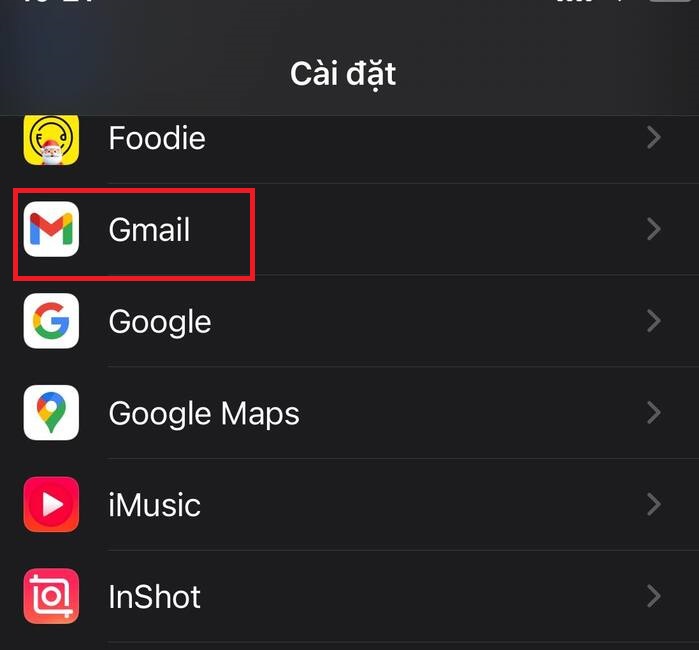
Change default Email on iPhone
Go to Settings > Select Gmail

Step 2: Tap on 'Default Mail App' (Default Mail App)
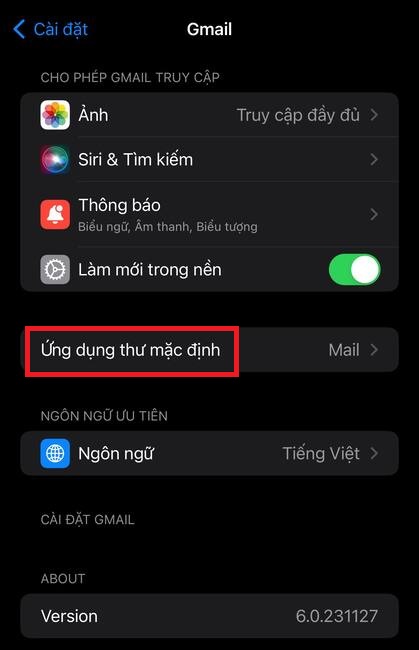
Change default Email on iPhone
Tap on 'Default mail app'

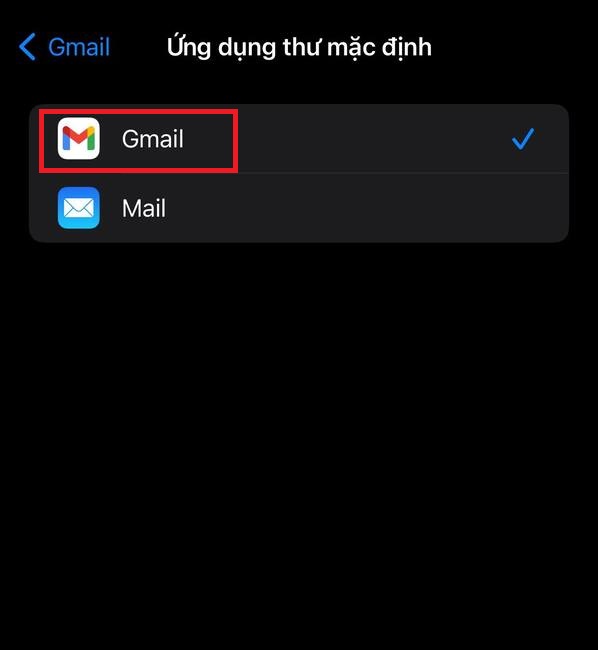
Step 3: Select Gmail

Change default Email on iPhone
Select Gmail

Step 4: Exit the Settings app, and check the results. Now, when you tap an Email address on your iPhone, or when you choose to share an Email from another app, the Gmail app you selected will open by default.

Epilogue

Job Change default Email on iPhone is a useful feature that helps you have more control over your device. Instead of being “forced” to use Apple-provided apps, you can now easily switch to your favorite third-party apps for Email. This brings more flexibility and freedom of choice to iPhone users.


The article scored: 5/5 – (100 votes)

Tags: changingdefaulteasieremailInstructionsiPhone
Previous Post

Where to Buy Reputable, Cheap Residential Proxy Right in Vietnam

Next Post

Get iTop Data Recovery license key for free

AnonyViet

AnonyViet

Related Posts

TruyenDrive: Turn Google Drive into a professional manga reader
Software

TruyenDrive: Turn Google Drive into a professional manga reader

May 31, 2026
How to extract text from photos using Zalo is super simple
Software

How to extract text from photos using Zalo is super simple

May 29, 2026
HONOR 600 in hand – High-end design, 200MP camera, not cheap price
Software

HONOR 600 in hand – High-end design, 200MP camera, not cheap price

May 28, 2026
Instructions for getting 4 months of Adobe copyright for free
Software

Instructions for getting 4 months of Adobe copyright for free

May 28, 2026
The truth about the 7,000 mAh battery on Xiaomi 17T Pro: What benefits do users get?
Software

The truth about the 7,000 mAh battery on Xiaomi 17T Pro: What benefits do users get?

May 28, 2026
Instructions on how to turn text into stickers on Gboard
Software

Instructions on how to turn text into stickers on Gboard

May 26, 2026
Next Post
Get iTop Data Recovery license key for free

Get iTop Data Recovery license key for free

0 0 votes
Article Rating
Subscribe
Login
Notify of
guest

guest

0 Comments
Oldest
Newest Most Voted
Inline Feedbacks
View all comments

Recent News

How to record reaction videos with Android phones, no app needed

How to record reaction videos with Android phones, no app needed

June 1, 2026
Instructions on how to get Google AI Pro 1 year for free for new accounts

Instructions on how to get Google AI Pro 1 year for free for new accounts

June 1, 2026
Top free AI tools to help write, test and optimize content

Top free AI tools to help write, test and optimize content

June 1, 2026
TruyenDrive: Turn Google Drive into a professional manga reader

TruyenDrive: Turn Google Drive into a professional manga reader

May 31, 2026
How to record reaction videos with Android phones, no app needed

How to record reaction videos with Android phones, no app needed

June 1, 2026
Instructions on how to get Google AI Pro 1 year for free for new accounts

Instructions on how to get Google AI Pro 1 year for free for new accounts

June 1, 2026
Top free AI tools to help write, test and optimize content

Top free AI tools to help write, test and optimize content

June 1, 2026
AnonyViet - English Version

AnonyViet

AnonyViet is a website share knowledge that you have never learned in school!

We are ready to welcome your comments, as well as your articles sent to AnonyViet.

Follow Us

Contact:

Email: anonyviet.com[@]gmail.com

Main Website: https://anonyviet.com

Recent News

How to record reaction videos with Android phones, no app needed

How to record reaction videos with Android phones, no app needed

June 1, 2026
Instructions on how to get Google AI Pro 1 year for free for new accounts

Instructions on how to get Google AI Pro 1 year for free for new accounts

June 1, 2026
No Result
View All Result
  • Home
  • News
  • Software
  • Knowledge
  • MMO
  • Tips
  • Security
  • Network
  • Office

wpDiscuz
0
0
Would love your thoughts, please comment.x
()
x
| Reply