• Home
  • News
  • Software
  • Knowledge
  • MMO
  • Tips
  • Security
  • Network
  • Office
AnonyViet - English Version
  • Home
  • News
  • Software
  • Knowledge
  • MMO
  • Tips
  • Security
  • Network
  • Office
No Result
View All Result
  • Home
  • News
  • Software
  • Knowledge
  • MMO
  • Tips
  • Security
  • Network
  • Office
No Result
View All Result
AnonyViet - English Version
No Result
View All Result

Install Windows Subsystem for Android to play Android games on Windows 11

AnonyViet by AnonyViet
January 27, 2023
in Tips
0

Windows Subsystem for Android️ allows devices Windows 11 run Android apps available in the Amazon Appstore. Now you can play games or run Android APK apps on Windows 11 easily. In this article, I will guide you to install Windows Subsystem for Android on Windows.

Join the channel Telegram of the AnonyViet 👉 Link 👈

Install Windows Subsystem for Android to play Android games on Windows 11

Install Windows Subsystem for Android

You can download the .msix package from Micorosft or directly from the Microsoft Store. Once you have the .msix package on your computer, and use PowerShell or Terminal to install Windows Subsystem for Android on your computer. You can use one of the ways below to install Windows Subsystem for Android.

Method 1: Use PowerShell and download it manually

In this way, I will use the .msix package saved on One Drive and Google Drive. You can then use PowerShell to install and use Windows Subsystem for Android on your PC.

Step 1: Download Windows Subsystem for Android Msixbundle

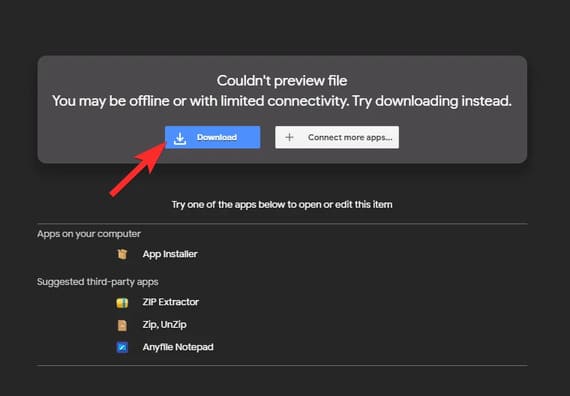
Access to Google Drive or Fshare to get the Msixbundle file for Windows Subsystem for Android. Then tap “Download”.
Install Windows Subsystem for Android to play Android games on Windows 11 27

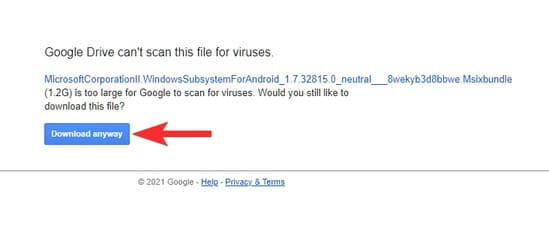
Press next “Download anyway”.

Install Windows Subsystem for Android to play Android games on Windows 11 28

Step 2: Install Windows Subsystem for Android Msixbundle

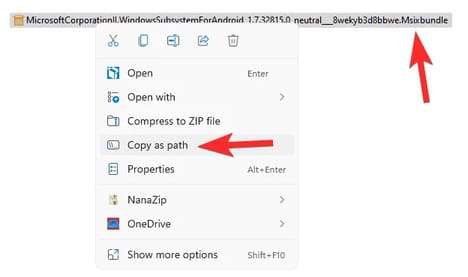
Copy the path of the Msixbundle. Open the folder where the downloaded file is saved. Right click on the file and select “Copy as path”.
Install Windows Subsystem for Android to play Android games on Windows 11 29

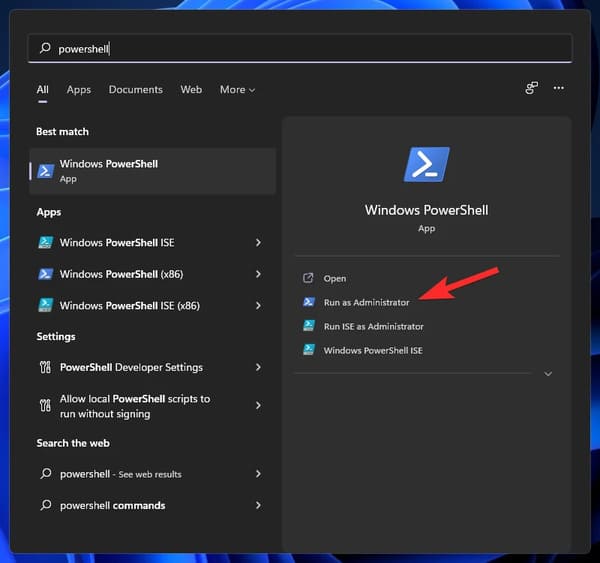
Open Powershell by pressing the Windows button and then enter Powershell and select Run as administrator.
Install Windows Subsystem for Android to play Android games on Windows 11 30

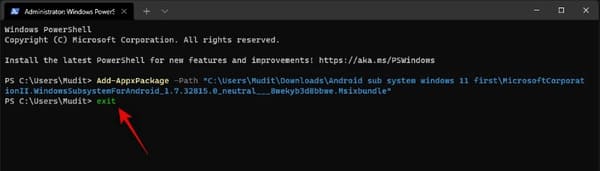
In Powershell, enter the following command:

Add-AppxPackage -path "path-of-the-file-comes-here"

Explanation of the above command:

  • You can paste the path of the copied file in place path-of-the-file-comes-here.
  • Do not remove double quotes around filenames.
  • If your file path is: C:\Users\AnonyViet\Downloads\1quick\12\MicrosoftCorporationII.WindowsSubsystemForAndroid_1.7.32815.0_neutral___8wekyb3d
  • So our command will be: Add-AppxPackage -path “C:\Users\AnonyViet\Downloads\1quick\12\MicrosoftCorporationII.WindowsSubsystemForAndroid_1.7.32815.0_neutral___8wekyb3d"
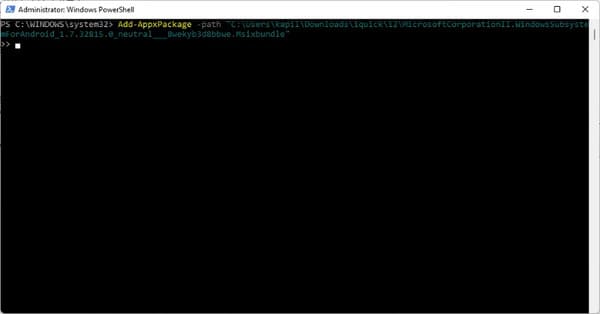
Install Windows Subsystem for Android to play Android games on Windows 11 31

Press Enter to run the command.

You will get the message “Deployment operation progress” and when done, Windows Subsystem for Android will be installed on your PC with Windows 11 Dev channel.
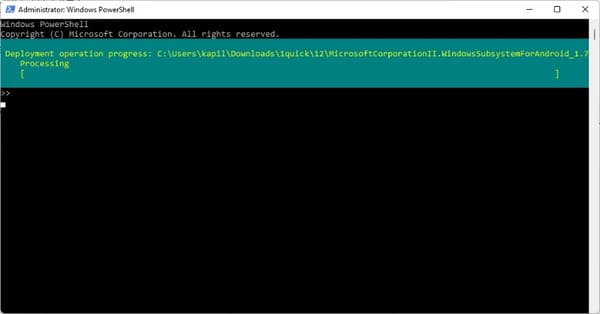
Install Windows Subsystem for Android to play Android games on Windows 11 32

When done, type Exit and then press Enter to exit Powershell.

To open Windows Subsystem for Android and run Android applications, press the . key Windows and search for Windows Subsystem for Android.
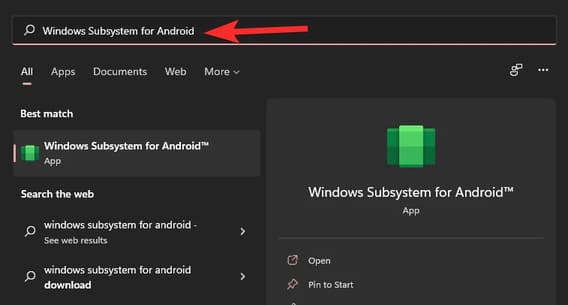
Install Windows Subsystem for Android to play Android games on Windows 11 33

Select Windows Subsystem for Android. Or press Open.
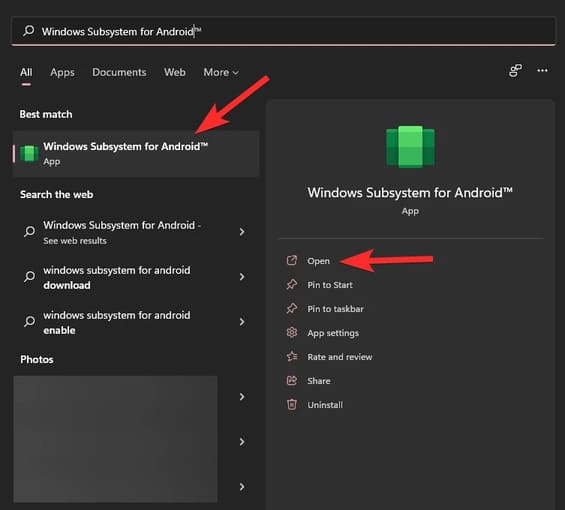
Install Windows Subsystem for Android to play Android games on Windows 11 34

You can now run Android apps on your Windows 11 Dev channel.

Method 2: Download the .msix package directly from the Microsoft Store

If you do not like the above method or for some reason you cannot download the file, you can use this method instead. Here, I will provide the .msix package for Windows Subsystem for Android directly from the Microsoft Store.

Step 1: Download Windows Subsystem for Android Msixbundle

You access the link from the Microsoft Store and then copy the link in the search box on the browser.
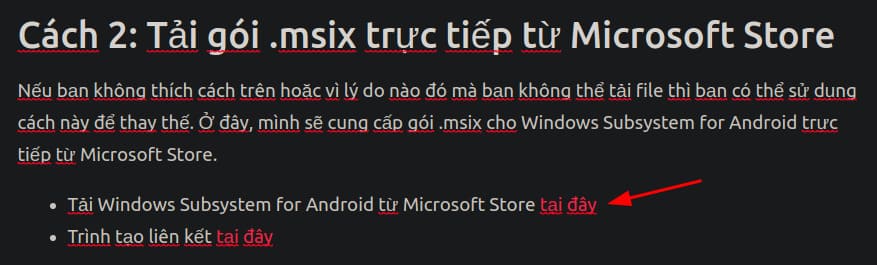
Install Windows Subsystem for Android to play Android games on Windows 11 35

Then go to the link generator and paste the copied link into the box “Sample Data”.
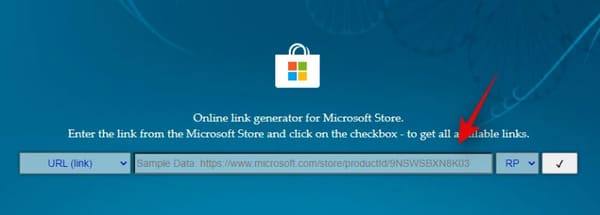
Install Windows Subsystem for Android to play Android games on Windows 11 36

Click the menu next to the box “Sample Data” and choose “Slow”.
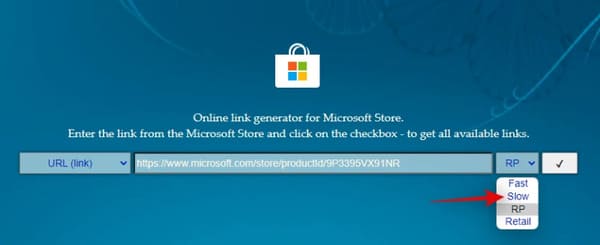
Install Windows Subsystem for Android to play Android games on Windows 11 37

Finally, click on the tick icon to the right of the item “Slow”.
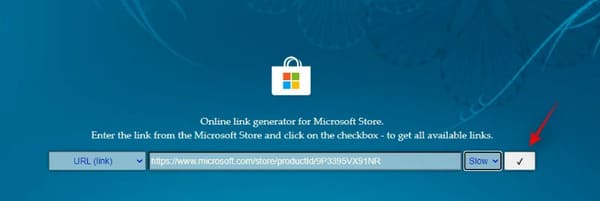
Install Windows Subsystem for Android to play Android games on Windows 11 38

You will now get download links for all files when you download Windows Subsystem for Android. Scroll to the bottom and right click on the 1.2 GB “.msix” file.

Now click “Save as” and download the file to your PC.
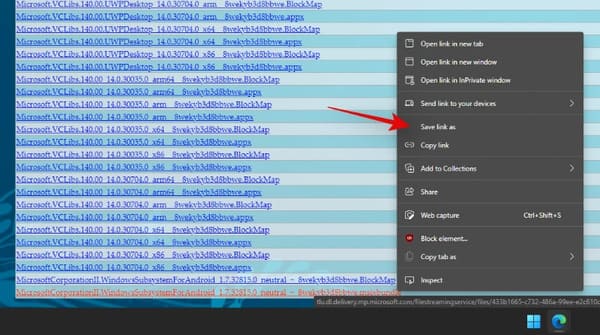
Install Windows Subsystem for Android to play Android games on Windows 11 39

Once the file is downloaded, we will move on to step 2 to install the Windows Subsystem for Android.

Step 2: Install Windows Subsystem for Android Msixbundle

Navigate to the folder where you downloaded the .msix file and right click on the .msix file and select “Copy as path”.
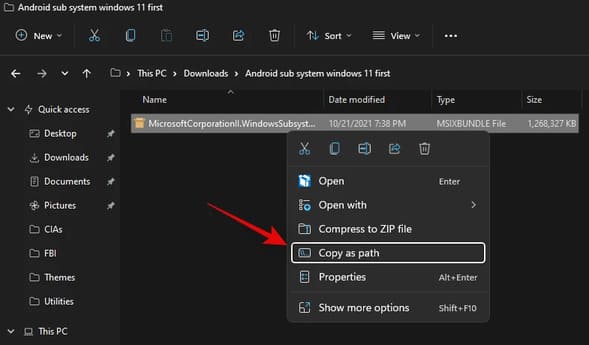
Install Windows Subsystem for Android to play Android games on Windows 11 40

Press Windows + X and choose “Windows Terminal (Admin)”.
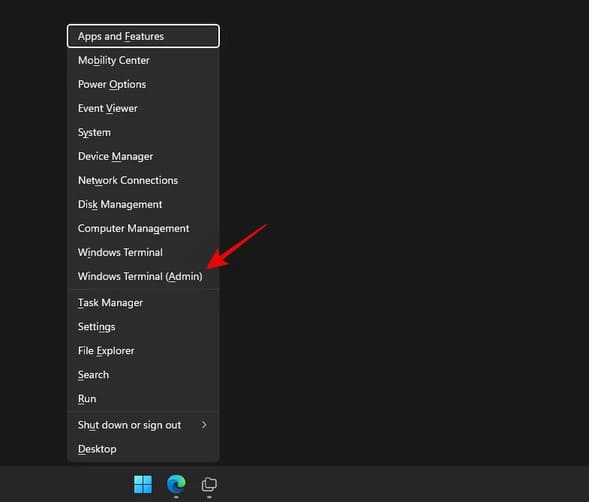
Install Windows Subsystem for Android to play Android games on Windows 11 41

Now type the following command. Replace ‘PATH’ with the path to the .msix file you just copied.

Add-AppxPackage -Path PATH
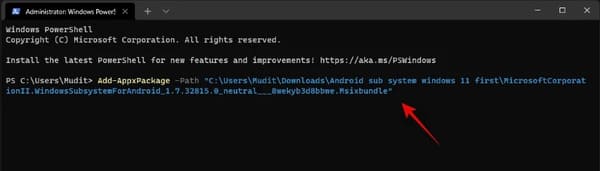
Install Windows Subsystem for Android to play Android games on Windows 11 42

Windows Subsystem for Android should now be installed on your system.
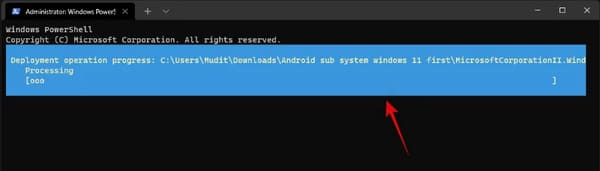
Install Windows Subsystem for Android to play Android games on Windows 11 43

Import Exit to close Terminal.

Install Windows Subsystem for Android to play Android games on Windows 11 44

You can now configure it from your Settings app, and see below for Android app installation troubleshooting tips if you’re having any issues.

How to fix the error can’t use Windows Subsystem for Android

How to install APK file on Windows using Windows Subsystem For Android

To install the APK file on Windows 11, you just follow this paragraph.

Fixes “Virtual Machine Platform can’t be found“

This is a common mistake and it is simply missing one of the Windows extras. Just follow the instructions below.

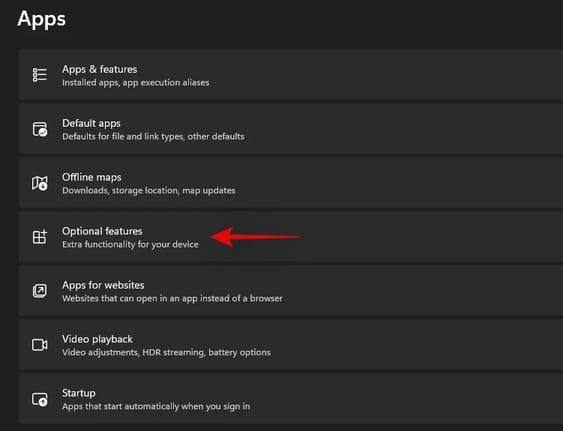
Press Windows + i to open the app Settings and select ‘Apps’ from the left menu.
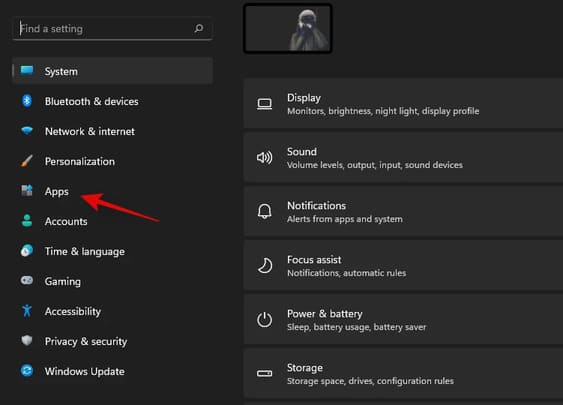
Install Windows Subsystem for Android to play Android games on Windows 11 45

Press “Optional features”.

Install Windows Subsystem for Android to play Android games on Windows 11 46

Press “More Windows features” at the bottom.
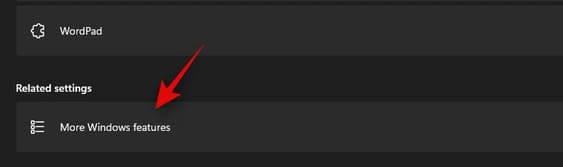
Install Windows Subsystem for Android to play Android games on Windows 11 47

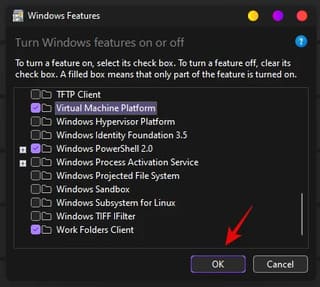
Find “Virtual Machine Platform” in this list and select the box on the left.
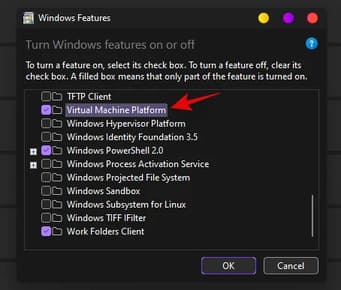
Install Windows Subsystem for Android to play Android games on Windows 11 48

Now click ‘Ok’.

Install Windows Subsystem for Android to play Android games on Windows 11 49

This feature will be installed on your PC. Once installed, you will be prompted to restart your PC. You should restart your PC at this point.
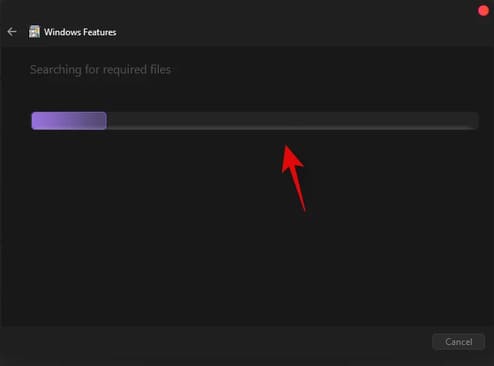
Install Windows Subsystem for Android to play Android games on Windows 11 50

Press “Restart Now” to restart the PC.
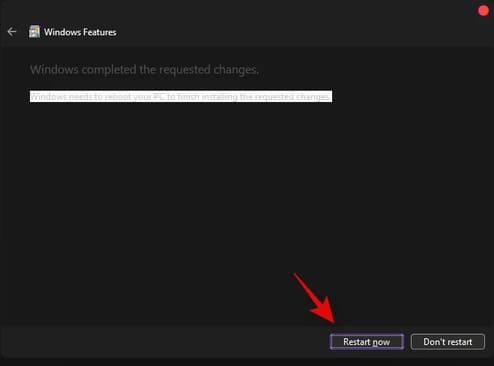
Install Windows Subsystem for Android to play Android games on Windows 11 51

After your system reboots, Windows Subsystem for Android will be up and running on your computer.

How to use Amazon App Store?

If you want to use the Amazon App Store to download Android apps, you’ll need to enable your VPN and change your region to the US. This will allow the Amazon App Store to connect to the necessary servers, then sign in to your Amazon account and download the app on your PC.

So that’s it then.

The article achieved: 5/5 – (100 votes)

Tags: AndroidgamesinstallplaySubsystemWindows
Previous Post

Những phương pháp Bảo mật giúp bạn an toàn hơn trên Internet

Next Post

Instructions to register SSL for Free Website 3 years (Hosting)

AnonyViet

AnonyViet

Related Posts

Collection of Windows 11 wallpapers for computers and phones
Tips

Collection of Windows 11 wallpapers for computers and phones

July 26, 2026
Don’t install leaked Windows 11
Tips

Don’t install leaked Windows 11

July 25, 2026
Microsoft announced the end of support date for Windows 10
Tips

Microsoft announced the end of support date for Windows 10

July 24, 2026
Microsoft confirms leaked Windows 11 is real
Tips

Microsoft confirms leaked Windows 11 is real

July 22, 2026
HeroSMS là gì? Cách thuê số điện thoại ảo nhận SMS OTP online không cần SIM
Tips

HeroSMS là gì? Cách thuê số điện thoại ảo nhận SMS OTP online không cần SIM

July 22, 2026
How to download documents on 123doc for free
Tips

How to download documents on 123doc for free

July 21, 2026
Next Post
Instructions to register SSL for Free Website 3 years (Hosting)

Instructions to register SSL for Free Website 3 years (Hosting)

0 0 votes
Article Rating
Subscribe
Login
Notify of
guest

guest

0 Comments
Oldest
Newest Most Voted

Recent News

Collection of Windows 11 wallpapers for computers and phones

Collection of Windows 11 wallpapers for computers and phones

July 26, 2026
Don’t install leaked Windows 11

Don’t install leaked Windows 11

July 25, 2026
Instructions on how to get 1 year of VIP Hidely VPN for free

Instructions on how to get 1 year of VIP Hidely VPN for free

July 25, 2026
Instructions on how to block strange devices from accessing your home Wifi

Instructions on how to block strange devices from accessing your home Wifi

July 25, 2026
Collection of Windows 11 wallpapers for computers and phones

Collection of Windows 11 wallpapers for computers and phones

July 26, 2026
Don’t install leaked Windows 11

Don’t install leaked Windows 11

July 25, 2026
Instructions on how to get 1 year of VIP Hidely VPN for free

Instructions on how to get 1 year of VIP Hidely VPN for free

July 25, 2026
AnonyViet - English Version

AnonyViet

AnonyViet is a website share knowledge that you have never learned in school!

We are ready to welcome your comments, as well as your articles sent to AnonyViet.

Follow Us

Contact:

Email: anonyviet.com[@]gmail.com

Main Website: https://anonyviet.com

Recent News

Collection of Windows 11 wallpapers for computers and phones

Collection of Windows 11 wallpapers for computers and phones

July 26, 2026
Don’t install leaked Windows 11

Don’t install leaked Windows 11

July 25, 2026
  • Home
  • Home 2
  • Home 3
  • Home 4
  • Home 5
  • Home 6
  • Next Dest Page
  • Sample Page

say88 tỷ lệ kèo nhà cái kèo nhà cái 5 febet

No Result
View All Result
  • Home
  • News
  • Software
  • Knowledge
  • MMO
  • Tips
  • Security
  • Network
  • Office

say88 tỷ lệ kèo nhà cái kèo nhà cái 5 febet

wpDiscuz
0
0
Would love your thoughts, please comment.x
()
x
| Reply