
• Home
  • News
  • Software
  • Knowledge
  • MMO
  • Tips
  • Security
  • Network
  • Office
AnonyViet - English Version
  • Home
  • News
  • Software
  • Knowledge
  • MMO
  • Tips
  • Security
  • Network
  • Office
No Result
View All Result
  • Home
  • News
  • Software
  • Knowledge
  • MMO
  • Tips
  • Security
  • Network
  • Office
No Result
View All Result
AnonyViet - English Version
No Result
View All Result

How to use the “Send to your devices” feature on Chrome

AnonyViet by AnonyViet
February 4, 2023
in Tips
0

Chrome 77 Launched with a number of new features to make the user experience better. Besides designing your own themes for Chrome, you can now send the active tab’s address to another device. This makes it easy to quickly access the tab you’re surfing on on multiple devices at the same time. This feature is called “Send to your devices” or “send to your devices” on Chrome.

Join the channel Telegram belong to AnonyViet 👉 Link 👈

How to use the “Send to your devices” feature on Chrome

Google is finally rolling out a new tool for sharing Chrome tabs between devices. Cross-device tab sharing was tested on Chrome 76, and the feature is now being tested in Chrome 77 for desktop and mobile versions. This feature helps you find the Send to your new device option when you right-click on a web page.

This feature will list all the Chrome browsers that you have signed in with your Google account on Windows, Mac, Linux, Chrome OS, Android and even iPhone and iPad. Select a device to send a Chrome tab to that device. AnonyViet will show you how to enable tab sharing and settings from desktop and mobile.

Before you start, you need Log in to download from Google on Chrome on the devices you want to share the tabs with. You should also make sure Chrome is up to date on all your devices.

Log in to download from Google

Send Tabs from PC to Phone

Method 1: Click on the address bar

  1. In the Chrome window, click in the address bar of the page you want to share. Click on the computer icon in the bar and select the device to send. Here will display a list of devices with Chrome installed that you are logged in to. Just click on the device you want to send the current Tab address. Send Tabs from PC to Phone
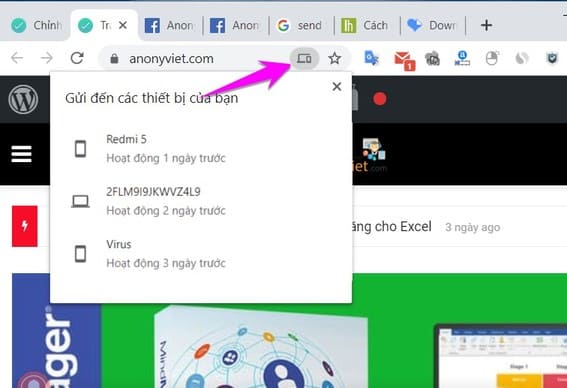
  2. A pop-up window notifying the page is being submitted. After a few moments, you’ll get a notification on your other device that you can tap/click to open the page.

Send to your devices

Method 2: Right-click on the Web page

You can also right-click on the website and select “Send link to your device” or “send to your devices”.

How to use the “Send to your devices” feature on Chrome

Send Tabs from phone to computer

Send Tabs from phone to computer send to your devices

  1. Open Chrome app on mobile phone
  2. Tap the three stacked dots icon.
  3. Select Share…
  4. In the share menu, tap Send to your devices
  5. Tap to select the device you want to send to.
  6. A notification will appear on the other device after a minute or two. Click/tap on it to open the share page.


The article achieved: 5/5 – (100 votes)

Tags: Chromedevicesfeaturesend
Previous Post

KMSAuto Lite 1.4.0.0 License activation for Windows 10 and Office 2016

Next Post

Tính năng mới của Windows 10 20H1, phát hành vào mùa xuân năm 2020

AnonyViet

AnonyViet

Related Posts

Instructions to receive Claude Fable 5 for free for 30 days
Tips

Instructions to receive Claude Fable 5 for free for 30 days

June 15, 2026
Delete all Event Logs on Windows to remove traces of activity
Tips

Delete all Event Logs on Windows to remove traces of activity

June 15, 2026
Instructions for creating Minecraft-style food photos
Tips

Instructions for creating Minecraft-style food photos

June 9, 2026
Get free Cambridge courses to prepare for IELTS, Starters, Movers
Tips

Get free Cambridge courses to prepare for IELTS, Starters, Movers

June 4, 2026
How to record reaction videos with Android phones, no app needed
Tips

How to record reaction videos with Android phones, no app needed

June 1, 2026
Instructions on how to get Google AI Pro 1 year for free for new accounts
Tips

Instructions on how to get Google AI Pro 1 year for free for new accounts

June 1, 2026
Next Post
Tính năng mới của Windows 10 20H1, phát hành vào mùa xuân năm 2020

Tính năng mới của Windows 10 20H1, phát hành vào mùa xuân năm 2020

0 0 votes
Article Rating
Subscribe
Login
Notify of
guest

guest

0 Comments
Oldest
Newest Most Voted
Inline Feedbacks
View all comments

Recent News

Instructions to receive Claude Fable 5 for free for 30 days

Instructions to receive Claude Fable 5 for free for 30 days

June 15, 2026
Instructions on how to activate the new Siri on iOS 27

Instructions on how to activate the new Siri on iOS 27

June 15, 2026
Delete all Event Logs on Windows to remove traces of activity

Delete all Event Logs on Windows to remove traces of activity

June 15, 2026
Instructions on how to get the latest 200GB MultCloud for free in 2026

Instructions on how to get the latest 200GB MultCloud for free in 2026

June 14, 2026
Instructions to receive Claude Fable 5 for free for 30 days

Instructions to receive Claude Fable 5 for free for 30 days

June 15, 2026
Instructions on how to activate the new Siri on iOS 27

Instructions on how to activate the new Siri on iOS 27

June 15, 2026
Delete all Event Logs on Windows to remove traces of activity

Delete all Event Logs on Windows to remove traces of activity

June 15, 2026
AnonyViet - English Version

AnonyViet

AnonyViet is a website share knowledge that you have never learned in school!

We are ready to welcome your comments, as well as your articles sent to AnonyViet.

Follow Us

Contact:

Email: anonyviet.com[@]gmail.com

Main Website: https://anonyviet.com

Recent News

Instructions to receive Claude Fable 5 for free for 30 days

Instructions to receive Claude Fable 5 for free for 30 days

June 15, 2026
Instructions on how to activate the new Siri on iOS 27

Instructions on how to activate the new Siri on iOS 27

June 15, 2026
  • Home
  • Home 2
  • Home 3
  • Home 4
  • Home 5
  • Home 6
  • Next Dest Page
  • Sample Page

6789 kv999

No Result
View All Result
  • Home
  • News
  • Software
  • Knowledge
  • MMO
  • Tips
  • Security
  • Network
  • Office

6789 kv999

wpDiscuz
0
0
Would love your thoughts, please comment.x
()
x
| Reply





