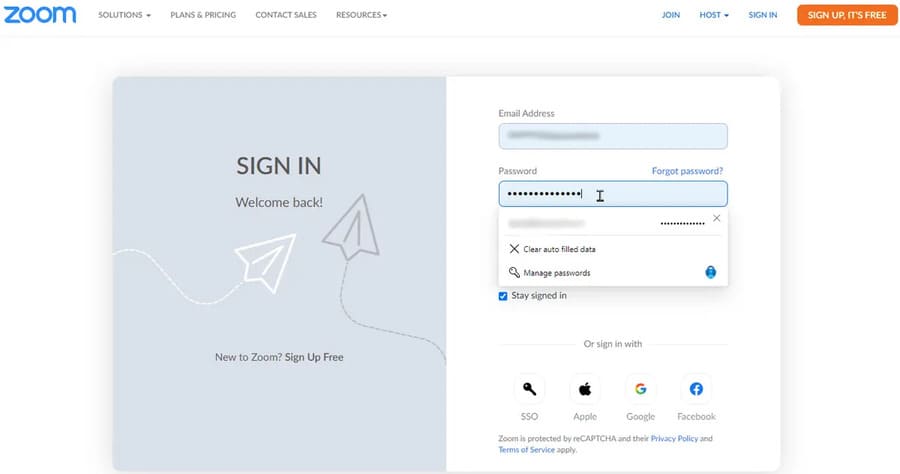
I use password manager on PC and even phone. For me, it’s still the best way to save complex passwords. I also recommend using a password manager. But if you don’t have a dedicated password manager and you already use Microsoft Authenticator for two-factor authentication, you can use that app to manage your passwords.
| Join the channel Telegram of the AnonyViet 👉 Link 👈 |
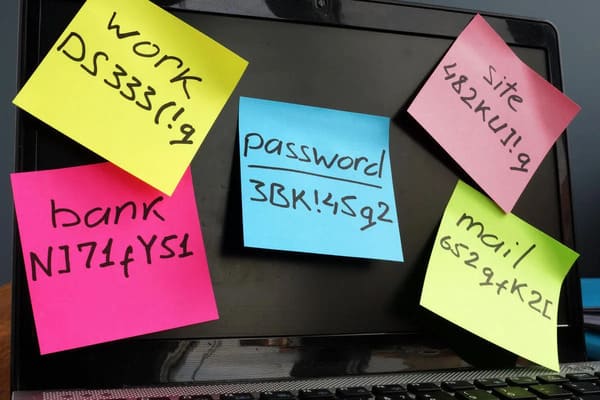
Microsoft Authenticator can generate, store, and apply passwords at websites through autofill. In addition to supporting iOS, iPadOS, and Android devices, the autofill option works on both Google Chrome and Microsoft Edge via an extension.
You can download Microsoft Authenticator on iOS, iPadOS or Android. Open the app and tap the Password icon on the bottom toolbar. Your first job is to add login information for online accounts. You can import them all in one go from the browser or add them one by one manually.
Import password from Chrome
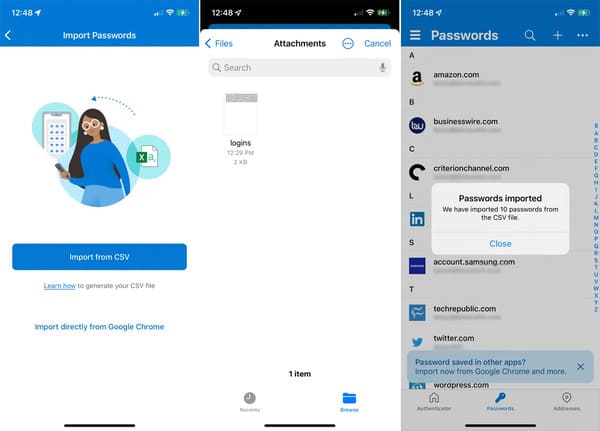
To make it easier for you to enter your password, a message will automatically pop up asking if you have saved the password in other apps. Tap the notification. If the message doesn’t appear, go to Settings, scroll down the screen and select Import Passwords. You can import passwords from Google Chrome or from a CSV file. To import passwords from Chrome, tap Import from Google Chrome. 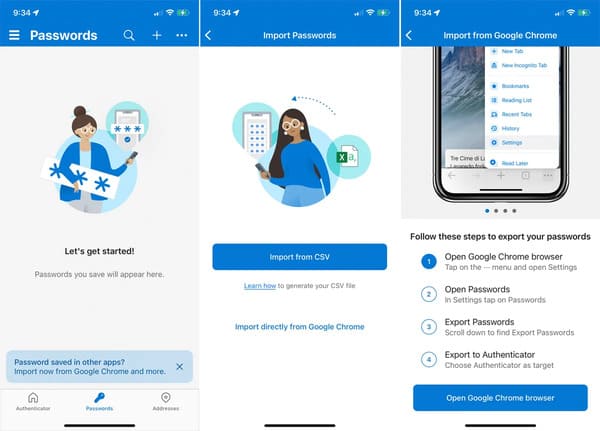
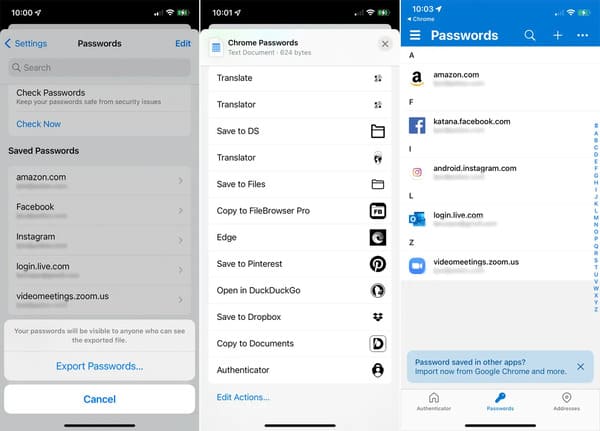
In Chrome on your phone, go to Settings > Passwords. Select Export Passwords. Press the button Export Passwords. At the iOS or Android Share screen, select Authenticator as the destination. You will be returned to Microsoft Authenticator where the entered passwords appear.
Import Password from CSV file
If you don’t use Chrome on your phone or most of your passwords are stored in another browser, you can import your credentials via a CSV file. You first export your password from your chosen browser to CSV format. The specific steps for this vary depending on the browser. In general, however, you need to find the Passwords setting in your browser and look for the Export logins or Export passwords setting. Select CSV format.
Whether you’re exporting your passwords on your phone or PC, you’ll need to provide a CSV file for your device, which you can do by copying it to a cloud storage and sharing service, such as OneDrive , Google Drive or iCloud.
In the Microsoft Authenticator app, tap the notification asking if you save passwords in other apps, or go to Settings and select Import Passwords. This time, select the Import from CSV option. Navigate to the online service and the folder where you saved the CSV file and select it. Your entered password will appear.
Manually add a password
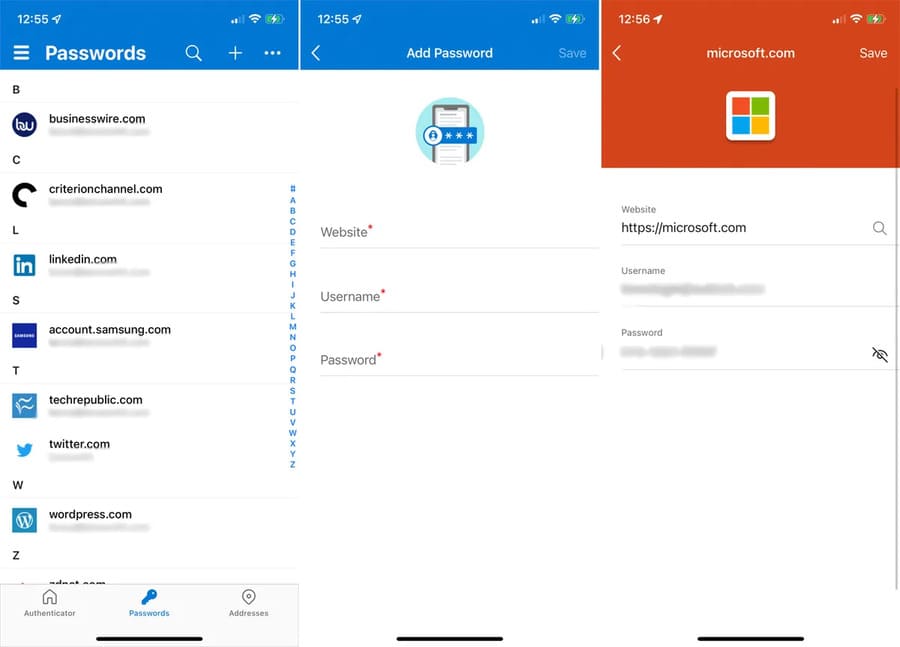
Of course, you can also manually add new accounts to the app. At the Passwords screen, tap the + sign to add a password. Then enter the URL, username, and password for the account you want to add. When done, click Save.
Create a password
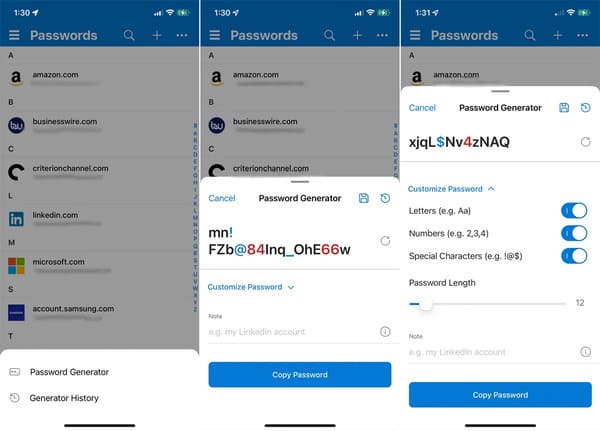
Microsoft Authenticator can generate passwords for new or existing accounts. In the iPhone app, tap the three-dot icon and select Password Generator. In the Android version, tap the plus icon and select Generate password. Click the Customize Password link to set the password complexity and length, and choose to include or exclude letters, numbers, and special characters. Tap the refresh icon to create another password. When done, tap the Copy password button to paste the password elsewhere. Otherwise, tap the disk icon to use the password in the new account you want to add to the app.
Using Autofill
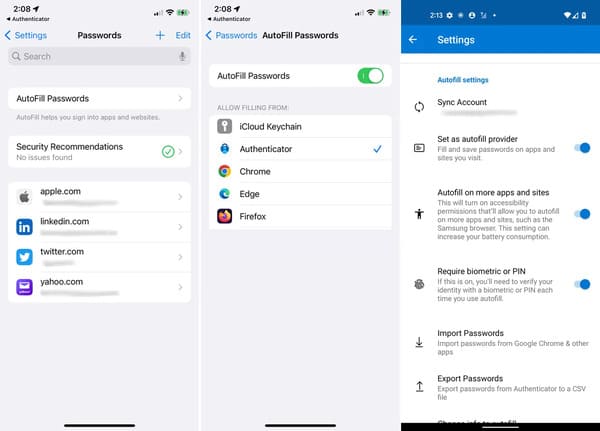
The Authenticator app will automatically populate your username and password for saved online accounts. But first, you need to enable this feature. On iPhone, go to Settings > Passwords > AutoFill Passwords. Enable AutoFill Passwords and select Authenticator to set it as the default autofill app. Also, uncheck any other apps in the autofill list. On your Android phone, go to Settings in the Authenticator app. Enable Set as autofill provider and AutoFill on more apps and sites.
On iPhone, autofill from third-party apps like Microsoft Authenticator only works with Safari. But you can also use it with any app where you need to sign in. Open Safari and open one of the websites or open one of the apps where your credentials are stored in the Authenticator app. Tap the username field.
In some cases, Authenticator will display your exact name. If so, tap that button. Tap the password input field, then tap your account name button.
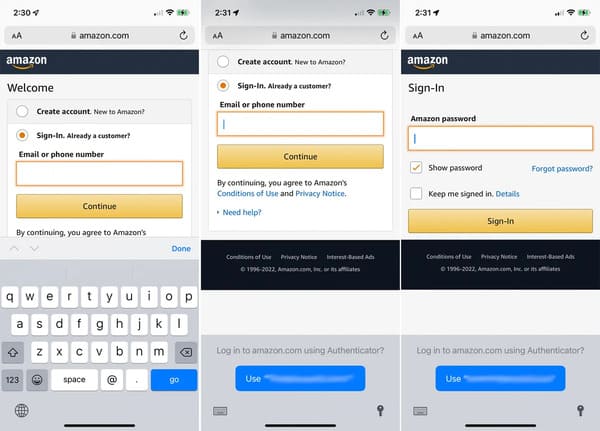
In other cases, the key icon appears just above the keyboard. Tap that icon and the Authenticator app will display the account. Choose your account name. The fields for the username and password will then be populated. Click the Sign in button and you to log in to the website or app.
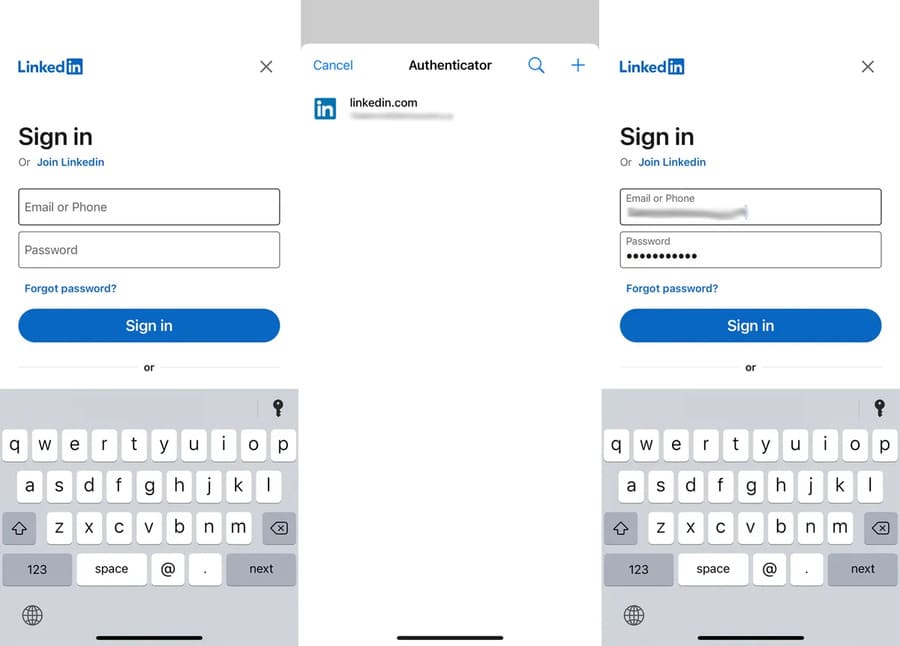
On Android phones, the autofill process is the same as on iPhones. Open your favorite browser or open a specific application. Click on the username and account name fields, and the Authenticator app will appear above or below the information field. Tap the account name. For the password field, the account name appears above the keyboard. Tap that name and then sign in to the Authenticator app. 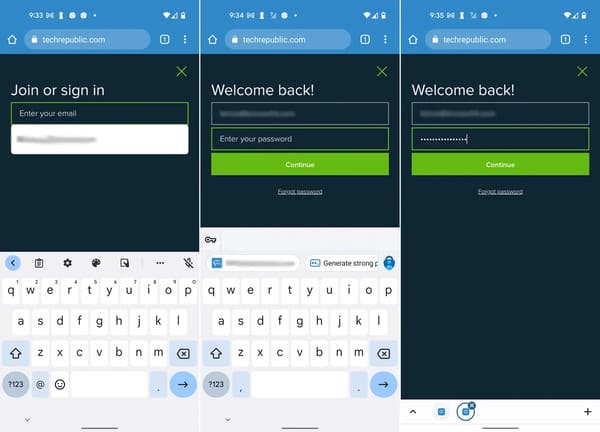
Use Edge and Chrome on PC
Finally, you can use the Microsoft Authenticator autofill feature in the PC versions of Microsoft Edge and Google Chrome via an extension. In Chrome or Edge, go to Microsoft AutoFill and add the extension to the browser.
Browse to the website where the account is stored in Authenticator. Click in the username field and your account name will appear below it. Click on the name and the Authenticator will log into the site.