• Home
  • News
  • Software
  • Knowledge
  • MMO
  • Tips
  • Security
  • Network
  • Office
AnonyViet - English Version
  • Home
  • News
  • Software
  • Knowledge
  • MMO
  • Tips
  • Security
  • Network
  • Office
No Result
View All Result
  • Home
  • News
  • Software
  • Knowledge
  • MMO
  • Tips
  • Security
  • Network
  • Office
No Result
View All Result
AnonyViet - English Version
No Result
View All Result

How to turn off Grok’s memory feature to protect privacy

AnonyViet by AnonyViet
August 26, 2025
in Knowledge
0

Grok AI is the artificial intelligence product from Elon Musk, equipped with smart memory, allowing storage and use of data from previous conversations to bring personal experience. However, not everyone wants Grok to preserve their chat history. If you are looking for a way Turn off Grok’s memory feature To protect privacy, this article is for you!


Join the channel Telegram belong to Anonyviet 👉 Link 👈

Why should it turn off Grok’s memorization feature?

Grok’s memory feature helps Chatbot provide more appropriate answers based on previous conversations. However, this means that your personal information is stored. If you are concerned about privacy or do not want Grok to use chat history, turning off Grok’s memory feature is an ideal solution.

Besides, Grok also provides private chat mode mode to ensure no data from the conversation.

How to turn off Grok’s memory feature

1. On the computer

If you use Grok via computer web browser, turning off the memorization feature is very simple. Here are the detailed steps:

Step 1: Open the browser and in Grok.com. Log in to your account if not done.

Step 2: In the upper right corner of the page, click on the avatar or the profile icon to open the account menu.

Step 3: In the drop -down menu, click Settings (Settings) To access account management options.
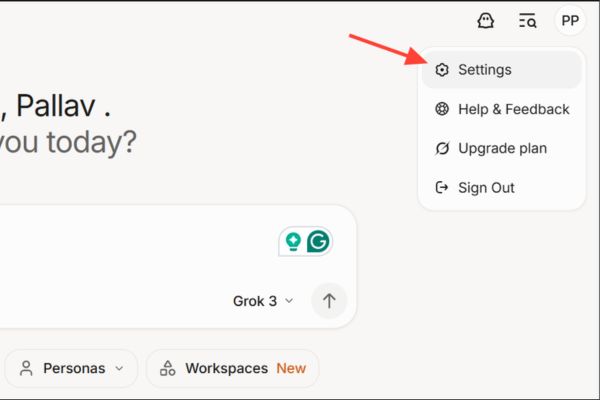
Click Settings (Settings)

Step 4: In the installation interface, find and select Data Controls (Data Controls) To view data -related options.
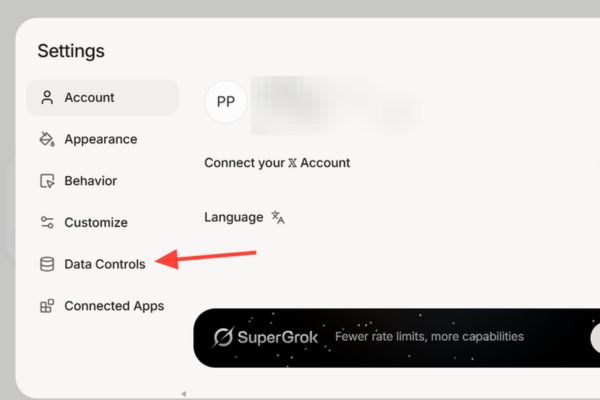
Select Data Controls (Data Controls)

Step 5: Turn off Personize Grok with your conversation History. From now on, Grok will not store or use your chat history anymore.
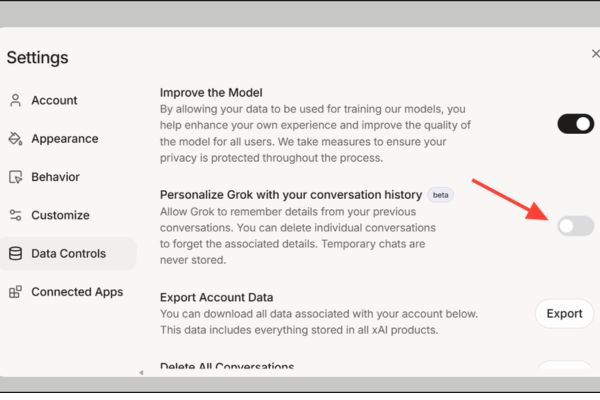
Turn off the Personize Grok with your conversation history

2. On the phone

If you use the Grok application on iOS or Androidturning off Grok’s memory feature is equally easy. Here are instructions:

Step 1: Open Grok application on mobile devices and login if needed.

Step 2: Find the file icon or menu button (usually in the upper or lower screen) and press to open the main menu.

Step 3: Click the icon gear (Usually in the lower right corner) to open the settings page.
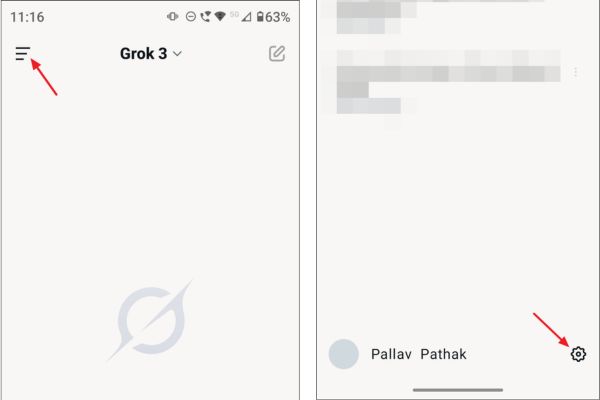
Click on the gear icon

Step 4: In settings, select parts Data Controls (Data Controls) To manage data.

Step 5: Find the switch with content Personalized by memory with memories) And switch to the off state.
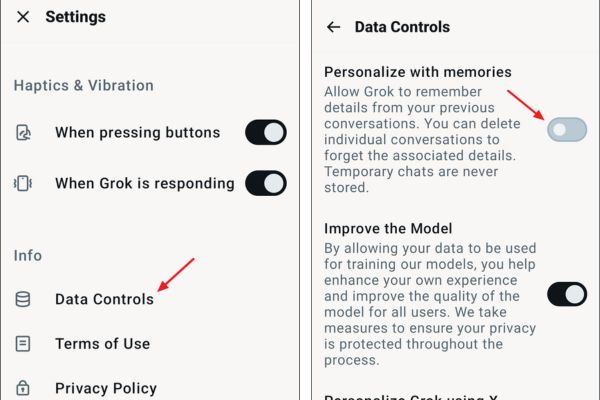
Personalized by memory with memories

Use private chat mode – Private chat mode

In addition to turning off the Grok’s memory feature, you can use private chat mode to make sure no data is saved. This is the perfect choice for temporary conversations.

Step 1: In the conversation interface (both on the web and application), find the image icon ghost (Ghost) in the upper right corner of the conversation window.

Step 2: Press or click this icon to enable private conversation mode. When activated, Grok will not save any content from the conversation, bringing absolute peace of mind.
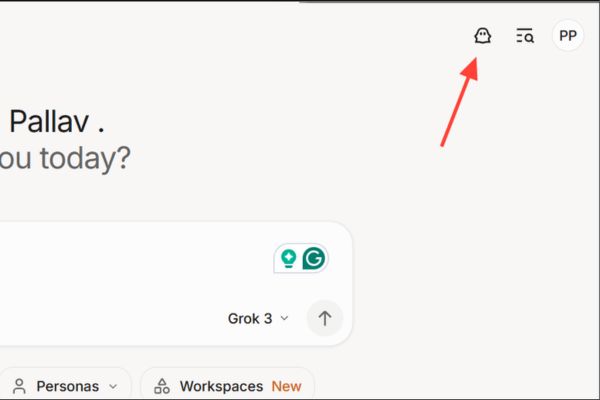
Use private chat mode - Private chat mode
Use private chat mode – Private chat mode

Conclude

Turn off Grok’s memory feature is a simple but effective step to protect privacy and personal data control. Although you use Grok on the website, mobile applications, the above steps are easy to perform. Try applying today to experience Grok in the safest and most private way!


Tags: featureGroksmemoryprivacyProtectturn
Previous Post

Share Code Detect Anonymous (Incognito) on Chrome

Next Post

Renova Cloud – The leading AWS management service in Vietnam today

AnonyViet

AnonyViet

Related Posts

Download training materials on Applying AI in teaching and learning in 2025
Knowledge

Download training materials on Applying AI in teaching and learning in 2025

November 8, 2025
How to delete SMS and iMessage in iCloud to free up space
Knowledge

How to delete SMS and iMessage in iCloud to free up space

November 7, 2025
Beware: Using AI to “create found images” of pets/lost items to demand ransom
Knowledge

Beware: Using AI to “create found images” of pets/lost items to demand ransom

October 26, 2025
Instructions for creating your own AI voice in just 10 seconds
Knowledge

Instructions for creating your own AI voice in just 10 seconds

October 24, 2025
How to change color and add icons to iPhone Folders
Knowledge

How to change color and add icons to iPhone Folders

October 20, 2025
What is ChatGPT Agent? How to use?
Knowledge

What is ChatGPT Agent? How to use?

October 18, 2025
Next Post
Renova Cloud – The leading AWS management service in Vietnam today

Renova Cloud - The leading AWS management service in Vietnam today

0 0 votes
Article Rating
Subscribe
Login
Notify of
guest

guest

0 Comments
Oldest
Newest Most Voted
Inline Feedbacks
View all comments

Recent News

How to install Anh Hai’s Pho Shop on MacBook is super easy

How to install Anh Hai’s Pho Shop on MacBook is super easy

November 11, 2025
How to turn off ads on Yoosee app in just 1 minute

How to turn off ads on Yoosee app in just 1 minute

November 11, 2025
Windows 11 and MS Office 2021 lifetime license, genuine from  during Keysoff’s 11.11 sale

Windows 11 and MS Office 2021 lifetime license, genuine from $14 during Keysoff’s 11.11 sale

November 11, 2025
How to see your email account creation date

How to see your email account creation date

November 11, 2025
How to install Anh Hai’s Pho Shop on MacBook is super easy

How to install Anh Hai’s Pho Shop on MacBook is super easy

November 11, 2025
How to turn off ads on Yoosee app in just 1 minute

How to turn off ads on Yoosee app in just 1 minute

November 11, 2025
Windows 11 and MS Office 2021 lifetime license, genuine from  during Keysoff’s 11.11 sale

Windows 11 and MS Office 2021 lifetime license, genuine from $14 during Keysoff’s 11.11 sale

November 11, 2025
AnonyViet - English Version

AnonyViet

AnonyViet is a website share knowledge that you have never learned in school!

We are ready to welcome your comments, as well as your articles sent to AnonyViet.

Follow Us

Contact:

Email: anonyviet.com[@]gmail.com

Main Website: https://anonyviet.com

Recent News

How to install Anh Hai’s Pho Shop on MacBook is super easy

How to install Anh Hai’s Pho Shop on MacBook is super easy

November 11, 2025
How to turn off ads on Yoosee app in just 1 minute

How to turn off ads on Yoosee app in just 1 minute

November 11, 2025
  • Home
  • Home 2
  • Home 3
  • Home 4
  • Home 5
  • Home 6
  • Next Dest Page
  • Sample Page

new88 trang chủ shbet trang chủ f168 trang chủ qq88 nhà cái 78win

No Result
View All Result
  • Home
  • News
  • Software
  • Knowledge
  • MMO
  • Tips
  • Security
  • Network
  • Office

new88 trang chủ shbet trang chủ f168 trang chủ qq88 nhà cái 78win

wpDiscuz
0
0
Would love your thoughts, please comment.x
()
x
| Reply