If you have a large word document that needs to be split into several small files, then read this article. The previous article will show you two methods to split a Word file into several small files.
| Join the channel Telegram of the AnonyViet 👉 Link 👈 |

Split Word file by delimiter with VBA
Instead of manually splitting the file into several smaller ones, this method uses VBA to split the Word document by the delimiter specified in Word.
1. Press the key combination Alt + F11 to open the Microsoft Visual Basic for Applications window;
2. Click Insert > Modulesand then paste the below VBA code into the Module window.
Sub SplitNotes(delim As String, strFilename As String)
Dim doc As Document
Dim arrNotes
Dim I As Long
Dim X As Long
Dim Response As Integer
arrNotes = Split(ActiveDocument.Range, delim)
Response = MsgBox("This will split the document into " & UBound(arrNotes) + 1 & " sections.Do you wish to proceed?", 4)
If Response = 7 Then Exit Sub
For I = LBound(arrNotes) To UBound(arrNotes)
If Trim(arrNotes(I)) <> "" Then
X = X + 1
Set doc = Documents.Add
doc.Range = arrNotes(I)
doc.SaveAs ThisDocument.Path & "\" & strFilename & Format(X, "000")
doc.Close True
End If
Next I
End Sub
Sub test()
'delimiter & filename
SplitNotes "///", "Notes "
End Sub
3. Then click the button Run or press F5 key to apply VBA.
4. Click Yes to continue.
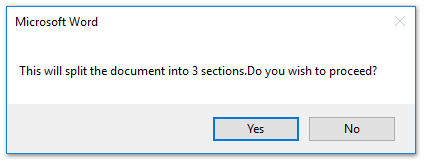
Note:
(1) Be sure to add a separator like “///” to the document between each piece of text that you want to split. Alternatively, you can change “///” to any delimiter to meet your needs.
(2) You can change the document”Notes” in the Test sub to suit your needs.
(3) And the split documents will be saved to the same place as the original file.
(4) You don’t need to add a separator at the end of the original file, if you do, it will create an extra blank document after splitting.
Split Word Document by Page with VBA
Here is another VBA code that helps you quickly split a Word document into multiple pages in Word.
1. Press the key combination Alt + F11 to open the Microsoft Visual Basic for Applications window;
2. Click Insert > Modulesand then paste the VBA code below into the Module window.
Sub SplitIntoPages()
Dim docMultiple As Document
Dim docSingle As Document
Dim rngPage As Range
Dim iCurrentPage As Integer
Dim iPageCount As Integer
Dim strNewFileName As String
Application.ScreenUpdating = False 'Makes the code run faster and reduces screen _
flicker a bit.
Set docMultiple = ActiveDocument 'Work on the active document _
(the one currently containing the Selection)
Set rngPage = docMultiple.Range 'instantiate the range object
iCurrentPage = 1
'get the document's page count
iPageCount = docMultiple.Content.ComputeStatistics(wdStatisticPages)
Do Until iCurrentPage > iPageCount
If iCurrentPage = iPageCount Then
rngPage.End = ActiveDocument.Range.End 'last page (there won't be a next page)
Else
'Find the beginning of the next page
'Must use the Selection object. The Range.Goto method will not work on a page
Selection.GoTo wdGoToPage, wdGoToAbsolute, iCurrentPage + 1
'Set the end of the range to the point between the pages
rngPage.End = Selection.Start
End If
rngPage.Copy 'copy the page into the Windows clipboard
Set docSingle = Documents.Add 'create a new document
docSingle.Range.Paste 'paste the clipboard contents to the new document
'remove any manual page break to prevent a second blank
docSingle.Range.Find.Execute Findtext:="^m", ReplaceWith:=""
'build a new sequentially-numbered file name based on the original multi-paged file name and path
strNewFileName = Replace(docMultiple.FullName, ".doc", "_" & Right$("000" & iCurrentPage, 4) & ".doc")
docSingle.SaveAs strNewFileName 'save the new single-paged document
iCurrentPage = iCurrentPage + 1 'move to the next page
docSingle.Close 'close the new document
rngPage.Collapse wdCollapseEnd 'go to the next page
Loop 'go to the top of the do loop
Application.ScreenUpdating = True 'restore the screen updating
'Destroy the objects.
Set docMultiple = Nothing
Set docSingle = Nothing
Set rngPage = Nothing
End Sub
3. Then click the button Run or press F5 key to apply VBA.
Note: The split documents will be saved to the same place as the original file.
If you have installed Kutools for Word, you can apply the function Split its to easily split a document into multiple documents by page, title, section break or page break as you need in Word.
Kutools is a handy add-on to make your work easier and improve your ability to handle text documents.
1. Click Kutools Plus > Split to enable the feature Split.

2. In the dialog box Split is open on the desktop, you can do the following:
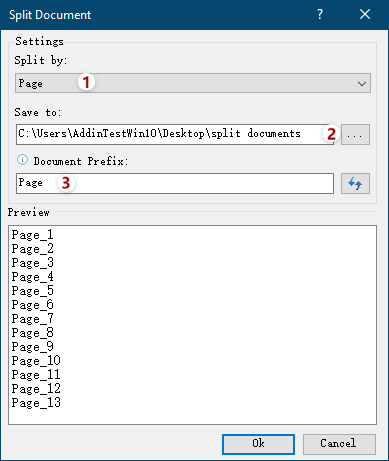
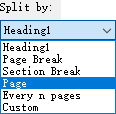
(1) Choose how to split from the list Split by.
This feature supports 6 splits: header 1, page break, section break, page, every n pages and custom page range as shown below:
(2) Click the button Browse to specify the destination folder in which you will save the split documents.
(3) Enter a keyword as the prefix of the new document name in the box Document Prefix.
Advice:
(1) If you specify to split the current document by Every n pages (Every n pages), you need to specify the number in the box Every n pages.
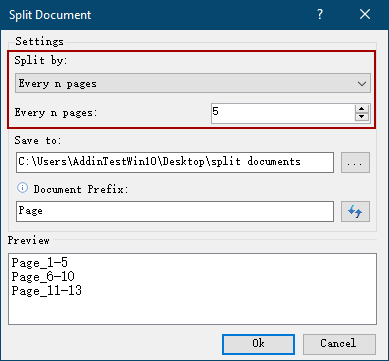
(2) If you specify to split the current document by custom page ranges, you need to enter these custom page ranges separated by commas in the box Pagefor example, enter 1, 3-5, 12 in the box.
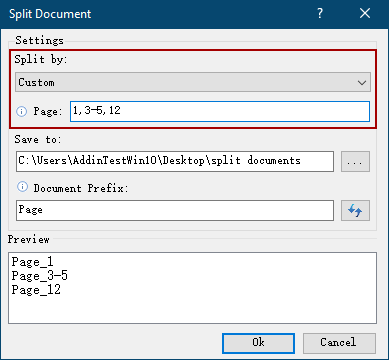
3. Click the Ok button to start splitting.
Then, the current document will be split according to the specified split, and the new documents will be saved in bulk to the destination folder.
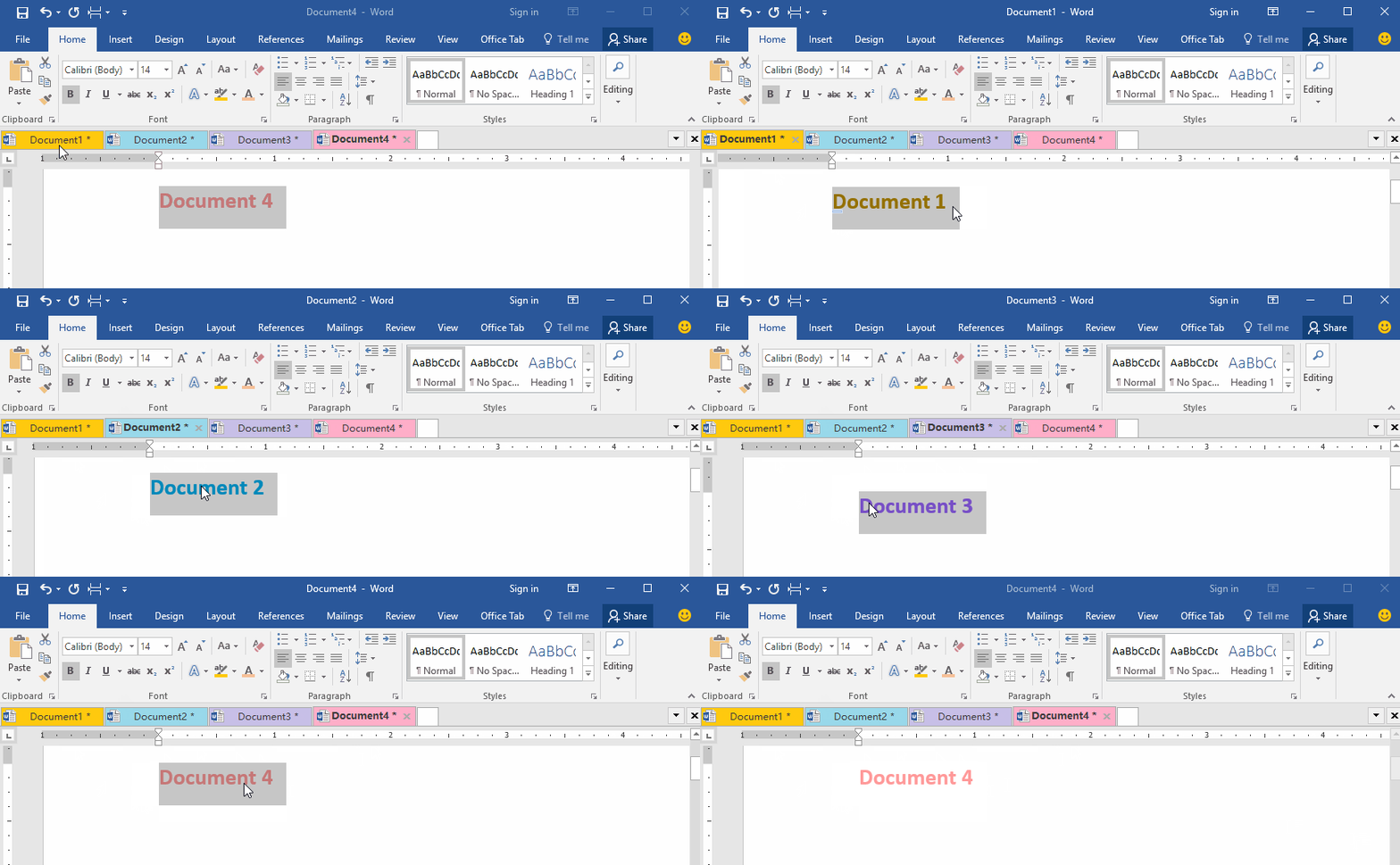
In addition, you can also automatically save Word files to OneDrive here.