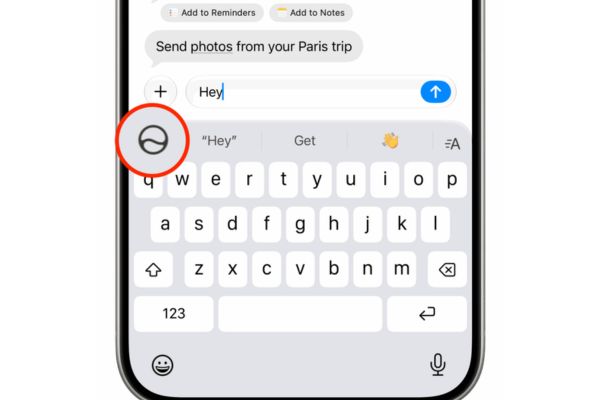
How to set up private voice on iPhone is a groundbreaking feature in iOS 17, allowing you to create a perfect clone of your voice. This feature is not only interesting but also extremely useful for personal communication. Below is the entire detailed process to get you started.
| Join the channel Telegram belong to AnonyViet 👉 Link 👈 |
Introducing the personal voice feature (Personal Voice)
Personal voice (Personal Voice) is a breakthrough technology integrated by Apple from iOS 17 version. This feature allows you to create a digital copy that is almost identical to your real voice. Its main purpose is to support people at risk of losing the ability to speak, helping them continue to communicate with their own voice through the device.
What do you need to prepare to get started?
For the voice creation process to go smoothly, you need to ensure a few important factors:
- Your device must be updated iOS 17 or newer version.
- Choose a room without echoes and noise for the best recording quality.
- A stable Wi-Fi connection is required for iPhone to process and synchronize voice data.
- Make sure your iPhone has enough storage space for the new voice file.
How to set up private voice on iPhone
When you’re ready, just follow these simple steps to create your unique voice.
Step 1: Go to the application Settingfind and click to select the item Accessibility. In the “Speech” section, tap Personal voice.
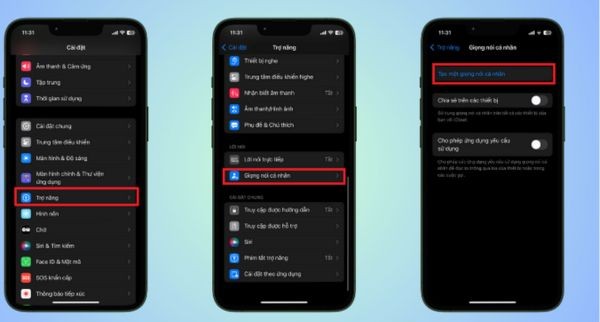
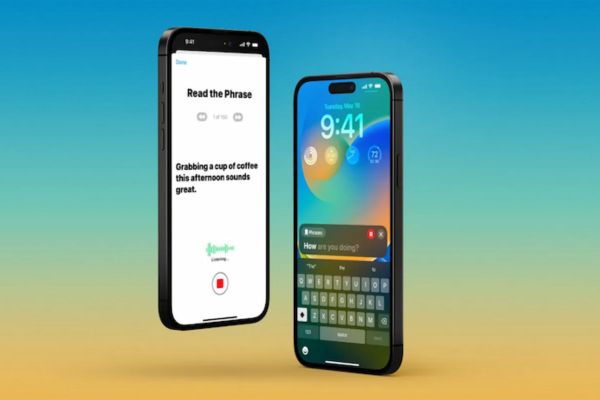
Step 2: Here, you click Create a personal voice and follow the on-screen instructions. The system will ask you to read loudly and clearly approximately 150 sentences random. The goal is for AI to collect enough data about your intonation, timbre, and accent, thereby reproducing your voice most accurately.
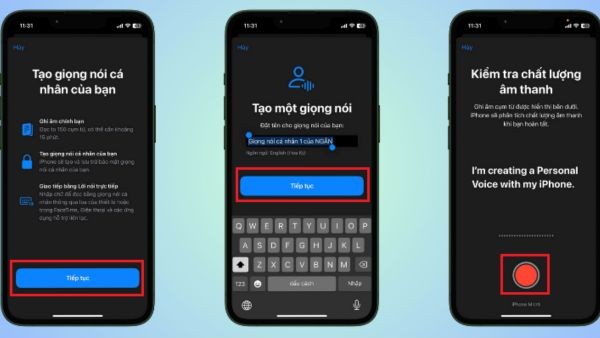
Step 3: After reading all the sentences, iPhone will begin the processing to create your voice. This process may take a while, you should plug in your iPhone and connect to Wi-Fi so it can automatically complete in the background.
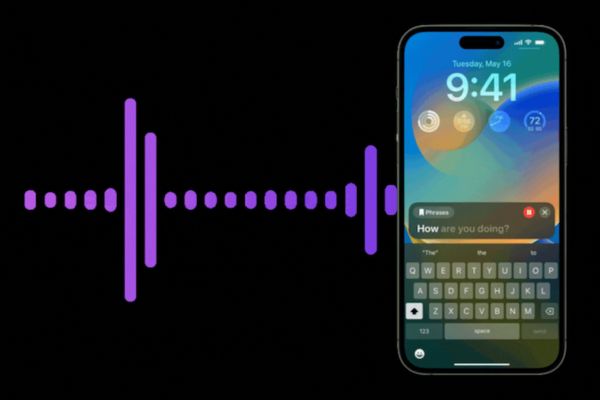
Step 4: Once the voice creation process is complete, you can enable it for use with the Live Speech feature. Come back Settings → Accessibility → Direct speech. Here, turn the feature on and in the “Voice” section, select the personal voice you just created.
The great benefits that personal voice brings
- The created voice has a personal touch, helping conversations via the device become more natural and intimate.
- This is an invaluable feature for users with speech problems or those with visual impairments, helping them access information more easily.
- Instead of listening to the monotonous default voices, you can hear your own voice reading the text, creating an interesting feeling.
- The entire process is handled right on the device, ensuring privacy. You don’t need to install any third-party applications.
Conclusion
So, you understand How to set up private voice on iPhone just through a few simple steps. Don’t hesitate to take some time to preserve your voice in a unique and meaningful way. Wishing you success and interesting experiences.