• Home
  • News
  • Software
  • Knowledge
  • MMO
  • Tips
  • Security
  • Network
  • Office
AnonyViet - English Version
  • Home
  • News
  • Software
  • Knowledge
  • MMO
  • Tips
  • Security
  • Network
  • Office
No Result
View All Result
  • Home
  • News
  • Software
  • Knowledge
  • MMO
  • Tips
  • Security
  • Network
  • Office
No Result
View All Result
AnonyViet - English Version
No Result
View All Result

How to place Apple Music as the default music player on Windows

AnonyViet by AnonyViet
August 21, 2025
in Software
0

Set Apple Music as the default music player Is the perfect solution for those who use PC Windows but love Apple ecosystem. This procedure helps you synchronize the entire personal music library seamlessly. Let’s explore how to do details in this article!


Join the channel Telegram belong to Anonyviet 👉 Link 👈

Why put Apple Music as the default music player?

At first, changing a default music player seems not so important. However, with Apple Musicthis action brings benefits that few applications can match, especially its ability to connect and synchronize magic.

Synchronize music library

This is the most “golden” and convincing reason. When you put Apple Music as default, each time you double click on a music file (like mp3) on your computer, the miracle will happen:

Apple Music will scan the song and compare with its giant music store over 100 million songs. If a joint is found, the song will immediately be added ICloud music library your. From there, it will appear on all other devices such as iPhone, iPad, and Mac that you have logged in with an Apple ID account.
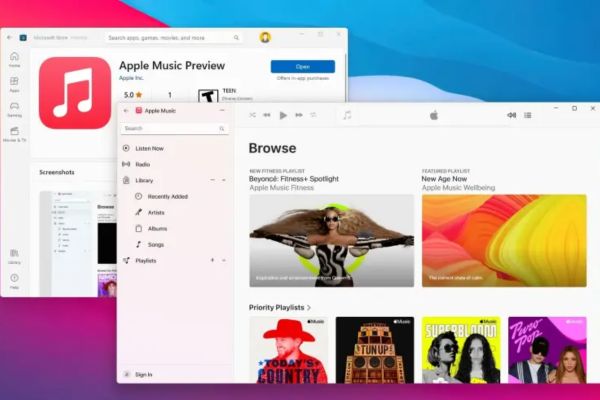
Why put Apple Music as the default music player?

If you have “unique” songs, separate recording or regional music not in Apple’s category, the application will automatically upload that music file to Apple’s cloud. This turns your PC into a storage center, so you can listen to these valuable songs anywhere, even when not near the computer.

Imagine, you just downloaded a favorite remix on PC. Just a double click, and a few minutes later, you can open it on the iPhone while walking on the street. That is the power of seamless synchronization.

Personal music management professionally

If you are a careful person who wants to build and select your music library instead of “importing” in a series, this is more useful.

You can browse through music folders File Explorerlisten and decide which articles deserve to be in your collection. Just double click on the music file you choose, it will be added to the Apple Music app and synchronized. This is a “manual” but extremely effective and accurate management, helping your library always neat and true to personal preferences.
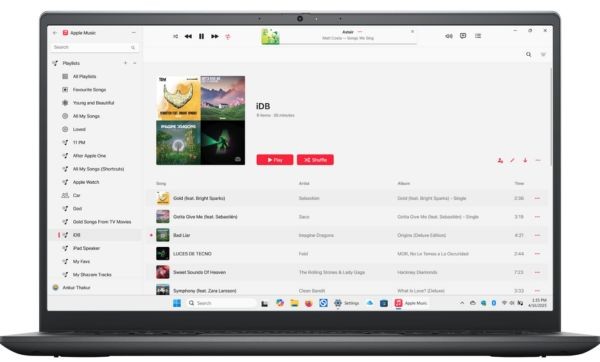
Personal music management professionally

What if I do not register the Apple Music package?

You do not register for the Apple Music package and often copy music from your computer into the iPhone via cable? Don’t worry, when you open music files with Apple Music on Windows, they will be Add to library (library) of this application.

Then, when you connect the iPhone, iPad to the computer and open the Apple Devices application, you can easily synchronize songs from this Apple Music Library to your device. It helps to focus all your music in a single place to manage before syncing, instead of having to search in many different folders.
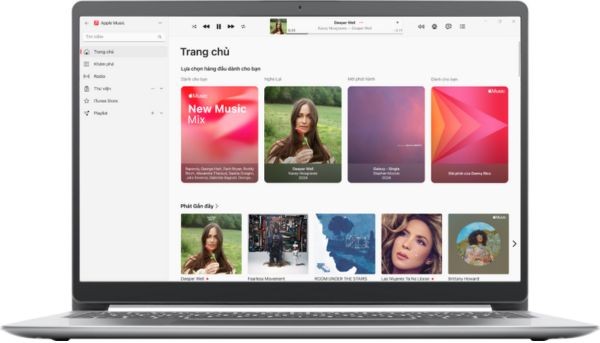
What if I do not register the Apple Music package?

Instructions on how to place Apple Music as the default music player

First, make sure you have downloaded and installed Apple Music app From Microsoft Store on its computer.
Step 1: Open application Settings On Windows computer. You can use the key combination Windows + I.

Step 2: In the Settings window, select the item Apps From the left menu bar.

Step 3: Continue Default apps.

Step 4: Pull down the section “Set defaults for applicationsAnd click Apple Music.
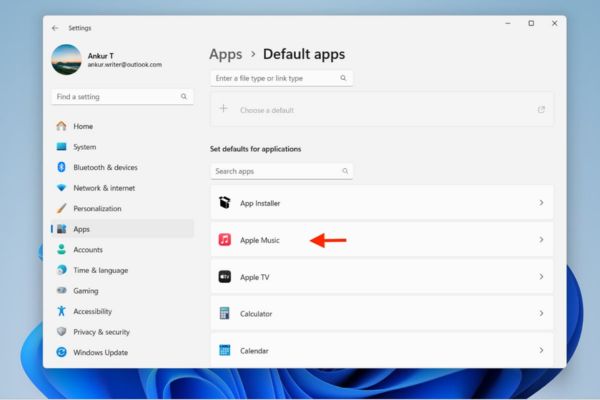
Click Apple Music
Click Apple Music

Step 5: A list of files (file type) will appear. Find the format you want, the most common is .mp3. Click the current application that is being set as the default for mp3 file (e.g. Windows Media Player).
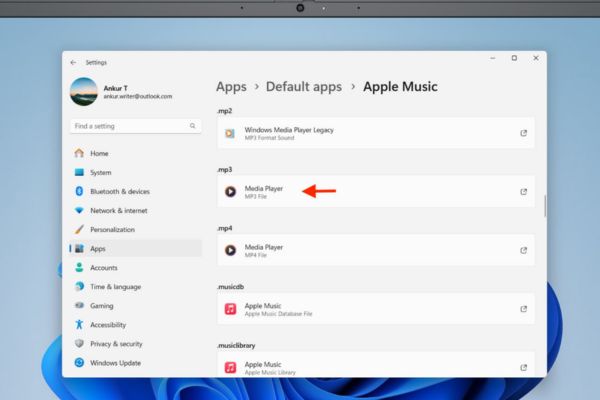
Click on the current application is being set as default

Step 6: A pop-up window will appear, listing applications that can open this file. Please choose Apple Music and press the button Set default (Set as default).
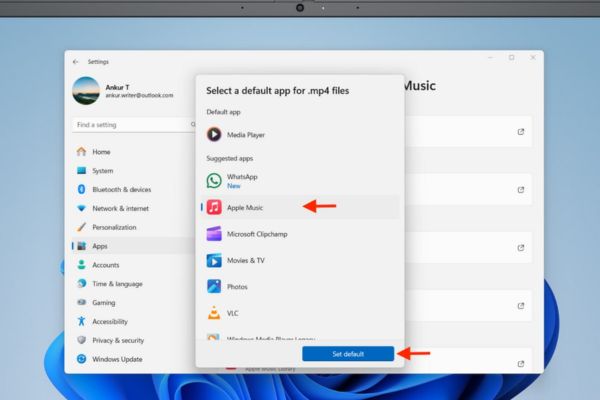
Press the Set Default button

That’s it! From now on, every time you double click on an MP3 file, it will automatically open with Apple Music. You can repeat steps 5 and 6 for other audio formats such as .m4a, .wav, .flac to have a completely uniform experience.

A small note

Sometimes, after double clicking, the mp3 file can only be added to the Apple Music library without immediately. You will need to go to the item “Recently added”(Newly added) in the application and click again to hear. This is a small step that arises but does not affect the great benefits that this feature brings.

Conclusion

Set Apple Music as the default music player It is a testament to you that you do not need to give up Windows to have the perfect Apple experience. With just a few clicks, your music world has become seamless and unlimited. It’s simple and effective, right?


Tags: AppledefaultmusicplacePlayerWindows
Previous Post

Timer automatically turn off Youtube or not everyone knows

Next Post

Instructions to receive 80,000 Viettel ++ points on the occasion of September 2

AnonyViet

AnonyViet

Related Posts

Key Smart Call Blocker Premium 1 year – Block spam calls
Software

Key Smart Call Blocker Premium 1 year – Block spam calls

May 13, 2026
How to use multiple Zalo on one computer for business people
Software

How to use multiple Zalo on one computer for business people

May 13, 2026
Compare vivo X300 Ultra and vivo X200 Ultra: A comprehensive leap forward for the photography “monster”
Software

Compare vivo X300 Ultra and vivo X200 Ultra: A comprehensive leap forward for the photography “monster”

May 12, 2026
How to turn off call recording notifications on iPhone using EnsWilde
Software

How to turn off call recording notifications on iPhone using EnsWilde

May 12, 2026
Experience OPPO Find X9 Ultra: 3600 nits screen and 7050 mAh battery break all limits
Software

Experience OPPO Find X9 Ultra: 3600 nits screen and 7050 mAh battery break all limits

May 11, 2026
How to install Vietnamese for Minecraft game on iOS phone
Software

How to install Vietnamese for Minecraft game on iOS phone

May 11, 2026
Next Post
Instructions to receive 80,000 Viettel ++ points on the occasion of September 2

Instructions to receive 80,000 Viettel ++ points on the occasion of September 2

0 0 votes
Article Rating
Subscribe
Login
Notify of
guest

guest

0 Comments
Oldest
Newest Most Voted
Inline Feedbacks
View all comments

Recent News

Key Smart Call Blocker Premium 1 year – Block spam calls

Key Smart Call Blocker Premium 1 year – Block spam calls

May 13, 2026
How to use multiple Zalo on one computer for business people

How to use multiple Zalo on one computer for business people

May 13, 2026
Compare vivo X300 Ultra and vivo X200 Ultra: A comprehensive leap forward for the photography “monster”

Compare vivo X300 Ultra and vivo X200 Ultra: A comprehensive leap forward for the photography “monster”

May 12, 2026
Instructions for receiving 1 month of ChatGPT Plus for free

Instructions for receiving 1 month of ChatGPT Plus for free

May 12, 2026
Key Smart Call Blocker Premium 1 year – Block spam calls

Key Smart Call Blocker Premium 1 year – Block spam calls

May 13, 2026
How to use multiple Zalo on one computer for business people

How to use multiple Zalo on one computer for business people

May 13, 2026
Compare vivo X300 Ultra and vivo X200 Ultra: A comprehensive leap forward for the photography “monster”

Compare vivo X300 Ultra and vivo X200 Ultra: A comprehensive leap forward for the photography “monster”

May 12, 2026
AnonyViet - English Version

AnonyViet

AnonyViet is a website share knowledge that you have never learned in school!

We are ready to welcome your comments, as well as your articles sent to AnonyViet.

Follow Us

Contact:

Email: anonyviet.com[@]gmail.com

Main Website: https://anonyviet.com

Recent News

Key Smart Call Blocker Premium 1 year – Block spam calls

Key Smart Call Blocker Premium 1 year – Block spam calls

May 13, 2026
How to use multiple Zalo on one computer for business people

How to use multiple Zalo on one computer for business people

May 13, 2026
No Result
View All Result
  • Home
  • News
  • Software
  • Knowledge
  • MMO
  • Tips
  • Security
  • Network
  • Office

wpDiscuz
0
0
Would love your thoughts, please comment.x
()
x
| Reply