• Home
  • News
  • Software
  • Knowledge
  • MMO
  • Tips
  • Security
  • Network
  • Office
AnonyViet - English Version
  • Home
  • News
  • Software
  • Knowledge
  • MMO
  • Tips
  • Security
  • Network
  • Office
No Result
View All Result
  • Home
  • News
  • Software
  • Knowledge
  • MMO
  • Tips
  • Security
  • Network
  • Office
No Result
View All Result
AnonyViet - English Version
No Result
View All Result

How to place 2 -layer security for chatgpt

AnonyViet by AnonyViet
October 6, 2025
in Knowledge
0

Set 2 layers security for chatgpt In essence, it is like locking another door to your home. Recently, there is a lot of information about the exposed chatgpt account that many people worry, but you can completely protect yourself. The addition of this protective layer is not complicated but extremely effective, ensuring that only you can access the conversations. Join Anonyviet to see how to do it right below!

Join the channel Telegram belong to Anonyviet 👉 Link 👈

Why turn 2 -layer security for chatgpt?

In the digital age, only one password is not safe enough. Passwords may be guessed or stolen. At that time, the second layer of security was a reliable bodyguard for your account.

  • Even if the bad guy knows your password, they cannot log in. The reason is because they do not have the second key, the authentication code is only available on the phone.
  • Many users Chatgpt To exchange jobs, creative ideas or private information. Turning on 2 -layer security will help you keep these content safely from curiosity.
  • You will no longer have to be afraid of someone who is sneaking into your account anymore.

Instructions for installing 2 -layer security for chatgpt

This process is very fast, you just need to follow the following simple steps.

To start, you need to install the application Google Authenticator On the phone. This is a free Google app, helping to create random codes to log in.
Link download for iPhone

Link download for Android

Instructions for installing 2 -layer security for chatgpt

Step 1: First, log in to the chatgpt account. In the bottom corner left on the left of the screen, click on your name or avatar and then choose Setting.
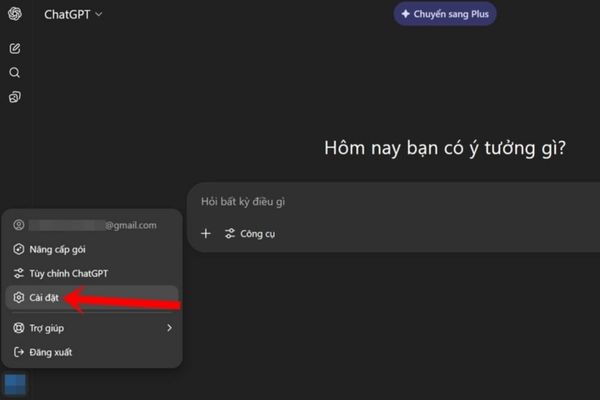
Select Settings
Select Settings

Step 2: Please find and click on the item Security.
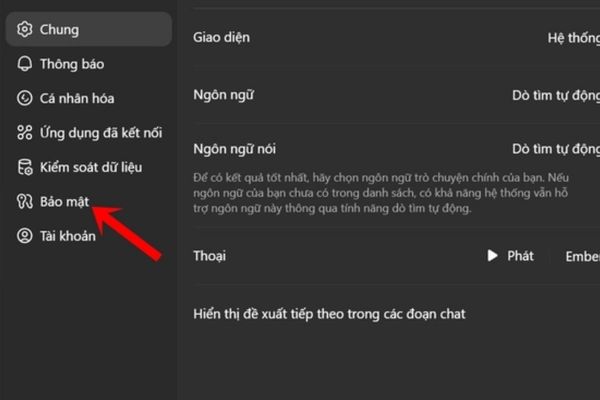
Click on the Security section

Step 3: Now, you just need to deceive the switch next to the line Multi -love authentication Right to turn it on. Chatgpt will ask you if you are sure, click Allow.
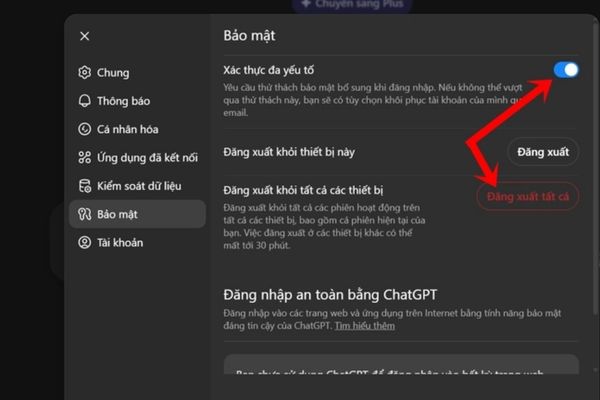
Turn on multi -love authentication

A tip: You should click on “Log out of all devices”(Log out of all devices) to escape all old login times, ensuring absolute safety.

Step 4: On the computer screen will appear a QR code. Open the Google Authenticator application on your phone, click on the plus (+) and select “Scan the QR code”. Then you just need to put the phone camera into the QR code on the screen.

Step 5: Immediately, the application on the phone will appear a sequence 6 digits. This sequence will change every 30 seconds.

Please enter these 6 numbers quickly into the blank box on the chatgpt page and click the confirmation. When you have a successful announcement, you can do it! From now on, each login, you will need to enter an additional 6 -digit code from this application.
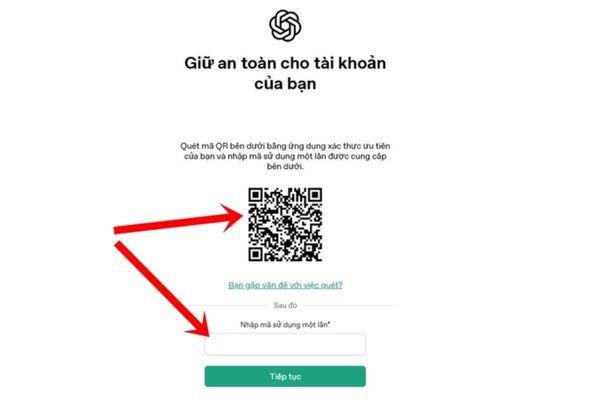
Quickly enter these 6 numbers in the box on the chatgpt page

Conclusion

That’s it! You have completed the job Set 2 layers security for chatgpt And equipped with an extremely strong “lock” for your account. Now, you can be completely assured that your conversations are always kept safe and private. Take a few minutes to set up today!


Tags: ChatGPTLayerplacesecurity
Previous Post

How to record videos using 2 cameras before with Dual Capture

Next Post

How to unlock Windows with fingerprints on Android phones

AnonyViet

AnonyViet

Related Posts

Tips for pinning the step counter to the iPhone screen to monitor your health
Knowledge

Tips for pinning the step counter to the iPhone screen to monitor your health

April 28, 2026
How to turn off password suggestions on iPhone: Prevent Safari from auto-filling passwords
Knowledge

How to turn off password suggestions on iPhone: Prevent Safari from auto-filling passwords

April 27, 2026
Tips to completely turn off CAPTCHA codes on iPhone and Mac are super simple
Knowledge

Tips to completely turn off CAPTCHA codes on iPhone and Mac are super simple

April 25, 2026
How to compress online videos for free without losing quality
Knowledge

How to compress online videos for free without losing quality

April 24, 2026
Common errors when using Bosch products and how to fix them
Knowledge

Common errors when using Bosch products and how to fix them

April 22, 2026
How to avoid Adblock detection on Youtube with 4 good tips
Knowledge

How to avoid Adblock detection on Youtube with 4 good tips

April 17, 2026
Next Post
How to unlock Windows with fingerprints on Android phones

How to unlock Windows with fingerprints on Android phones

0 0 votes
Article Rating
Subscribe
Login
Notify of
guest

guest

0 Comments
Oldest
Newest Most Voted
Inline Feedbacks
View all comments

Recent News

How to create a Face Sticker Collection using ChatGPT

How to create a Face Sticker Collection using ChatGPT

April 29, 2026
How to install the cute Bongo Cat mouse pointer for Windows

How to install the cute Bongo Cat mouse pointer for Windows

April 29, 2026
Tips for pinning the step counter to the iPhone screen to monitor your health

Tips for pinning the step counter to the iPhone screen to monitor your health

April 28, 2026
How to turn off password suggestions on iPhone: Prevent Safari from auto-filling passwords

How to turn off password suggestions on iPhone: Prevent Safari from auto-filling passwords

April 27, 2026
How to create a Face Sticker Collection using ChatGPT

How to create a Face Sticker Collection using ChatGPT

April 29, 2026
How to install the cute Bongo Cat mouse pointer for Windows

How to install the cute Bongo Cat mouse pointer for Windows

April 29, 2026
Tips for pinning the step counter to the iPhone screen to monitor your health

Tips for pinning the step counter to the iPhone screen to monitor your health

April 28, 2026
AnonyViet - English Version

AnonyViet

AnonyViet is a website share knowledge that you have never learned in school!

We are ready to welcome your comments, as well as your articles sent to AnonyViet.

Follow Us

Contact:

Email: anonyviet.com[@]gmail.com

Main Website: https://anonyviet.com

Recent News

How to create a Face Sticker Collection using ChatGPT

How to create a Face Sticker Collection using ChatGPT

April 29, 2026
How to install the cute Bongo Cat mouse pointer for Windows

How to install the cute Bongo Cat mouse pointer for Windows

April 29, 2026
No Result
View All Result
  • Home
  • News
  • Software
  • Knowledge
  • MMO
  • Tips
  • Security
  • Network
  • Office

wpDiscuz
0
0
Would love your thoughts, please comment.x
()
x
| Reply