• Home
  • News
  • Software
  • Knowledge
  • MMO
  • Tips
  • Security
  • Network
  • Office
AnonyViet - English Version
  • Home
  • News
  • Software
  • Knowledge
  • MMO
  • Tips
  • Security
  • Network
  • Office
No Result
View All Result
  • Home
  • News
  • Software
  • Knowledge
  • MMO
  • Tips
  • Security
  • Network
  • Office
No Result
View All Result
AnonyViet - English Version
No Result
View All Result

How to Insert Pictures into Text in Microsoft Word

AnonyViet by AnonyViet
January 29, 2023
in Tips
0

If you want to insert an image into the text in Microsoft Word, you cannot enter text and insert pictures as you did in Word 2010. That feature was removed from Microsoft Word 2013. But you can still insert pictures into text using SmartArt.

Join the channel Telegram of the AnonyViet 👉 Link 👈

How to Insert Pictures into Text in Microsoft Word

How to Insert Pictures into Text in Microsoft Word

How to Insert images, also known as nesting inside text, is easily done in Word without using heavy Photoshop software.

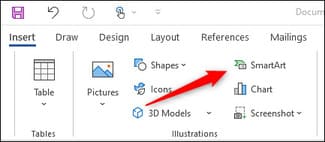
First, you need to open Word software. In the “Illustrations” group of the “Insert” tab, click “SmartArt”.
How to insert pictures into text in Microsoft Word

The “Choose a SmartArt Graphic” window will appear. In the menu on the left, select “List”. You can also choose another one if you like.
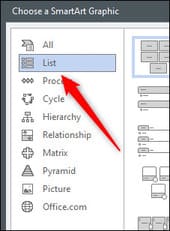
Choose a SmartArt Graphic

Next, select the SmartArt you want to use from the available options. I will use SmartArt “Basic Block List”. Once selected, click “OK”.
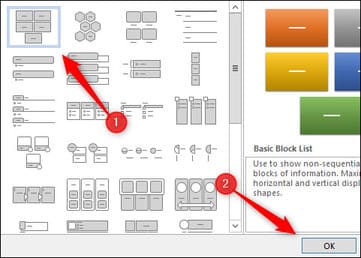
Basic Block List

SmartArt will appear in Microsoft Word. Now delete all and leave one item by clicking on each item and pressing the . key Delete.

Next, enter the text you want in the remaining field.

enter text

The image above has been enlarged by me and changed the font to see the image inserted in the text more clearly:

  • Font: Cooper Black
  • Size: 82 pts.
  • Format: Bold (Bold)

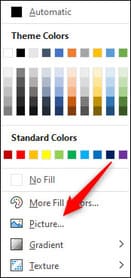
Next, highlight the text contained in the SmartArt. In the “WordArt Styles” group of the tab “Formattap the option “Text Fill“.

WordArt Styles

Next, select “Picture”.

Picture

The “Insert Pictures” window will appear. Here, choose where you want to insert the picture:

  • From a File: Select a photo from your computer.
  • Stock Images: Select a photo from the available image library.
  • Online Pictures: Find photos online.
  • From Icons: Select an icon from Word’s icon library.

I will choose Stock image.
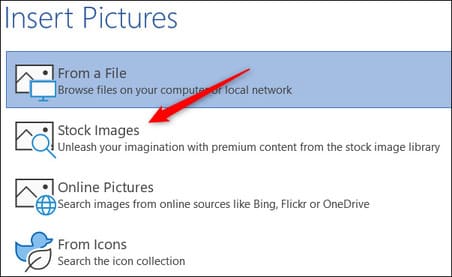
Stock image

Select your photo and click “Insert”.
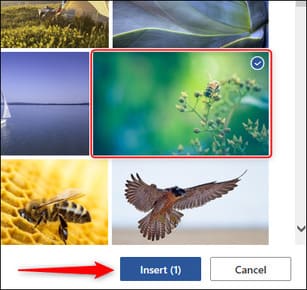
Insert

So you have successfully inserted the image into the text.

insert pictures into words in word

Next, you can delete the SmartArt background. Select SmartArt, go to tab “Format“, click “Shape Fill”“.

Shape Fill

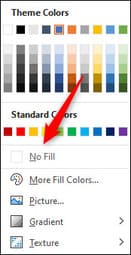
Next select “No Fill”.

No Fill

Background SmartArt now deleted, and only the text remains. Thus, the image in the text has appeared without the background below.

create an image inside the text in word

Although it is no longer as convenient as before, with this small trick, you can still insert images into your text. So you have inserted images into text with Word simply without having to use complicated Photoshop software.


The article achieved: 5/5 – (100 votes)

Tags: insertMicrosoftpicturestextword
Previous Post

Hack CS:GO 2020.19.12 – Aimbot, Wall Hack, Skin Changer, Fake Prime, Anti Vac Ban

Next Post

Share Tool Loki Grab Get Socks Proxy Live 100%

AnonyViet

AnonyViet

Related Posts

How to add sliders to Facebook Stories to easily rewind videos
Tips

How to add sliders to Facebook Stories to easily rewind videos

April 21, 2026
How to change the default font on Windows 10
Tips

How to change the default font on Windows 10

April 13, 2026
5 tips for using a Browser to replace an App (helps save RAM, time and money)
Tips

5 tips for using a Browser to replace an App (helps save RAM, time and money)

April 13, 2026
How to make funny MeMe photos without Photoshop within 10 seconds
Tips

How to make funny MeMe photos without Photoshop within 10 seconds

April 11, 2026
How to quickly design your own Logo without Photoshop
Tips

How to quickly design your own Logo without Photoshop

April 10, 2026
How to convert Website into App on Windows
Tips

How to convert Website into App on Windows

April 9, 2026
Next Post
Share Tool Loki Grab Get Socks Proxy Live 100%

Share Tool Loki Grab Get Socks Proxy Live 100%

0 0 votes
Article Rating
Subscribe
Login
Notify of
guest

guest

0 Comments
Oldest
Newest Most Voted
Inline Feedbacks
View all comments

Recent News

Top 5+ utilities to install for Gmail to speed up work processing

Top 5+ utilities to install for Gmail to speed up work processing

April 22, 2026
Decoding the problem of 4GB RAM and processing performance

Decoding the problem of 4GB RAM and processing performance

April 21, 2026
How to add sliders to Facebook Stories to easily rewind videos

How to add sliders to Facebook Stories to easily rewind videos

April 21, 2026
Reputable LG repair service in Hanoi & Ho Chi Minh City with LGservicecenter

Reputable LG repair service in Hanoi & Ho Chi Minh City with LGservicecenter

April 21, 2026
Top 5+ utilities to install for Gmail to speed up work processing

Top 5+ utilities to install for Gmail to speed up work processing

April 22, 2026
Decoding the problem of 4GB RAM and processing performance

Decoding the problem of 4GB RAM and processing performance

April 21, 2026
How to add sliders to Facebook Stories to easily rewind videos

How to add sliders to Facebook Stories to easily rewind videos

April 21, 2026
AnonyViet - English Version

AnonyViet

AnonyViet is a website share knowledge that you have never learned in school!

We are ready to welcome your comments, as well as your articles sent to AnonyViet.

Follow Us

Contact:

Email: anonyviet.com[@]gmail.com

Main Website: https://anonyviet.com

Recent News

Top 5+ utilities to install for Gmail to speed up work processing

Top 5+ utilities to install for Gmail to speed up work processing

April 22, 2026
Decoding the problem of 4GB RAM and processing performance

Decoding the problem of 4GB RAM and processing performance

April 21, 2026
No Result
View All Result
  • Home
  • News
  • Software
  • Knowledge
  • MMO
  • Tips
  • Security
  • Network
  • Office

wpDiscuz
0
0
Would love your thoughts, please comment.x
()
x
| Reply