• Home
  • News
  • Software
  • Knowledge
  • MMO
  • Tips
  • Security
  • Network
  • Office
AnonyViet - English Version
  • Home
  • News
  • Software
  • Knowledge
  • MMO
  • Tips
  • Security
  • Network
  • Office
No Result
View All Result
  • Home
  • News
  • Software
  • Knowledge
  • MMO
  • Tips
  • Security
  • Network
  • Office
No Result
View All Result
AnonyViet - English Version
No Result
View All Result

How to fix slow right-click menu item on Windows

AnonyViet by AnonyViet
February 1, 2023
in Tips
0

Windows 10’s right-click menu, also known as context menu, will slow down over time. This is because third-party programs install extensions to the context menu and these extensions are coded incorrectly, which can slow down the right-click menu. In this article, I will show you how to fix the context menu that opens slowly, or hangs when you right-click.

Join the channel Telegram of the AnonyViet 👉 Link 👈

How to fix slow right-click menu item on Windows

You can also remove right-click menu items directly using the Windows Registry. However, this process is quite slow and requires many steps, so I will show you a faster way.

ShellExView is one of the great utilities of NirSoft. It can run on Windows 10 and earlier versions of Windows. First, download ShellExView and launch it.

You will see a long list of extensions in Windows. A lot of them are created by Microsoft and come with this operating system. Those won’t slow down your system. So hide all Microsoft utilities by tapping Options > Hide All Microsoft Extensions.
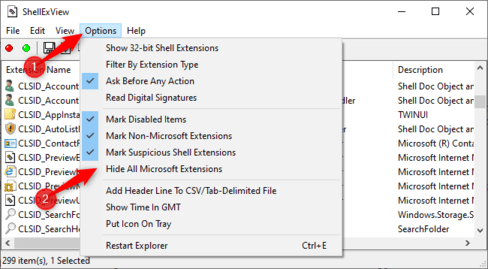
ShellExView right-click menu

Now the list is only for the third-party add-ons that you have installed. Examples include utilities from 7-Zip, Notepad++, NVIDIA, Dropbox, Google Drive, Malwarebytes and Paint.NET.

list of software integrated into the right-click menu

Would you like to find out which shell utilities are causing the problem? This is also a bit of a hassle, you have to disable one or more shell utilities, then restart Explorer and see if the problem is fixed.

Eg:

  • Disable all third-party extensions and add them one by one until the problem appears.
  • Turn off each extension until the problem is fixed.
  • Turn off group extensions. For example, disable half of the extension, if the problem is fixed then continue to turn off half of the last half, continue until the faulty extension is found. This is the fastest method.

First, select the extensions you want to disable. You can click each one, or press Ctrl + A or also have an entry card Edit > Select All to select all, press and hold the . key Shift to select all widgets after the selected one, press and hold Ctrl to select each widget consecutively.

To disable one or more selected shell utilities, right-click them and select “Disable Selected Items” or press File > Disable Selected Items. To turn it back on, just press “Enable Selected Items”.
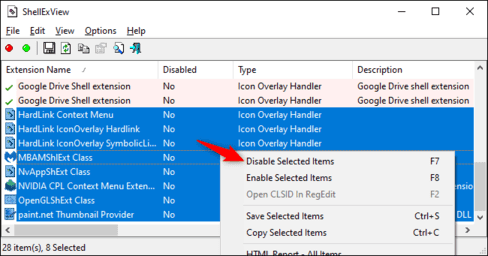
Enable Selected Items

Utilities that have been disabled will show the word “Yes” in the Disabled column.
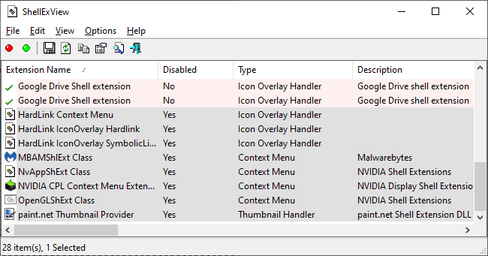
How to fix slow right-click menu item on Windows 4

You need restart the computer for the above configuration to take effect. You will see this option in the Options menu of ShellExView, but I recommend you do not do so because it will cause Explorer and taskbar to reload continuously, you have to log out or restart the machine to stop this error. .

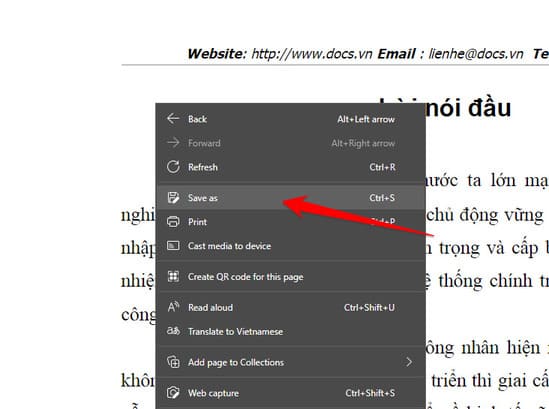
Instead, I recommend using Task Manager. To open Task Manager, simply press Ctrl + Shift + Esc or right click taskbar and select “Task manager”.open task manager
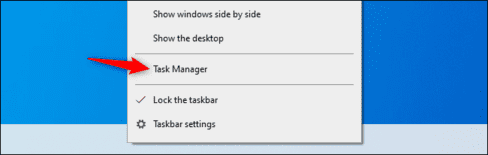
Find and click on Windows Explorer, then click “Restart”.task manager
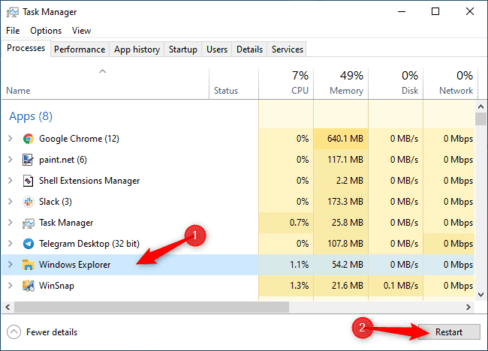
Explorer will restart. Now, try to open the right mouse button to see if the error appears again. If it’s still slow, turn off the enabled extensions, if it’s faster, turn on the disabled widgets.

Repeat until you solve the problem

Repeat this process until you determine which extension is causing the error. By checking your right-click menu every time you turn off or turn on an extension, remembering to restart Windows Explorer, you will determine which utility is failing quickly.

Turn off any extensions you don’t want to use. Don’t worry, you can always turn them back on in the future. If it doesn’t solve the problem, try applying the methods speed up windows that anonyviet instructed.
The article achieved: 5/5 – (100 votes)

Tags: fixitemmenurightclickslowWindows
Previous Post

Advanced SystemCare Ultimate 13 Full Key – Optimize, speed up Windows

Next Post

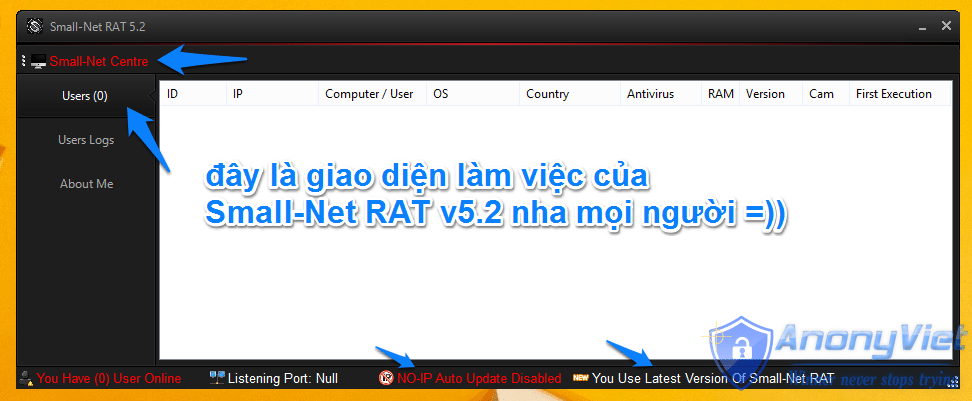
Small-Net RAT v5.2 – Trojan virus invades computer with many interesting features ^^ » Duy Quang

AnonyViet

AnonyViet

Related Posts

How to change the default font on Windows 10
Tips

How to change the default font on Windows 10

April 13, 2026
5 tips for using a Browser to replace an App (helps save RAM, time and money)
Tips

5 tips for using a Browser to replace an App (helps save RAM, time and money)

April 13, 2026
How to make funny MeMe photos without Photoshop within 10 seconds
Tips

How to make funny MeMe photos without Photoshop within 10 seconds

April 11, 2026
How to quickly design your own Logo without Photoshop
Tips

How to quickly design your own Logo without Photoshop

April 10, 2026
How to convert Website into App on Windows
Tips

How to convert Website into App on Windows

April 9, 2026
Instructions for getting 3 months of Adobe Express Pro for free
Tips

Instructions for getting 3 months of Adobe Express Pro for free

April 9, 2026
Next Post
Small-Net RAT v5.2 – Trojan virus invades computer with many interesting features ^^ » Duy Quang

Small-Net RAT v5.2 - Trojan virus invades computer with many interesting features ^^ » Duy Quang

0 0 votes
Article Rating
Subscribe
Login
Notify of
guest

guest

0 Comments
Oldest
Newest Most Voted
Inline Feedbacks
View all comments

Recent News

How to intercept traffic using Burp Suite to analyze HTTP/HTTPS

How to intercept traffic using Burp Suite to analyze HTTP/HTTPS

April 18, 2026
How to avoid Adblock detection on Youtube with 4 good tips

How to avoid Adblock detection on Youtube with 4 good tips

April 17, 2026
How to transfer ChatGPT data to Claude is extremely simple

How to transfer ChatGPT data to Claude is extremely simple

April 16, 2026
How to authenticate the owner’s SIM on VNeID from April 15

How to authenticate the owner’s SIM on VNeID from April 15

April 15, 2026
How to intercept traffic using Burp Suite to analyze HTTP/HTTPS

How to intercept traffic using Burp Suite to analyze HTTP/HTTPS

April 18, 2026
How to avoid Adblock detection on Youtube with 4 good tips

How to avoid Adblock detection on Youtube with 4 good tips

April 17, 2026
How to transfer ChatGPT data to Claude is extremely simple

How to transfer ChatGPT data to Claude is extremely simple

April 16, 2026
AnonyViet - English Version

AnonyViet

AnonyViet is a website share knowledge that you have never learned in school!

We are ready to welcome your comments, as well as your articles sent to AnonyViet.

Follow Us

Contact:

Email: anonyviet.com[@]gmail.com

Main Website: https://anonyviet.com

Recent News

How to intercept traffic using Burp Suite to analyze HTTP/HTTPS

How to intercept traffic using Burp Suite to analyze HTTP/HTTPS

April 18, 2026
How to avoid Adblock detection on Youtube with 4 good tips

How to avoid Adblock detection on Youtube with 4 good tips

April 17, 2026
No Result
View All Result
  • Home
  • News
  • Software
  • Knowledge
  • MMO
  • Tips
  • Security
  • Network
  • Office

wpDiscuz
0
0
Would love your thoughts, please comment.x
()
x
| Reply