• Home
  • News
  • Software
  • Knowledge
  • MMO
  • Tips
  • Security
  • Network
  • Office
AnonyViet - English Version
  • Home
  • News
  • Software
  • Knowledge
  • MMO
  • Tips
  • Security
  • Network
  • Office
No Result
View All Result
  • Home
  • News
  • Software
  • Knowledge
  • MMO
  • Tips
  • Security
  • Network
  • Office
No Result
View All Result
AnonyViet - English Version
No Result
View All Result

How to Enable Tab Mode in File Explorer Windows 11

AnonyViet by AnonyViet
August 23, 2024
in Tips
0

The file management experience on Windows 11 is becoming more flexible and convenient than ever with the new feature – tab mode in File Explorer. Enabling tab mode not only helps users easily switch between folders and drives, but also provides a neat and efficient workspace. Let's explore how to activate this feature through the article below.

Join the channel Telegram belong to AnonyViet 👉 Link 👈

How to Tab Mode in File Explorer Windows 11

Method 1: Update Windows

To use tab mode in File Explorer, you need to make sure that your computer is running on Windows 11 Build 22621.675 or higher.
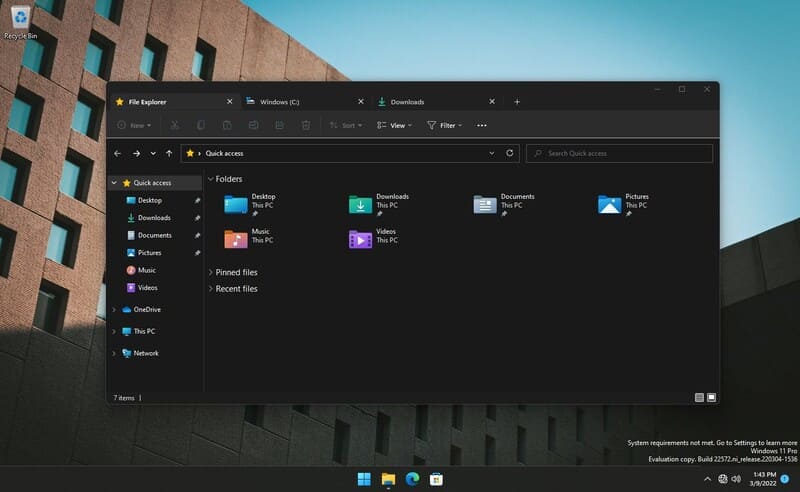
Tab mode in File Explorer

Step 1: You can check your Windows version by opening the RUN dialog box (Windows + R), typing 'winver' and pressing Enter.
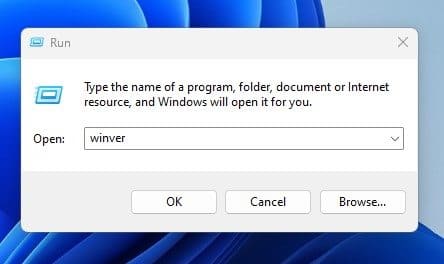
Open RUN dialog box (Windows + R), type 'winver'

Now the window appears, you can check Windows 11 version here.
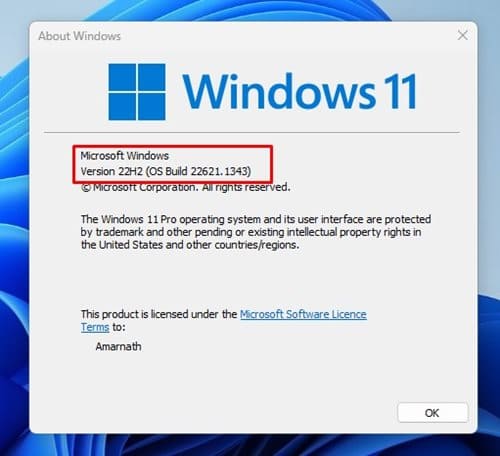
Check Windows 11 version

Step 2: If your PC isn't running Windows 11 Build 22621.675 (or higher), you should update by going to Settings > Windows Updates > Click the 'Check for updates' button.
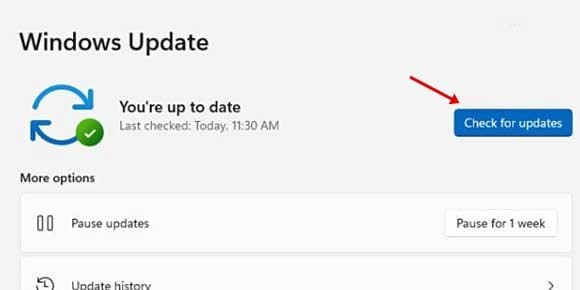
Click the 'Check for updates' button

Step 3: Restart your computer, now you will see the tabbed interface in File Explorer.

See also: Tips to restore the old ribbon interface on File Explorer

Method 2: Using ViVeTool

If for some reason you don't have tab mode on Windows 11, you can use the Vivetool tool following the instructions below to enable it:

Step 1: Download the latest version of ViVeTool ZIP file from Github HERE

Download ViVeTool ZIP file

Step 2: Extract the ViVeTool ZIP file to an easily accessible folder.

Step 3: Launch Command Prompt with administrator privileges.
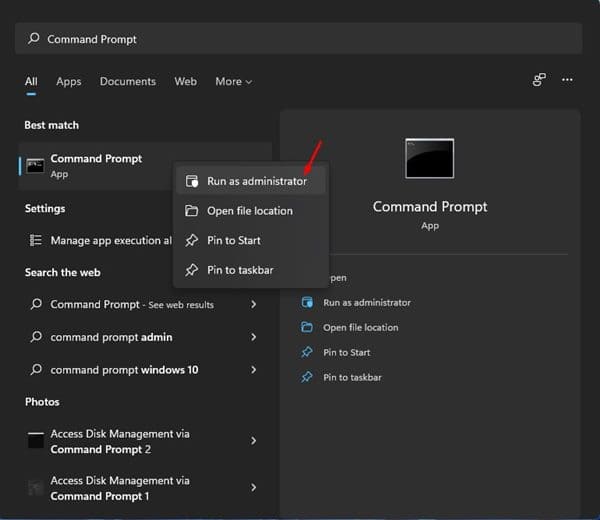
Launch Command Prompt

Step 4: Navigate to the folder containing the extracted ViVeTool and copy its path.
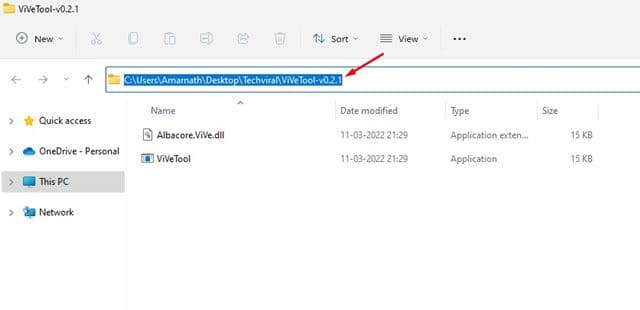
Copy the folder path containing ViVeTool

Step 5: In the Command Prompt window, type cd followed by the path of the ViVeTool folder and press Enter.

For example: cd “C:\Users\Techviral\Downloads\ViVeTool-v0.2.1”
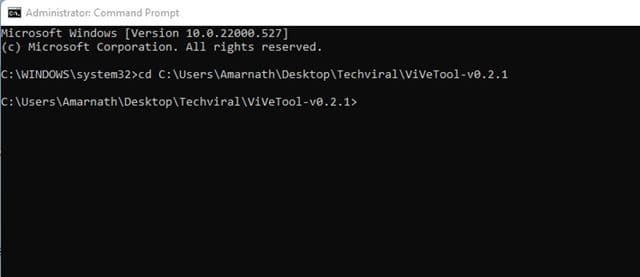
Type cd command followed by the path

Step 6: Enter command vivetool addconfig 34370472 2 and press Enter to enable the feature. The number 34370472 is the code for the feature to enable, and the number 2 is to enable the feature. To disable, replace the number 2 with the number 1.
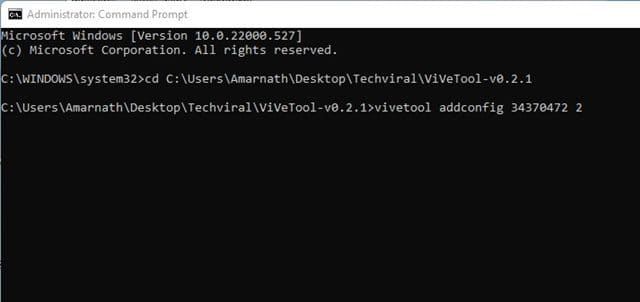
Enter the command vivetool addconfig 34370472 2

Step 7: If you receive the message “Successfully set feature configuration”, this means you have successfully enabled the feature.
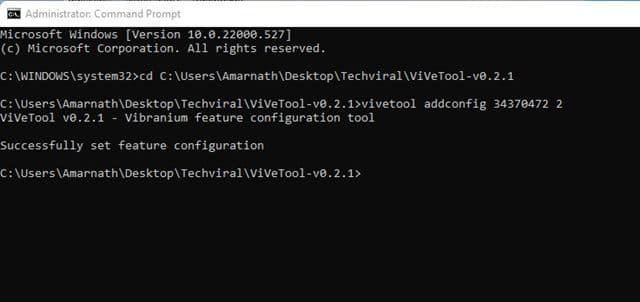
“Successfully set feature configuration” message

Step 8: Restart your computer to apply the changes and start using the new tab interface in File Explorer.
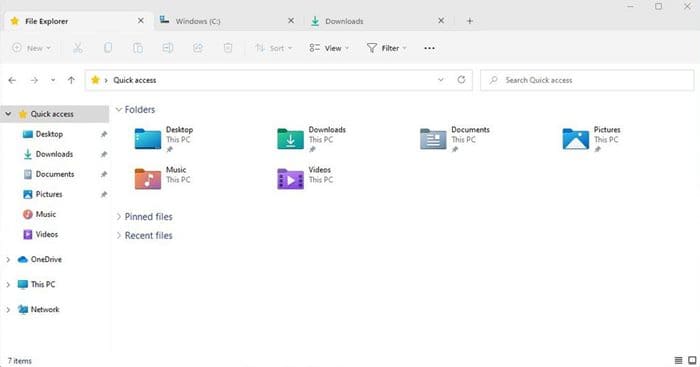
New tab interface in File Explorer

How to turn off tab mode in File Explorer

While some users like the new tab interface, others are unhappy with it due to bugs and lack of features. You can turn it off by:

Step 1: Open Command Prompt in Admin mode > Paste the following command line:

vivetool delconfig 34370472 2
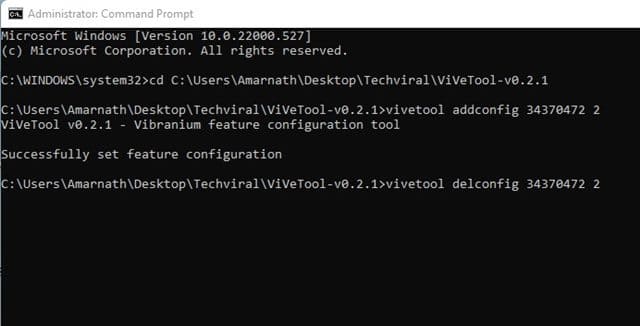
Paste the following command line in

Step 2: Restart your PC and you will see the tab interface will be gone.

See more: 99+ Tips Customize File Explorer not everyone knows

Conclusion

So, turning it on or off tab mode in File Explorer on Windows 11 22H2 has now become much simpler and easier. Whether you are a fan of new things or a fan of tradition, this customization will definitely meet your needs. Try it out and enjoy the convenience that the tab feature brings!


Tags: EnableExplorerfileModeTabWindows
Previous Post

How to create a Gucci style handwritten avatar the easiest way

Next Post

Black Myth: Wukong: Bell Location to Open Hidden MAP

AnonyViet

AnonyViet

Related Posts

New features of Windows 10 21H1 are coming soon
Tips

New features of Windows 10 21H1 are coming soon

March 16, 2026
How to convert normal music into 8D music with Audioalter
Tips

How to convert normal music into 8D music with Audioalter

March 14, 2026
How to prevent your family’s Security Camera from being hacked
Tips

How to prevent your family’s Security Camera from being hacked

March 13, 2026
Pixel Agents: Turn VS Code into a Pixel Art Office for AI
Tips

Pixel Agents: Turn VS Code into a Pixel Art Office for AI

March 12, 2026
English learning app Memrise is offering a lifetime discount of only 21,000 VND
Tips

English learning app Memrise is offering a lifetime discount of only 21,000 VND

March 11, 2026
Instructions for upgrading to Windows 10 Sun Valley (February 21)
Tips

Instructions for upgrading to Windows 10 Sun Valley (February 21)

March 11, 2026
Next Post
Black Myth: Wukong: Bell Location to Open Hidden MAP

Black Myth: Wukong: Bell Location to Open Hidden MAP

0 0 votes
Article Rating
Subscribe
Login
Notify of
guest

guest

0 Comments
Oldest
Newest Most Voted
Inline Feedbacks
View all comments

Recent News

How to install extension to remind office workers to drink water

How to install extension to remind office workers to drink water

March 17, 2026
Why are iPhones and MacBooks still the number 1 “weapons” of the technology world?

Why are iPhones and MacBooks still the number 1 “weapons” of the technology world?

March 16, 2026
New features of Windows 10 21H1 are coming soon

New features of Windows 10 21H1 are coming soon

March 16, 2026
Receive Advanced SystemCare 19 Pro key for free for 6 months

Receive Advanced SystemCare 19 Pro key for free for 6 months

March 16, 2026
How to install extension to remind office workers to drink water

How to install extension to remind office workers to drink water

March 17, 2026
Why are iPhones and MacBooks still the number 1 “weapons” of the technology world?

Why are iPhones and MacBooks still the number 1 “weapons” of the technology world?

March 16, 2026
New features of Windows 10 21H1 are coming soon

New features of Windows 10 21H1 are coming soon

March 16, 2026
AnonyViet - English Version

AnonyViet

AnonyViet is a website share knowledge that you have never learned in school!

We are ready to welcome your comments, as well as your articles sent to AnonyViet.

Follow Us

Contact:

Email: anonyviet.com[@]gmail.com

Main Website: https://anonyviet.com

Recent News

How to install extension to remind office workers to drink water

How to install extension to remind office workers to drink water

March 17, 2026
Why are iPhones and MacBooks still the number 1 “weapons” of the technology world?

Why are iPhones and MacBooks still the number 1 “weapons” of the technology world?

March 16, 2026
No Result
View All Result
  • Home
  • News
  • Software
  • Knowledge
  • MMO
  • Tips
  • Security
  • Network
  • Office

wpDiscuz
0
0
Would love your thoughts, please comment.x
()
x
| Reply