• Home
  • News
  • Software
  • Knowledge
  • MMO
  • Tips
  • Security
  • Network
  • Office
AnonyViet - English Version
  • Home
  • News
  • Software
  • Knowledge
  • MMO
  • Tips
  • Security
  • Network
  • Office
No Result
View All Result
  • Home
  • News
  • Software
  • Knowledge
  • MMO
  • Tips
  • Security
  • Network
  • Office
No Result
View All Result
AnonyViet - English Version
No Result
View All Result

How to Enable/Disable Password Generator in Microsoft Edge

AnonyViet by AnonyViet
January 28, 2023
in Tips
0

Microsoft Edge Use the built-in password generator to help you generate passwords for your online accounts. You can turn this password generator on and off, depending on whether you want to use it or not.

Join the channel Telegram of the AnonyViet 👉 Link 👈

How to Enable/Disable Password Generator in Microsoft Edge

Enable password generator in Microsoft Edge

To enable password suggestions in Microsoft Edge, you must enable both “Password Sync” and “Offer to save passwords” options in this browser. You can then turn on the password suggestion option.

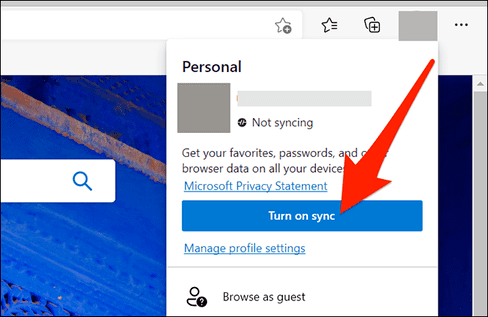
To enable Sync in Microsoft Edge, click your profile icon in the top right and select “Turn on sync”. If you don’t see this option, sync is probably enabled on your account.
How to Enable/Disable Password Generator in Microsoft Edge 10

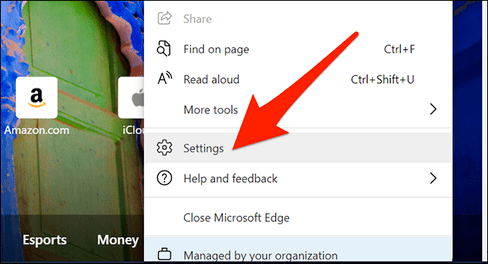
Next, click on the Edge menu (three dots) in the upper right corner and select “Settings”.
How to Enable/Disable Password Generator in Microsoft Edge 11

In the next window, select “Profiles” on the left, then click “Passwords” on the right.

How to Enable/Disable Password Generator in Microsoft Edge 12

Enable the “Offer to save passwords” option at the top. If it’s already on, leave it as is.

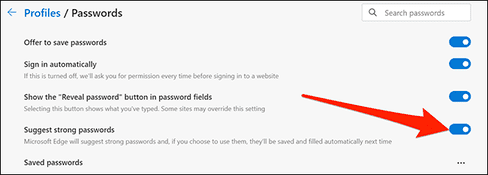
Now, enable the “Suggest strong passwords” option.
How to Enable/Disable Password Generator in Microsoft Edge 13

It’s done.

The next time you enter a password in Edge, the browser will suggest a random password to use. If you choose to use a password, Edge will save it and let you use it on all your linked devices.

These are devices where you have Edge sync enabled, like another computer or even your phone.

Turn off password generator in Microsoft Edge

You can turn off password suggestions in Microsoft Edge if you don’t want to use it.

To do this, launch Microsoft Edge on your computer.

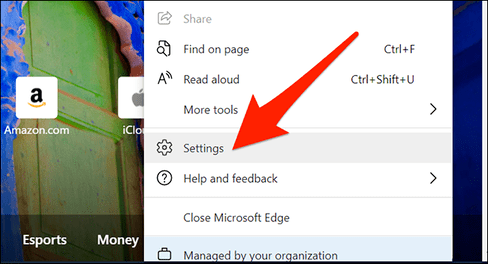
Click the Edge menu (three dots) in the top right corner and select “Settings”.
How to Enable/Disable Password Generator in Microsoft Edge 14

Click “Profiles” on the left and select “Passwords” on the right.
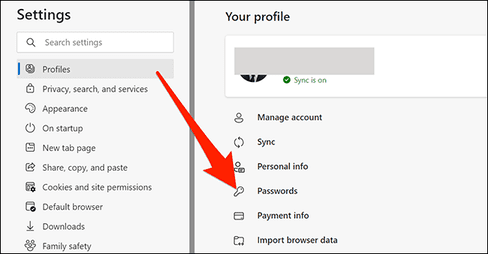
How to Enable/Disable Password Generator in Microsoft Edge 15

Turn off the “Suggest strong passwords” option.
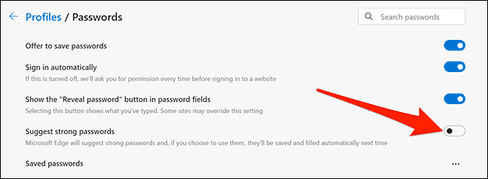
How to Enable/Disable Password Generator in Microsoft Edge 16

It’s done. Like Microsoft Edge, Google Chrome also has a password generator. You can use this feature if Chrome is your default browser.


The article achieved: 5/5 – (100 votes)

Tags: EdgeEnableDisableGeneratorMicrosoftPassword
Previous Post

How to use PowerMemory to Hack Windows Login Password by accessing RAM

Next Post

5 best CPU overclocking software to increase computer performance

AnonyViet

AnonyViet

Related Posts

How to change the default font on Windows 10
Tips

How to change the default font on Windows 10

April 13, 2026
5 tips for using a Browser to replace an App (helps save RAM, time and money)
Tips

5 tips for using a Browser to replace an App (helps save RAM, time and money)

April 13, 2026
How to make funny MeMe photos without Photoshop within 10 seconds
Tips

How to make funny MeMe photos without Photoshop within 10 seconds

April 11, 2026
How to quickly design your own Logo without Photoshop
Tips

How to quickly design your own Logo without Photoshop

April 10, 2026
How to convert Website into App on Windows
Tips

How to convert Website into App on Windows

April 9, 2026
Instructions for getting 3 months of Adobe Express Pro for free
Tips

Instructions for getting 3 months of Adobe Express Pro for free

April 9, 2026
Next Post
5 best CPU overclocking software to increase computer performance

5 best CPU overclocking software to increase computer performance

0 0 votes
Article Rating
Subscribe
Login
Notify of
guest

guest

0 Comments
Oldest
Newest Most Voted
Inline Feedbacks
View all comments

Recent News

How to add Watermark to Google Docs to protect copyright

How to add Watermark to Google Docs to protect copyright

April 19, 2026
How to intercept traffic using Burp Suite to analyze HTTP/HTTPS

How to intercept traffic using Burp Suite to analyze HTTP/HTTPS

April 18, 2026
How to avoid Adblock detection on Youtube with 4 good tips

How to avoid Adblock detection on Youtube with 4 good tips

April 17, 2026
How to transfer ChatGPT data to Claude is extremely simple

How to transfer ChatGPT data to Claude is extremely simple

April 16, 2026
How to add Watermark to Google Docs to protect copyright

How to add Watermark to Google Docs to protect copyright

April 19, 2026
How to intercept traffic using Burp Suite to analyze HTTP/HTTPS

How to intercept traffic using Burp Suite to analyze HTTP/HTTPS

April 18, 2026
How to avoid Adblock detection on Youtube with 4 good tips

How to avoid Adblock detection on Youtube with 4 good tips

April 17, 2026
AnonyViet - English Version

AnonyViet

AnonyViet is a website share knowledge that you have never learned in school!

We are ready to welcome your comments, as well as your articles sent to AnonyViet.

Follow Us

Contact:

Email: anonyviet.com[@]gmail.com

Main Website: https://anonyviet.com

Recent News

How to add Watermark to Google Docs to protect copyright

How to add Watermark to Google Docs to protect copyright

April 19, 2026
How to intercept traffic using Burp Suite to analyze HTTP/HTTPS

How to intercept traffic using Burp Suite to analyze HTTP/HTTPS

April 18, 2026
No Result
View All Result
  • Home
  • News
  • Software
  • Knowledge
  • MMO
  • Tips
  • Security
  • Network
  • Office

wpDiscuz
0
0
Would love your thoughts, please comment.x
()
x
| Reply