
• Home
  • News
  • Software
  • Knowledge
  • MMO
  • Tips
  • Security
  • Network
  • Office
AnonyViet - English Version
  • Home
  • News
  • Software
  • Knowledge
  • MMO
  • Tips
  • Security
  • Network
  • Office
No Result
View All Result
  • Home
  • News
  • Software
  • Knowledge
  • MMO
  • Tips
  • Security
  • Network
  • Office
No Result
View All Result
AnonyViet - English Version
No Result
View All Result

How to download PDF without preview on Chrome, Firefox and Edge

AnonyViet by AnonyViet
January 29, 2023
in Tips
0

When opening a link with a pdf file, browsers will usually open the pdf file by default with that browser, instead of downloading it to your computer. But your need is to download PDF without preview, follow the way below to download the pdf file to your computer simply. To download a PDF and not preview it, you need to change some settings in your browser. This feature works on both Chrome, Firefox and Edge.

Join the channel Telegram of the AnonyViet 👉 Link 👈

How to download PDF without preview on Chrome, Firefox and Edge

How to download PDF without preview on browsers

Download PDF Files with Chrome

Google Chrome use the built-in PDF viewer to allow you to preview PDF files. You can disable this PDF viewer and then Chrome will prompt you to download PDF FILEs instead of previewing them.

First, you need to open Google Chrome. Then tap on the top right 3-dot button and select “Settings”.
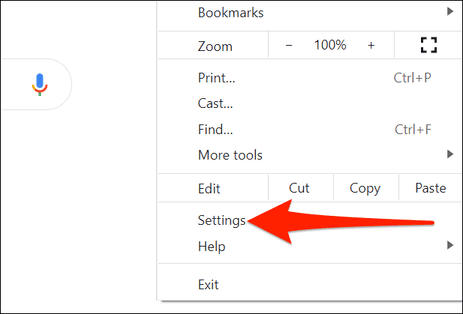
Download PDF Files with Chrome

In Settings, select “Privacy and security” – > “Site Settings”.
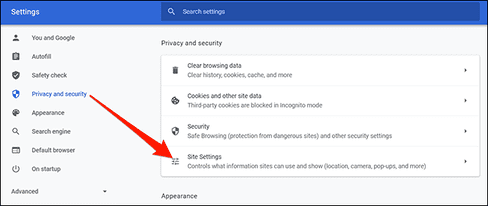
Site Settings

Scroll down and select “Additional content settings”.
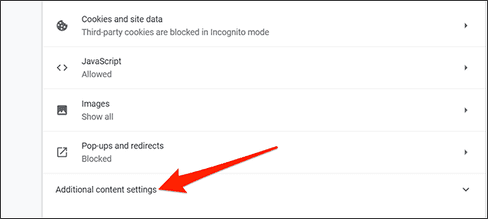
Additional content settings

In the drop-down menu, select “PDF documents”.
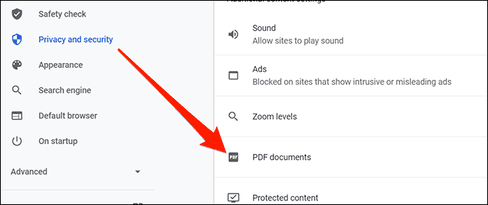
PDF documents

Finally, enable the option “Download PDF files instead of automatically opening them in Chrome”.
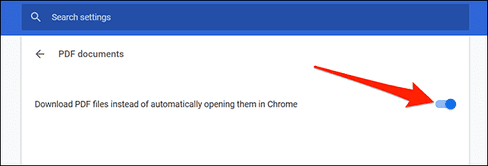
Download PDF files instead of automatically opening them in Chrome

Chrome will now ask you to load PDFs instead of letting you preview them in the browser.

Download PDF Files with Firefox

Mozilla Firefox also has a built-in option to let you download PDF files instead of previewing them in the browser.

First, you need to open Firefox and go to “Options”.
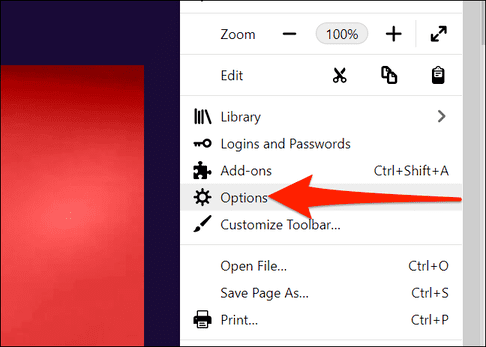
Download PDF Files with Firefox

In Options, click “General” on the left. Scroll down the menu on the right until you see the item “Applications”.

In Applications, click the “Portable Document Format (PDF)” option and select “Save File”.
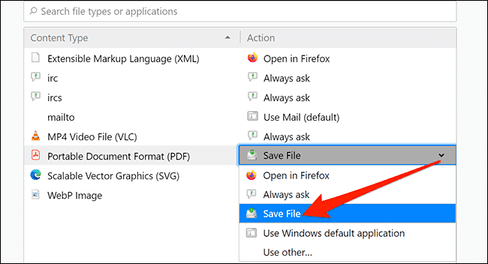
Applications

So you can download the pdf file to your computer without having to view it in the browser.

Download PDF Files with Microsoft Edge

Microsoft Edge uses the built-in PDF viewer to let you preview PDF files. Turn off the option to view pdf by browser and edge will automatically download the pdf file to your computer, just do the following:

First, you need to open Edge and go to “Settings”.
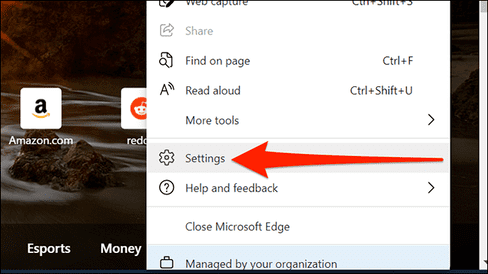
Microsoft Edge Settings

In Settings, click “Cookies and site permissions” on the left, then select “PDF documents” on the right.
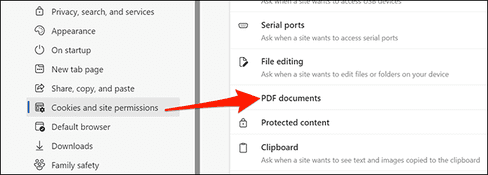
Cookies and site permissions

Enable the “Always download PDF files” option.
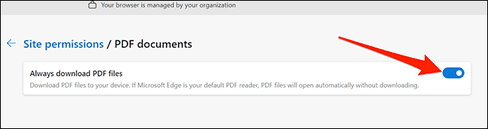
Always download PDF files

It is done. You can also download web pages as PDF to read while offline too.

Download the Web page as a PDF to your computer

You surf the web and accidentally see a good website, you want to download that article, instead of pressing Ctrl + S to save all html, js, css files, now you can save that web page with only 1 pdf file. Best.

Saving web pages as pdf makes it easy to print or store and share with others. You just need to visit the website you want to save as a pdf, right click on the website and select Print

print web page pdf

In the section Destination you choose Save as Pdfthen press the button Savechoose the path to save the pdf file and you’re done.

In case if the pdf file does not display images, remember to select More Settings, check the Background graphics.

destination PRINT WEBSITE PDF

In this article, I have guided you to download pdf without browser preview, now you can download textbooks and pdf documents to your computer easily.


The article achieved: 5/5 – (100 votes)

Tags: ChromeDownloadEdgeFirefoxPDFpreview
Previous Post

Cách khắc phục lỗi ngốn Ram tốn bộ nhớ trong Windows 10

Next Post

NetCut new version super powerful

AnonyViet

AnonyViet

Related Posts

How to add sliders to Facebook Stories to easily rewind videos
Tips

How to add sliders to Facebook Stories to easily rewind videos

April 21, 2026
How to change the default font on Windows 10
Tips

How to change the default font on Windows 10

April 13, 2026
5 tips for using a Browser to replace an App (helps save RAM, time and money)
Tips

5 tips for using a Browser to replace an App (helps save RAM, time and money)

April 13, 2026
How to make funny MeMe photos without Photoshop within 10 seconds
Tips

How to make funny MeMe photos without Photoshop within 10 seconds

April 11, 2026
How to quickly design your own Logo without Photoshop
Tips

How to quickly design your own Logo without Photoshop

April 10, 2026
How to convert Website into App on Windows
Tips

How to convert Website into App on Windows

April 9, 2026
Next Post
NetCut new version super powerful

NetCut new version super powerful

0 0 votes
Article Rating
Subscribe
Login
Notify of
guest

guest

0 Comments
Oldest
Newest Most Voted
Inline Feedbacks
View all comments

Recent News

Create an avatar to celebrate April 30 with a beautiful red flag shirt with yellow stars

Create an avatar to celebrate April 30 with a beautiful red flag shirt with yellow stars

April 30, 2026
How to get 2 months of Super Duolingo for free worth 300k

How to get 2 months of Super Duolingo for free worth 300k

April 30, 2026
How to create a Face Sticker Collection using ChatGPT

How to create a Face Sticker Collection using ChatGPT

April 29, 2026
How to install the cute Bongo Cat mouse pointer for Windows

How to install the cute Bongo Cat mouse pointer for Windows

April 29, 2026
Create an avatar to celebrate April 30 with a beautiful red flag shirt with yellow stars

Create an avatar to celebrate April 30 with a beautiful red flag shirt with yellow stars

April 30, 2026
How to get 2 months of Super Duolingo for free worth 300k

How to get 2 months of Super Duolingo for free worth 300k

April 30, 2026
How to create a Face Sticker Collection using ChatGPT

How to create a Face Sticker Collection using ChatGPT

April 29, 2026
AnonyViet - English Version

AnonyViet

AnonyViet is a website share knowledge that you have never learned in school!

We are ready to welcome your comments, as well as your articles sent to AnonyViet.

Follow Us

Contact:

Email: anonyviet.com[@]gmail.com

Main Website: https://anonyviet.com

Recent News

Create an avatar to celebrate April 30 with a beautiful red flag shirt with yellow stars

Create an avatar to celebrate April 30 with a beautiful red flag shirt with yellow stars

April 30, 2026
How to get 2 months of Super Duolingo for free worth 300k

How to get 2 months of Super Duolingo for free worth 300k

April 30, 2026
No Result
View All Result
  • Home
  • News
  • Software
  • Knowledge
  • MMO
  • Tips
  • Security
  • Network
  • Office

wpDiscuz
0
0
Would love your thoughts, please comment.x
()
x
| Reply





