Uninstall WSL on Windows 11 can be more complicated than you think, it’s more than just a simple click on the “Uninstall” button. Whether it’s to free up space, fix problems, or simply no longer need it, completely uninstalling it requires you to perform many steps in a certain order. Don’t worry, this article will help you thoroughly and safely clean Windows Subsystem for Linux from your computer.
| Join the channel Telegram belong to AnonyViet 👉 Link 👈 |
Why is it necessary to uninstall WSL on Windows 11?
Windows Subsystem for Linux (WSL) is an extremely useful feature for developers and users who need to work side-by-side between two operating systems. However, there will come a time when you no longer need it. Some common reasons include:
- You want to free up storage space on your hard drive.
- You need to reinstall WSL to fix the problems you are having.
- You have finished your work and no longer need to use the environment Linux on Windows.
Whatever the reason, proper removal will ensure your system is clean and leaves no junk files behind.
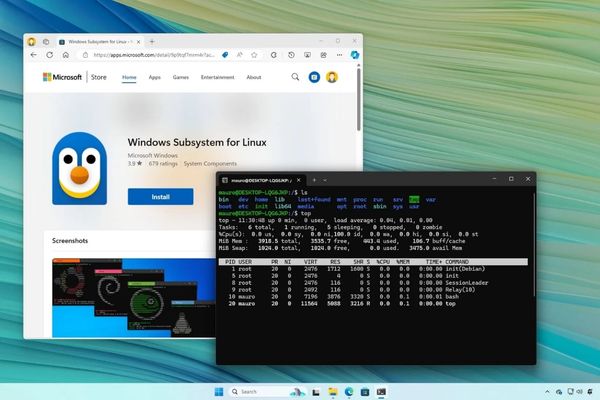
Instructions for uninstalling WSL on Windows 11
To completely remove WSL, you cannot just uninstall a single application. This process includes three main stages: Uninstalling Linux distributions, removing WSL components and finally disabling related features in Windows.
1. Uninstall Linux distributions
This is the first and most important step. You need to remove all Linux distributions (like Ubuntu, Debian, Kali,…) that you installed through WSL.
- First, you need to open the application Settings on Windows 11.
- Next, click on the item Apps in the left bar.
- Then you choose the page Installed apps.
- Here, you find the Linux distribution you want to uninstall (for example, Ubuntu).
- You click the menu button (three dots icon) on the right and select Uninstall.
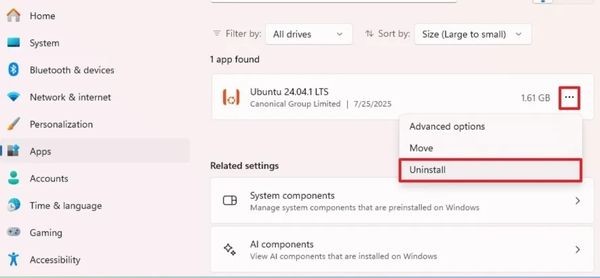
- Finally, you confirm again by clicking Uninstall.
You need to repeat this process until all Linux distributions have been completely removed from the computer.
2. Remove WSL components
After removing the distros, the next step is to remove core WSL components such as the Linux kernel and GUI components. Previously, you could do this in Settings, but on new versions of Windows 11, this option has been hidden. Therefore, use PowerShell is the most effective way.
- Open Start Menu.
- Keyword search PowerShellright click on the top result and select Run as administrator.
- In the PowerShell window, copy and paste the following command and press Enter:
Get-AppxPackage MicrosoftCorporationII.WindowsSubsystemForLinux | Remove-AppxPackage
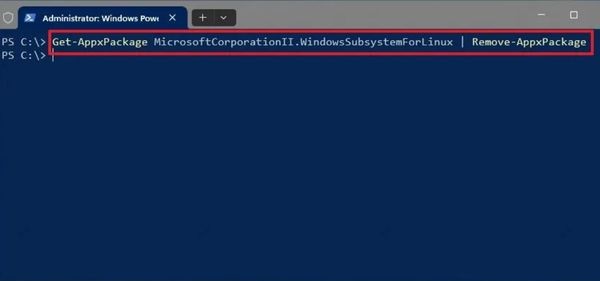
This command will find and remove the “Windows Subsystem for Linux” application package from your system.
3. Remove WSL from Windows 11
The final step is to turn off the Windows platform features that make WSL work.
- Open again Settings.
- Go to section System then select page Optional features.
- In the “Related settings” section, click on options More Windows features.
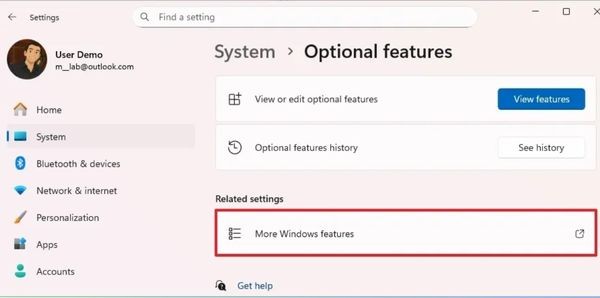
- A “Windows Features” window will appear. Here, you need to find and uncheck the following two items:
- Virtual Machine Platform
- Windows Subsystem for Linux
- After deselecting, you click the button OK for Windows to begin the uninstallation process.
- Finally, the system will ask to reboot, click the button Restart now to complete.
After the computer restarts, Windows Subsystem for Linux will be completely removed from your system.
Conclusion
So, with just a few steps in the right order, you can do it uninstall WSL on Windows 11 completely. This ensures that no WSL components remain on the system, helping your computer become cleaner and operate more stably. If you need it later, you can completely reinstall WSL easily.