• Home
  • News
  • Software
  • Knowledge
  • MMO
  • Tips
  • Security
  • Network
  • Office
AnonyViet - English Version
  • Home
  • News
  • Software
  • Knowledge
  • MMO
  • Tips
  • Security
  • Network
  • Office
No Result
View All Result
  • Home
  • News
  • Software
  • Knowledge
  • MMO
  • Tips
  • Security
  • Network
  • Office
No Result
View All Result
AnonyViet - English Version
No Result
View All Result

How to change the default Download folder on Windows 11 to another drive

AnonyViet by AnonyViet
April 4, 2024
in Tips
0

The default Download folder of Windows 11 is located in drive C, this can cause drive C to become full and affect the performance of the computer. Therefore, you may want to move the Download folder to another drive, with larger capacity and less occupied by the system. In this article, AnonyViet will guide you How to change Download folder default on Windows 11 simply and quickly.

Join the channel Telegram belong to AnonyViet 👉 Link 👈

Why should you change the Download folder to another drive?

Windows 11 is Microsoft's latest operating system, bringing many new features and interfaces to users. However, some default Windows 11 settings may not suit your needs and preferences. One of them is the location of the Download folder, where files downloaded from the Internet are stored.

Therefore, you should change the Download folder to another drive, to:

  • Increase free space for C drive, make the computer run faster, improve access speed in the operating system
  • Protect the data you download when you have to reinstall the operating system.
  • Easily manage files downloaded from websites or created on the system
  • Another drive with larger capacity can be used or permanently connected to the system

How to change the default Download folder to another drive

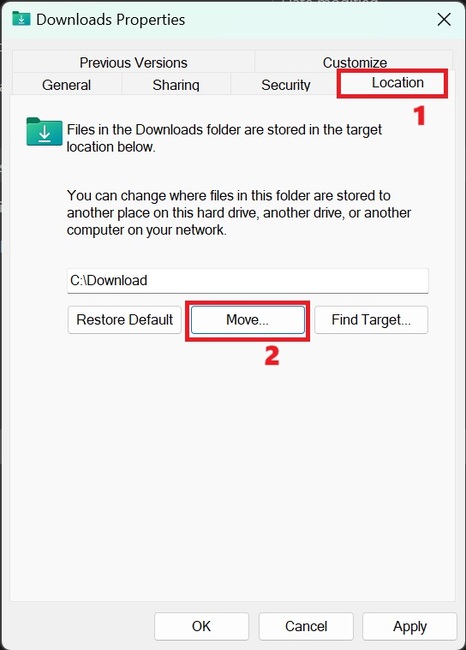
Step 1: Right-click on the default Download folder > Select the 'Location' tab > Click 'Move'
How to change Download folder
Select 'Location' tab > Click 'Move'

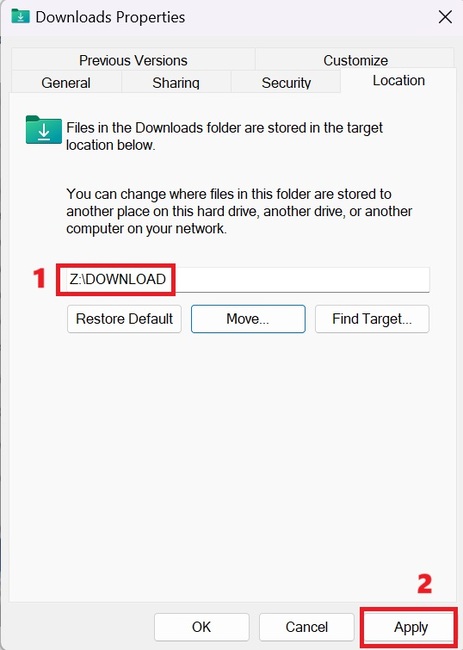
Step 2: Select the new location you want to move the Download folder to, for example drive D, E, F, Z… and click the Select Folder button > Click the Apply button to save the changes.
How to change Download folder
Select new location > Click 'Apply'

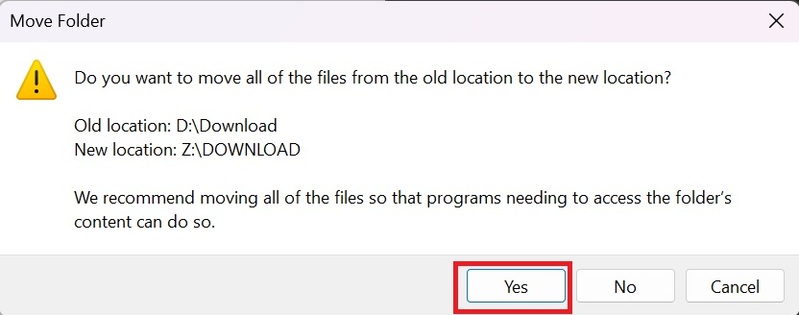
At this point, Windows 11 will ask if you want to move all files from the old location to the new location. If you select Yes, Windows 11 will automatically copy and delete files in the old Download folder. If you choose No, Windows 11 will only change the Download folder location without affecting existing files.
How to change Download folder
Select Yes

Step 3: Click OK to complete

Epilogue

So you're done How to change Download folder default on Windows 11. This way, you can free up storage space on drive C. You can also apply the same method to change the location of other default folders on Windows 11, such as Documents , Music, Pictures, Videos and 3D Objects. Good luck!


The article scored: 5/5 – (100 votes)

Tags: changedefaultDownloaddriveFolderWindows
Previous Post

How to turn on Gmail notifications on Chrome so you don't miss important emails

Next Post

Share Key Driver Booster 11 Pro for free

AnonyViet

AnonyViet

Related Posts

3 OCR Tools Extract Text from Images without Retyping
Tips

3 OCR Tools Extract Text from Images without Retyping

November 8, 2025
Ways hackers use to hack your Facebook and how to fix it
Tips

Ways hackers use to hack your Facebook and how to fix it

November 7, 2025
Create your own Font using your Handwriting
Tips

Create your own Font using your Handwriting

November 6, 2025
Share White Hat Hacker Course – The Complete Ethical Hacking Course
Tips

Share White Hat Hacker Course – The Complete Ethical Hacking Course

November 5, 2025
Instructions on how to get 1 year of ChatGPT Go for free
Tips

Instructions on how to get 1 year of ChatGPT Go for free

November 4, 2025
Instructions for creating your own Chrome Extension using Scratch
Tips

Instructions for creating your own Chrome Extension using Scratch

November 4, 2025
Next Post
Share Key Driver Booster 11 Pro for free

Share Key Driver Booster 11 Pro for free

0 0 votes
Article Rating
Subscribe
Login
Notify of
guest

guest

0 Comments
Oldest
Newest Most Voted
Inline Feedbacks
View all comments

Recent News

Download training materials on Applying AI in teaching and learning in 2025

Download training materials on Applying AI in teaching and learning in 2025

November 8, 2025
How to pay health insurance on Momo online right at home

How to pay health insurance on Momo online right at home

November 8, 2025
How to create Flycam videos from photos to sell real estate

How to create Flycam videos from photos to sell real estate

November 8, 2025
3 OCR Tools Extract Text from Images without Retyping

3 OCR Tools Extract Text from Images without Retyping

November 8, 2025
Download training materials on Applying AI in teaching and learning in 2025

Download training materials on Applying AI in teaching and learning in 2025

November 8, 2025
How to pay health insurance on Momo online right at home

How to pay health insurance on Momo online right at home

November 8, 2025
How to create Flycam videos from photos to sell real estate

How to create Flycam videos from photos to sell real estate

November 8, 2025
AnonyViet - English Version

AnonyViet

AnonyViet is a website share knowledge that you have never learned in school!

We are ready to welcome your comments, as well as your articles sent to AnonyViet.

Follow Us

Contact:

Email: anonyviet.com[@]gmail.com

Main Website: https://anonyviet.com

Recent News

Download training materials on Applying AI in teaching and learning in 2025

Download training materials on Applying AI in teaching and learning in 2025

November 8, 2025
How to pay health insurance on Momo online right at home

How to pay health insurance on Momo online right at home

November 8, 2025
  • Home
  • Home 2
  • Home 3
  • Home 4
  • Home 5
  • Home 6
  • Next Dest Page
  • Sample Page

new88 trang chủ shbet trang chủ f168 trang chủ qq88 nhà cái 78win

No Result
View All Result
  • Home
  • News
  • Software
  • Knowledge
  • MMO
  • Tips
  • Security
  • Network
  • Office

new88 trang chủ shbet trang chủ f168 trang chủ qq88 nhà cái 78win

wpDiscuz
0
0
Would love your thoughts, please comment.x
()
x
| Reply