• Home
  • News
  • Software
  • Knowledge
  • MMO
  • Tips
  • Security
  • Network
  • Office
AnonyViet - English Version
  • Home
  • News
  • Software
  • Knowledge
  • MMO
  • Tips
  • Security
  • Network
  • Office
No Result
View All Result
  • Home
  • News
  • Software
  • Knowledge
  • MMO
  • Tips
  • Security
  • Network
  • Office
No Result
View All Result
AnonyViet - English Version
No Result
View All Result

How to change Screen Refresh Rate on Windows 11

AnonyViet by AnonyViet
January 26, 2023
in Tips
0

Refresh rate is measured in Hertz (Hz) and it determines the number of times an image appears on the screen per second. In general, the faster the image changes (or refreshes) on the screen, the better and smoother the viewing experience. On the other hand, the slower the refresh rate on the screen, the more uncomfortable the experience will be, causing lag, causing screen flickering, headaches and eye fatigue.

Join the channel Telegram of the AnonyViet 👉 Link 👈

How to change Screen Refresh Rate on Windows 11

Although Windows 11 can automatically set the optimal refresh rate, sometimes you may need to change the refresh rate manually depending on the situation. For example, if you have a monitor that supports a high refresh rate of 144Hz or higher, which is often seen on gaming monitors. Or you notice some flickering because the monitor might be using a low refresh rate.

Whatever the reason may be, the Settings app will make it easy to adjust your device’s refresh rate. Also, now you can also turn on Dynamic Refresh Rate (DRR) on supported hardware. Dynamic Refresh Rate (DRR) is a feature available on Windows 11 and higher releases that automatically increases or decreases the refresh rate for gaming or scrolling the screen for a smoother experience while saving more battery. .

How to change the screen refresh rate on Windows 11

On Windows 11, there are two ways to control the refresh rate. You can specify a specific number or enable Dynamic Refresh Rate (DRR) if your hardware supports it.

Change refresh rate

1. Open Settings.

2. Click System.

3. Click display on the right side.
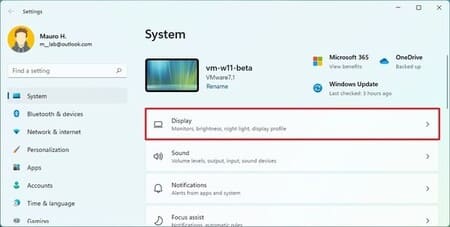
How to change Screen Refresh Rate on Windows 11 10

4. In the “Related settings” section, click advanced display.
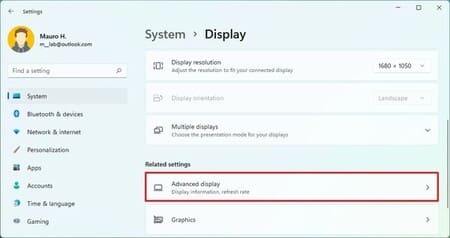
How to change Screen Refresh Rate on Windows 11 11

5. In the “Display information” section, select the refresh rate you want.
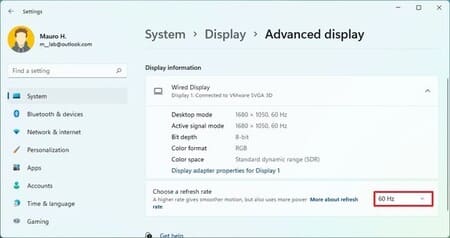
How to change Screen Refresh Rate on Windows 11 12

After you complete the above steps, the system will apply the new settings and the monitor will start using the new refresh rate.

Enable Dynamic Refresh Rate (DRR)

1. Open Settings.

2. Click System.

3. Click display on the right side.

How to change Screen Refresh Rate on Windows 11 10

4. In the “Related settings” section, click Advanced display.

How to change Screen Refresh Rate on Windows 11 11

5. In the “Choose a refresh rate” setting, select the option Dynamic. (Option only available on supported hardware).

How to change Screen Refresh Rate on Windows 11 12

After you complete the above steps, Windows 11 will automatically increase or decrease the refresh rate to save energy.

If you change your mind, you can always undo the changes using these steps, but in step 5, choose the speed you want to use for the display.

In addition, you can also see how to connect 2 or more monitors on Windows 10 here.

The article achieved: 5/5 – (100 votes)

Tags: changeRateRefreshscreenWindows
Previous Post

Lesson 22: Discount – Discount – Basic Excel

Next Post

Differences between Linux and Unix and things you don’t know

AnonyViet

AnonyViet

Related Posts

5+ prompts to create sparkling Christmas photos for mothers and babies at home
Tips

5+ prompts to create sparkling Christmas photos for mothers and babies at home

December 17, 2025
How to Clean Up Your Computer to Speed ​​Up Windows Faster
Tips

How to Clean Up Your Computer to Speed ​​Up Windows Faster

December 16, 2025
Share Snowfall Code for Website to celebrate Christmas
Tips

Share Snowfall Code for Website to celebrate Christmas

December 16, 2025
How to build web applications in just minutes with Youware
Tips

How to build web applications in just minutes with Youware

December 15, 2025
5 Free Adobe Illustrator Alternatives on Linux
Tips

5 Free Adobe Illustrator Alternatives on Linux

December 15, 2025
Review of Chongluadao utility – HieuPC’s new anti-fraud utility
Tips

Review of Chongluadao utility – HieuPC’s new anti-fraud utility

December 14, 2025
Next Post
Differences between Linux and Unix and things you don’t know

Differences between Linux and Unix and things you don't know

0 0 votes
Article Rating
Subscribe
Login
Notify of
guest

guest

0 Comments
Oldest
Newest Most Voted
Inline Feedbacks
View all comments

Recent News

5+ prompts to create sparkling Christmas photos for mothers and babies at home

5+ prompts to create sparkling Christmas photos for mothers and babies at home

December 17, 2025
How to Clean Up Your Computer to Speed ​​Up Windows Faster

How to Clean Up Your Computer to Speed ​​Up Windows Faster

December 16, 2025
Share Snowfall Code for Website to celebrate Christmas

Share Snowfall Code for Website to celebrate Christmas

December 16, 2025
How to build web applications in just minutes with Youware

How to build web applications in just minutes with Youware

December 15, 2025
5+ prompts to create sparkling Christmas photos for mothers and babies at home

5+ prompts to create sparkling Christmas photos for mothers and babies at home

December 17, 2025
How to Clean Up Your Computer to Speed ​​Up Windows Faster

How to Clean Up Your Computer to Speed ​​Up Windows Faster

December 16, 2025
Share Snowfall Code for Website to celebrate Christmas

Share Snowfall Code for Website to celebrate Christmas

December 16, 2025
AnonyViet - English Version

AnonyViet

AnonyViet is a website share knowledge that you have never learned in school!

We are ready to welcome your comments, as well as your articles sent to AnonyViet.

Follow Us

Contact:

Email: anonyviet.com[@]gmail.com

Main Website: https://anonyviet.com

Recent News

5+ prompts to create sparkling Christmas photos for mothers and babies at home

5+ prompts to create sparkling Christmas photos for mothers and babies at home

December 17, 2025
How to Clean Up Your Computer to Speed ​​Up Windows Faster

How to Clean Up Your Computer to Speed ​​Up Windows Faster

December 16, 2025
  • Home
  • Home 2
  • Home 3
  • Home 4
  • Home 5
  • Home 6
  • Next Dest Page
  • Sample Page

trang chủ f168 nhà cái 78win https://www.qq8827.com/ https://go99.ae.org/ https://nohu90.bid/

No Result
View All Result
  • Home
  • News
  • Software
  • Knowledge
  • MMO
  • Tips
  • Security
  • Network
  • Office

trang chủ f168 nhà cái 78win https://www.qq8827.com/ https://go99.ae.org/ https://nohu90.bid/

wpDiscuz
0
0
Would love your thoughts, please comment.x
()
x
| Reply