• Home
  • News
  • Software
  • Knowledge
  • MMO
  • Tips
  • Security
  • Network
  • Office
AnonyViet - English Version
  • Home
  • News
  • Software
  • Knowledge
  • MMO
  • Tips
  • Security
  • Network
  • Office
No Result
View All Result
  • Home
  • News
  • Software
  • Knowledge
  • MMO
  • Tips
  • Security
  • Network
  • Office
No Result
View All Result
AnonyViet - English Version
No Result
View All Result

How to change color and add icons to iPhone Folders

AnonyViet by AnonyViet
October 20, 2025
in Knowledge
0

Change color and add icon to iPhone folder is a great tip to help you “change a new look” for the default Files application. Instead of looking at monotonous blue folders, you can completely make them stand out with your favorite colors and unique icons. Not only beautiful, this trick is also a secret to help you organize and search documents lightning fast!

Join the channel Telegram belong to AnonyViet 👉 Link 👈

Why is this more helpful than you think?

At first glance, this seems like just a small change in appearance. However, when applied, you will realize unexpected practical benefits.

  • Helps you search with your eyes instead of reading text, for example a red folder with a heart icon will be immediately recognized as a place containing personal memories.
  • Helps you create an inspiring and personal digital workspace, making every time you open the Files app more enjoyable.
  • Helps you classify tasks scientifically, such as assigning green to completed projects and orange to urgent tasks.
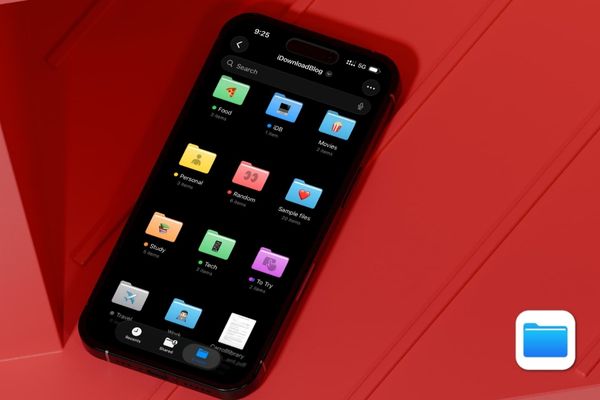
Why should you change the color and add icons to iPhone folders?

How to change color and add icons to iPhone folders

This feature is built-in and extremely easy to use. In particular, all changes will be synchronized across all your Apple devices iCloud.

Step 1: First of all, launch the Files application. You then navigate to the location of the folder you want to “remove”, which is probably in iCloud Drive or in section On My iPhone.

Step 2: Here, you just need to touch and hold on the desired folder for approx 1-2 seconds. An options panel will appear, find and click on the line “Customize Folders & Tags” (Customize Folders & Tags).
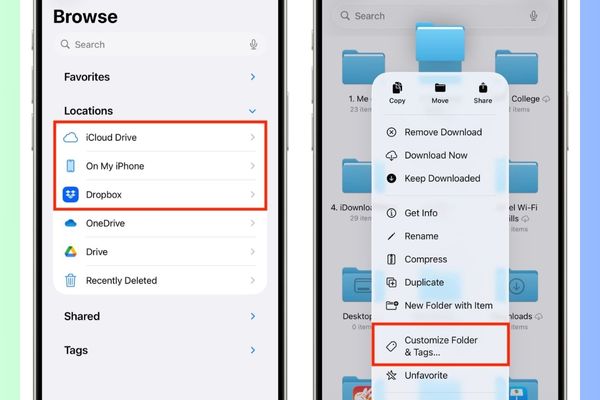
Click Customize Folder & Tags

Step 3:

  • To choose a color: Tap the Tag button (Tags), a color palette will appear and you just need to choose the color you like. The folder will immediately change to that color.
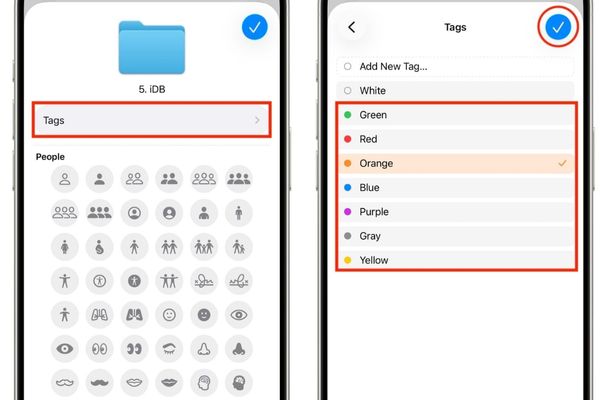
Click the Tags button and choose a color
  • To insert an icon: Scroll down a bit, you will see a series of available icons. To add more choices, press the Emoji button and choose the image you like.

Finally, tap the icon ✓ mark in the upper right corner to confirm and save your work.
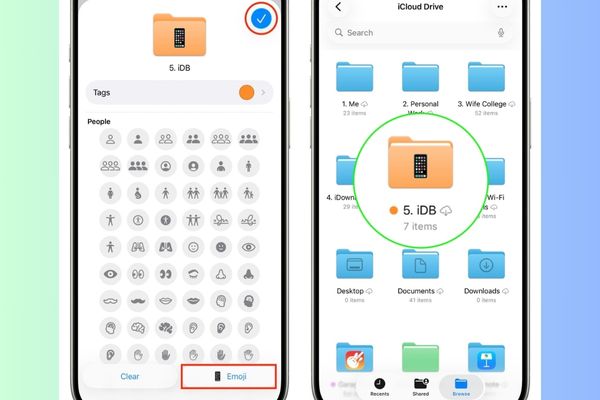
How to change color and add icons to iPhone folders

Which folders cannot be “replaced with new clothes”?

Although very cool, this feature still has a few small limitations you need to know:

  • You will not be able to change the color of these system folder created by Apple’s own applications (such as Pages, Numbers, GarageBand…).
  • The default directory Important items like “Downloads” or folders shared with you by others via iCloud Drive are also outside the scope of customization.
  • However, folders created by third-party applications such as DropboxVLC,… can completely be “transformed”.
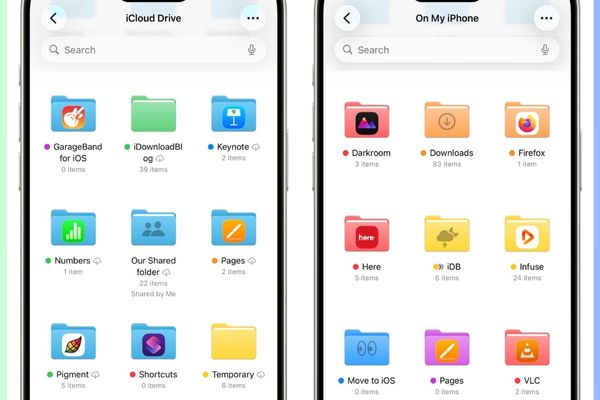
Which folders will not be possible "change new clothes"?
Which folders cannot be “replaced with new clothes”?

How to restore default blue color

If you want to return to the original interface, the process is also extremely quick:

  1. Please long press on the customized folder and select again “Customize Folders & Tags”.
  2. In section Tagsyou just need to uncheck the selected color.
  3. To remove the icon, click the button Clear then press ✓ to complete.
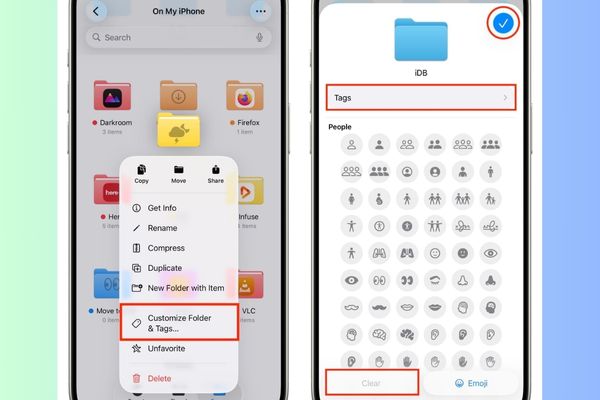
How to restore default blue color

Conclusion

Now, you have mastered the secret to Change color and add icon to iPhone folder easily. Don’t hesitate to apply now to refresh your phone and make file management more interesting and effective. Turn monotonous folders into a vibrant and vibrant collection!

Tags: AddchangecolorfoldersIconsiPhone
Previous Post

How to make a color profile on personal Facebook and color characters

Next Post

Get 25,000 free Viettel points very easily on your 25th birthday

AnonyViet

AnonyViet

Related Posts

Instructions on how to draw on Note macOS 27 are extremely convenient
Knowledge

Instructions on how to draw on Note macOS 27 are extremely convenient

July 10, 2026
Instructions for getting Google Play Pass for 1 month for free
Knowledge

Instructions for getting Google Play Pass for 1 month for free

July 9, 2026
How to register your stay when guests stay overnight to avoid fines
Knowledge

How to register your stay when guests stay overnight to avoid fines

July 8, 2026
Tool to look up 2026 high school exam score rankings, confidently choose a university
Knowledge

Tool to look up 2026 high school exam score rankings, confidently choose a university

July 7, 2026
Get Notion Business 30 days free of Claude Opus 4.7 and GPT-5.5
Knowledge

Get Notion Business 30 days free of Claude Opus 4.7 and GPT-5.5

July 6, 2026
Prompt wrote a great Adam voice script for TikTok videos
Knowledge

Prompt wrote a great Adam voice script for TikTok videos

July 3, 2026
Next Post
Get 25,000 free Viettel points very easily on your 25th birthday

Get 25,000 free Viettel points very easily on your 25th birthday

0 0 votes
Article Rating
Subscribe
Login
Notify of
guest

guest

0 Comments
Oldest
Newest Most Voted

Recent News

Instructions on how to create POV product review videos using Flow

Instructions on how to create POV product review videos using Flow

July 13, 2026
How to fix “This PC can’t run Windows 11” error This PC doesn’t meet the minimum system requirements

How to fix “This PC can’t run Windows 11” error This PC doesn’t meet the minimum system requirements

July 13, 2026
Compact design, durable battery, excellent camera: Review of OPPO Reno 16 Pro 5G

Compact design, durable battery, excellent camera: Review of OPPO Reno 16 Pro 5G

July 12, 2026
Download the free 3D Pinball Space Cadet game on the App Store now

Download the free 3D Pinball Space Cadet game on the App Store now

July 12, 2026
Instructions on how to create POV product review videos using Flow

Instructions on how to create POV product review videos using Flow

July 13, 2026
How to fix “This PC can’t run Windows 11” error This PC doesn’t meet the minimum system requirements

How to fix “This PC can’t run Windows 11” error This PC doesn’t meet the minimum system requirements

July 13, 2026
Compact design, durable battery, excellent camera: Review of OPPO Reno 16 Pro 5G

Compact design, durable battery, excellent camera: Review of OPPO Reno 16 Pro 5G

July 12, 2026
AnonyViet - English Version

AnonyViet

AnonyViet is a website share knowledge that you have never learned in school!

We are ready to welcome your comments, as well as your articles sent to AnonyViet.

Follow Us

Contact:

Email: anonyviet.com[@]gmail.com

Main Website: https://anonyviet.com

Recent News

Instructions on how to create POV product review videos using Flow

Instructions on how to create POV product review videos using Flow

July 13, 2026
How to fix “This PC can’t run Windows 11” error This PC doesn’t meet the minimum system requirements

How to fix “This PC can’t run Windows 11” error This PC doesn’t meet the minimum system requirements

July 13, 2026
  • Home
  • Home 2
  • Home 3
  • Home 4
  • Home 5
  • Home 6
  • Next Dest Page
  • Sample Page

say88 tỷ lệ kèo nhà cái kèo nhà cái 5 febet

No Result
View All Result
  • Home
  • News
  • Software
  • Knowledge
  • MMO
  • Tips
  • Security
  • Network
  • Office

say88 tỷ lệ kèo nhà cái kèo nhà cái 5 febet

wpDiscuz
0
0
Would love your thoughts, please comment.x
()
x
| Reply