How to blur photos on iPhone after taking them is being sought by many users to save photos with messy or unaesthetic backgrounds. Thanks to advanced depth data storage technology, Apple allows you to customize the sharpness of the background anytime you want.
| Join the channel Telegram belong to AnonyViet 👉 Link 👈 |
Why is it necessary to adjust image opacity?
Portrait Mode (Portrait Mode) on iPhone not only takes photos with blurred backgrounds but also stores the depth map of the frame. This allows users to control background blur even after the photo has been taken.
Before getting into the technical details, it’s important to understand why we need to adjust opacity. A blurred background (bokeh) will help isolate the subject, create a professional feel, and hide clutter in the background. Conversely, if you’re standing in front of a beautiful landscape, reducing the blur will help bring back detail to the background, creating balance between people and scene.
How to blur photos on iPhone after taking them
To make this adjustment, you do not need to install any additional third-party applications. All necessary tools are built into the photo library of iOS and macOS operating systems. Below are the specific steps.
Adjustment operations on the phone
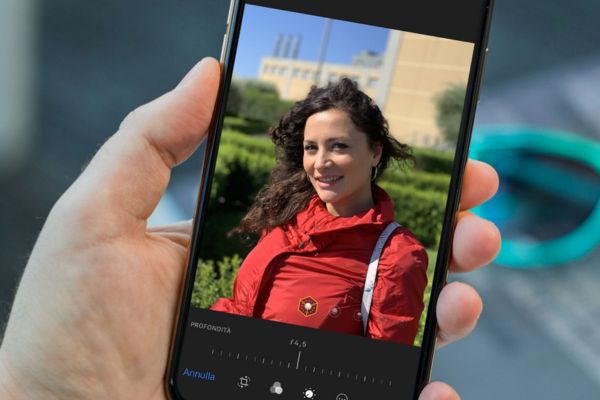
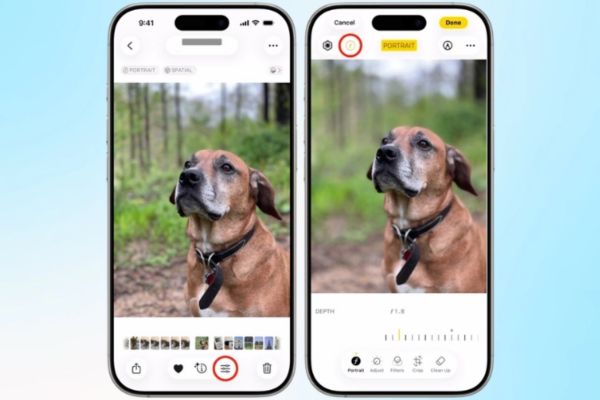
First, open the photo you want to edit in the app Image (Photos) and select the button Fix (Edit). At the editing interface, you will see an “f” icon with parameters (for example f4.5) in the upper left corner.
When you tap this icon, a depth of field adjustment slider will appear below.
- Drag left: Increase background blur (simulate a large open aperture), helping to blur the background more strongly.
- Drag right: Reduce blur (simulate a small closed aperture), making the background clearer.
This mechanism works based on computational photography and machine learning, simulating the physical effects of professional camera lenses quite convincingly.
Edit portrait photos on Mac
If you use the Apple ecosystem, editing on your Mac is equally simple.
- Open the image in the Photos app on macOS and select it Fix. In the toolbar, find the section Portrait.
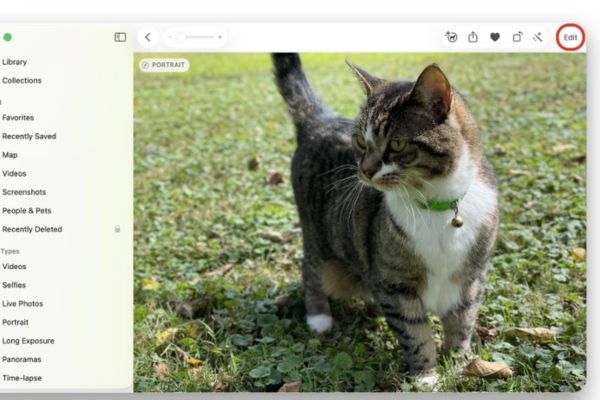
- You just need to click and drag the slider Depth (Depth) to change the background blur level.
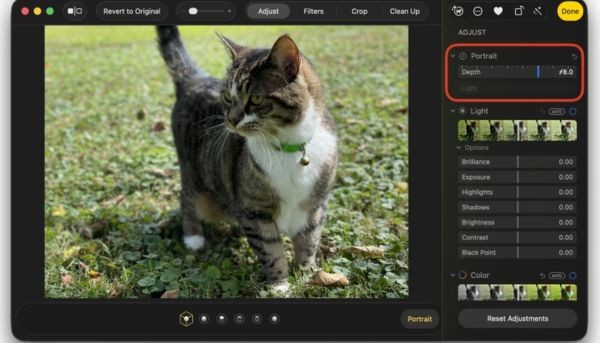
This feature works well on Macs running recent versions of the operating system, providing a consistent experience across devices.
Devices that support this feature
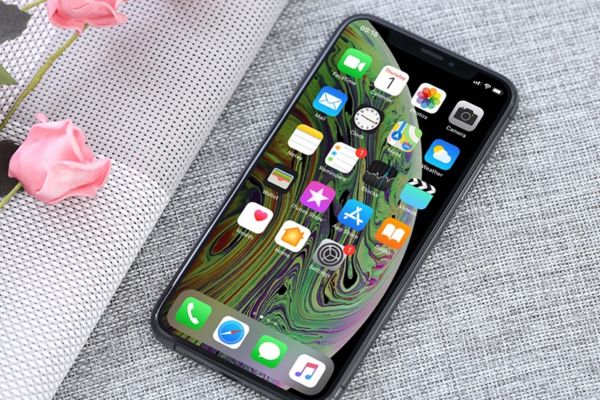
Not all iPhone Depth adjustments can be made after shooting. This feature requires hardware capable of recording good depth data. Specifically, you need to use:
- iPhone XS, iPhone XR.
- iPhone SE (2nd generation) or later.
- Newer iPhone models (11, 12, 13, 14, 15, 16, 17 series…).
Note that older devices, even though they have Portrait mode, may not support this post-production blur correction ability.
Be careful about privacy issues
Increasing background blur is often used to hide sensitive information such as home address, papers on the desk or strangers behind. However, this is only a visual effect, not permanent deletion of image data.
If you send photos over iMessage or AirDrop and select the option to send with “All Photos Data” (Image data), the recipient can completely go into the editing section and remove the watermark to see the original photo. Therefore, be very cautious when sharing edited photos if the purpose is to secure information.
Conclusion
With How to blur photos on iPhone after taking themowning impressive portrait photos has never been easier and faster. However, always be careful when sending original photos to others to avoid revealing sensitive information. Hope you can create satisfactory works right on your “phone”.