Block pop-up requires location on Safari Not as complicated as you think. With just a few simple steps in the settings, you can permanently end these annoying notifications. Let’s explore Anonyviet with simple steps to do that on iPhone, iPad and Mac!
| Join the channel Telegram belong to Anonyviet 👉 Link 👈 |
Why block pop-up requiring location on Safari?
Basically, websites want to know your location to personalize content, such as the nearest restaurant display or provide accurate weather forecasts. However, this benefit comes with the trade -offs:
- Privacy: Do you really want every website you can visit know where you are? Location data may be collected, analyzed and used for advertising purposes.
- User experience: Being constantly bothered by pop-ups will break your focus, especially when you just want to read an article or see the information quickly.
Therefore, learning how to block pop-up requires location on Safari is not only a technological procedure, but also an important step to protect privacy and improve the daily browsing experience.
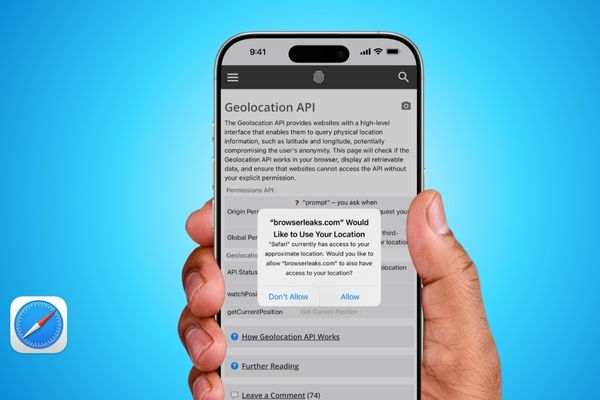
Pop-up blocking methods require location on Safari
If you just want to “cover” a few specific websites without affecting other useful pages, start with the following flexible solutions.
Temporary solution
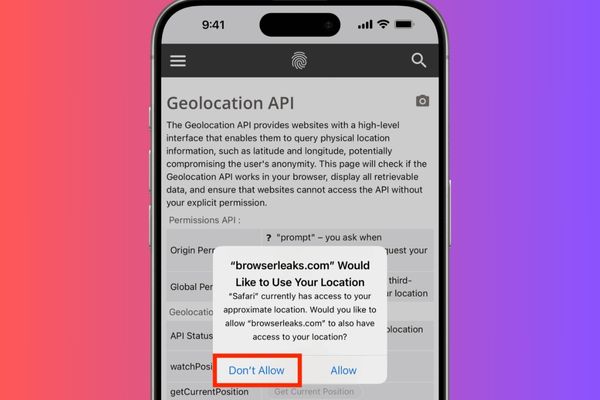
This is the fastest and simplest handling. When pop-up require the location, you just need to click the “No allowable” button (Don’t allow).
This action will prevent the site from asking in the current web browsing session. However, when you reload the page or open a new tab to replay that page, pop-ups may reappear. Therefore, this is only an effective “fire fighting” solution for unauthorized visits.
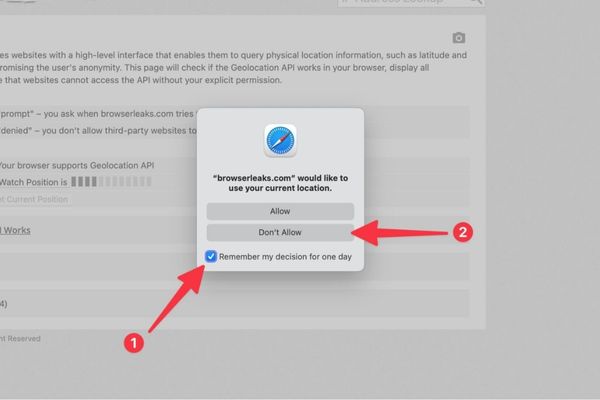
Mac: Remember to choose from one day
Safari users on the machine Mac There is a more advanced option. When pop-ups appear, pay attention and mark the box “Remember my decision in a day” (Remember My Decision for One Day) Before clicking “No permission”.
With this settings, Safari Will remember your choice for 24 hours. That site will not be able to bother you anymore, even if you restart the browser.
Block pop-up for a few specific websites
For websites that are troublesome or unreliable, you can issue a permanent ban. This makes sure they can never ask your position again.
On iPhone and iPad:
- Open application Settings > Roll down and choose Apps> Safari.
- Find the item Location.
- You will see the list of websites that require the right. Select the page you want to block and set up Deny (refuse).
On the Mac:
- Open the Safari browser.
- From the top menu bar, select Safari> Settings.
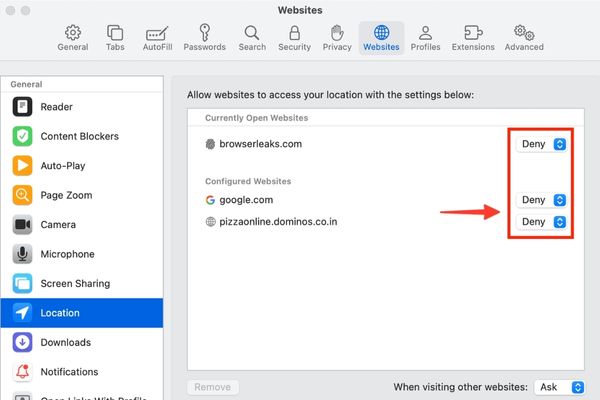
- Switch to the tab Websites > In the list on the left, choose Location.
- Find the website you want to block on the right list, click on the drop -down menu next to its name and choose Deny.
Block pop-up requires location on Safari for all websites
Method 1
If you want a thorough, uncompromising solution, apply the following powerful methods to completely stop all location requirements.
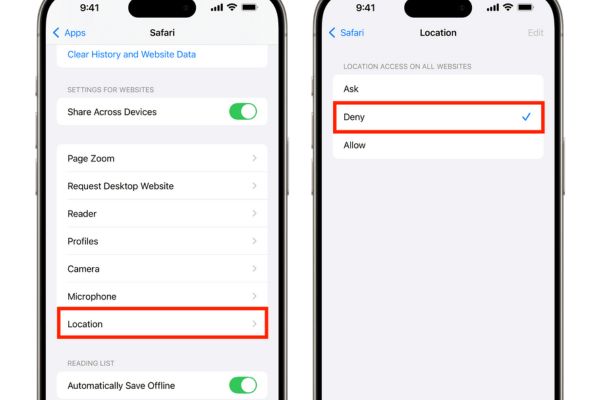
On iPhone and iPad:
Go Settings> Apps> Safari> Location.
Below the title Location access on all websites (Access position on all websites), choose Deny.
On the Mac:
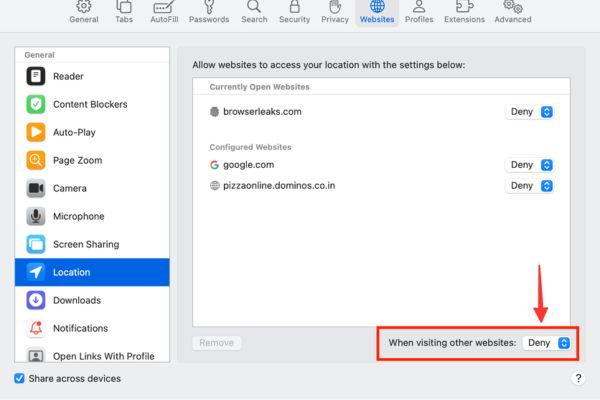
- Open Safari> Settings> Websites> Location.
- At the bottom of the window, find the option When visiting other websites (When accessing other websites).
- Click the menu and select Deny.
From now on, you will no longer see any pop-ups related to the location anymore, bringing a completely quiet web browse space.
Method 2
This method is one step further: stripping completely the ability to access the location data of the Safari application itself.
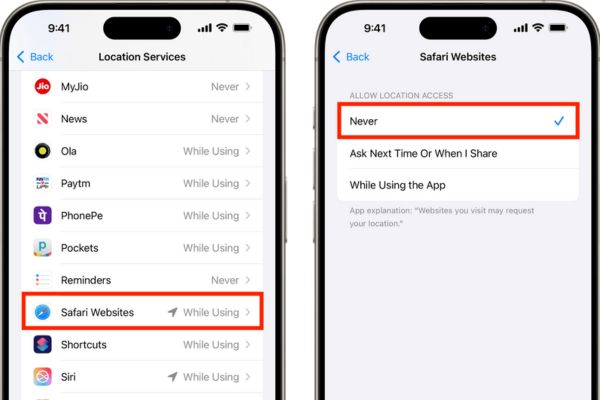
On iPhone and iPad:
- Enter Settings> Privacy & Security> Location Services.
- Roll down the application list, find and select Safari Websites.
- Select Never.
On the Mac:
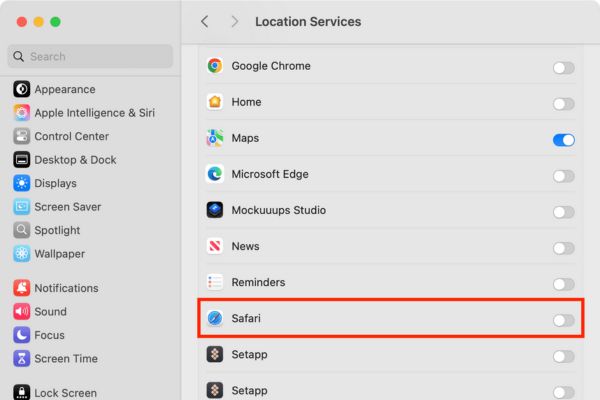
- Open System Settings> Privacy & Security> Location Services.
- Find Safari in the list and switch the side switch next to the off position.
Things to know after blocking pop-up requires location
- The nearby location can still be identified: This blocking will protect your exact GPS position. However, websites can still estimate your common area based on the IP address or Wi-Fi you are connecting.
- Installing may be reset: If you perform the operation of “Delete history and website data” in Safari, block settings for each website may be lost.
- Easy to complete: All changes can be reversed. You only need to return to the upper settings and re -issue the rights when needed.
Conclusion
Block pop-up requires location on Safarias you have seen, can be done in many different ways. From rejecting each website to set a comprehensive ban, you can completely control your data. Apply now to enjoy a safe and not disturbed web experience!