How to turn off password hints on iPhone is an essential trick if you are using professional password management applications like 1Password. Apple’s constant recommendation of strong passwords sometimes causes overlap and inconvenience during the new account registration process. This article will help you completely remove those notifications on both iOS and macOS operating systems.
📢 Join the channel Telegram belong to AnonyViet
Update new articles, cool tools and IT tips fastest
How to turn off password hints on iPhone and MacBook
Note that these settings do not sync across iCloudso you need to do this on each device for which you want to disable this feature.
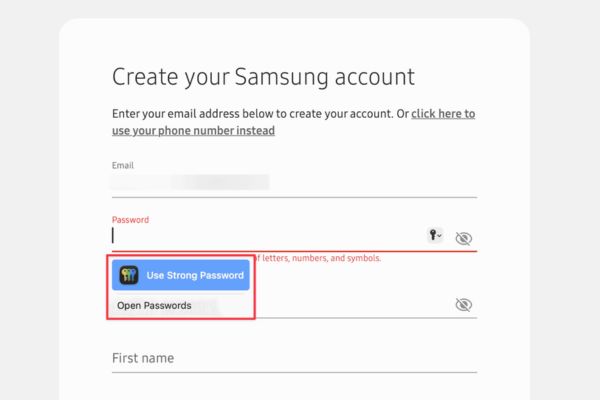
Turn off the suggestion feature on macOS
On Mac computers, this process includes turning off suggestions for creating new passwords, turning off asking to save passwords, and blocking notifications about Passkeys.
1. Disable strong password hints
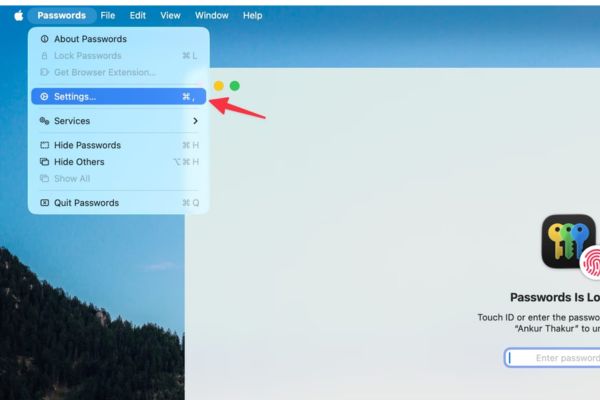
Step 1: Open the app Apple Passwords on your Mac.
Step 2: Click Passwords on the menu bar, select Settings and authenticate with Touch ID or a computer password.
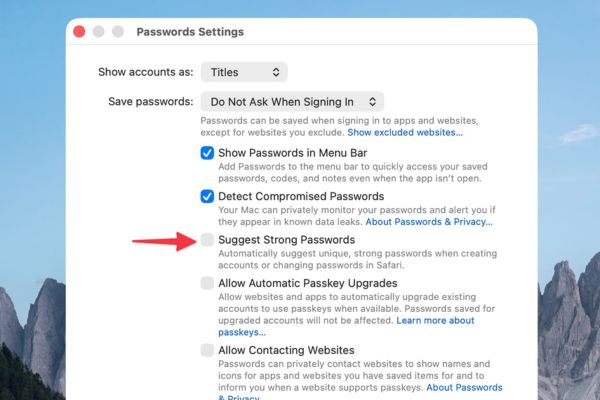
Step 3: Uncheck the box Suggest Strong Password (Strong password hint).
At this time, Safari will no longer automatically suggest creating a new password. However, a small key icon may still appear.
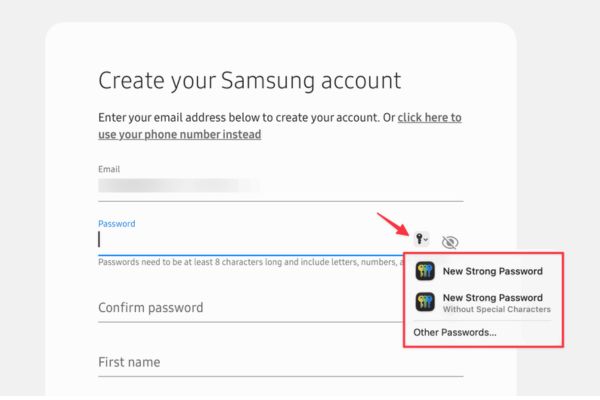
If you want to completely disable this icon:
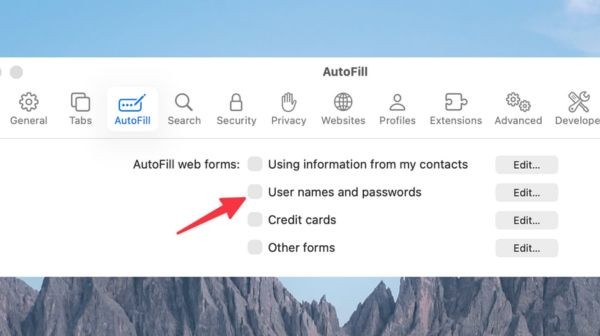
Step 1: Open Safari browser, go to section Settings (Setting).
Step 2: Select tabs AutoFill (Autofill).
Step 3: Uncheck the item User names and passwords (Username and password).
2. Prevent asking to save passwords and Passkeys
To avoid applications constantly asking to save passwords after logging in or sites like Amazon asking to upgrade to Passkeys:
Step 1: Back to section Settings of the Apple Passwords app.
Step 2: In the ‘Save passwords’ section, select Do Not Ask When Signing In (Not asked when logging in).
Step 3: Uncheck two items Allow Automatic Passkey Upgrades (Allow automatic Passkey upgrade) and Allow Contacting Websites (Allow site contact).
Operations on iOS devices (iPhone/iPad)
For iPhone and iPad, the steps will be in the General Settings section of the system.
1. Turn off strong password suggestions in Safari
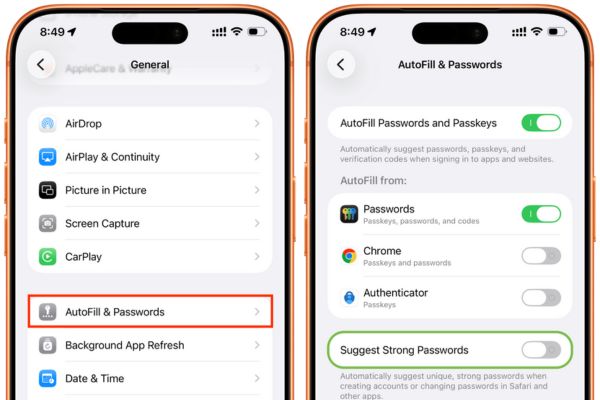
Step 1: Open the app Settings on the device.
Step 2: Select item General.
Step 3: Click AutoFill & Passwords (Autofill & Password).
Step 4: Turn off the switch at the line Suggest Strong Passwords (Strong password hint).
2. Turn off Passkeys and contact the website feature
To prevent sites from asking to generate Passkeys or automatically upgrading security:
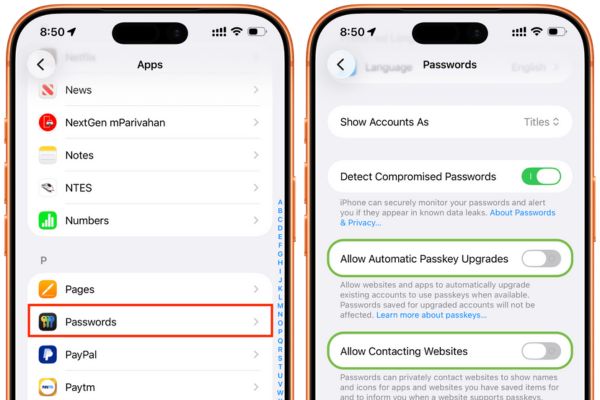
Step 1: Enter Settings (Settings) and scroll down to find the item Apps (Application).
Step 2: Select Passwords (Password).
Step 3: Turn off two options Allow Automatic Passkey Upgrades and Allow Contacting Websites.
Once you complete the steps above, your device will no longer show automatic suggestions, leaving you free to use your preferred password management method.
Conclusion
Application How to turn off password hints on iPhone and Mac makes the Safari interface significantly more spacious. You will no longer be bothered by automatic notifications or unwanted requests to upgrade Passkeys. Hopefully this guide helps you manage your security to your personal liking.