• Home
  • News
  • Software
  • Knowledge
  • MMO
  • Tips
  • Security
  • Network
  • Office
AnonyViet - English Version
  • Home
  • News
  • Software
  • Knowledge
  • MMO
  • Tips
  • Security
  • Network
  • Office
No Result
View All Result
  • Home
  • News
  • Software
  • Knowledge
  • MMO
  • Tips
  • Security
  • Network
  • Office
No Result
View All Result
AnonyViet - English Version
No Result
View All Result

How to add Settings to Control Center using Shortcuts

AnonyViet by AnonyViet
April 7, 2026
in Software
0

How to add Settings to Control Center Take advantage of the power of features Shortcuts to create a smart shortcut. If you often have to change social network or browser settings, this is the necessary “savior”. The operation is very simple and safe.

📢 Join the channel Telegram belong to AnonyViet


👉 Go to Telegram AnonyViet

Update new articles, cool tools and IT tips fastest

Why should you use the Settings shortcut?

Using this shortcut brings significant efficiency in terms of time and user experience (UX):

  • Speed: Reduce access time from 10 seconds to 1 second.
  • Exactly: No need to remember the location of an application in a long list of settings.
  • Convenient: Can be activated while using the application without needing to exit to the main screen.
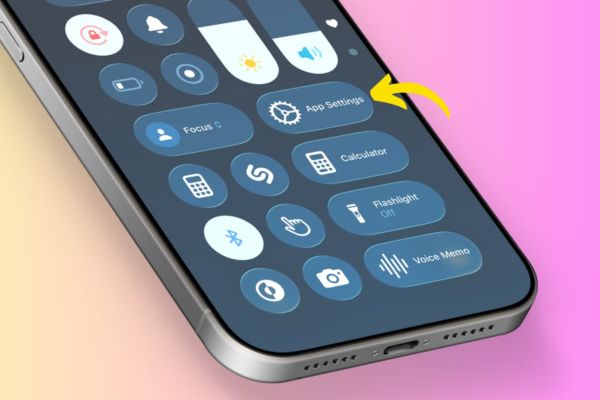
How to add Settings to Control Center using Shortcuts
Why should you use the Settings shortcut?

How to add Settings to Control Center

To do this, we need to set up a shortcut and put it in the most convenient location, Control Center. Below are detailed steps for you to set up this system.

Instructions for installing Settings shortcuts

Step 1: Access the iCloud link containing the App Settings shortcut HERE (shared by the reputable Shortcuts community).

Step 2: Click select Add Shortcuts to save to your library.
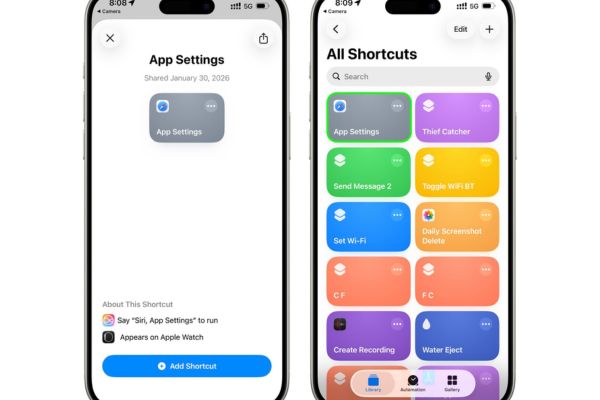
Click Add Shortcut
Click Add Shortcut

Step 3: In the application Shortcutsclick on the three dots on the downloaded shortcut, select Choose icon to change the icon to a gear image for easy identification.
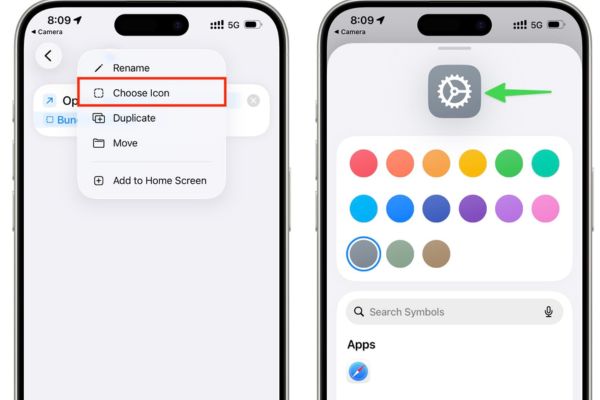
Choose to change the icon to a gear image

Instructions for bringing shortcuts to Control Center

Once you have the shortcut, follow this procedure to assign it to Control Center:

Step 1: Swipe down from the top right corner of the screen to open Control Center.

Step 2: Click on the icon plus (+) in the top left corner, then select Add Control (Add a Control).

Step 3: Search and select items Run Shortcuts.

Step 4: The system will ask you to choose a shortcut, click Choose and find the name App Settings in the My Shortcuts list.

Step 5: Click outside the space to save the settings.

Now, every time you’re surfing the web or viewing photos and want to edit settings, just swipe Control Center and tap this button.
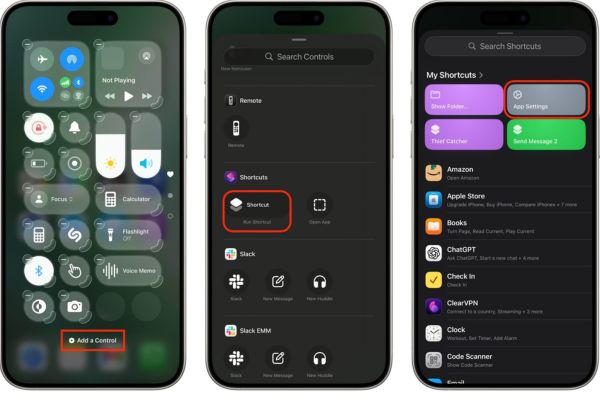
How to add Settings to Control Center using Shortcuts

Instructions for assigning keyboard shortcuts to Action Button

If you are using iPhone models with Action Button (For iPhone 15 Pro and above), the experience will be even faster.

Step 1: Open the Settings app and select the item Action Button.

Step 2: Swipe horizontally to find the item Shortcuts.

Step 3: Click Select shortcut… and choose App Settings from the list. From now on, you just need to press and hold the Action Button next to the side of the device, iPhone will automatically redirect you to the settings page of the open application on the screen.
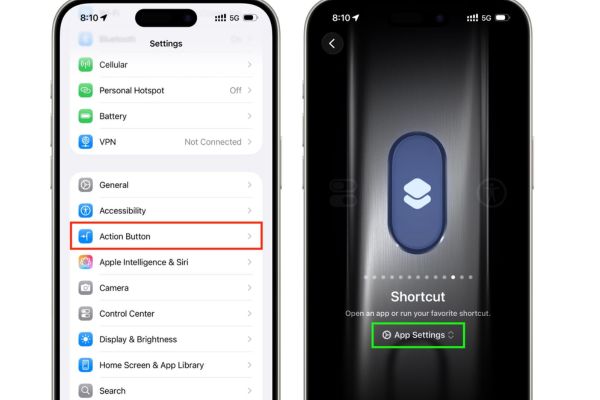
Instructions for assigning keyboard shortcuts to Action Button

Frequently Asked Questions (Q&A)

1. Is this shortcut safe?

Have. This is a shortcut that uses the official URL Scheme of the iOS system, does not interfere with personal data or require unauthorized access.

2. Does it work with all apps?

Shortcuts work well with most system apps (Safari, Messages, Photos) and popular third-party apps. Some rare applications may not support URL Scheme to jump directly.

3. Can I do this using an iPad?

Absolutely. iPadOS has a similar operating mechanism to iOS, you can add it to iPad’s Control Center according to the steps above.

Conclusion

Hopefully with the above instructions, you have a clear understanding How to add Settings to Control Center to optimize iPhone usage. This is a small trick but helps save a significant amount of daily operation time. Try it out and share it with your friends!


Tags: AddcentercontrolSettingsshortcuts
Previous Post

How to set a Password for Chrome Sync for security when synchronizing data

Next Post

[Godot RPG]#5: Autotile

AnonyViet

AnonyViet

Related Posts

Instructions for receiving 3 months of MultCloud Premium for free with 200GB data
Software

Instructions for receiving 3 months of MultCloud Premium for free with 200GB data

October 17, 2026
Instructions for receiving pension through VNeID without going to the ward
Software

Instructions for receiving pension through VNeID without going to the ward

October 16, 2026
Record first, choose focus later: how to use 4K 60 fps Cinema mode on iPhone 18 Pro
Software

Record first, choose focus later: how to use 4K 60 fps Cinema mode on iPhone 18 Pro

October 15, 2026
How to receive 22k from Viettel Tammi on the occasion of 22nd birthday
Software

How to receive 22k from Viettel Tammi on the occasion of 22nd birthday

October 15, 2026
3 valuable upgrades on Samsung Galaxy A08 compared to its predecessor A07
Software

3 valuable upgrades on Samsung Galaxy A08 compared to its predecessor A07

October 12, 2026
Ambient light for YouTube: Change video background color extremely magically
Software

Ambient light for YouTube: Change video background color extremely magically

October 12, 2026
Next Post
[Godot RPG]#5: Autotile

[Godot RPG]#5: Autotile

0 0 votes
Article Rating
Subscribe
Login
Notify of
guest

guest

0 Comments
Oldest
Newest Most Voted

Recent News

How to report a fraudulent website on Weebly

How to report a fraudulent website on Weebly

October 19, 2026
How to view Facebook stories without others knowing

How to view Facebook stories without others knowing

October 18, 2026
Instructions for registering a .tech domain name for free for 1 year

Instructions for registering a .tech domain name for free for 1 year

October 18, 2026
Instructions on how to enter promotional codes on the App Store most accurately

Instructions on how to enter promotional codes on the App Store most accurately

October 18, 2026
How to report a fraudulent website on Weebly

How to report a fraudulent website on Weebly

October 19, 2026
How to view Facebook stories without others knowing

How to view Facebook stories without others knowing

October 18, 2026
Instructions for registering a .tech domain name for free for 1 year

Instructions for registering a .tech domain name for free for 1 year

October 18, 2026
AnonyViet - English Version

AnonyViet

AnonyViet is a website share knowledge that you have never learned in school!

We are ready to welcome your comments, as well as your articles sent to AnonyViet.

Follow Us

Contact:

Email: anonyviet.com[@]gmail.com

Main Website: https://anonyviet.com

Recent News

How to report a fraudulent website on Weebly

How to report a fraudulent website on Weebly

October 19, 2026
How to view Facebook stories without others knowing

How to view Facebook stories without others knowing

October 18, 2026
  • Home
  • Home 2
  • Home 3
  • Home 4
  • Home 5
  • Home 6
  • Next Dest Page
  • Sample Page

say88 tỷ lệ kèo nhà cái kèo nhà cái 5 febet

No Result
View All Result
  • Home
  • News
  • Software
  • Knowledge
  • MMO
  • Tips
  • Security
  • Network
  • Office

say88 tỷ lệ kèo nhà cái kèo nhà cái 5 febet

wpDiscuz
0
0
Would love your thoughts, please comment.x
()
x
| Reply