Codex on Windows is a programming AI application developed by OpenAI, allowing running AI agents directly on Windows without the need for a virtual machine. The tool supports PowerShell, WSL, security sandbox and the ability to run multiple code tasks in parallel, helping programmers automate the software development process. Codex is currently available on MACOS, and this is the easiest way to install Codex on Windowsopenai
📢 Join the channel Telegram belong to AnonyViet
Update new articles, cool tools and IT tips fastest
Previously, to use advanced programming AI tools, many developers had to run a Linux environment, virtual machine, or use IDE plugins. However with Codex native application on Windowseverything has become much simpler.
OpenAI built this software from the ground up specifically for the Windows ecosystem, allowing AI to interact directly with the terminal, project code and familiar programming tools.
The launch of the Codex application on Windows
The biggest good news for the programming community using Microsoft’s operating system is the appearance of Microsoft Codex application on Windows. This is not a port of macOS, but software built natively to work optimally on Windows.
This brings many benefits:
- Works stably in Windows environment
- Direct integration with PowerShell
- Windows Subsystem for Linux (WSL) Compatible
- No need for virtual machines or emulation software
What is Codex?
Codex is a programming AI model developed by OpenAI based on GPT models, capable of understanding and creating source code in many programming languages such as Python, JavaScript, C++, Go and Rust.
This AI can:
- Write code from natural language descriptions
- Analyze errors in source code
- Optimize project structure
- Automate programming workflows
Previously Codex was often integrated through APIs or tools like GitHub Copilot. However, the application version Codex on Windows helps AI interact directly with your computer system.
Outstanding features of Codex on Windows
The application brings many powerful tools to help change the way programmers work with AI.
1. Run multiple AI agents in parallel
Codex allows running multiple AI agents at the same time to handle different tasks in the project.
- Write new modules
- Analyze code errors
- Optimize performance
- Refactor project
2. Manage long-term tasks
Complex programming tasks such as building projects or refactoring code can run for long periods of time without interruption.
3. Intuitive code diff viewing interface
The application provides an interface that displays changes in the source code to help programmers easily check what the AI has edited.
4. PowerShell integration
Codex can execute commands directly through PowerShell, allowing the AI to interact with the development environment like a real programmer.
For example:
- Install packages
- Run the build script
- Repository management
- Execute CLI command
5. Supports Windows Subsystem for Linux (WSL)
If you develop software in a Linux environment, Codex can switch the terminal to WSL to continue working.
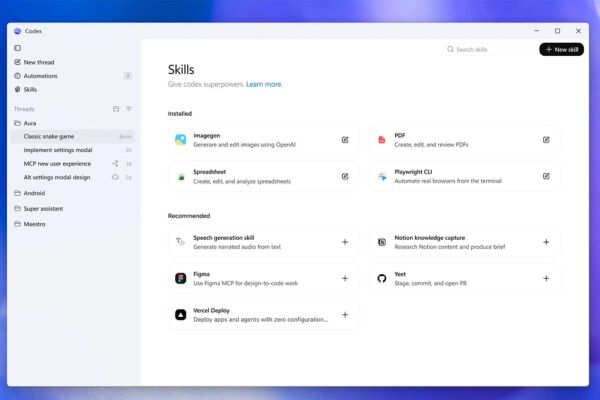
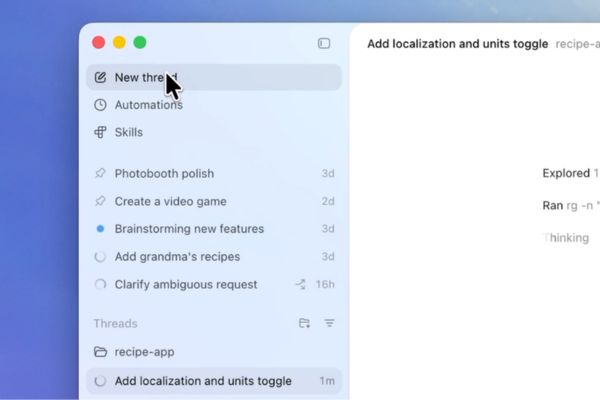
6. Skills and Automations
System Skills helps AI connect with external applications. Meanwhile Automations Supports automation of tasks such as:
- Run tests
- Check for errors
- Update dependencies
7. Work Trees for multiple project branches
Work Trees allow programmers to work with multiple independent branches of code in the same repository.
Security sandbox for AI agents
OpenAI has built a native sandbox environment to ensure safety when AI executes commands on the system.
Sandbox uses Windows security mechanisms such as:
- Restricted tokens
- Filesystem ACLs
- Dedicated user accounts
Thanks to that, AI can execute commands in PowerShell without jeopardizing the original data on the computer.
Instructions for downloading and installing Codex on Windows
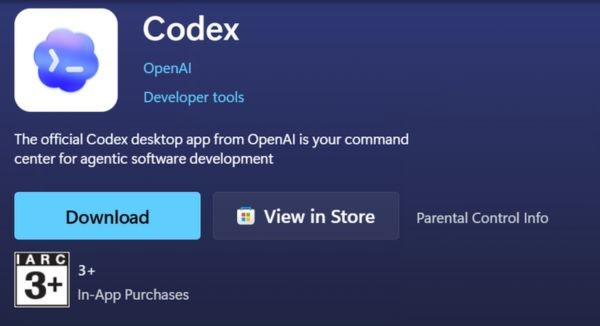
Step 1: Access Microsoft Store
Visit the Microsoft Store and search for the Codex app or visit the link below.
Download link: Download Codex on Microsoft Store
Step 2: Install the application
Press the button Download and wait for the system to automatically install the software.
Step 3: Log in to your account
Open the application and log in with your ChatGPT account or OpenAI API key.
Step 4: Start coding with AI
Once logged in, you can use Codex to:
- Generate source code
- Error analysis
- Optimize project
- Automate workflows
Common errors when installing Codex on Windows
Unable to log in to API key
Please check your API key in the OpenAI dashboard and make sure your account is still within its usage limit.
PowerShell does not run commands
Some systems may block PowerShell scripts. You need to enable script execution permission in system settings.
Windows Defender blocks sandboxes
In some rare cases, Windows Defender may block the sandbox. Let’s add Codex to the exception list.
FAQ about Codex on Windows
Is Codex on Windows free?
Some basic features may be free, however advanced functions often require an OpenAI API key.
Does Codex replace GitHub Copilot?
Not quite. Copilot focuses on autocomplete code, while Codex focuses on AI agents that automate programming.
Does Codex run on Windows 10?
OpenAI recommends Windows 11 to ensure the sandbox and PowerShell are fully functional.
Checklist before installing Codex
- Windows 11 latest update
- OpenAI account
- Microsoft Store works normally
- PowerShell is updated
- WSL (optional)
Conclude
Appearance of Codex on Windows marks a major step forward in integrating AI into the software development process. Thanks to the ability to run native, PowerShell support, security sandbox and automatic AI agent, this tool promises to become a powerful assistant for programmers in the AI era.