• Home
  • News
  • Software
  • Knowledge
  • MMO
  • Tips
  • Security
  • Network
  • Office
AnonyViet - English Version
  • Home
  • News
  • Software
  • Knowledge
  • MMO
  • Tips
  • Security
  • Network
  • Office
No Result
View All Result
  • Home
  • News
  • Software
  • Knowledge
  • MMO
  • Tips
  • Security
  • Network
  • Office
No Result
View All Result
AnonyViet - English Version
No Result
View All Result

Instructions for creating GIFs using the Gboard keyboard on iPhone

AnonyViet by AnonyViet
January 30, 2026
in Knowledge
0

Job create GIFs with the Gboard keyboard is currently a favorite trick for many iPhone users to turn dry text messages into more lively ones. Instead of just typing regular text, sending funny animations will help make the conversation more interesting and emotional. Let’s explore the simple process below to upgrade your messaging experience.

Join the channel Telegram belong to AnonyViet 👉 Link 👈

How to set up and grant app permissions

The first step to be able to use the rich animation store is to download the Gboard application from the App Store to your device. Once the download is complete, the user needs to access the section Setting (Settings) on iPhone, navigate to section Gboard and select continue to section Keyboard.
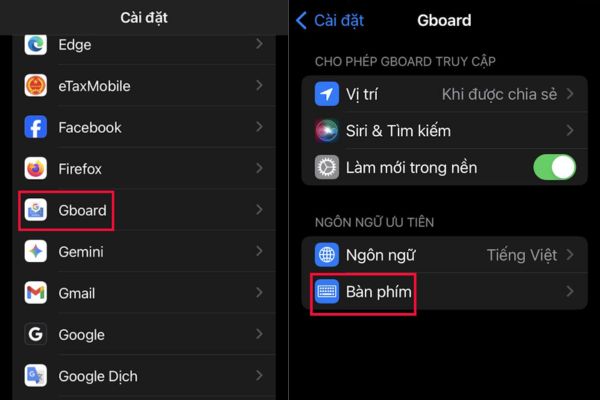
How to set up and grant app permissions

An important note in this step is that you need to flip the switch to turn on the mode Allow Full Access (Allow Full Access). This operation is a mandatory condition for the keyboard to connect to the network, thereby downloading animation data and helping users search for content in the smoothest way.
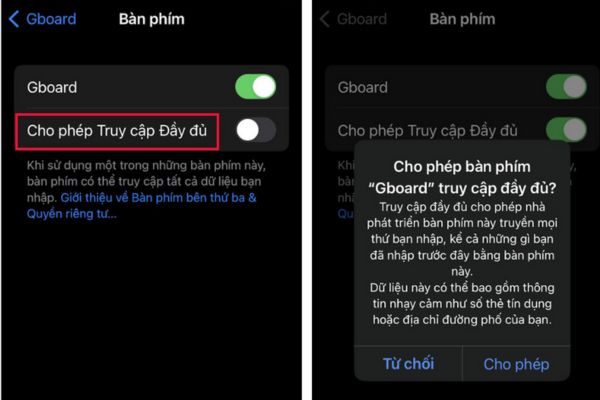
Enable Full Access mode

Detailed process of creating GIF using Gboard keyboard

After completing the basic installation steps in the system, users can start experiencing interesting features through the specific steps below:

  • Once the settings are complete, users should open any messaging application such as Messages, Zalo or Messenger. In the text editing area, press and hold the icon globe shape (or smiley face) located in the bottom left corner of the keyboard, then select Gboard in the list that appears.
  • As soon as the keyboard’s interface appears Google appears, users will easily see the icon GIFs located on the toolbar. This is the door to a huge treasure trove of animations, where you can start looking for the images that best suit the story you’re talking about.
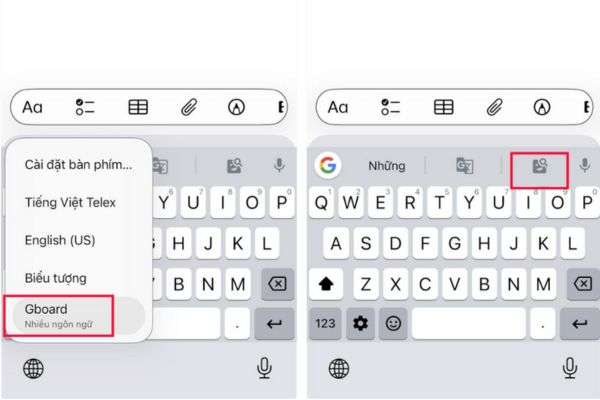
Click the GIF icon located on the toolbar

At the GIF warehouse interface, users just need to enter keywords describing the emotions or topics they want to search for. Once you’ve chosen a photo you like, the system on the iPhone works a little differently Android to ensure confidentiality.

Specifically, when touching a GIF image, Gboard will automatically copy that image to the phone’s clipboard. All that’s left is to click on the message input box and select Paste (Paste) to insert the image. Thus, the animation is ready to send, making the message content much more impressive and fun.

Detailed process of creating GIF using Gboard keyboard

Conclusion

Mastering the way create GIFs with the Gboard keyboard will bring a new breeze to daily conversations, helping emotions to be conveyed more fully. Hopefully with the detailed instructions above, anyone can do it successfully right on their iPhone. Try applying it now to see the difference and fun in every message you send!


Tags: creatingGboardGIFsInstructionsiPhoneKeyboard
Previous Post

The secret to turning off the swipe left feature to open the camera on iPhone

Next Post

How to effectively blur messages on Zalo web to prevent peeping

AnonyViet

AnonyViet

Related Posts

How to block pop-up ads on Safari without installing an app
Knowledge

How to block pop-up ads on Safari without installing an app

May 6, 2026
How to use Clean Up on iPhone to remove excess objects extremely quickly
Knowledge

How to use Clean Up on iPhone to remove excess objects extremely quickly

May 4, 2026
Tips for pinning the step counter to the iPhone screen to monitor your health
Knowledge

Tips for pinning the step counter to the iPhone screen to monitor your health

April 28, 2026
How to turn off password suggestions on iPhone: Prevent Safari from auto-filling passwords
Knowledge

How to turn off password suggestions on iPhone: Prevent Safari from auto-filling passwords

April 27, 2026
Tips to completely turn off CAPTCHA codes on iPhone and Mac are super simple
Knowledge

Tips to completely turn off CAPTCHA codes on iPhone and Mac are super simple

April 25, 2026
How to compress online videos for free without losing quality
Knowledge

How to compress online videos for free without losing quality

April 24, 2026
Next Post
How to effectively blur messages on Zalo web to prevent peeping

How to effectively blur messages on Zalo web to prevent peeping

0 0 votes
Article Rating
Subscribe
Login
Notify of
guest

guest

0 Comments
Oldest
Newest Most Voted
Inline Feedbacks
View all comments

Recent News

SafeKid – AI video blocking utility, helps children watch YouTube safely

SafeKid – AI video blocking utility, helps children watch YouTube safely

May 14, 2026
Key Smart Call Blocker Premium 1 year – Block spam calls

Key Smart Call Blocker Premium 1 year – Block spam calls

May 13, 2026
How to use multiple Zalo on one computer for business people

How to use multiple Zalo on one computer for business people

May 13, 2026
Compare vivo X300 Ultra and vivo X200 Ultra: A comprehensive leap forward for the photography “monster”

Compare vivo X300 Ultra and vivo X200 Ultra: A comprehensive leap forward for the photography “monster”

May 12, 2026
SafeKid – AI video blocking utility, helps children watch YouTube safely

SafeKid – AI video blocking utility, helps children watch YouTube safely

May 14, 2026
Key Smart Call Blocker Premium 1 year – Block spam calls

Key Smart Call Blocker Premium 1 year – Block spam calls

May 13, 2026
How to use multiple Zalo on one computer for business people

How to use multiple Zalo on one computer for business people

May 13, 2026
AnonyViet - English Version

AnonyViet

AnonyViet is a website share knowledge that you have never learned in school!

We are ready to welcome your comments, as well as your articles sent to AnonyViet.

Follow Us

Contact:

Email: anonyviet.com[@]gmail.com

Main Website: https://anonyviet.com

Recent News

SafeKid – AI video blocking utility, helps children watch YouTube safely

SafeKid – AI video blocking utility, helps children watch YouTube safely

May 14, 2026
Key Smart Call Blocker Premium 1 year – Block spam calls

Key Smart Call Blocker Premium 1 year – Block spam calls

May 13, 2026
No Result
View All Result
  • Home
  • News
  • Software
  • Knowledge
  • MMO
  • Tips
  • Security
  • Network
  • Office

wpDiscuz
0
0
Would love your thoughts, please comment.x
()
x
| Reply