To make your video more professional and attractive, work Use CapCut to separate audio from video is the first and most important step. This allows you to remove background noise, add effects, or replace it with your favorite music. Let’s explore the detailed steps below to upgrade your videos.
| Join the channel Telegram belong to AnonyViet 👉 Link 👈 |
Reasons you should separate audio from video
Below are the practical benefits that this skill brings:
- Can freely edit audio without disturbing the image. When audio and video are on two separate layers, you can easily cut, merge, adjust the volume or add effects to the audio without fear of affecting the original frame.
- Replacing background music is simpler than ever. You can easily remove the original audio and insert a popular song, a deep instrumental track or fun sound effects to make your video more engaging.
- Video dubbing quality can be improved. This operation allows you to remove the noisy, stuttering original voice and re-record a new, clearer, more professional voiceover.
- Store and reuse unique audio clips. If you have a favorite piece of music or sound effect, ripping it and saving it will save you time when you want to use it in other video projects in the future.

Instructions on how to separate audio using CapCut
CapCut supports this feature on both mobile and computer platforms with an intuitive, easy-to-use interface.
How to do it on mobile phone
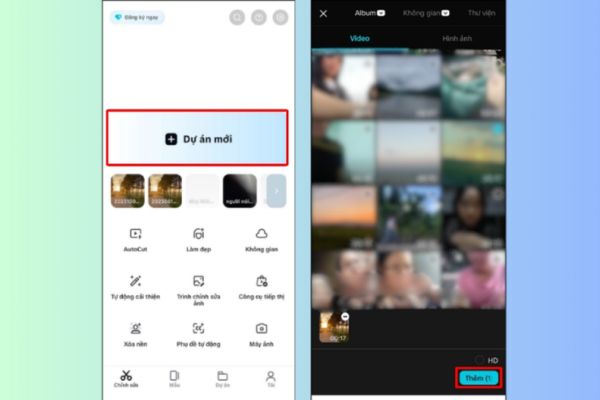
Step 1: Let’s start by opening CapCut applicationselect New project and upload the video you want to edit from your library.
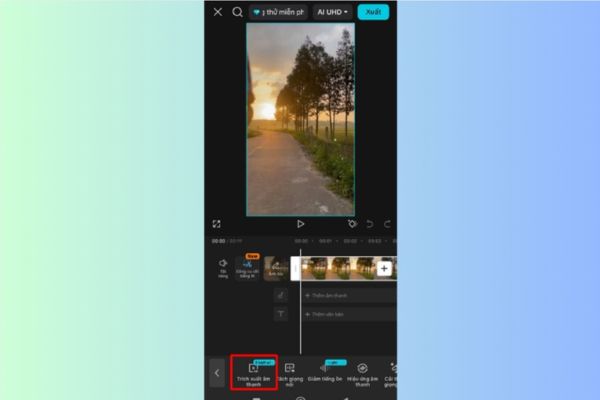
Step 2: Once the video has been added to the timeline, click on the video itself. On the toolbar at the bottom, scroll through and find the option Extract audio.
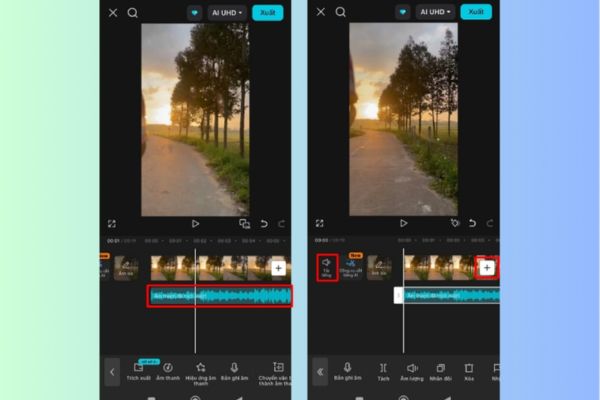
Step 3: Immediately after pressing, CapCut will automatically create a separate audio layer right below the video. You can now edit these two components independently.
How to do it on computer
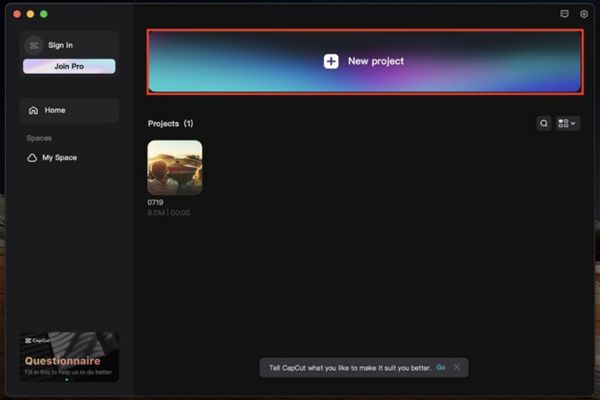
Step 1: Open CapCut software on your computer and click on the item New Project to start a new project.
Step 2: Use the feature Import To add the video you need to edit to the project’s file management area.
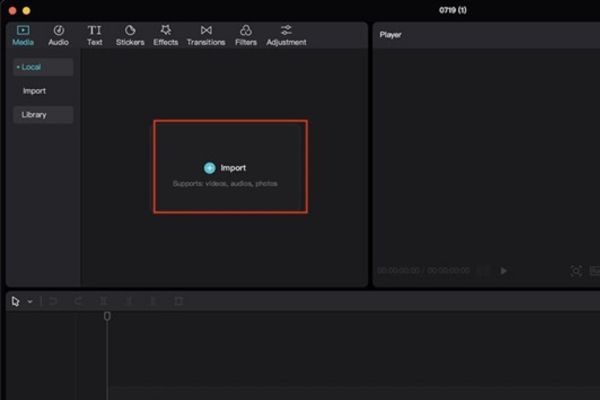
Step 3: Drag the video from the file management area and drop it to the timeline bar below to prepare it for editing.
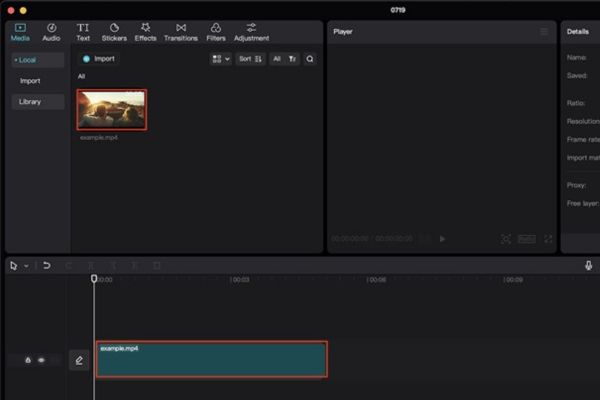
Step 4: Next, just right-click right on the video in the timeline. A context menu will appear, select it Extract Audio.
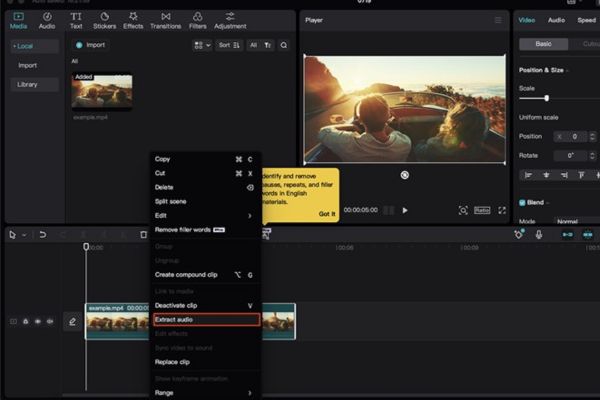
Step 5: Immediately, an audio track will be separated and displayed right below the video track. The process of using CapCut to separate audio from video on your computer is complete, you can start editing.
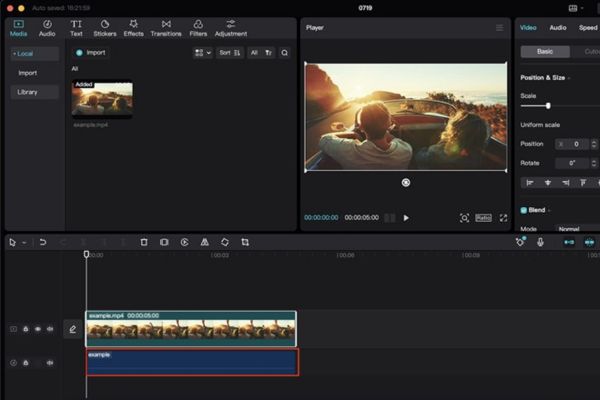
Answers to frequently asked questions
If I delete a sound, can I get it back?
The answer is yes, but on condition that you have not exited the project. You can use the Undo button to restore the deleted audio. If you save and close the project, the audio is lost forever and you’ll need to re-add the original video to get the audio back.
Does video quality decrease after removing audio?
You can be completely assured because deleting or separating audio will not affect image quality. Video resolution, color and sharpness will remain the same as the original.
Is it possible to delete a small piece of audio instead of deleting the whole thing?
Definitely okay. CapCut allows you to use the Split tool to split an audio layer into multiple segments, then you can select and delete any segments you want. This provides maximum flexibility in the editing process.
Conclusion
Through the above instructions, it can be seen that separating audio in CapCut is not as complicated as many people think. This is an important skill that gives you more flexibility in the creative and video production process. Let’s start applying the method Use CapCut to separate audio from video today to create truly impressive products!