• Home
  • News
  • Software
  • Knowledge
  • MMO
  • Tips
  • Security
  • Network
  • Office
AnonyViet - English Version
  • Home
  • News
  • Software
  • Knowledge
  • MMO
  • Tips
  • Security
  • Network
  • Office
No Result
View All Result
  • Home
  • News
  • Software
  • Knowledge
  • MMO
  • Tips
  • Security
  • Network
  • Office
No Result
View All Result
AnonyViet - English Version
No Result
View All Result

How to add application to your favorite bar

AnonyViet by AnonyViet
August 14, 2025
in Software
0

The favorite bar on Samsung phones is a great tool to help you quickly access the commonly used applications without spending time searching on the long list. Have you ever felt that Thanh loved the default a bit “inconvenient” because it only contained a few apps? Don’t worry, Anonyviet will show you how Add application to your favorite bar Easily, increase the number of apps to maximize to optimize the use experience.

Join the channel Telegram belong to Anonyviet 👉 Link 👈

What is Thanh favorite on Samsung and why should be customized?

Favorite Thanh (Favorites Tray) is an area right on the main screen or in the application menu of the phone Samsungwhere you can pin the most common applications. By default, it only contains about 4-5 applications, depending on the model.
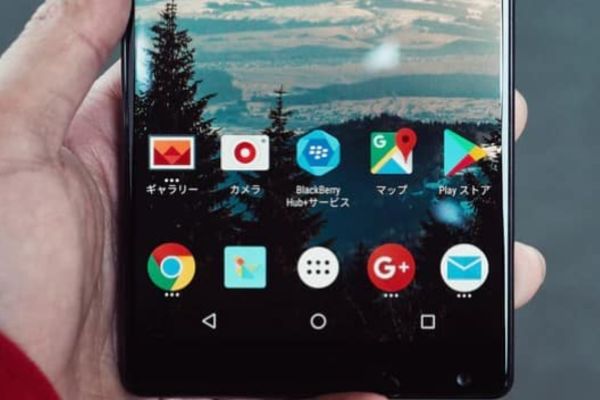
Thanh favorite on Samsung

However, with a few simple steps, you can fully expand this space to add applications to your favorite bar, save time and increase equipment efficiency.

This customization not only brings convenience but also helps you personalize your phone in your own style. If you are a multitasking person or like everything at your fingertips, don’t miss this guide!

Instructions for adding applications to Samsung favorite bar

To expand your favorite bar on Samsung and add more applications, you will need to use the application Good Lock – A custom tool developed by Samsung itself. Here are the detailed steps:

Step 1: First, open the Good Lock application on your phone. If not, you can download it for free from the Galaxy Store. After opening the application, read and confirm the terms used to continue.
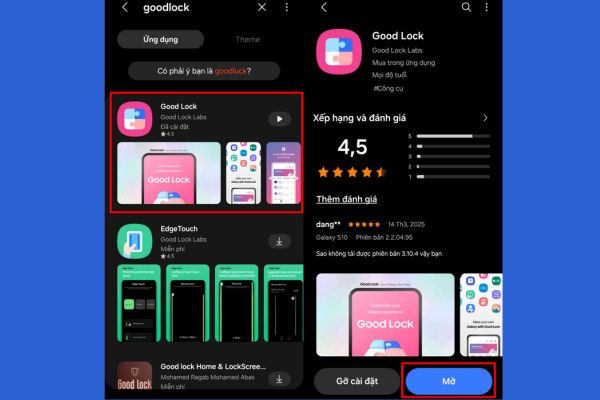
How to add applications to your favorite bar

Step 2: Next, in the Good Lock interface, pull down and find items Homeup. Click to download and install this module. After the installation is complete, select the button Start To activate Homeup.
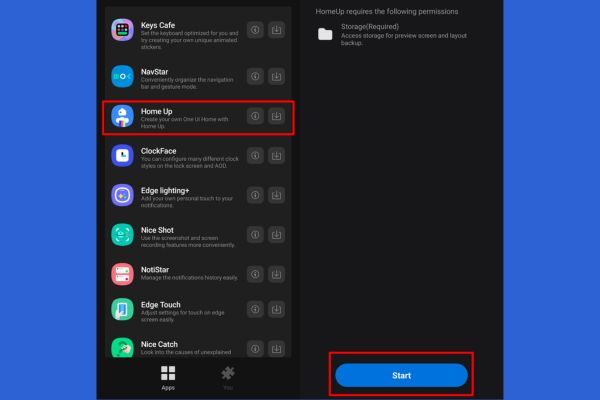
Find section homeup
Find section homeup

Step 3: After activating Homeup, you will see a slider. Please deceive to mode Bounce To enable this feature. Next, select the item Home Screen In the optional list.
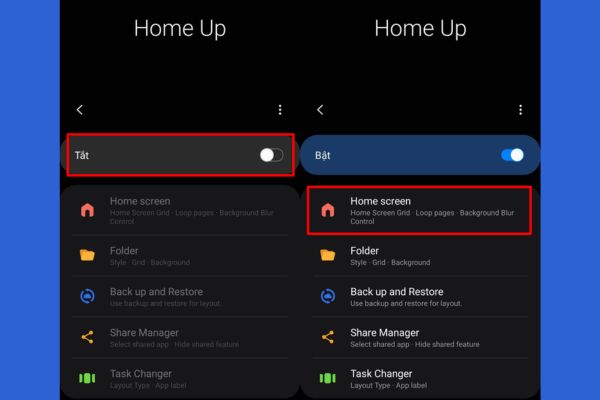
Select Home Screen
Select Home Screen

Step 4: In the Home Screen menu, find items FaVorites Max Count. Here, you can adjust the maximum number of applications displayed on your favorite bar. Pull the slider up to the maximum, usually 9 Application, to have more storage space.

Once completed, exit and check your favorite bar on the main screen – now it is much more spacious!
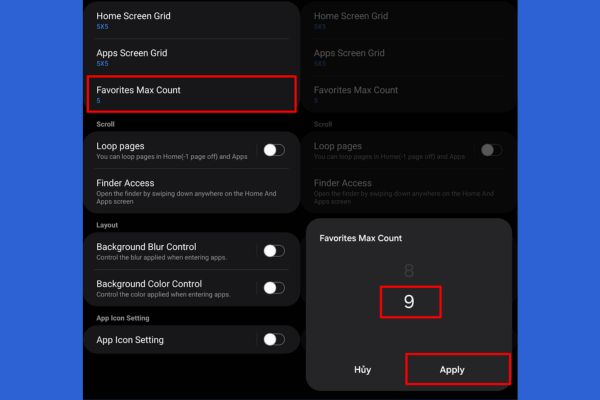
Find the Favorites Max Count

Benefits when adding applications to their favorite bar

After performing the above steps, you will notice a clear difference. The favorite Thanh can now accommodate up to 9 applications instead of just 4-5 as before. This means that you can pin applications like ZaloFacebook, Gmail, or any tools you often use without surfing the application menu.

Not only convenient, this also helps you save time, especially when you are busy. For example, you need to quickly open the notes in the meeting or check the message urgently – everything is right in front of your eyes.

Conclusion

Job Add application to your favorite bar On Samsung is not only simple but also brings outstanding use efficiency. With just a few minutes set up through Good Lock and Homeup, you have turned your phone into a assistant ready to serve all needs in a snap!


Tags: Addapplicationbarfavorite
Previous Post

Wowhay.com – The door opens the world of modern knowledge and network culture

Next Post

Online driving exam preparation: Support theory and practice

AnonyViet

AnonyViet

Related Posts

SafeKid – AI video blocking utility, helps children watch YouTube safely
Software

SafeKid – AI video blocking utility, helps children watch YouTube safely

May 14, 2026
Key Smart Call Blocker Premium 1 year – Block spam calls
Software

Key Smart Call Blocker Premium 1 year – Block spam calls

May 13, 2026
How to use multiple Zalo on one computer for business people
Software

How to use multiple Zalo on one computer for business people

May 13, 2026
Compare vivo X300 Ultra and vivo X200 Ultra: A comprehensive leap forward for the photography “monster”
Software

Compare vivo X300 Ultra and vivo X200 Ultra: A comprehensive leap forward for the photography “monster”

May 12, 2026
How to turn off call recording notifications on iPhone using EnsWilde
Software

How to turn off call recording notifications on iPhone using EnsWilde

May 12, 2026
Experience OPPO Find X9 Ultra: 3600 nits screen and 7050 mAh battery break all limits
Software

Experience OPPO Find X9 Ultra: 3600 nits screen and 7050 mAh battery break all limits

May 11, 2026
Next Post
Online driving exam preparation: Support theory and practice

Online driving exam preparation: Support theory and practice

0 0 votes
Article Rating
Subscribe
Login
Notify of
guest

guest

0 Comments
Oldest
Newest Most Voted
Inline Feedbacks
View all comments

Recent News

SafeKid – AI video blocking utility, helps children watch YouTube safely

SafeKid – AI video blocking utility, helps children watch YouTube safely

May 14, 2026
Key Smart Call Blocker Premium 1 year – Block spam calls

Key Smart Call Blocker Premium 1 year – Block spam calls

May 13, 2026
How to use multiple Zalo on one computer for business people

How to use multiple Zalo on one computer for business people

May 13, 2026
Compare vivo X300 Ultra and vivo X200 Ultra: A comprehensive leap forward for the photography “monster”

Compare vivo X300 Ultra and vivo X200 Ultra: A comprehensive leap forward for the photography “monster”

May 12, 2026
SafeKid – AI video blocking utility, helps children watch YouTube safely

SafeKid – AI video blocking utility, helps children watch YouTube safely

May 14, 2026
Key Smart Call Blocker Premium 1 year – Block spam calls

Key Smart Call Blocker Premium 1 year – Block spam calls

May 13, 2026
How to use multiple Zalo on one computer for business people

How to use multiple Zalo on one computer for business people

May 13, 2026
AnonyViet - English Version

AnonyViet

AnonyViet is a website share knowledge that you have never learned in school!

We are ready to welcome your comments, as well as your articles sent to AnonyViet.

Follow Us

Contact:

Email: anonyviet.com[@]gmail.com

Main Website: https://anonyviet.com

Recent News

SafeKid – AI video blocking utility, helps children watch YouTube safely

SafeKid – AI video blocking utility, helps children watch YouTube safely

May 14, 2026
Key Smart Call Blocker Premium 1 year – Block spam calls

Key Smart Call Blocker Premium 1 year – Block spam calls

May 13, 2026
No Result
View All Result
  • Home
  • News
  • Software
  • Knowledge
  • MMO
  • Tips
  • Security
  • Network
  • Office

wpDiscuz
0
0
Would love your thoughts, please comment.x
()
x
| Reply