
• Home
  • News
  • Software
  • Knowledge
  • MMO
  • Tips
  • Security
  • Network
  • Office
AnonyViet - English Version
  • Home
  • News
  • Software
  • Knowledge
  • MMO
  • Tips
  • Security
  • Network
  • Office
No Result
View All Result
  • Home
  • News
  • Software
  • Knowledge
  • MMO
  • Tips
  • Security
  • Network
  • Office
No Result
View All Result
AnonyViet - English Version
No Result
View All Result

Instructions for copying and pasting text between iPhone and PC

AnonyViet by AnonyViet
May 20, 2024
in Software
0

Copy and paste text between iPhone and PC It's never been easier if you know the tips in the article below. Let's explore the simple steps to speed up your work today!

Join the channel Telegram belong to AnonyViet 👉 Link 👈

Instructions for copying and pasting text between iPhone and PC

Method 1: Use iCloud to sync content

icloud is Apple's cloud storage service, helping users to conveniently Copy/Paste content between iPhone and computer. To Copy Paste text between iPhone and PC, do the following:

Step 1: Connect to the internet and log in to your iCloud account.

Step 2: On iPhone, go to Settings > Select Apple ID name > Select iCloud > Select 'Show all'
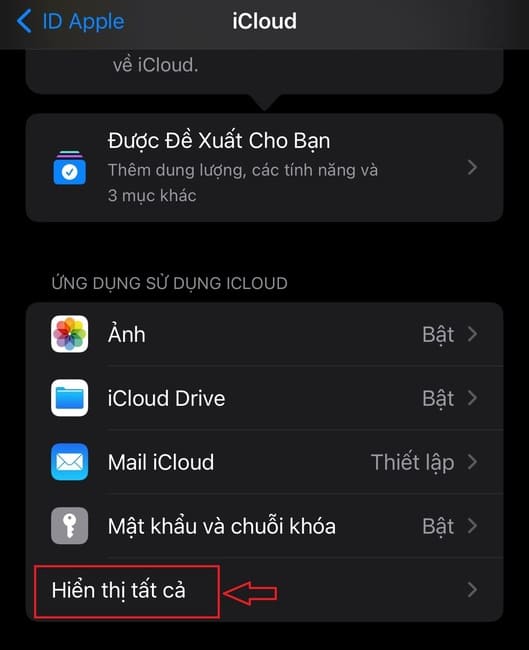
Copy and paste text between iPhone and PC
Select 'Show all'

Step 3: Click the Notes app
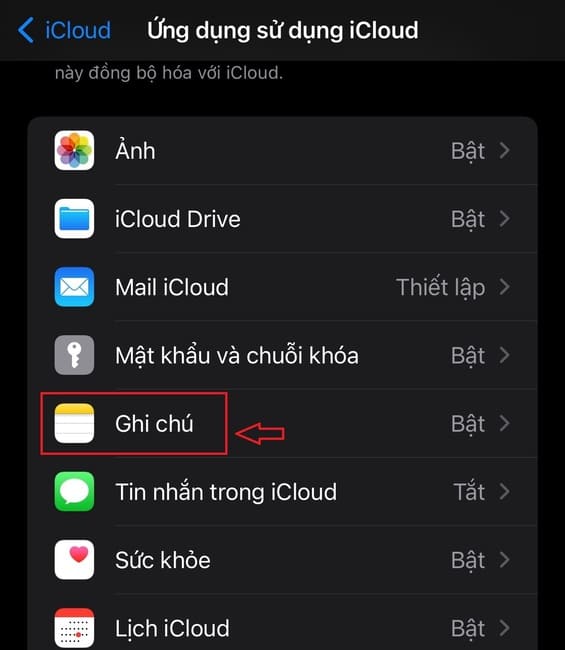
Copy and paste text between iPhone and PC
Click the Notes app

Step 4: Enable 'Sync this iPhone'
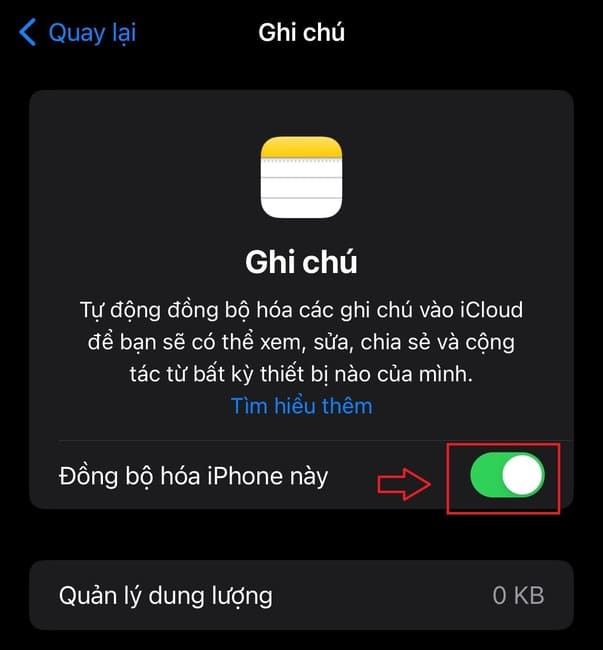
Copy and paste text between iPhone and PC
Enable 'Sync this iPhone'

Step 5: Copy the text you want to transfer and paste it into a note (new or existing)

Copy and paste text between iPhone and PC
Paste text into a note

On a Windows PC, follow these steps:

Step 1: Access iCloud home page > Log in to your account

Step 2: Open the Notes app
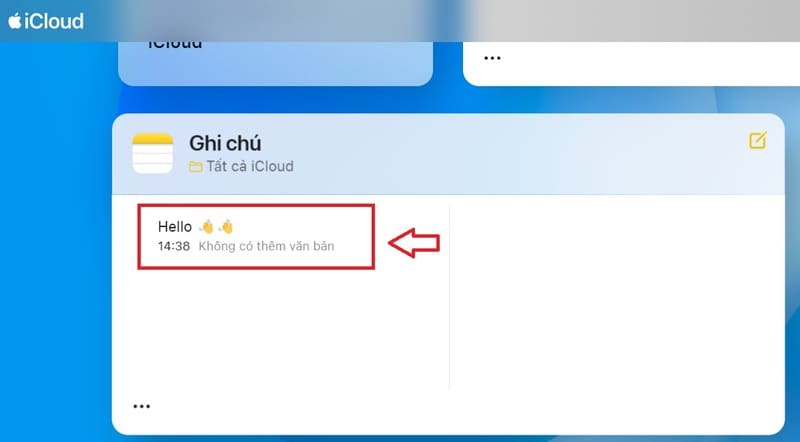
Copy and paste text between iPhone and PC
Open the Notes app

Step 3: Select the text and press Ctrl + C to copy and paste where you want and you're done.

Copy and paste text between iPhone and PC
Press Ctrl + C to copy again

Method 2: Take advantage of Microsoft OneNote

Microsoft OneNote provides a solution for Copy/Paste content between different devices, even without an internet connection. You just need to follow these steps:

Step 1: Install the OneNote app from the App Store on iPhone and from the Microsoft Store on Windows PC.

Step 2: On iPhone, you sign in with your Microsoft account and create a new note on OneNote

Step 3: On PC, open OneNote > Log in to your account > Open the note created on PC and Copy/Paste the text as needed.
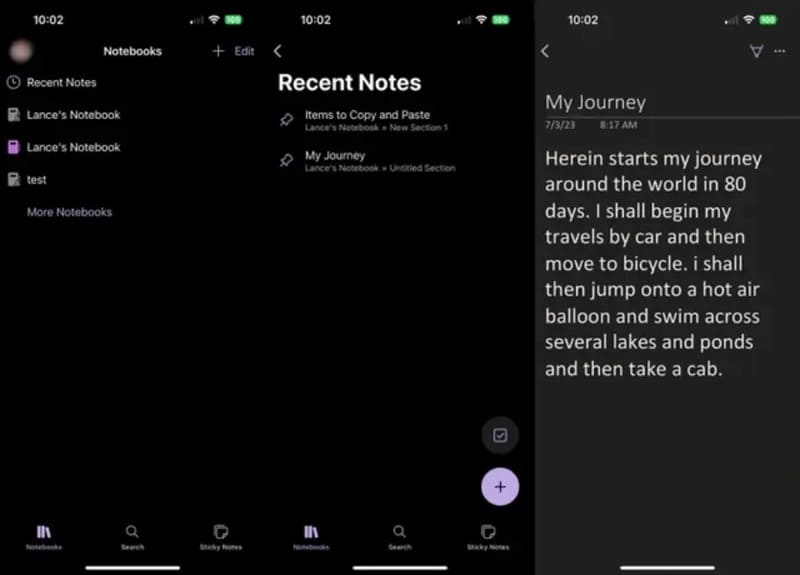
Copy and paste text between iPhone and PC
Use OneNote to copy and paste documents between iPhone and PC

Epilogue

With the above two methods, you can easily Copy and paste text between iPhone and PC, helps optimize and improve working performance. Don't forget to check out more tips and tricks at AnonyViet to get the most out of your device's features. Good luck!


Tags: copyingInstructionsiPhonepastingtext
Previous Post

Utilities to update the Corona situation in Vietnam fastest

Next Post

How to schedule text messages on iPhone

AnonyViet

AnonyViet

Related Posts

JG Cache Cleaner: Smart web data cleaning utility
Software

JG Cache Cleaner: Smart web data cleaning utility

June 25, 2026
How to create luxurious portrait photos using the Dola app
Software

How to create luxurious portrait photos using the Dola app

June 24, 2026
Cách hạ cấp iOS 27 xuống iOS 26 an toàn, không lo mất dữ liệu
Software

Cách hạ cấp iOS 27 xuống iOS 26 an toàn, không lo mất dữ liệu

June 20, 2026
Hướng dẫn cài đặt iOS 27 Developer Beta
Software

Hướng dẫn cài đặt iOS 27 Developer Beta

June 17, 2026
Instructions on how to activate the new Siri on iOS 27
Software

Instructions on how to activate the new Siri on iOS 27

June 15, 2026
PDF editing application on Android worth 199k is free
Software

PDF editing application on Android worth 199k is free

June 10, 2026
Next Post
How to schedule text messages on iPhone

How to schedule text messages on iPhone

0 0 votes
Article Rating
Subscribe
Login
Notify of
guest

guest

0 Comments
Oldest
Newest Most Voted
Inline Feedbacks
View all comments

Recent News

How to create Comic style advertising photos that attract millions of Likes

How to create Comic style advertising photos that attract millions of Likes

June 27, 2026
How to change the default font in Word

How to change the default font in Word

June 27, 2026
Tips for browsing the web with Safari on iPhone

Tips for browsing the web with Safari on iPhone

June 26, 2026
11 reasons to buy a Macbook instead of a Windows Laptop

11 reasons to buy a Macbook instead of a Windows Laptop

June 26, 2026
How to create Comic style advertising photos that attract millions of Likes

How to create Comic style advertising photos that attract millions of Likes

June 27, 2026
How to change the default font in Word

How to change the default font in Word

June 27, 2026
Tips for browsing the web with Safari on iPhone

Tips for browsing the web with Safari on iPhone

June 26, 2026
AnonyViet - English Version

AnonyViet

AnonyViet is a website share knowledge that you have never learned in school!

We are ready to welcome your comments, as well as your articles sent to AnonyViet.

Follow Us

Contact:

Email: anonyviet.com[@]gmail.com

Main Website: https://anonyviet.com

Recent News

How to create Comic style advertising photos that attract millions of Likes

How to create Comic style advertising photos that attract millions of Likes

June 27, 2026
How to change the default font in Word

How to change the default font in Word

June 27, 2026
  • Home
  • Home 2
  • Home 3
  • Home 4
  • Home 5
  • Home 6
  • Next Dest Page
  • Sample Page

6789 kv999

No Result
View All Result
  • Home
  • News
  • Software
  • Knowledge
  • MMO
  • Tips
  • Security
  • Network
  • Office

6789 kv999

wpDiscuz
0
0
Would love your thoughts, please comment.x
()
x
| Reply







