• Home
  • News
  • Software
  • Knowledge
  • MMO
  • Tips
  • Security
  • Network
  • Office
AnonyViet - English Version
  • Home
  • News
  • Software
  • Knowledge
  • MMO
  • Tips
  • Security
  • Network
  • Office
No Result
View All Result
  • Home
  • News
  • Software
  • Knowledge
  • MMO
  • Tips
  • Security
  • Network
  • Office
No Result
View All Result
AnonyViet - English Version
No Result
View All Result

How to set the Lunar Calendar on the iPhone lock screen very conveniently

AnonyViet by AnonyViet
December 2, 2023
in Software
0

How to set lunar calendar on iPhone lock screen is one of the tricks that many users are interested in. With the lunar calendar, you can know good and bad days, holidays, and birthdays according to the lunar calendar of friends and relatives. However, not everyone knows how to install it quickly. This is how the Lunar Calendar is displayed on the iPhone screen

Join the channel Telegram belong to AnonyViet 👉 Link 👈

Benefits of setting the lunar calendar on the lock screen

  • You can view the lunar calendar dates conveniently and quickly without needing to find and access the lunar calendar application.
  • You can understand the days of Tet, holidays, death anniversaries, and longevity celebrations according to the lunar calendar
  • You can look up information about feng shui such as the date and time of the zodiac or black zodiac, see zodiac signs, conflicting ages, weather conditions, direction, prayers, etc.
  • You can plan your work, study, travel, business, love,… according to the lunar calendar

How to set Lunar Calendar on iPhone lock screen

Step 1: Download the Perpetual Calendar app by following the link The following

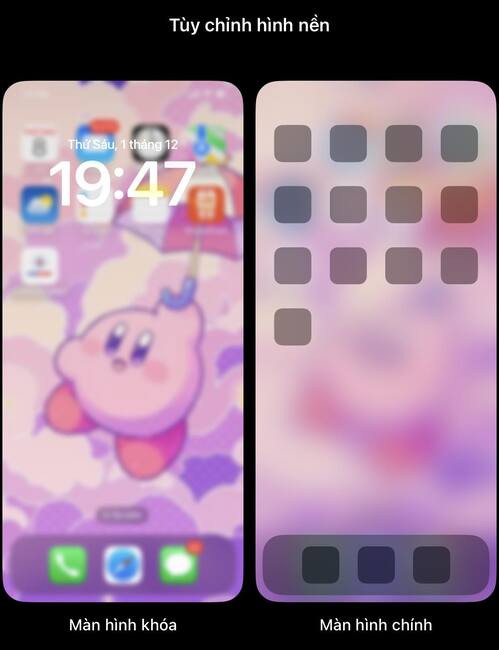
Step 2: Go to the lock screen interface, press and hold on the screen for about 1-2 seconds > Select 'Customize'
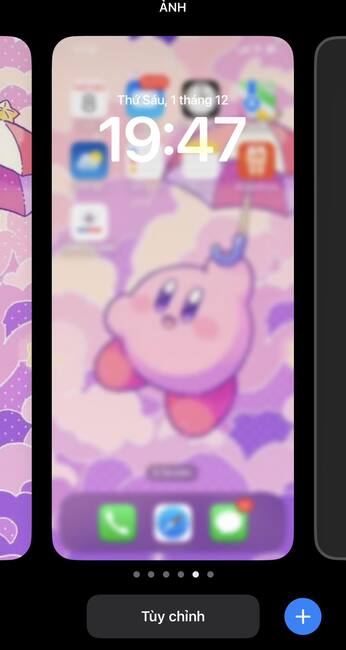
How to set lunar calendar on iPhone lock screen
Select 'Custom'

Step 3: Select 'Lock screen'

How to set lunar calendar on iPhone lock screen
Select 'Lock screen'

Step 4: Click 'Add extension'

How to set lunar calendar on iPhone lock screen
Click 'Add extension'

Step 5: In the list, scroll down and select the 'Lunar Calendar' application
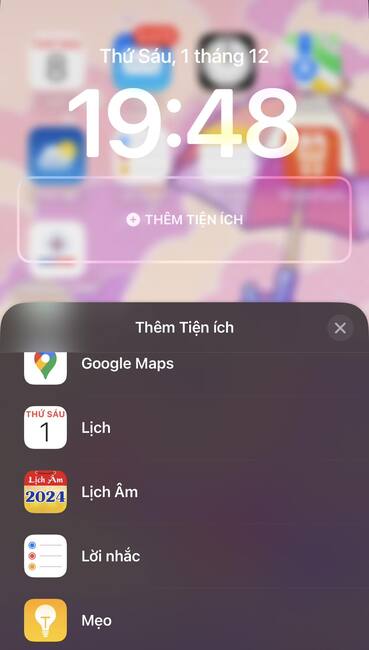
How to set lunar calendar on iPhone lock screen
Select the 'Lunar Calendar' application

Step 6: Choose the display style you like > Press x to exit the lock screen
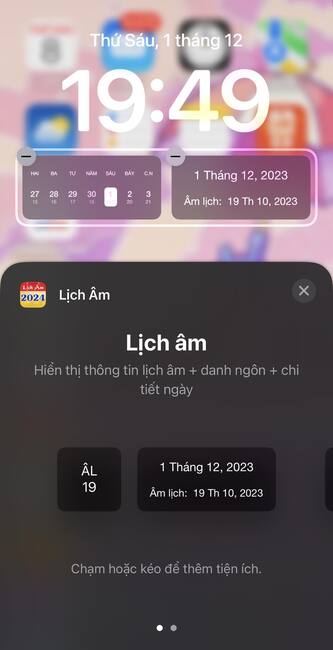
How to set lunar calendar on iPhone lock screen
Select display type

Step 7: To change the color, size and font, click on the time display frame and select as you like > Click 'Done' to complete.
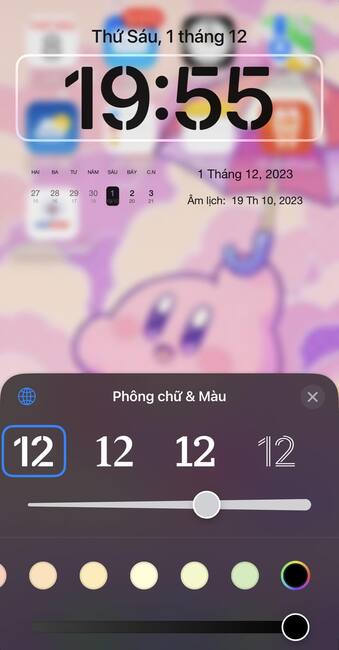
How to set lunar calendar on iPhone lock screen
Change color, size and font

Epilogue

How to set lunar calendar on iPhone lock screen I have presented it in detail in the above article. It is very convenient for you to view the lunar calendar date on the iPhone screen to see the full moon day, worship day… Hope you have understood and done it easily. Wishing you a successful application!


Rate this post

Tags: CalendarconvenientlyiPhoneLockLunarscreenset
Previous Post

Macbook Pro M1: Is it still worth buying in 2023?

Next Post

How to register for ChatGPT Plus in Vietnam without waiting for Waitlist

AnonyViet

AnonyViet

Related Posts

Compact design, durable battery, excellent camera: Review of OPPO Reno 16 Pro 5G
Software

Compact design, durable battery, excellent camera: Review of OPPO Reno 16 Pro 5G

July 12, 2026
Download the free 3D Pinball Space Cadet game on the App Store now
Software

Download the free 3D Pinball Space Cadet game on the App Store now

July 12, 2026
Learn new skills with iPad 11 (A16) 128GB: when is enough, when should you upgrade to a higher level?
Software

Learn new skills with iPad 11 (A16) 128GB: when is enough, when should you upgrade to a higher level?

July 10, 2026
Instructions for taking free buses in Ho Chi Minh City from July 2026
Software

Instructions for taking free buses in Ho Chi Minh City from July 2026

July 9, 2026
3 steps to change Zalo number when sim is revoked
Software

3 steps to change Zalo number when sim is revoked

July 8, 2026
The simplest way to log out of Gmail on Huawei phones
Software

The simplest way to log out of Gmail on Huawei phones

July 5, 2026
Next Post
How to register for ChatGPT Plus in Vietnam without waiting for Waitlist

How to register for ChatGPT Plus in Vietnam without waiting for Waitlist

0 0 votes
Article Rating
Subscribe
Login
Notify of
guest

guest

0 Comments
Oldest
Newest Most Voted

Recent News

Instructions on how to create POV product review videos using Flow

Instructions on how to create POV product review videos using Flow

July 13, 2026
How to fix “This PC can’t run Windows 11” error This PC doesn’t meet the minimum system requirements

How to fix “This PC can’t run Windows 11” error This PC doesn’t meet the minimum system requirements

July 13, 2026
Compact design, durable battery, excellent camera: Review of OPPO Reno 16 Pro 5G

Compact design, durable battery, excellent camera: Review of OPPO Reno 16 Pro 5G

July 12, 2026
Download the free 3D Pinball Space Cadet game on the App Store now

Download the free 3D Pinball Space Cadet game on the App Store now

July 12, 2026
Instructions on how to create POV product review videos using Flow

Instructions on how to create POV product review videos using Flow

July 13, 2026
How to fix “This PC can’t run Windows 11” error This PC doesn’t meet the minimum system requirements

How to fix “This PC can’t run Windows 11” error This PC doesn’t meet the minimum system requirements

July 13, 2026
Compact design, durable battery, excellent camera: Review of OPPO Reno 16 Pro 5G

Compact design, durable battery, excellent camera: Review of OPPO Reno 16 Pro 5G

July 12, 2026
AnonyViet - English Version

AnonyViet

AnonyViet is a website share knowledge that you have never learned in school!

We are ready to welcome your comments, as well as your articles sent to AnonyViet.

Follow Us

Contact:

Email: anonyviet.com[@]gmail.com

Main Website: https://anonyviet.com

Recent News

Instructions on how to create POV product review videos using Flow

Instructions on how to create POV product review videos using Flow

July 13, 2026
How to fix “This PC can’t run Windows 11” error This PC doesn’t meet the minimum system requirements

How to fix “This PC can’t run Windows 11” error This PC doesn’t meet the minimum system requirements

July 13, 2026
  • Home
  • Home 2
  • Home 3
  • Home 4
  • Home 5
  • Home 6
  • Next Dest Page
  • Sample Page

say88 tỷ lệ kèo nhà cái kèo nhà cái 5 febet

No Result
View All Result
  • Home
  • News
  • Software
  • Knowledge
  • MMO
  • Tips
  • Security
  • Network
  • Office

say88 tỷ lệ kèo nhà cái kèo nhà cái 5 febet

wpDiscuz
0
0
Would love your thoughts, please comment.x
()
x
| Reply