• Home
  • News
  • Software
  • Knowledge
  • MMO
  • Tips
  • Security
  • Network
  • Office
AnonyViet - English Version
  • Home
  • News
  • Software
  • Knowledge
  • MMO
  • Tips
  • Security
  • Network
  • Office
No Result
View All Result
  • Home
  • News
  • Software
  • Knowledge
  • MMO
  • Tips
  • Security
  • Network
  • Office
No Result
View All Result
AnonyViet - English Version
No Result
View All Result

Using your phone right on your computer is very convenient with Phone Link

AnonyViet by AnonyViet
September 6, 2023
in Software
0

Use your phone right on your computer is a very convenient and useful feature for people who often work with computers. You can receive and send messages, calls, view notifications, take photos, access apps, and more without having to pick up your phone. This will save you time, improve productivity, and avoid being distracted by constant notifications from your phone.

Join the channel Telegram belong to AnonyViet ???? Link ????

Introducing Phone Link

Phone Link is a new feature of Windows 11 allows connecting Android or iOS phone to computer via Bluetooth or Wi-Fi brings many benefits such as:

  • Save time and effort by not having to switch back and forth between your phone and computer for work or play.
  • View and manage notifications from your phone on your computer, and receive and send SMS or MMS messages
  • Make and receive calls
  • View and edit photos, play music, access and share files from your phone, and even use Android and iOS apps on your computer (select devices only).
  • More security and safety when using your phone. You don’t have to worry about your phone being lost or stolen when you leave it somewhere far from your computer.
  • It is possible to erase data on your phone remotely if it is lost or stolen.
  • Your computer’s keyboard, mouse, large screen, and speakers can be used to enter data, move the pointer, view images, and hear sounds from your phone.
  • Easily drag and drop files from computer to phone or vice versa easily.

How to use the phone right on the computer

For Android phones

To use Phone Link on Windows 11 for Android, you need to perform the following steps:

Step 1: You access this page > Select “For Android Users”
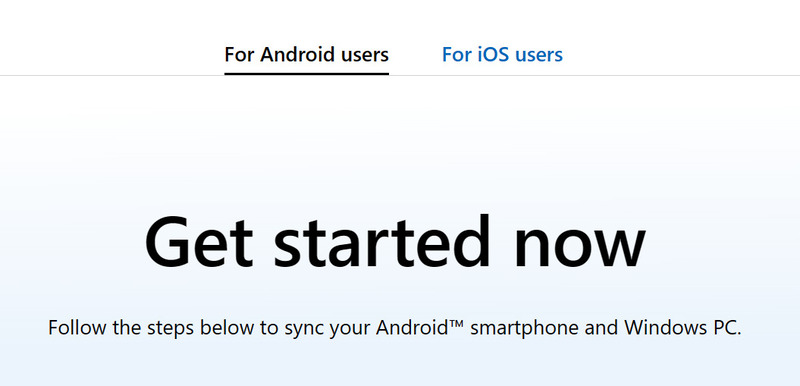
Use your phone right on your computer
Select “For Android Users”

Step 2: Click on the link to follow the instructions
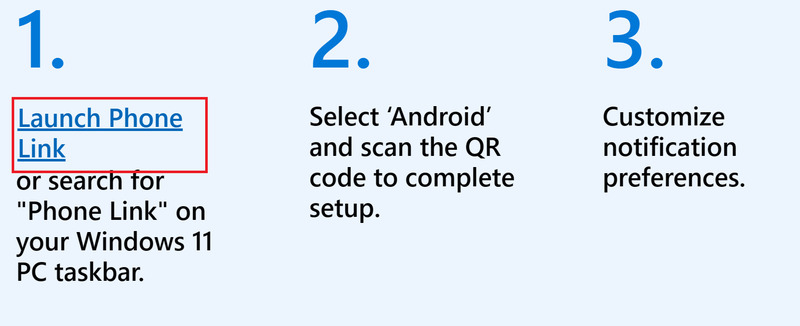
Use your phone right on your computer
Click on the link

Step 3: On your Android phone, paste aka.ms/yourpc into your browser and follow the instructions. You will be redirected to the Google Play Store
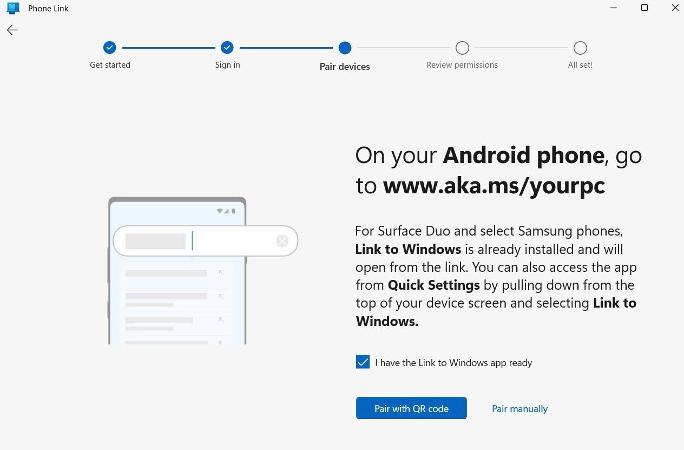
Use your phone right on your computer
Paste aka.ms/yourpc into the browser

Step 4: Download the Link to Windows app if you don’t already have it. Once completed, click “Open” then click “Link your phone and PC”
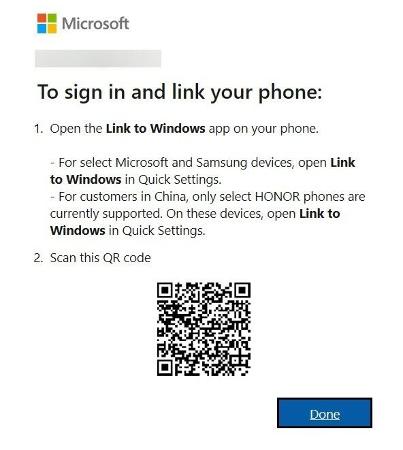
Use your phone right on your computer
Download Link to Windows App

Step 5: You will see a message saying “Is the QR code on your PC ready?. Click “Continue” to continue

Step 6: Hold your phone close to the QR code on your computer to scan it, or enter the PIN instead.

Step 7: Click “Continue” on your phone, then click “Continue” on your computer.

It’s done! Most functions are available now, you will need to pair via Bluetooth and grant additional call access.

For iOS phones

Step 1: Access to next page > Select “For iOS users”
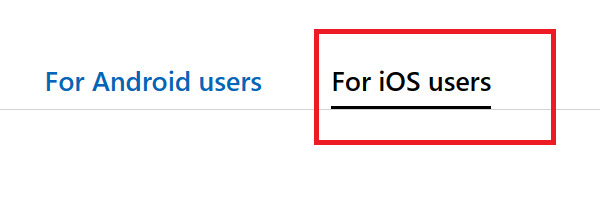
Use your phone right on your computer
Select “For iOS users”

Step 2: Select “iPhone”

Use your phone right on your computer
Select “iPhone”

Step 3: Click “Turn on Bluetooth”
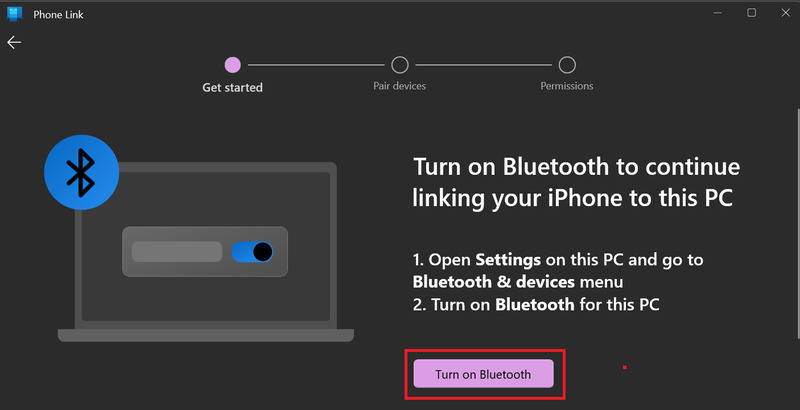
Use your phone right on your computer
Click “Turn on Bluetooth”

Step 4: Turn on Bluetooth on your phone and pair it with your computer.

Step 5: On iPhone, scan the QR code displayed on the computer screen.
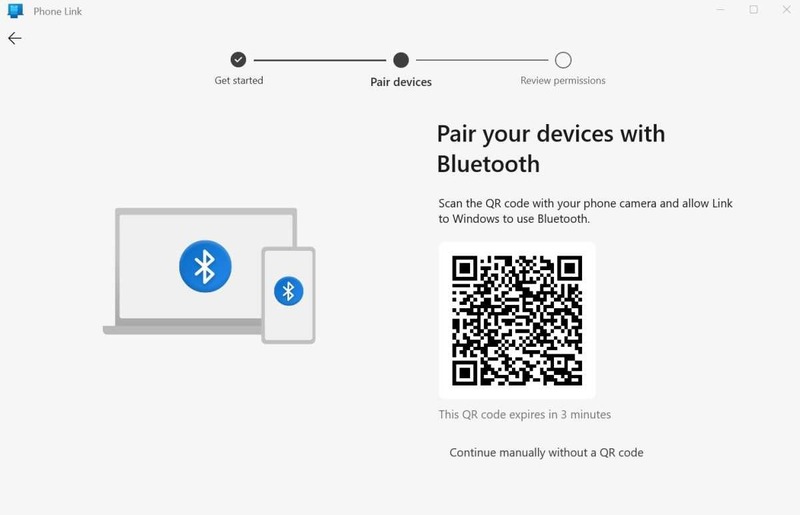
Use your phone right on your computer
Scan QR code

Step 6: Open the link, then you click “Continue”.

Step 7: Click “Continue”
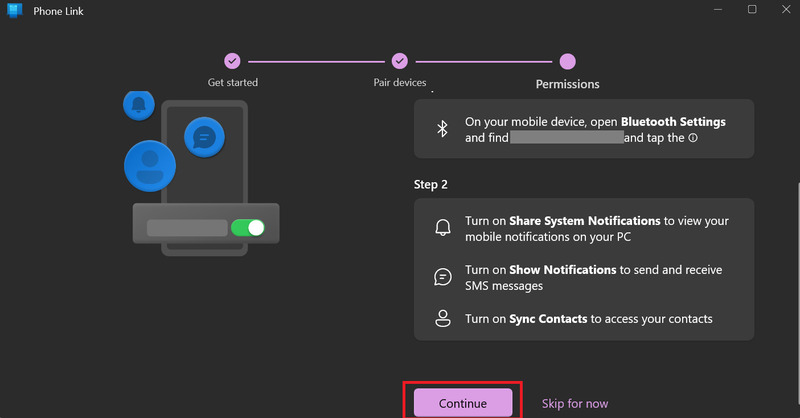
Use your phone right on your computer
Click “Continue”

Step 8: Select “Continue”
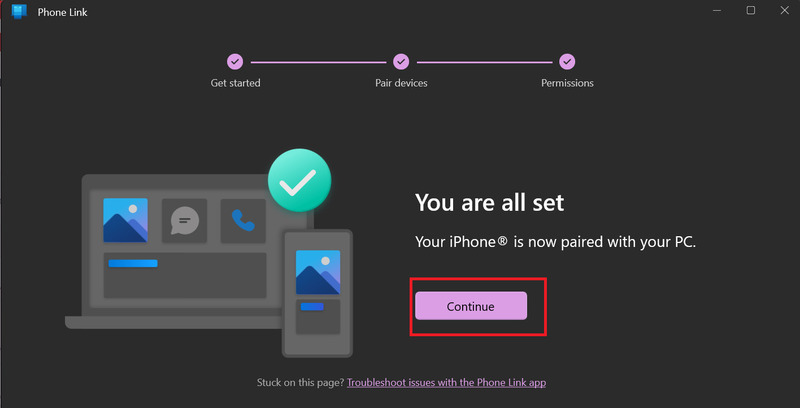
Use your phone right on your computer
Select “Continue”

That’s it! You will now see a screen that looks like the one below.

Use your phone right on your computer

Epilogue

Phone Link is the feature that makes it possible Use your phone right on your computer conveniently and effectively. Phone Link allows you to access and manage your phone’s apps, messages, calls, notifications, photos, music and files on your computer easily and quickly. Try Phone Link today and share your thoughts with us!


Rate this post

Tags: computerconvenientlinkphone
Previous Post

How to book an online hospital appointment 175 – No need to queue, no worries about running out of seats

Next Post

AOMEI is giving away 1 year of FoneTool license for free

AnonyViet

AnonyViet

Related Posts

Instructions on how to activate the new Siri on iOS 27
Software

Instructions on how to activate the new Siri on iOS 27

June 15, 2026
PDF editing application on Android worth 199k is free
Software

PDF editing application on Android worth 199k is free

June 10, 2026
How to buy in-game items for free on iPhone
Software

How to buy in-game items for free on iPhone

June 8, 2026
Practical use of Xiaomi 17T Pro: This is a good phone in 2026
Software

Practical use of Xiaomi 17T Pro: This is a good phone in 2026

June 8, 2026
Instructions to receive 6 months of IObit Malware Fighter 13 Pro for free
Software

Instructions to receive 6 months of IObit Malware Fighter 13 Pro for free

June 7, 2026
Instructions on how to prevent acquaintances from seeing your Tiktok
Software

Instructions on how to prevent acquaintances from seeing your Tiktok

June 2, 2026
Next Post
AOMEI is giving away 1 year of FoneTool license for free

AOMEI is giving away 1 year of FoneTool license for free

0 0 votes
Article Rating
Subscribe
Login
Notify of
guest

guest

0 Comments
Oldest
Newest Most Voted
Inline Feedbacks
View all comments

Recent News

Instructions to receive Claude Fable 5 for free for 30 days

Instructions to receive Claude Fable 5 for free for 30 days

June 15, 2026
Instructions on how to activate the new Siri on iOS 27

Instructions on how to activate the new Siri on iOS 27

June 15, 2026
Delete all Event Logs on Windows to remove traces of activity

Delete all Event Logs on Windows to remove traces of activity

June 15, 2026
Instructions on how to get the latest 200GB MultCloud for free in 2026

Instructions on how to get the latest 200GB MultCloud for free in 2026

June 14, 2026
Instructions to receive Claude Fable 5 for free for 30 days

Instructions to receive Claude Fable 5 for free for 30 days

June 15, 2026
Instructions on how to activate the new Siri on iOS 27

Instructions on how to activate the new Siri on iOS 27

June 15, 2026
Delete all Event Logs on Windows to remove traces of activity

Delete all Event Logs on Windows to remove traces of activity

June 15, 2026
AnonyViet - English Version

AnonyViet

AnonyViet is a website share knowledge that you have never learned in school!

We are ready to welcome your comments, as well as your articles sent to AnonyViet.

Follow Us

Contact:

Email: anonyviet.com[@]gmail.com

Main Website: https://anonyviet.com

Recent News

Instructions to receive Claude Fable 5 for free for 30 days

Instructions to receive Claude Fable 5 for free for 30 days

June 15, 2026
Instructions on how to activate the new Siri on iOS 27

Instructions on how to activate the new Siri on iOS 27

June 15, 2026
  • Home
  • Home 2
  • Home 3
  • Home 4
  • Home 5
  • Home 6
  • Next Dest Page
  • Sample Page

6789 kv999

No Result
View All Result
  • Home
  • News
  • Software
  • Knowledge
  • MMO
  • Tips
  • Security
  • Network
  • Office

6789 kv999

wpDiscuz
0
0
Would love your thoughts, please comment.x
()
x
| Reply