• Home
  • News
  • Software
  • Knowledge
  • MMO
  • Tips
  • Security
  • Network
  • Office
AnonyViet - English Version
  • Home
  • News
  • Software
  • Knowledge
  • MMO
  • Tips
  • Security
  • Network
  • Office
No Result
View All Result
  • Home
  • News
  • Software
  • Knowledge
  • MMO
  • Tips
  • Security
  • Network
  • Office
No Result
View All Result
AnonyViet - English Version
No Result
View All Result

How to create GTA V style images with action on Photoshop

AnonyViet by AnonyViet
February 17, 2023
in Tips
0

Photoshop is the most popular and best photo editing software available today. But it requires a lot of experience to use proficiently. For those of you just starting out, this must be a big deal. Action is the key in this article.

Join the channel Telegram belong to AnonyViet 👉 Link 👈

Therefore, Photoshop’s Action function was born, helping us to reduce some time and less effort. Because it is responsible for recording actions (steps to do) and you can rewind to see how others do.

I will guide you to try Action GtaV in detail so that you can experience this great feature. But first, you must make sure that your computer has Adobe Photoshop pre-installed. If you don’t have it, download your Protable below to use it lightly.

Download Protable

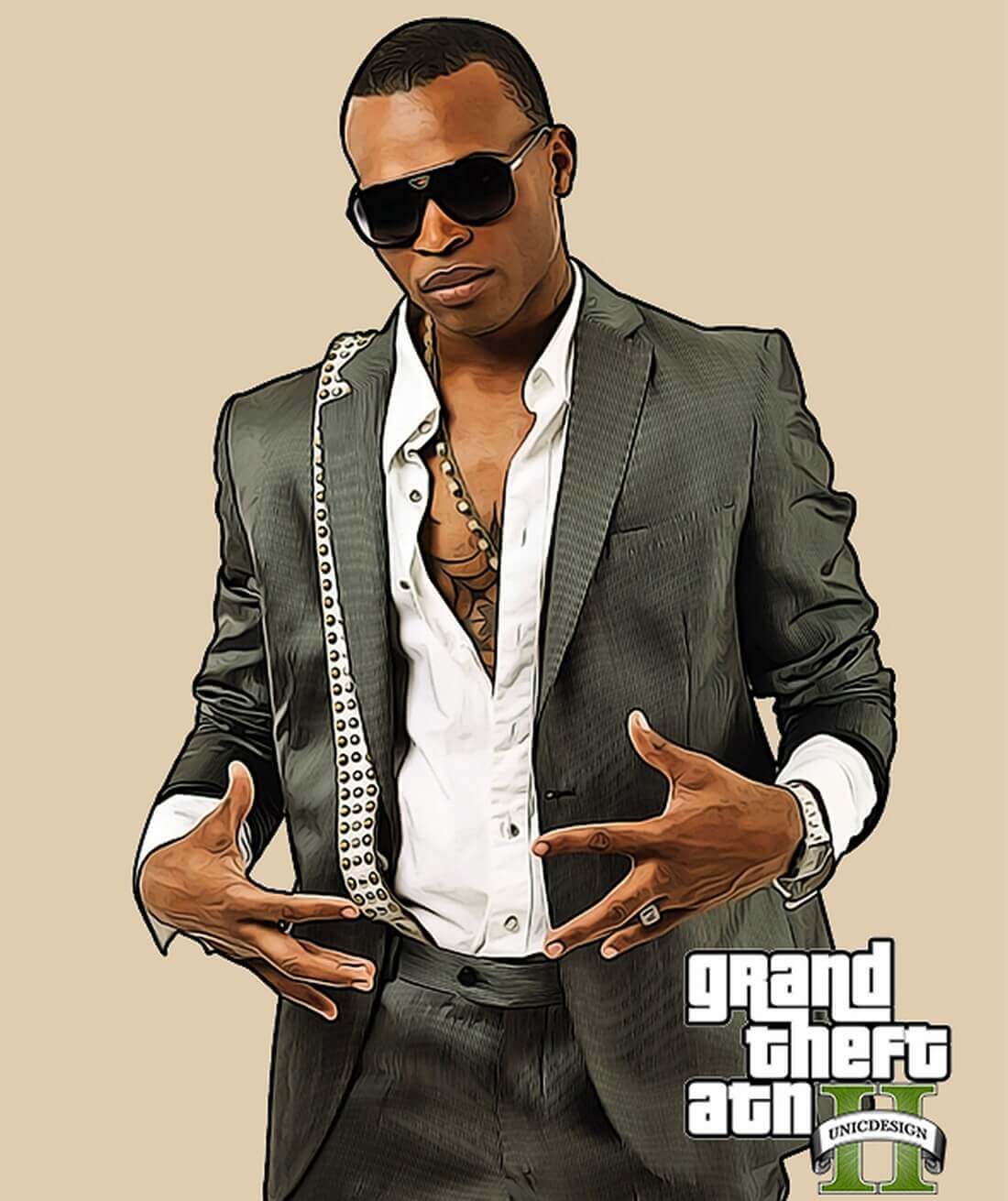
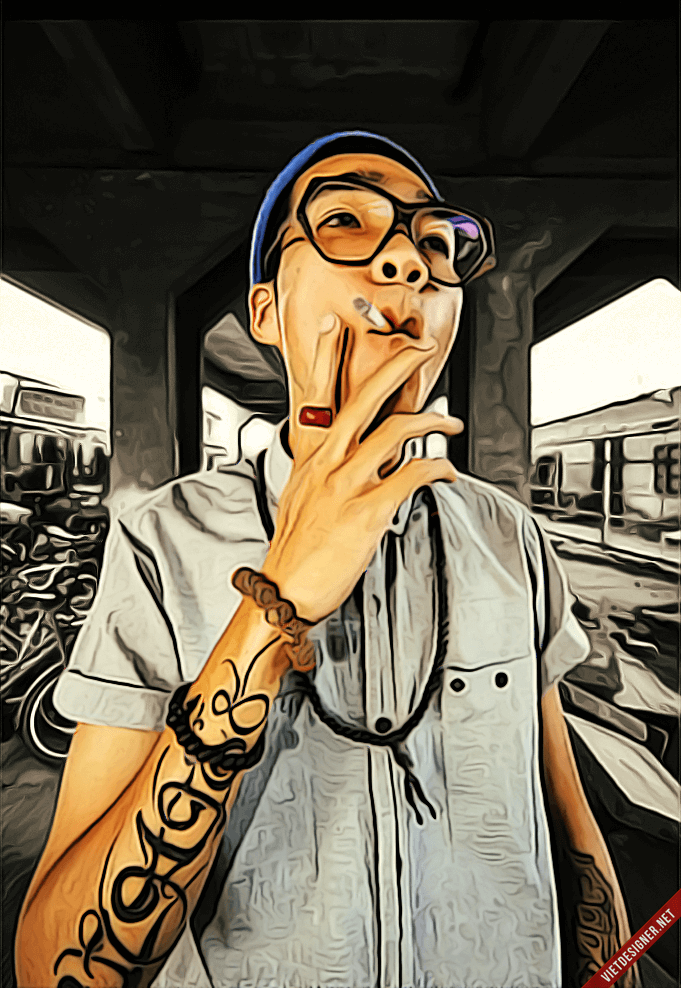
Some pictures about Action GTA DRAW

Here are some products I made with this Action. Try it out and see the magic. I would like to repeat that Action is a record of a series of operations (how to do). You can have it run all the steps at once or run it step by step to see how people do it.

How to create GTA V style images with action on Photoshop

How to create GTA V style images with action on Photoshop

How to create GTA V style images with action on Photoshop

How to use Action GTA DRAW

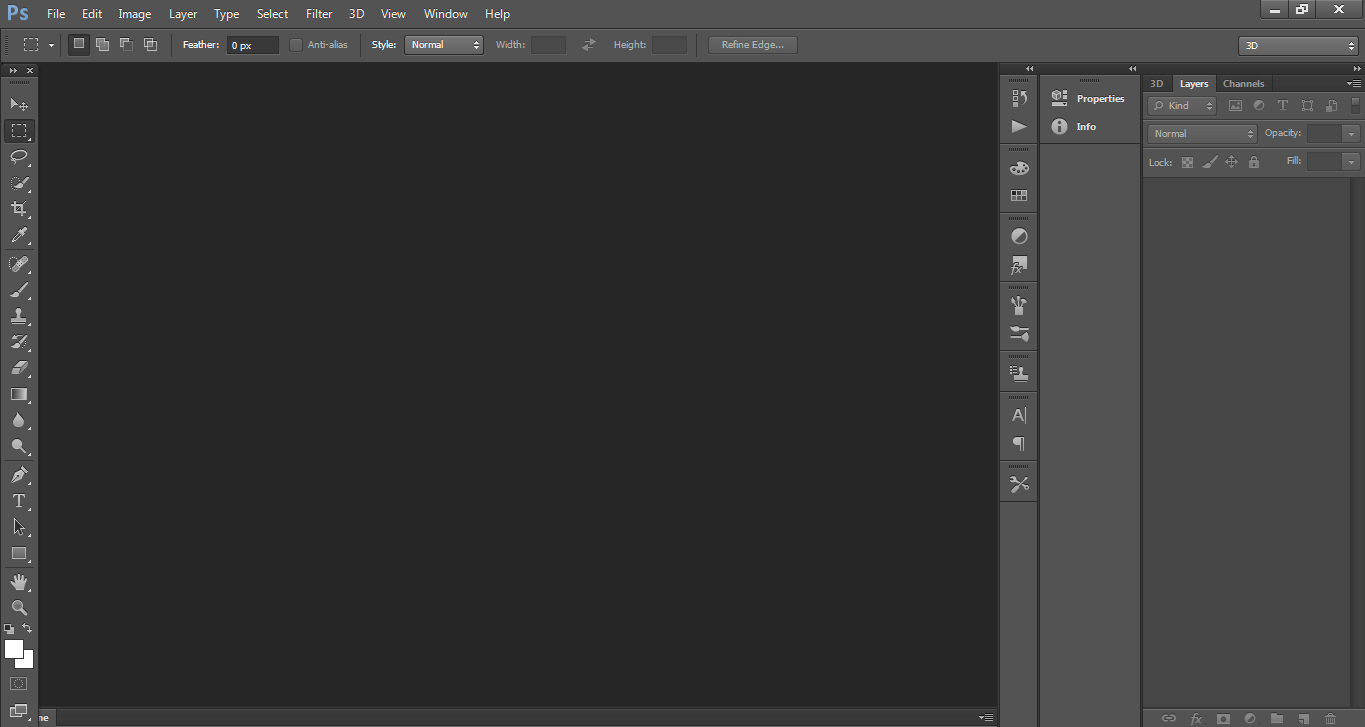
First, you open Photoshop software. If not, please pull up and download the Protable (light version) I put above.
How to create GTA V style images with action on Photoshop 11

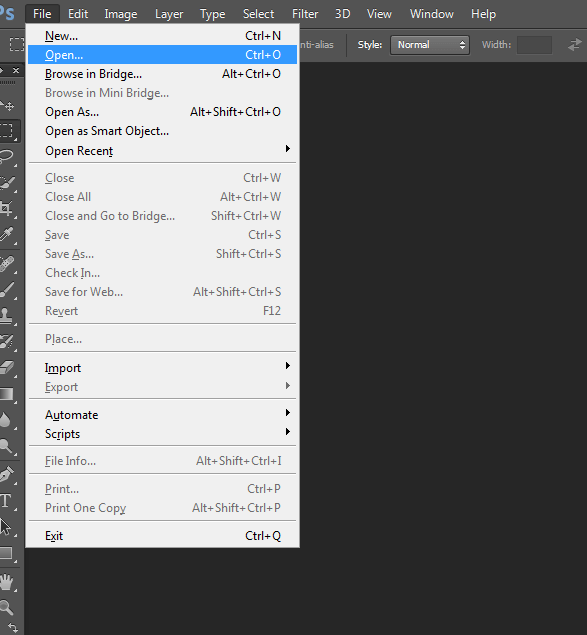
Step 2: Go to File -> Open to open the image you need to edit.
How to create GTA V style images with action on Photoshop 12

When you click Open, it will display the file interface on the computer. Select find an image you want to edit. Here, I choose a photo of goalkeeper Bui Tien Dung, who is hot in the past.
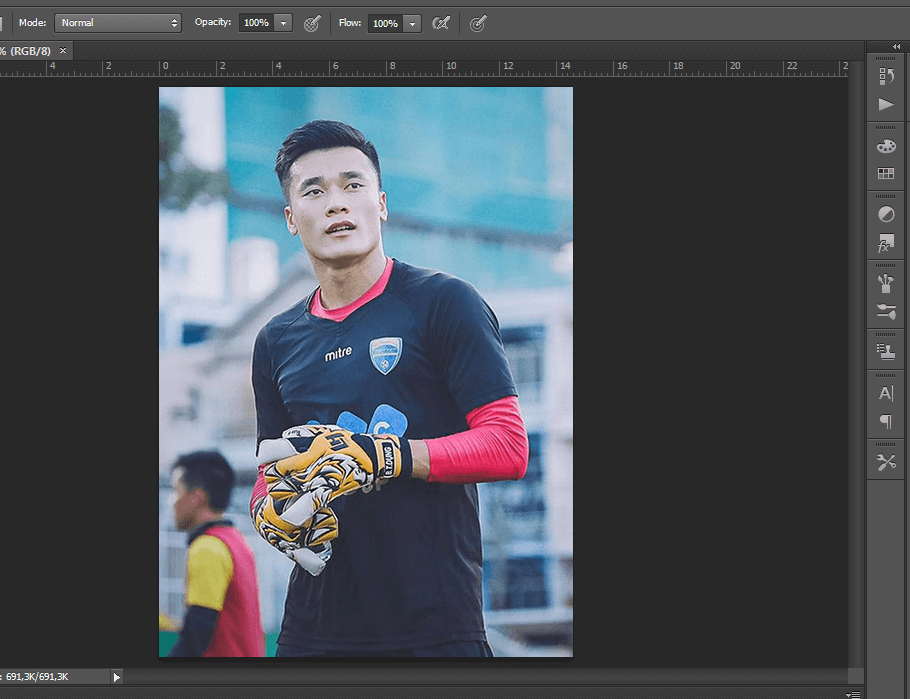
How to create GTA V style images with action on Photoshop 13

Step 3: Click on the image and create a new Layer by pressing Ctrl + J and name it brush (not capitalized). It should be properly named brush because in the action specified layer brush name is the area where it will perform operations.

Step 4: On the brush layer, use the Brush Tool to paint the entire body on the image. Where you paint, the effect will be made there by the layer. Since I want all the effects to apply to the character, I fill the selection with the character.
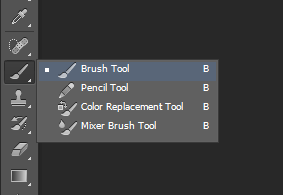
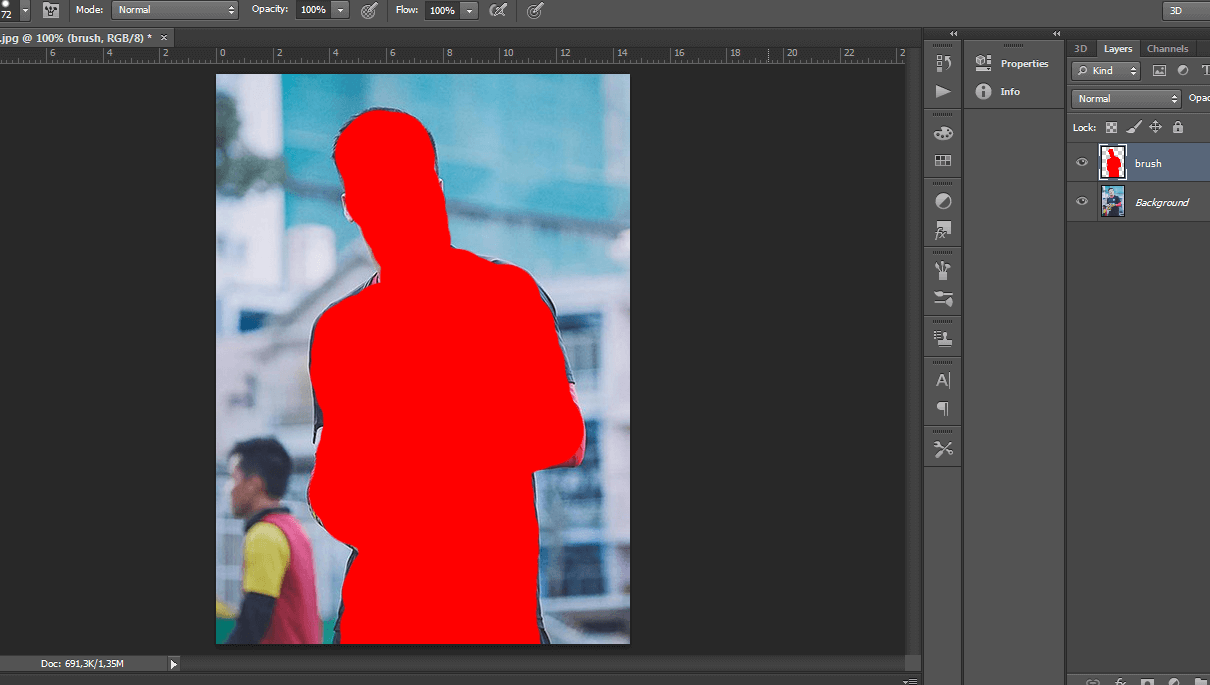
How to create GTA V style images with action on Photoshop 14

How to create GTA V style images with action on Photoshop 15

Using Action

Step 4: Turn on the tool Actions (F9) and Load Actions if you haven’t loaded the action yet.
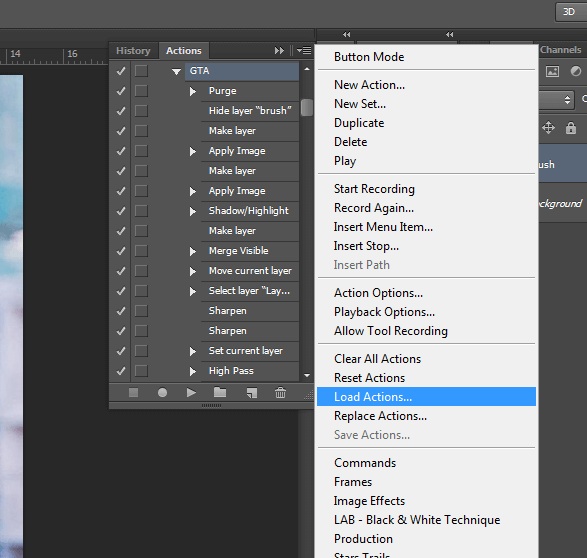
How to create GTA V style images with action on Photoshop 16

Step 5: After Load Actions done, click on the GTA action folder and select the GTA action (the light green GTA box in the image). Then press the Play button below to run the action.
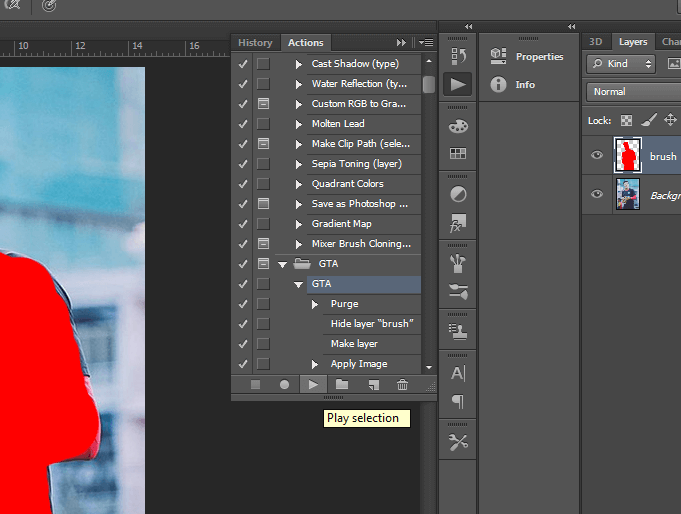
How to create GTA V style images with action on Photoshop 17

Step 6: You wait a bit for Aciton to complete to see the final result. Note, while the action runs, you should not do anything else on the computer because it can easily lead to errors!
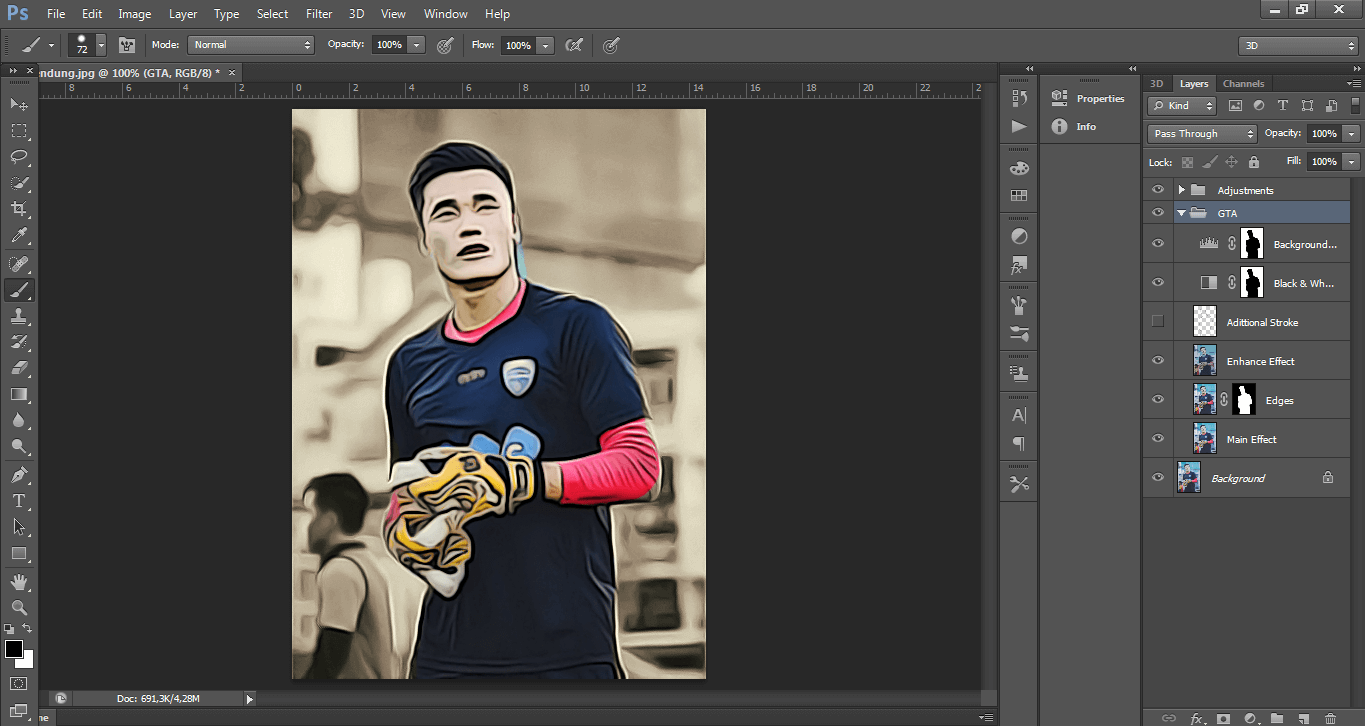
How to create GTA V style images with action on Photoshop 18

Finally, Save the jpg or png format as you like. Let’s show off to your friends!
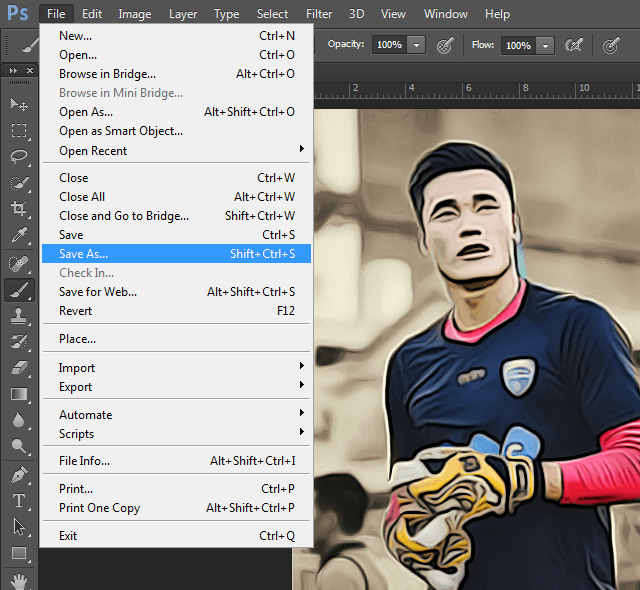
How to create GTA V style images with action on Photoshop 19

The painting of the whole person in the picture is a bit careless, so some details are wrong, you should paint it carefully, close to all the people, not too much or too little 🙂

Above are all the steps to create a GTA V-style photo with just 1 click on PhotoShop, you can also download the GTA V Logo set to attach to the photo to add more quality and vividness.

Download Action PhotoShop GTA DRAW

The file will have the extension .atn (short for Aciton).

Download

In brief

  • You just need to create a layer named brush.
  • Color only the area where you want to apply the effect.
  • All the rest let Action do all the work.

AnonyViet wishes you success!!

#N1412

The article achieved: 5/5 – (100 votes)

Previous Post

Introducing a website that provides free HD images of all genres

Next Post

Summary of Facebook tricks in just 1 Tool

AnonyViet

AnonyViet

Related Posts

How to add sliders to Facebook Stories to easily rewind videos
Tips

How to add sliders to Facebook Stories to easily rewind videos

April 21, 2026
How to change the default font on Windows 10
Tips

How to change the default font on Windows 10

April 13, 2026
5 tips for using a Browser to replace an App (helps save RAM, time and money)
Tips

5 tips for using a Browser to replace an App (helps save RAM, time and money)

April 13, 2026
How to make funny MeMe photos without Photoshop within 10 seconds
Tips

How to make funny MeMe photos without Photoshop within 10 seconds

April 11, 2026
How to quickly design your own Logo without Photoshop
Tips

How to quickly design your own Logo without Photoshop

April 10, 2026
How to convert Website into App on Windows
Tips

How to convert Website into App on Windows

April 9, 2026
Next Post
Summary of Facebook tricks in just 1 Tool

Summary of Facebook tricks in just 1 Tool

0 0 votes
Article Rating
Subscribe
Login
Notify of
guest

guest

0 Comments
Oldest
Newest Most Voted
Inline Feedbacks
View all comments

Recent News

Instructions for looking up prescriptions on VNeID instead of paper medical books

Instructions for looking up prescriptions on VNeID instead of paper medical books

April 26, 2026
Tips to completely turn off CAPTCHA codes on iPhone and Mac are super simple

Tips to completely turn off CAPTCHA codes on iPhone and Mac are super simple

April 25, 2026
Compare Poco X8 Pro and Poco X7 Pro: A new step for the “king” of mid-range performance

Compare Poco X8 Pro and Poco X7 Pro: A new step for the “king” of mid-range performance

April 24, 2026
How to compress online videos for free without losing quality

How to compress online videos for free without losing quality

April 24, 2026
Instructions for looking up prescriptions on VNeID instead of paper medical books

Instructions for looking up prescriptions on VNeID instead of paper medical books

April 26, 2026
Tips to completely turn off CAPTCHA codes on iPhone and Mac are super simple

Tips to completely turn off CAPTCHA codes on iPhone and Mac are super simple

April 25, 2026
Compare Poco X8 Pro and Poco X7 Pro: A new step for the “king” of mid-range performance

Compare Poco X8 Pro and Poco X7 Pro: A new step for the “king” of mid-range performance

April 24, 2026
AnonyViet - English Version

AnonyViet

AnonyViet is a website share knowledge that you have never learned in school!

We are ready to welcome your comments, as well as your articles sent to AnonyViet.

Follow Us

Contact:

Email: anonyviet.com[@]gmail.com

Main Website: https://anonyviet.com

Recent News

Instructions for looking up prescriptions on VNeID instead of paper medical books

Instructions for looking up prescriptions on VNeID instead of paper medical books

April 26, 2026
Tips to completely turn off CAPTCHA codes on iPhone and Mac are super simple

Tips to completely turn off CAPTCHA codes on iPhone and Mac are super simple

April 25, 2026
No Result
View All Result
  • Home
  • News
  • Software
  • Knowledge
  • MMO
  • Tips
  • Security
  • Network
  • Office

wpDiscuz
0
0
Would love your thoughts, please comment.x
()
x
| Reply