Chrome is one of the fastest and most widely used browsers on the market. However, it still encounters bugs and issues that cause slow download speeds. After going through this article, you can determine if your internet or browser is slowing down your download speed. Please perform 9 ways to increase Download speed on Chrome below.
| Join the channel Telegram of the AnonyViet 👉 Link 👈 |
Slow download speeds are one of the biggest common nightmares out there these days. But don’t worry because the 9 ways below will speed up Download.
Check internet connection to increase Download speed on Chrome
First, you must confirm that a slow internet connection is not the cause of your slow download speed. Downloading the same files on a different browser or another system connected to the same internet will confirm this.
If the download speed is still normal on other machines or browsers, the problem may be with your Chrome browser. If that’s the case, follow the steps below to increase Download speed on Chrome.
9 ways to fix slow download speed on Chrome
1. Close unused tabs while downloading files
Each open tab in your browser consumes a certain amount of resources. Chrome has very few resources to use when there are too many open tabs and the file you are downloading. As a result, a lack of RAM resources can slow down downloads.
In addition to RAM usage, each open tab causes some problems for the Internet. As more tabs are open, the Internet becomes slower, causing files to take longer to download. Try closing unused tabs to see if it changes your download speed.
2. Turn off the VPN in use
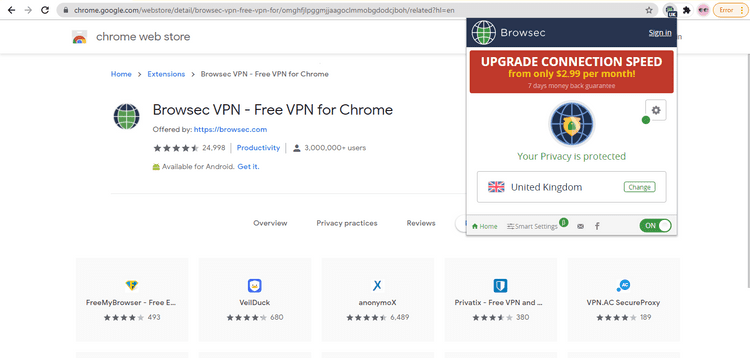
Although, surfing the internet is safer with a VPN. However, if the VPN server is too far away from you, data will take longer to travel between your location and the VPN server. This will slow down Chrome browser as well as download speed.
Check if disabling the VPN connection improves your download speed. However, this will expose your IP address, so make sure it won’t compromise your security.
3. Update Chrome Version
Chrome updates can eliminate hidden issues and improve performance. Download speeds may slow down if Chrome is not updated to the latest version.
Now let’s see if your Chrome browser has updated to a new version by a few simple steps as follows:
- In the upper right corner, select the three dots.
- Into the Help > About Google Chrome.
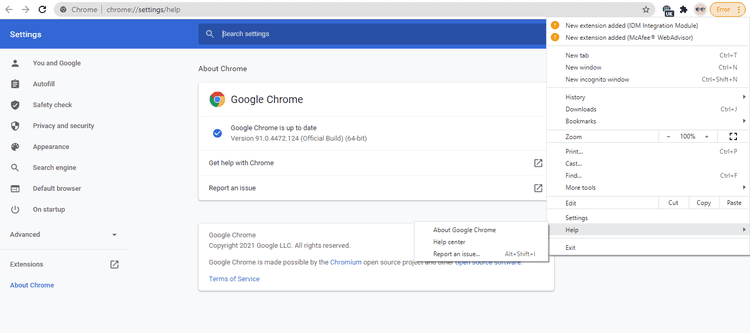
If Chrome has been updated, you will see the message “Google Chrome is up-to-date”. And if not, update Chrome and download the file again. Turn on auto-update to avoid the same problem in the future.
4. Disconnect other devices that have the same Internet connection as you
Having too many connections to the same internet connection can slow down Chrome’s download and browsing speeds. If you’re using a shared internet connection in Chrome to download files, ask other users to disconnect their devices until the download is complete.
If you have connected your devices to the same internet connection, disconnect them to see if it increases download speed. You can also move the computer closer to the router to improve signal strength. This will greatly increase your download speed.
5. Turn on parallel loading
Parallel downloading means splitting files into smaller parts and downloading them simultaneously. Multiple connections to download files reduce the load on the server, which speeds up your downloads. Chrome automatically combines these small packages into the final file once they are downloaded. Just this file splitting operation has helped somewhat in terms of improving your download speed.
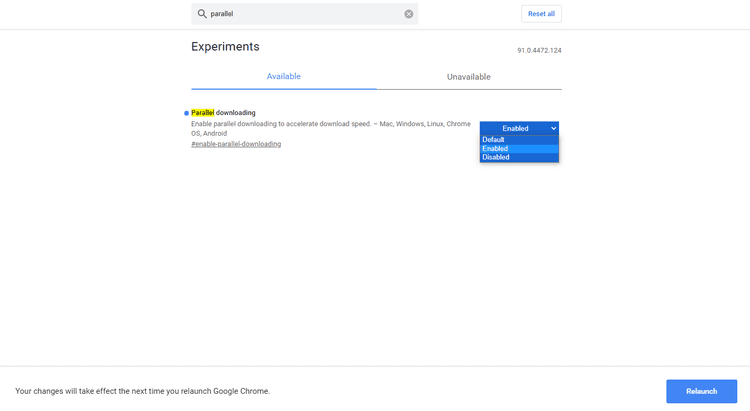
Turn on parallel downloading to fix your download speed on Chrome with these steps:
- Open a new tab.
- Into the Chrome Flags.
- Keyword search “parallel downloading”
- Select “Enable“.
- Finally choose “Relaunch” to restart the browser.
6. Clear browsing data
Temporary files can cause problems during data download if they build up in the browser. Therefore, deleting cookies can help speed up the download process.
- Press CTRL + H.
- Select Clear browsing data.
- Select all options, including cookies and cached data.
- The last step, you press Clear data.
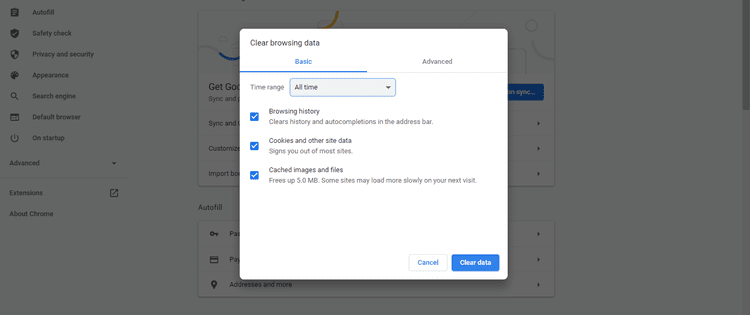
This will delete any usernames, passwords, and other saved information. If you want to keep the same account, you can create a new account in Chrome without cache or cookie data.
7. Turn off extensions
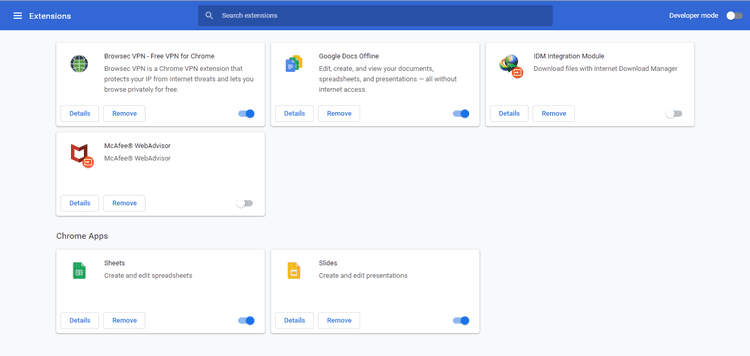
In some cases, Chrome extensions can also interfere with downloads. Turn off these extensions one by one to see how it affects download speeds. Turn off an extension that can hurt your download speed. If that’s the case, remove the extension from Chrome.
8. Turn off hardware acceleration in Chrome
Hardware acceleration transfers high graphics computations to hardware like the GPU, so the CPU doesn’t have to handle as much workload. Most of the time, it improves the performance of browsers and applications.
However, this can slow down download speeds. If it’s on, turn it off and see if that affects download speeds. Turn it back on if disabling it slows down your downloads.
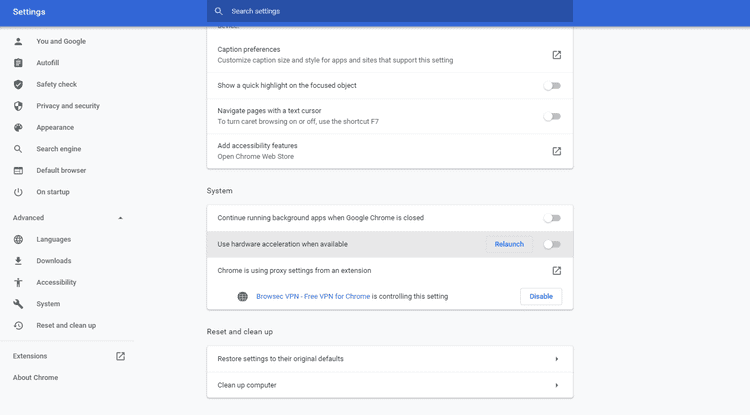
To disable hardware acceleration in Chrome, follow the steps below.
- Go to section Settings
- Scroll down and find the section advanced settings.
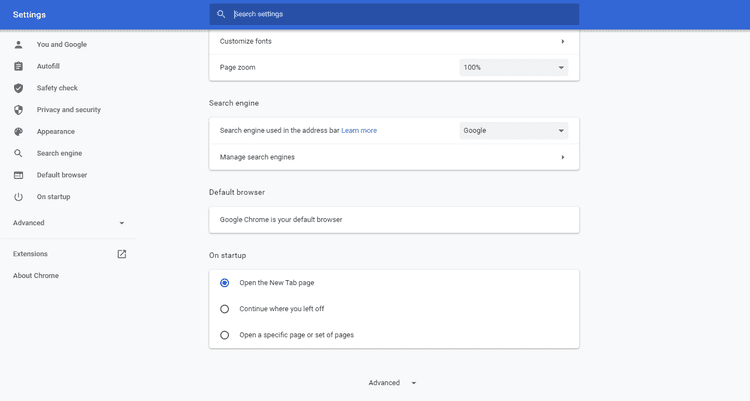
- In system settings, turn off “Use hardware acceleration when available”.
9. Install a download manager
Download manager works like parallel download in Chrome browser. Each part of the file is downloaded separately, which puts less strain on the server.
Moreover, when the connection is interrupted, you have to download the file from the beginning. The download manager retains the downloaded portion and will resume the download if you lose your internet connection.

The most popular download manager to speed up your downloads is IDM (Internet Download Manager).
In addition, you can also increase download speed using CMD here.