Microsoft has just released a very useful data recovery tool called Windows File Recovery on the Microsoft Store. Windows File Recovery helps you recover data you accidentally deleted files or viruses eat some important data. Windows File Recovery is a command-line tool that helps you recover photos, documents, videos and more, even if you wipe your hard drive.
| Join the channel Telegram of the AnonyViet 👉 Link 👈 |
It can even recover data from cameras or SD memory cards, although network drives are not supported, a pity.
Supported recovery formats
Windows File Recovery almost supports recovering all deleted files with familiar formats such as images, documents, videos, etc.
- Supports recovery by file name, keyword, file path or extension during your recovery.
- Recover files in JPEG, PDF, PNG, MPEG, Office files (doc, docx, xls, xlsx, ppt, pttx…), MP3 & MP4, ZIP and other formats.
- Recover HDD, SSD, USB and memory cards.
- Supports NTFS, FAT, exFAT and ReFS system files.
Request
Windows File Recovery requires you to use Windows 10 build 19041 or later.
There are two ways to see which version of Windows 10 you are using:
The first way:
-
- Best Windows + I to open the Settings software.
- Next visit System.
- Scroll down to select About.

Second way:
-
- Press Windows + CHEAP to open the Run dialog box.
- Next type then Enter.

Tips to increase data recovery
If you want to increase your chances of file recovery, minimize or avoid using your computer. The process when you delete a file or format is just to delete the address of the File in the configuration table of the hard drive. The file is actually permanently deleted when another file overwrites the address of the deleted file.
Therefore, limiting copying and creating new files will help improve data recovery. But when you use the computer, no matter what, Windows still creates the file, and this file can overwrite that free space at any time.
How to use Windows File Recovery
Step 1: Download Windows File Recovery at the Microsoft Store.
Step 2: Press the Windows key, and type Windows File Recovery in the search dialog, then select Windows File Recovery.
Step 3: When you are prompted to allow the app to make changes to your device, select Yes.
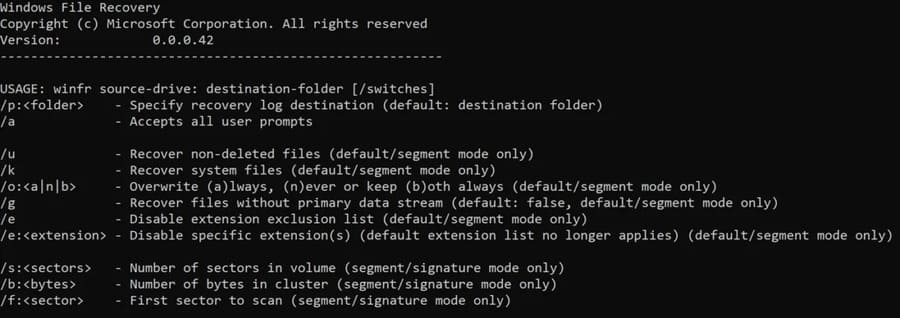
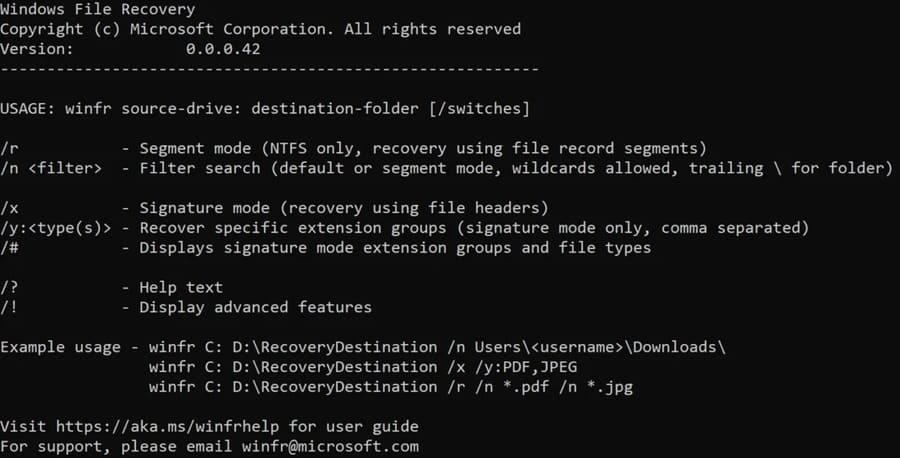
Step 4: In Command Prompt, enter the following command:winfr source-drive: destination-drive: [/switches]
The source and destination drives must be different. When recovering data from the operating system drive (usually the C drive), use the options /n <filter> and /y: <type<(s)> to specify the files or folders you want to restore.
Microsoft will automatically create recovery folders named Recovery_
There are three modes you can use to recover files: Default, Segment, and Signature.
Default mode
Restore a specific file from your C: drive to the recovery folder on drive E.
| winfr C: E: /n \Users\ |
Restore jpeg and png images from Pictures folder to recovery folder on drive E.
winfr C: E: /n \Users\<username>\Pictures\*.JPEG /n \Users\<username>\Pictures\*.PNG |
Restore the Documents folder from drive C to the recovery folder on drive E.
winfr C: E: /n \Users\<username>\Documents\ |
Don’t forget the backslash (\) at the end of the directory.
Segment mode (/r)
Recover PDF and Word files from C drive to E drive recovery folder.
winfr C: E: /r /n *.pdf /n *.docx |
Restore any file with the word “invoice” in the filename using wildcards.
winfr C: E: /r /n *invoice* |
Signature Mode (/x)
Use signature mode, when seeing extension groups and corresponding file types.
Recover JPEG (jpg, jpeg, jpe, jif, jfif, jfi) and PNG images from drive C to recovery folder of drive E.winfr C: E: /x /y:JPEG,PNG
Recover ZIP files (zip, docx, xlsx, ptpx, and more) from drive C to the recovery folder on drive E.
winfr C: E:\RecoveryTest /x /y:ZIP
Step 5: When you are prompted to confirm continue, press Y to start the restore process.
Depending on the size of your source drive, it will take quite a while.
To stop the restore process, press Ctrl + C.
If you feel using the command line interface is quite complicated, try the recovery software with interface for ease of use.