• Home
  • News
  • Software
  • Knowledge
  • MMO
  • Tips
  • Security
  • Network
  • Office
AnonyViet - English Version
  • Home
  • News
  • Software
  • Knowledge
  • MMO
  • Tips
  • Security
  • Network
  • Office
No Result
View All Result
  • Home
  • News
  • Software
  • Knowledge
  • MMO
  • Tips
  • Security
  • Network
  • Office
No Result
View All Result
AnonyViet - English Version
No Result
View All Result

Windows 11 having problems? Create a restore point now to 'go back in time'

AnonyViet by AnonyViet
October 10, 2024
in Tips
0

Windows 11, with its beautiful interface and many new features, has quickly won the hearts of users. However, like any operating system, Windows 11 can sometimes encounter problems such as software conflicts, update errors or virus attacks. To prevent the situation of “losing a cow to build a barn”, work create a restore point (restore point) is extremely necessary, helping you restore the system to its previous stable operating state quickly and easily.

Join the channel Telegram belong to AnonyViet 👉 Link 👈

What is System Restore and why do you need to use it?

The Windows operating system has an extremely useful feature of creating a restore point, a “safe” backup of the system at a certain time. If your computer crashes, you can use a restore point to “go back in time,” restoring the system to a previous, well-functioning state.

What is System Restore and why do you need to use it?

Restore points include:

  • Windows system files
  • Installed program
  • Registry settings
  • System driver

Note: Restore points do not back up personal data such as photos, videos, documents. You need a separate backup plan for those important data.

Windows automatically creates restore points weekly and when there are major changes to the system, for example installing updates. But you can also create a restore point yourself at any time.

See more: How to create videos from super realistic images with Luma Dream Machine

Advantages of using System Restore

Troubleshoot system problems

If the driver fails or the update causes a conflict, you can restore the system to a time before the problem occurred.

Uninstall the program

System Restore helps completely remove changes that the program has made on the system.
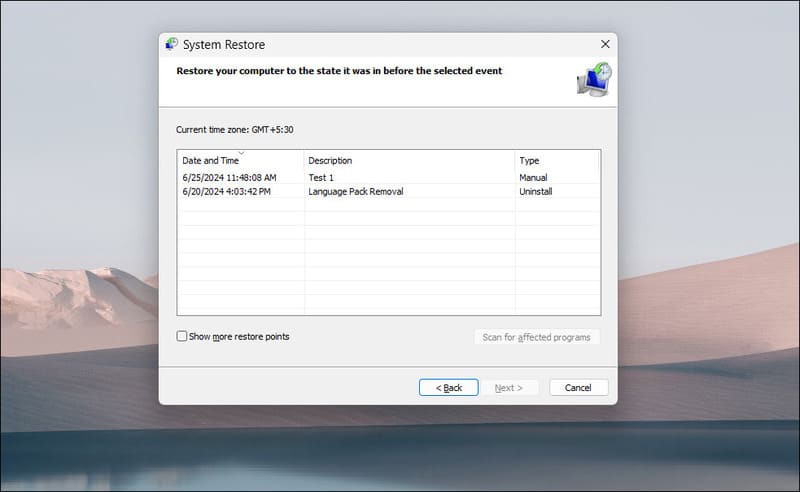
Advantages of using System Restore

Test the new installation safely

You can create a restore point before testing a new installation, making it easier to roll back to a stable state if something goes wrong.

Note: System Restore does not affect personal data but will remove applications, drivers, and updates installed after the restore point.

How to enable restore points on Windows 11

By default, System Restore is not enabled automatically. The steps you need to take to activate are as follows:

Step 1: Press the Windows + S key combination to open Windows search.

Step 2: Enter 'restore point' and select the corresponding result.
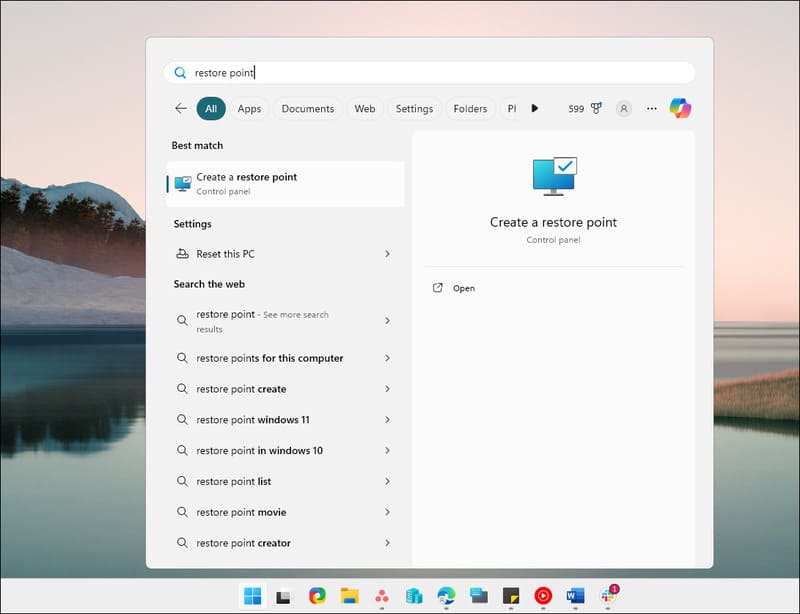
Enter 'restore point'

Step 3: In the System Properties window, select the System Protection tab.

Step 4: If Protection Settings is in the Off state, press the Configure button.
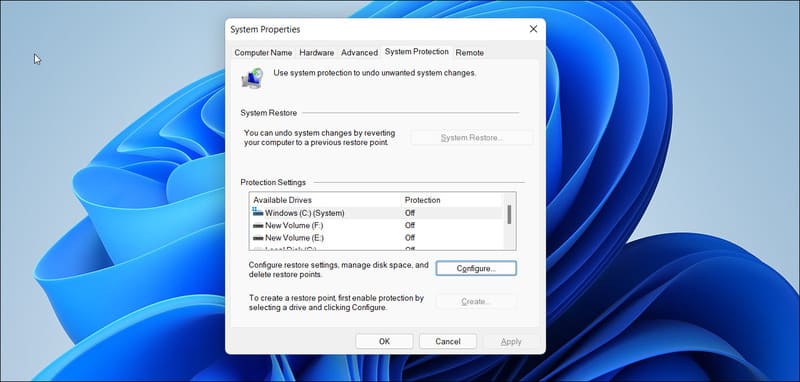
Click the Configure button

Step 5: Select Turn on system protection in the Restore Settings section.

Step 6: Drag the slider in the Disk Space Usage section to allocate hard drive space to the restore point (high setting is recommended).

Step 7: Select Apply and OK to save the settings.

Repeat the above steps for other drives (if necessary). If you install the application on a drive other than the C: drive, you should enable System Restore for that drive.

Instructions for creating restore points on Windows 11

Step 1: Press the Windows + S key combination.

Step 2: Enter 'System Restore' and select 'Create a Restore Point'

Step 3: Click the Create button.
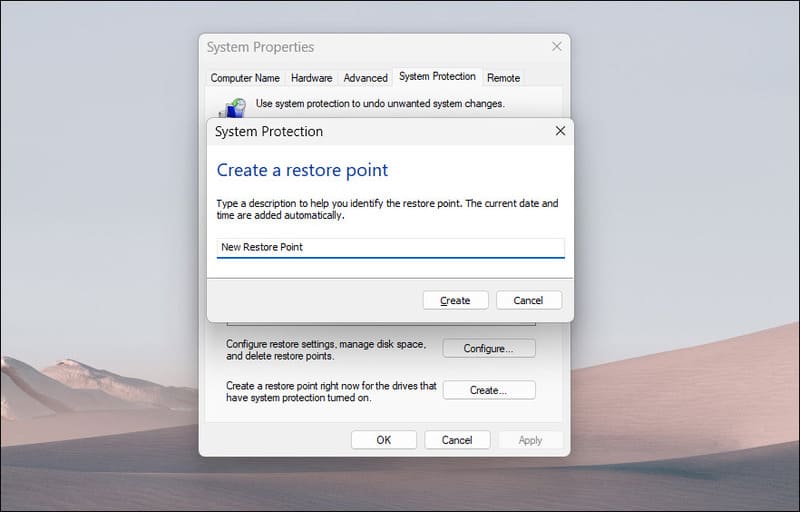
Click the Create button

Step 4: You can give the restore point a name or short description (to make it easier to identify later).

Step 5: Creating a restore point may take a few minutes. Once completed, you will see a success message > Click Close to close the window.
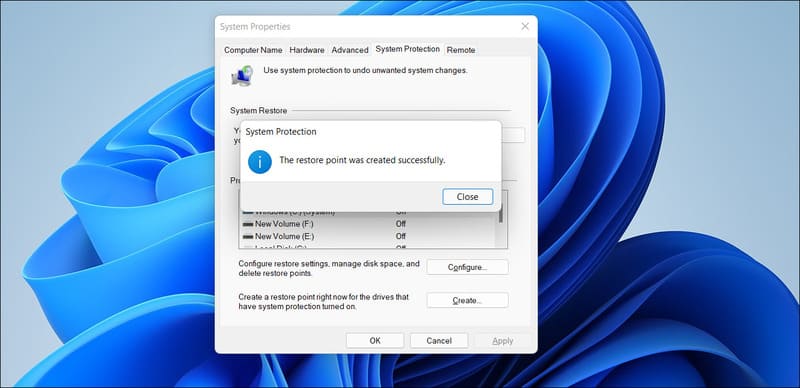
Notice of successful restore point creation

How to use System Restore to restore Windows 11

Step 1: Open Windows Search by pressing Windows + S.

Step 2: Search for 'System Restore' and select the corresponding result.

Step 3: In the System Restore window, select the restore point you want to use.

Step 4: Click Next, read the information carefully and confirm. The computer will reboot and proceed with the recovery process.

See more: Tips to help iPhone automatically bypasses CAPTCHA validation

Conclusion

Create a restore point is a good habit, helping you protect your data and Windows 11 system comprehensively. Don't wait until a problem occurs to frantically try to fix it. Take a few minutes to set up and create a restore point today to use your computer with peace of mind.


Tags: 39gocreatepointproblemsrestoretime39Windows
Previous Post

Download iOS programming course using Swift language in Vietnamese

Next Post

Instructions for changing application icon color on iOS 18

AnonyViet

AnonyViet

Related Posts

How to add sliders to Facebook Stories to easily rewind videos
Tips

How to add sliders to Facebook Stories to easily rewind videos

April 21, 2026
How to change the default font on Windows 10
Tips

How to change the default font on Windows 10

April 13, 2026
5 tips for using a Browser to replace an App (helps save RAM, time and money)
Tips

5 tips for using a Browser to replace an App (helps save RAM, time and money)

April 13, 2026
How to make funny MeMe photos without Photoshop within 10 seconds
Tips

How to make funny MeMe photos without Photoshop within 10 seconds

April 11, 2026
How to quickly design your own Logo without Photoshop
Tips

How to quickly design your own Logo without Photoshop

April 10, 2026
How to convert Website into App on Windows
Tips

How to convert Website into App on Windows

April 9, 2026
Next Post
Instructions for changing application icon color on iOS 18

Instructions for changing application icon color on iOS 18

0 0 votes
Article Rating
Subscribe
Login
Notify of
guest

guest

0 Comments
Oldest
Newest Most Voted
Inline Feedbacks
View all comments

Recent News

Tips for pinning the step counter to the iPhone screen to monitor your health

Tips for pinning the step counter to the iPhone screen to monitor your health

April 28, 2026
How to turn off password suggestions on iPhone: Prevent Safari from auto-filling passwords

How to turn off password suggestions on iPhone: Prevent Safari from auto-filling passwords

April 27, 2026
Instructions for looking up prescriptions on VNeID instead of paper medical books

Instructions for looking up prescriptions on VNeID instead of paper medical books

April 26, 2026
Tips to completely turn off CAPTCHA codes on iPhone and Mac are super simple

Tips to completely turn off CAPTCHA codes on iPhone and Mac are super simple

April 25, 2026
Tips for pinning the step counter to the iPhone screen to monitor your health

Tips for pinning the step counter to the iPhone screen to monitor your health

April 28, 2026
How to turn off password suggestions on iPhone: Prevent Safari from auto-filling passwords

How to turn off password suggestions on iPhone: Prevent Safari from auto-filling passwords

April 27, 2026
Instructions for looking up prescriptions on VNeID instead of paper medical books

Instructions for looking up prescriptions on VNeID instead of paper medical books

April 26, 2026
AnonyViet - English Version

AnonyViet

AnonyViet is a website share knowledge that you have never learned in school!

We are ready to welcome your comments, as well as your articles sent to AnonyViet.

Follow Us

Contact:

Email: anonyviet.com[@]gmail.com

Main Website: https://anonyviet.com

Recent News

Tips for pinning the step counter to the iPhone screen to monitor your health

Tips for pinning the step counter to the iPhone screen to monitor your health

April 28, 2026
How to turn off password suggestions on iPhone: Prevent Safari from auto-filling passwords

How to turn off password suggestions on iPhone: Prevent Safari from auto-filling passwords

April 27, 2026
No Result
View All Result
  • Home
  • News
  • Software
  • Knowledge
  • MMO
  • Tips
  • Security
  • Network
  • Office

wpDiscuz
0
0
Would love your thoughts, please comment.x
()
x
| Reply