• Home
  • News
  • Software
  • Knowledge
  • MMO
  • Tips
  • Security
  • Network
  • Office
AnonyViet - English Version
  • Home
  • News
  • Software
  • Knowledge
  • MMO
  • Tips
  • Security
  • Network
  • Office
No Result
View All Result
  • Home
  • News
  • Software
  • Knowledge
  • MMO
  • Tips
  • Security
  • Network
  • Office
No Result
View All Result
AnonyViet - English Version
No Result
View All Result

Top 3 ways to link to specific paragraphs on YouTube videos

AnonyViet by AnonyViet
February 19, 2025
in Tips
0

Do you ever want to share an attractive YouTube video with friends, but I'm afraid they have to tassel until the moment you want? Sharing the entire video sometimes takes time and makes viewers miss important information. Do not worry! YouTube has equipped the feature that allows you Link to the specific paragraph on youtube videos Easy way.

Join the channel Telegram belong to Anonyviet 👉 Link 👈

Link steps to specific paragraphs on YouTube videos

There are 3 ways to create links to the specific timeline on the computer:

Method 1: Use YouTube sharing feature

This is the simplest and fastest way, you can follow these steps:

Step 1: Open YouTube video you want to share.

Step 2: Pull the slider to the time position you want to create links and pause the video.
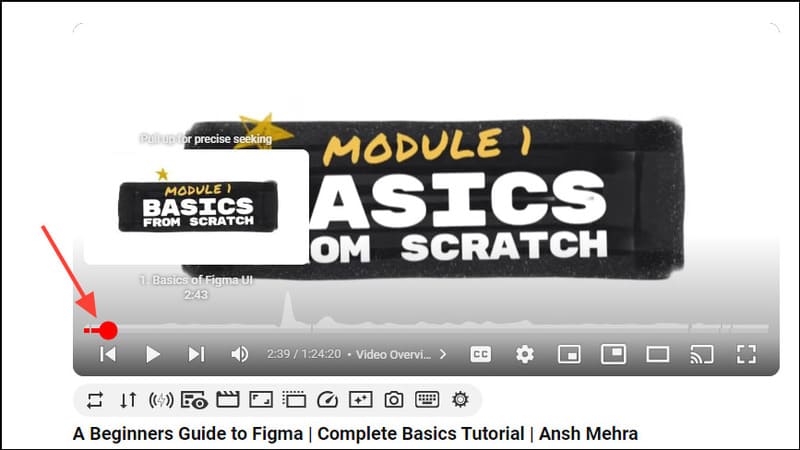
Pause the video at the timeline you want to share

Step 3: Click the 'Share' button below the video.
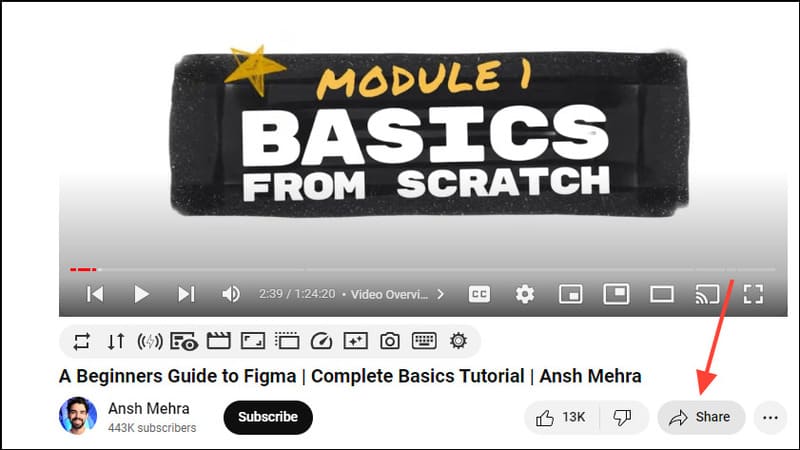
Click on the button'Share '
Click the 'Share' button

Step 4: In the overlooked window, accumulate the 'Start at' box (start at the time) display the time you have paused the video.
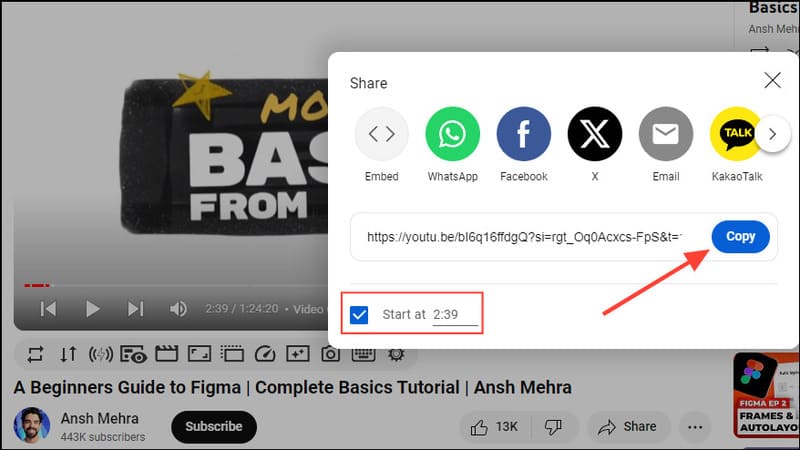
Accumulate in the 'Start at' box

Step 5: Click the 'Copy' button to copy the link. You can also edit the starting time by clicking it.

See also: Revealing 3 ways Search results from Reddit from Google

Step 1: Another way is that you can right -click the video while pausing.

Step 2: Select 'Copy Video URL AT CURRENT TIME' in the drop -down menu. On the Mac, hold the command key and click the video.
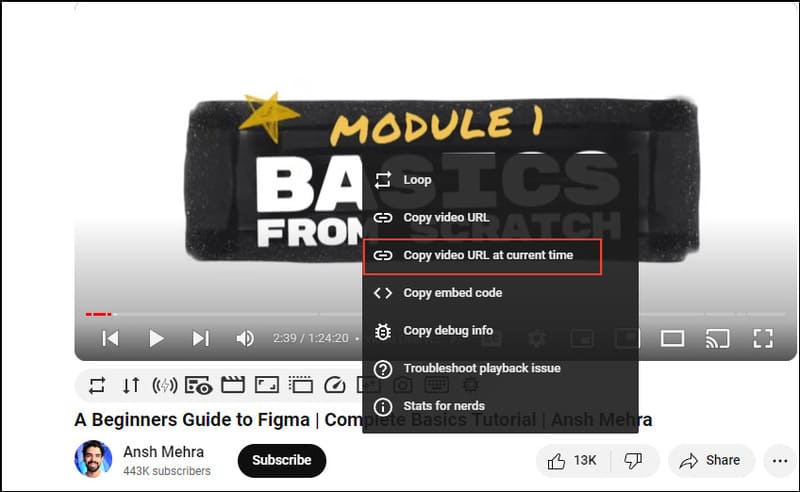
Select the video URL at curent time '
Select 'Copy Video URL at Current Time'

Now you can share the copied link by pasting it anywhere. For video viewers through links, the video will start from the point you have created a timeline.

Note:

  • If the video has subtitles, right -click on the area without subtitles or turn off it before done.
  • If you want to share links to the specific timeline of YouTube videos limited age, you will need to log in to your YouTube account.

Method 3: Create craft timeline

You can also add timeline marks manually to the link. This is especially useful when you do not want to open a video but are available and also remember how much time is in the second minute.

On the computer

Step 1: More & t =[thời gian] At the end of the link, in which [thời gian] It is the time you want the video to start. For example: Let the video began at 2 minutes 43 seconds, add & t = 2m43s At the end of the URL.

Add & t =[thời gian] At the end of the link

Step 2: Copy the URL with Ctrl + C on Windows or CMD + C on Mac and paste it into the place you want to share using the keyboard shortcut Ctrl + V/CMD + V.

On the phone

Create a link to the time mark of YouTube video when using mobile devices is similar to the method you use on the desktop.

Step 1: Open the YouTube app and move to the video you want to create a timeline.

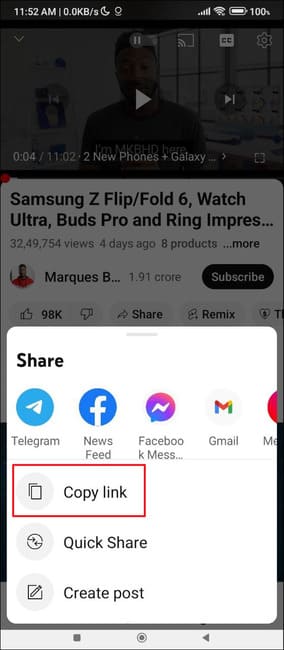
Step 2: Click the 'Share' button below the video and then select 'Copy Link'.
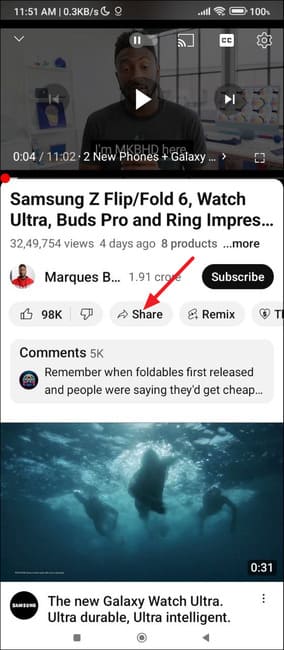
Click on the button'Share '
Click the 'Share' button
Choose the link '
Select 'Copy Link'

Step 3: Paste links to the browser and add & t =[thời gian] At the end of the link. Example: Add & t = 2m50s To add a timeline in 2 minutes 50 seconds.

Add & t =[thời gian] At the end of the link

Step 4: When you share this link, it will open a YouTube video starting from the above milestone

Note: On iOS, you can also use shortcuts YouTube link with timestamp To create links with timeline.
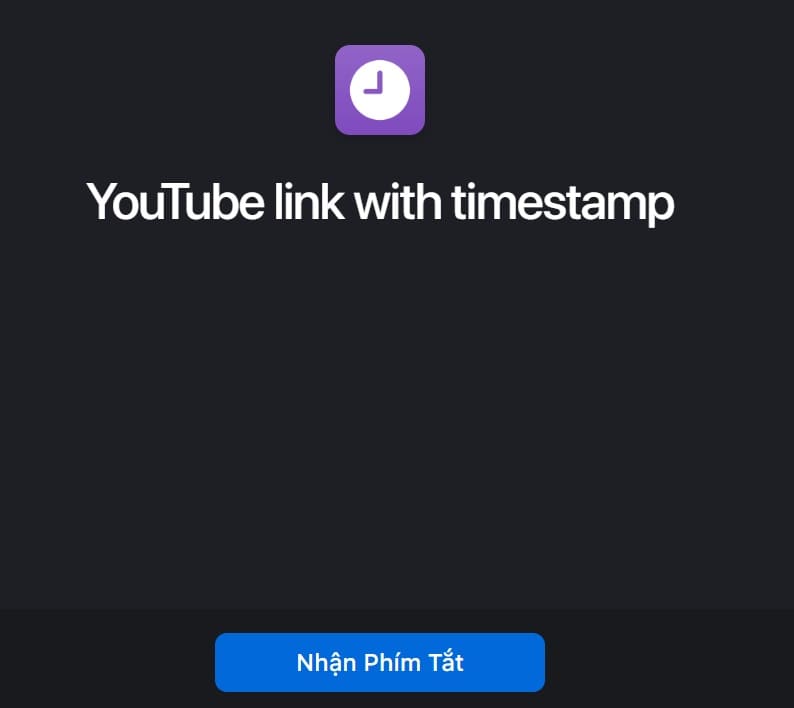
Shortcut Youtube Link with Timestamp

Things to note

  • Any links you create to the specific timeline in YouTube video will work even when the video title changes.
  • If you enter the timeline exceeding the video length, the video will play from the beginning.
  • You can share links everywhere, including social networking platforms and emails.

See also: How Watch the video limited to YouTube without logging in

Conclusion

So you have held the secret Link to the specific paragraph on youtube videos Easy and fast. Apply this tip now to make your video sharing more effective and professional!


Tags: linkparagraphsSpecificTopvideoswaysYoutube
Previous Post

Khuyến mãi kuwin săn thưởng cực chất

Next Post

Free course “digital skills and internet safety for students”

AnonyViet

AnonyViet

Related Posts

How to add sliders to Facebook Stories to easily rewind videos
Tips

How to add sliders to Facebook Stories to easily rewind videos

April 21, 2026
How to change the default font on Windows 10
Tips

How to change the default font on Windows 10

April 13, 2026
5 tips for using a Browser to replace an App (helps save RAM, time and money)
Tips

5 tips for using a Browser to replace an App (helps save RAM, time and money)

April 13, 2026
How to make funny MeMe photos without Photoshop within 10 seconds
Tips

How to make funny MeMe photos without Photoshop within 10 seconds

April 11, 2026
How to quickly design your own Logo without Photoshop
Tips

How to quickly design your own Logo without Photoshop

April 10, 2026
How to convert Website into App on Windows
Tips

How to convert Website into App on Windows

April 9, 2026
Next Post
Free course “digital skills and internet safety for students”

Free course "digital skills and internet safety for students"

0 0 votes
Article Rating
Subscribe
Login
Notify of
guest

guest

0 Comments
Oldest
Newest Most Voted
Inline Feedbacks
View all comments

Recent News

How to turn off password suggestions on iPhone: Prevent Safari from auto-filling passwords

How to turn off password suggestions on iPhone: Prevent Safari from auto-filling passwords

April 27, 2026
Instructions for looking up prescriptions on VNeID instead of paper medical books

Instructions for looking up prescriptions on VNeID instead of paper medical books

April 26, 2026
Tips to completely turn off CAPTCHA codes on iPhone and Mac are super simple

Tips to completely turn off CAPTCHA codes on iPhone and Mac are super simple

April 25, 2026
Compare Poco X8 Pro and Poco X7 Pro: A new step for the “king” of mid-range performance

Compare Poco X8 Pro and Poco X7 Pro: A new step for the “king” of mid-range performance

April 24, 2026
How to turn off password suggestions on iPhone: Prevent Safari from auto-filling passwords

How to turn off password suggestions on iPhone: Prevent Safari from auto-filling passwords

April 27, 2026
Instructions for looking up prescriptions on VNeID instead of paper medical books

Instructions for looking up prescriptions on VNeID instead of paper medical books

April 26, 2026
Tips to completely turn off CAPTCHA codes on iPhone and Mac are super simple

Tips to completely turn off CAPTCHA codes on iPhone and Mac are super simple

April 25, 2026
AnonyViet - English Version

AnonyViet

AnonyViet is a website share knowledge that you have never learned in school!

We are ready to welcome your comments, as well as your articles sent to AnonyViet.

Follow Us

Contact:

Email: anonyviet.com[@]gmail.com

Main Website: https://anonyviet.com

Recent News

How to turn off password suggestions on iPhone: Prevent Safari from auto-filling passwords

How to turn off password suggestions on iPhone: Prevent Safari from auto-filling passwords

April 27, 2026
Instructions for looking up prescriptions on VNeID instead of paper medical books

Instructions for looking up prescriptions on VNeID instead of paper medical books

April 26, 2026
No Result
View All Result
  • Home
  • News
  • Software
  • Knowledge
  • MMO
  • Tips
  • Security
  • Network
  • Office

wpDiscuz
0
0
Would love your thoughts, please comment.x
()
x
| Reply