Google Drive is a cloud storage service used by many people to share data. However, there are some people who block the feature of downloading PDF and Word files, only allowing users to read the content. But if it is an important document and you want to download it for editing, follow the Tips to download blocked PDF and Word files on Google Drive below, you will be able to download the entire content of PDF and Word on Google Drive. .
| Join the channel Telegram of the AnonyViet 👉 Link 👈 |
Download blocked PDF and Word files on Google Drive
When you view PDF and Word files on Google Drive without the Download button, to download the file, follow these steps:
Step 1: Copy link PDF is blocked Download on Google Drive.
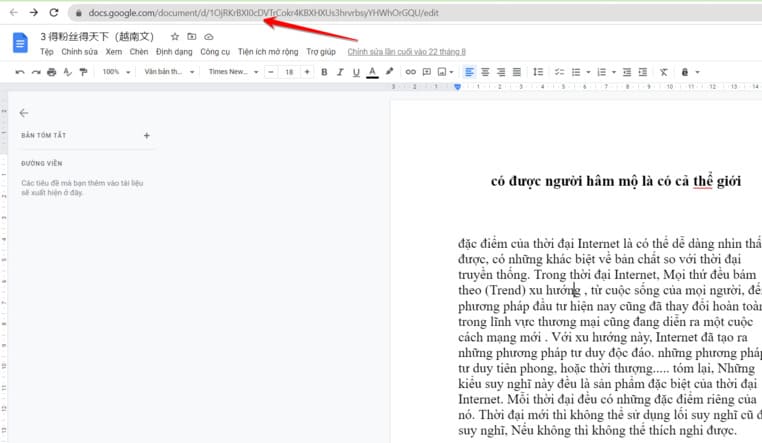
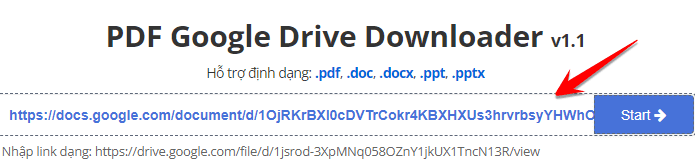
Step 2: Visit the page pdf.dotool.netcopy the path of the PDF file that is blocked from Download and paste it in the search box, then press the . button Start.
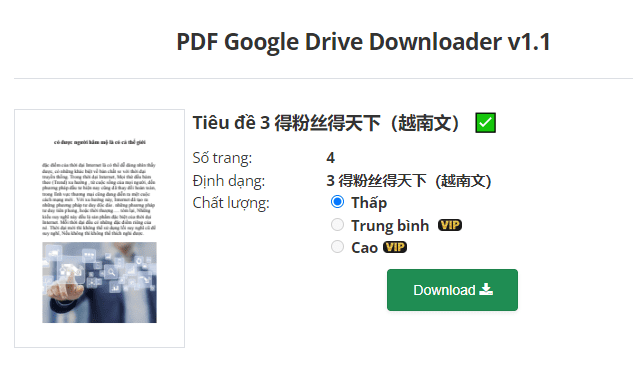
Step 3: pdf.dotool.net will recognize the number of pages and posts above, check if the content is enough. Then choose Download quality. If you choose quality Short you will be free to download, but if you choose Medium, high quality, you need to pay to download. If your content is just text, you should choose low quality enough to read the content.
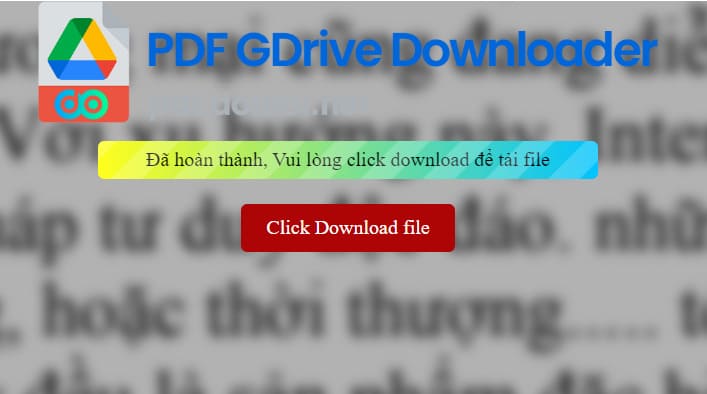
Step 4: You need to wait a few seconds for the system to process Download PDF, WORD files from Google Drive. In the process of getting the download link, you must not close the browser window, otherwise you will not be able to get the blocked PDF file. Once completed, you will see the Click Download File button appear, click to download the blocked PDF file and you’re done.
Download blocked PDF files on Google Drive with Script
You can also download PDF and Word files that are blocked from downloading on Google Drive with the Scirpt fragment shared on Gdrive.vip, by the following ways:
Step 1: Open the PDF file on Google Drive, Drag the mouse to the last page of File being read.
Step 2: Press F12
Step 3: Switch to Console Tab
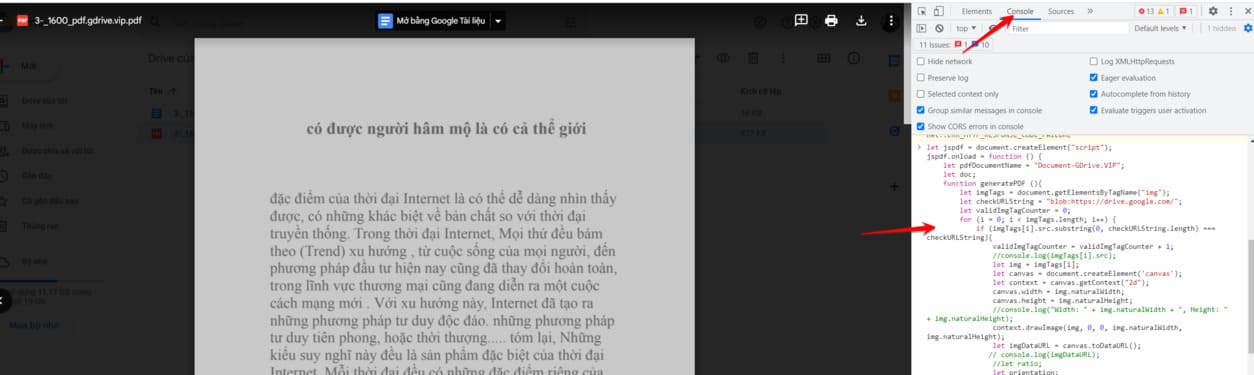
Step 4: Paste this Script into the Console and press Enter. Wait a few seconds and you will see the PDF file automatically download to your computer
let jspdf = document.createElement("script");
jspdf.onload = function () {
    let pdfDocumentName = "Document-GDrive.VIP";
    let doc;
    function generatePDF (){
        let imgTags = document.getElementsByTagName("img");
        let checkURLString = "blob:https://drive.google.com/";
        let validImgTagCounter = 0;
        for (i = 0; i < imgTags.length; i++) {
            if (imgTags[i].src.substring(0, checkURLString.length) === checkURLString){
                validImgTagCounter = validImgTagCounter + 1;
                //console.log(imgTags[i].src);
                let img = imgTags[i];
                let canvas = document.createElement('canvas');
                let context = canvas.getContext("2d");
                canvas.width = img.naturalWidth;
                canvas.height = img.naturalHeight;
                //console.log("Width: " + img.naturalWidth + ", Height: " + img.naturalHeight);
                context.drawImage(img, 0, 0, img.naturalWidth, img.naturalHeight);
                let imgDataURL = canvas.toDataURL();
               // console.log(imgDataURL);
                //let ratio;
                let orientation;
                if (img.naturalWidth > img.naturalHeight){
                    //console.log("Landscape");
                    orientation = "l";
                    //ratio = img.naturalWidth/img.naturalHeight
                }else {
                    //console.log("Portrait");
                    orientation = "p";
                    //ratio = img.naturalWidth/img.naturalHeight
                }
                let scalefactor = 1.335;
                let pageWidth = img.naturalWidth * scalefactor;
                let pageHeight = img.naturalHeight * scalefactor;
               //let imagexLeft = (pageWidth - img.naturalWidth)/2;
               //let imagexTop = (pageHeight - img.naturalHeight)/2;
                if (validImgTagCounter === 1){
                    doc = new jsPDF({
                        orientation: orientation,
                        unit: "px",
                        format: [pageWidth, pageHeight],
                    });
                    doc.addImage(imgDataURL, "PNG", 0, 0, img.naturalWidth, img.naturalHeight);
                }else{
                    doc.addPage([pageWidth, pageHeight] , orientation);
                    doc.addImage(imgDataURL, "PNG", 0, 0, img.naturalWidth, img.naturalHeight);
                }
            }
        }
        pdfDocumentName = pdfDocumentName + ".pdf";
       doc.save(pdfDocumentName);
    }
    let allElements = document.querySelectorAll("*");
    let chosenElement;
    let heightOfScrollableElement = 0;
    for (i = 0; i < allElements.length; i++) {
        if ( allElements[i].scrollHeight>=allElements[i].clientHeight){
            if (heightOfScrollableElement < allElements[i].scrollHeight){
                //console.log(allElements[i]);
                //console.log(allElements[i].scrollHeight);
                heightOfScrollableElement = allElements[i].scrollHeight;
                chosenElement = allElements[i];
            }
        }
    }
    if (chosenElement.scrollHeight > chosenElement.clientHeight){
        console.log("Auto Scroll");
        let scrollDistance = Math.round(chosenElement.clientHeight/2);
        //console.log("scrollHeight: " + chosenElement.scrollHeight);
        //console.log("scrollDistance: " + scrollDistance);
        //www.gdrive.vip
        let loopCounter = 0;
        function myLoop(remainingHeightToScroll, scrollToLocation) {
            loopCounter = loopCounter+1;
            console.log(loopCounter);
            setTimeout(function() {
                if (remainingHeightToScroll === 0){
                    scrollToLocation = scrollDistance;
                    chosenElement.scrollTo(0, scrollToLocation);
                    remainingHeightToScroll = chosenElement.scrollHeight - scrollDistance;
                }else{
                    scrollToLocation = scrollToLocation + scrollDistance ;
                    chosenElement.scrollTo(0, scrollToLocation);
                    remainingHeightToScroll = remainingHeightToScroll - scrollDistance;
                }
                if (remainingHeightToScroll >= chosenElement.clientHeight){
                    myLoop(remainingHeightToScroll, scrollToLocation)
                }else{
                    setTimeout(function() {
                        generatePDF();
                    }, 1500)
                }
            }, 500)
        }
        myLoop(0, 0);
    }else{
        console.log("No Scroll");
        setTimeout(function() {
            generatePDF();
        }, 1500)
    }
};
jspdf.src="https://gdrive.vip/wp-content/uploads/2020/jspdf.debug.js";
document.body.appendChild(jspdf);
Process downloaded PDF, Word for editing
According to the feature Download blocked PDF files on Google Drive, when you download it is a screenshot of each document page. Therefore, although you can download the blocked PDF file to your computer, you can only view it, not edit or copy the content. To be able to change the content of the PDF file, you need to convert the image into text using the following trick:
Go to Google Drive -> upload the PDF file on your computer to Google Drive again.
Right click on the uploaded file -> Open with -> Google Docs
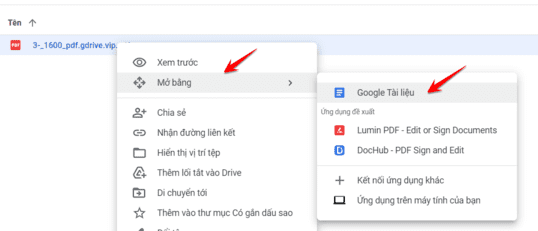
So you can edit the content of the PDF file then, after editing, select File -> Download -> Docx to have the Word file on your computer.