• Home
  • News
  • Software
  • Knowledge
  • MMO
  • Tips
  • Security
  • Network
  • Office
AnonyViet - English Version
  • Home
  • News
  • Software
  • Knowledge
  • MMO
  • Tips
  • Security
  • Network
  • Office
No Result
View All Result
  • Home
  • News
  • Software
  • Knowledge
  • MMO
  • Tips
  • Security
  • Network
  • Office
No Result
View All Result
AnonyViet - English Version
No Result
View All Result

Lesson 166: How to use the Xlookup function in Excel

AnonyViet by AnonyViet
January 24, 2023
in Office
0

If you use Excel 365, use XLOOKUP instead of VLOOKUP. The XLOOKUP function is easier to use and has several advantages.

Join the channel Telegram of the AnonyViet 👉 Link 👈

How to use the Xlookup function in Excel

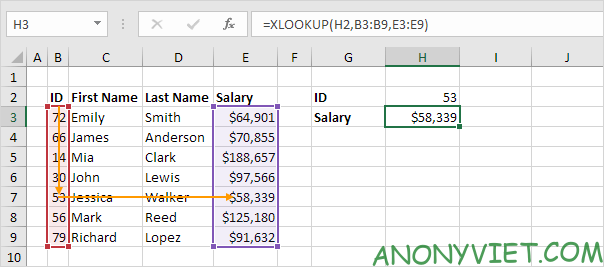
1. The XLOOKUP function below finds the value 53 (first parameter) in the range B3:B9 (second parameter).

Lesson 166: How to use the Xlookup function in Excel

2. Next, it simply returns the value in the same row from the range E3:E9 (third parameter).
Lesson 166: How to use the Xlookup function in Excel 15

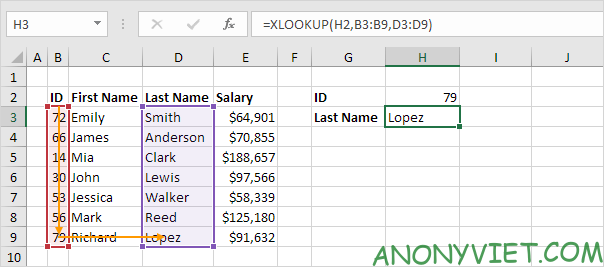
3. Here is another example. Instead of returning the salary, the XLOOKUP function below returns the last name (replace E3:E9 with D3:D9) of ID 79.
Lesson 166: How to use the Xlookup function in Excel 16

Not found

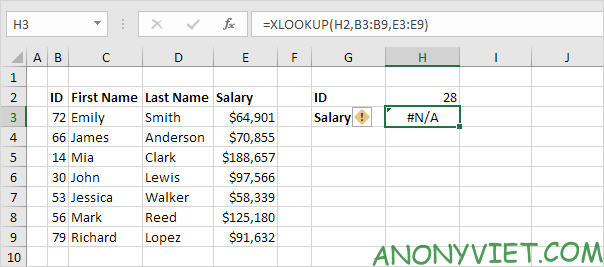
1. For example, the XLOOKUP function below cannot find the value 28 in the range B3:B9.
Lesson 166: How to use the Xlookup function in Excel 17

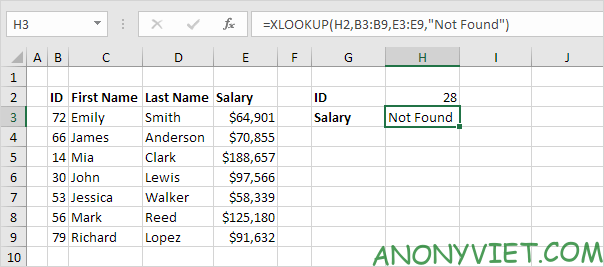
2. Use the fourth parameter of the XLOOKUP function to replace the #N/A error message.
Lesson 166: How to use the Xlookup function in Excel 18

Approximate match

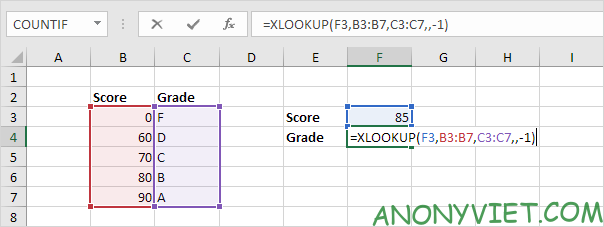
1. The XLOOKUP function below looks up the value 85 (first parameter) in the range B3:B7 (second parameter). There’s only one problem. There is no value 85 in this range.

Lesson 166: How to use the Xlookup function in Excel 19

2. Fortunately, the value -1 (the fifth parameter) tells the XLOOKUP function to find the next smaller value. In this example the value 80.
Lesson 166: How to use the Xlookup function in Excel 20

3. Next, it simply returns the value in the same row from the range C3:C7 (third parameter).

Lesson 166: How to use the Xlookup function in Excel 21

Search on the left

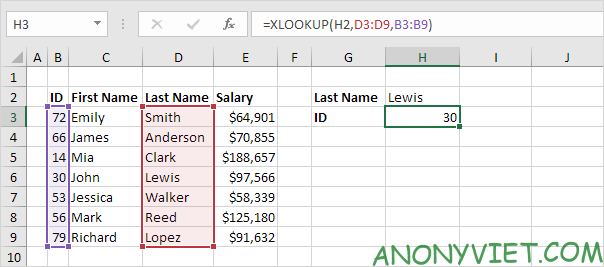
Instead of using INDEX and MATCH in Excel to do a left lookup, you can simply use the XLOOKUP function. For example, see the XLOOKUP function below.
Lesson 166: How to use the Xlookup function in Excel 22

Returns multiple values

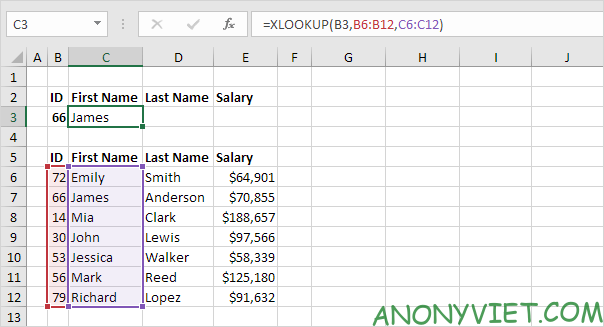
1. First, the XLOOKUP function below looks up the ID and returns the first name (nothing new).
Lesson 166: How to use the Xlookup function in Excel 23

2. Replace C6:C12 with C6:E12 to return first name, last name and salary.

Lesson 166: How to use the Xlookup function in Excel 24

In addition, you can also view many other excel articles here.

The article achieved: 5/5 – (100 votes)

Tags: ExcelfunctionLessonXlookup
Previous Post

Tips to download blocked PDF and Word files on Google Drive

Next Post

5 Websites to help you find out who the email account holder is

AnonyViet

AnonyViet

Related Posts

Instructions on how to hide formulas in Excel to secure data
Office

Instructions on how to hide formulas in Excel to secure data

February 6, 2026
Top who creates the most beautiful presentation slide today
Office

Top who creates the most beautiful presentation slide today

September 23, 2025
Automatically check and correct spelling errors on Google Docs
Office

Automatically check and correct spelling errors on Google Docs

February 23, 2025
Instructions for downloading Google Docs files easily on any device
Office

Instructions for downloading Google Docs files easily on any device

December 18, 2024
Launching AI image creation feature on Google Docs
Office

Launching AI image creation feature on Google Docs

November 20, 2024
Instructions for using Google Docs without internet
Office

Instructions for using Google Docs without internet

November 2, 2024
Next Post
5 Websites to help you find out who the email account holder is

5 Websites to help you find out who the email account holder is

0 0 votes
Article Rating
Subscribe
Login
Notify of
guest

guest

0 Comments
Oldest
Newest Most Voted
Inline Feedbacks
View all comments

Recent News

Windows can now run Linux applications

Windows can now run Linux applications

March 17, 2026
How to install extension to remind office workers to drink water

How to install extension to remind office workers to drink water

March 17, 2026
Why are iPhones and MacBooks still the number 1 “weapons” of the technology world?

Why are iPhones and MacBooks still the number 1 “weapons” of the technology world?

March 16, 2026
New features of Windows 10 21H1 are coming soon

New features of Windows 10 21H1 are coming soon

March 16, 2026
Windows can now run Linux applications

Windows can now run Linux applications

March 17, 2026
How to install extension to remind office workers to drink water

How to install extension to remind office workers to drink water

March 17, 2026
Why are iPhones and MacBooks still the number 1 “weapons” of the technology world?

Why are iPhones and MacBooks still the number 1 “weapons” of the technology world?

March 16, 2026
AnonyViet - English Version

AnonyViet

AnonyViet is a website share knowledge that you have never learned in school!

We are ready to welcome your comments, as well as your articles sent to AnonyViet.

Follow Us

Contact:

Email: anonyviet.com[@]gmail.com

Main Website: https://anonyviet.com

Recent News

Windows can now run Linux applications

Windows can now run Linux applications

March 17, 2026
How to install extension to remind office workers to drink water

How to install extension to remind office workers to drink water

March 17, 2026
No Result
View All Result
  • Home
  • News
  • Software
  • Knowledge
  • MMO
  • Tips
  • Security
  • Network
  • Office

wpDiscuz
0
0
Would love your thoughts, please comment.x
()
x
| Reply