• Home
  • News
  • Software
  • Knowledge
  • MMO
  • Tips
  • Security
  • Network
  • Office
AnonyViet - English Version
  • Home
  • News
  • Software
  • Knowledge
  • MMO
  • Tips
  • Security
  • Network
  • Office
No Result
View All Result
  • Home
  • News
  • Software
  • Knowledge
  • MMO
  • Tips
  • Security
  • Network
  • Office
No Result
View All Result
AnonyViet - English Version
No Result
View All Result

Screenshot Remote: Take screenshots of your PC remotely with super ease

AnonyViet by AnonyViet
September 25, 2024
in Software
0

Are you looking for a simple and effective solution to take screenshots remotely? Do you want to monitor your children or manage your employees' computer usage effectively? Screenshot Remote is the perfect app for you! With cross-platform compatibility, intuitive interface, and rich features, the app makes it easy to take screenshots of remote computers with just a few clicks.

Join the channel Telegram belong to AnonyViet 👉 Link 👈

About Screenshot Remote

Screenshot Remote is a free app available on Windows, Mac, Android, and iOS. It allows you to easily take screenshots of your Windows or Mac computer from another device, whether it's a PC, Mac, smartphone, or tablet. However, due to mobile operating system limitations, you can't take screenshots of an Android or iOS device from your computer.

With Screenshot Remote, you can choose to capture the entire screen or just a specific window on the remote computer. The app also supports multi-monitor setups, allowing you to choose exactly which computer screen to capture.
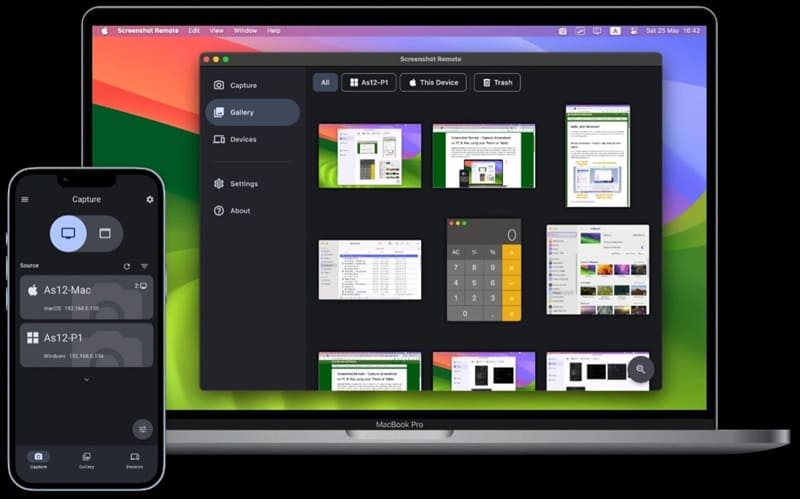
Take remote screenshots easily with Screenshot Remote

See also: Causes and how to fix iPhone stuck on logo error

What can Screenshot Remote do?

Screenshot Remote offers a smartly designed user interface, organized into three main tabs:

Capture

Here you can choose to capture the entire screen or a specific window, and switch between different monitors in case of a multi-monitor setup.
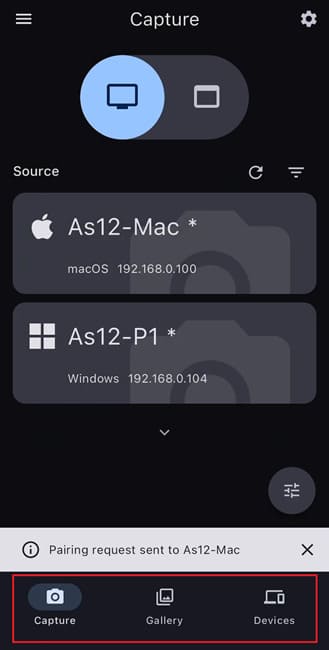
3 main tabs of the application

Gallery

This space is dedicated to managing your screenshots. You can edit them, share them, or delete them as you wish.

Devices

Here you can manage paired devices and remove those you no longer want to allow remote screenshots.

In addition to these key features, Screenshot Remote also offers convenient capture options, such as including your mouse cursor in your capture or previewing before permanently saving the capture.

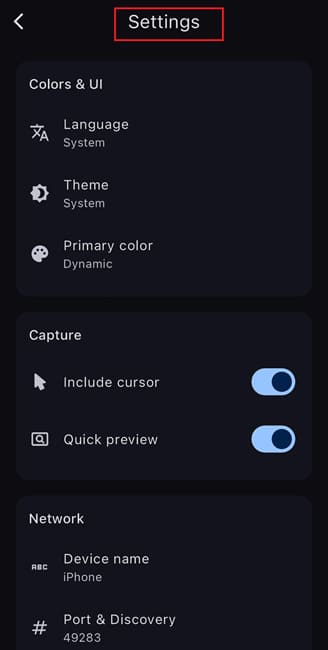
The app also allows you to customize your experience through various settings like:

  • Change language
  • Switch to dark mode
  • Change device name and port
  • Hide unpaired devices
  • Block pairing requests
Customize settings in Settings

Screenshot Remote User Guide

Taking a screenshot remotely with Screenshot Remote is simple. Here's how:

Step 1: Download and install the Screenshot Remote app HERE on the devices you want to use.
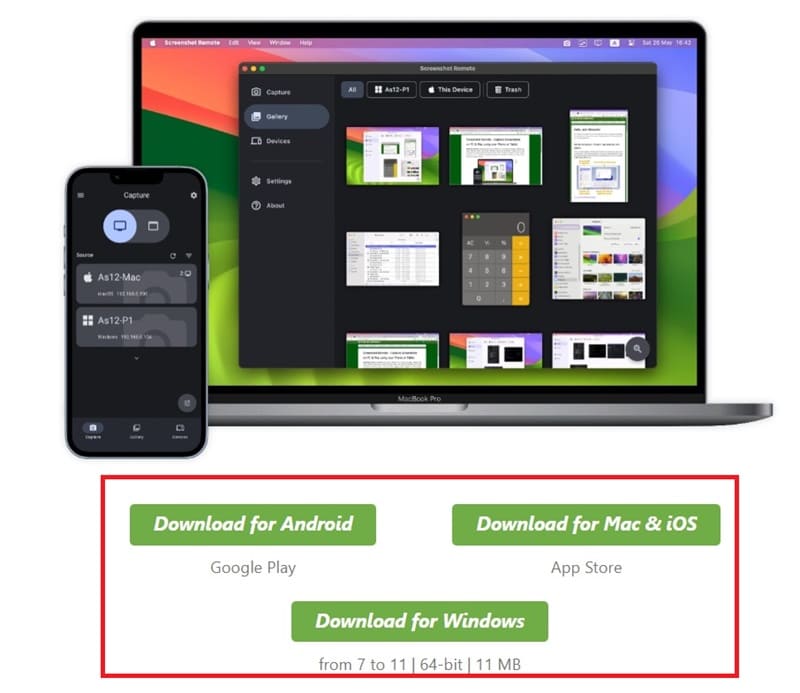
Download and install the Screenshot Remote app

Step 2: Open the app on both devices and make sure they are connected to the same local network or Wi-Fi.

Step 3: On the computer or phone you want to take a screenshot on, click the name of the target device in the Capture tab, then click Send Pairing Request.
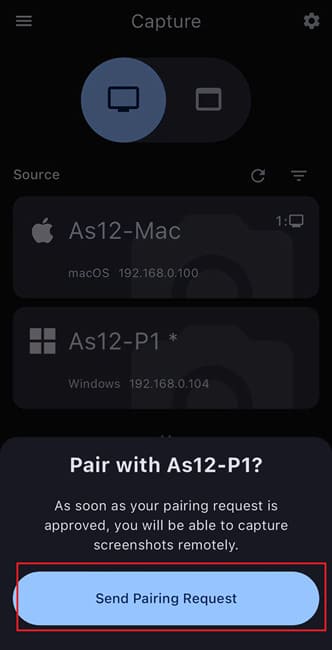
Click Send Pairing Request

Step 4: On the target device, accept the pairing request by clicking Approve.

Step 5: After successful pairing, select the capture mode (entire screen or specific window) by clicking the corresponding button in the Capture tab

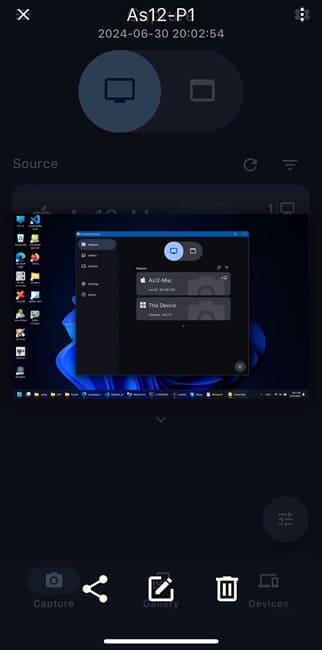
Step 6: Then, click on the name of the target device to instantly get a screenshot preview.
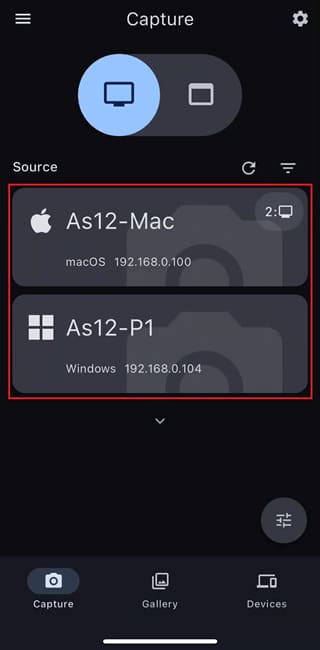
Click on the name of the target device
Screenshot preview
Screenshot preview

Step 7: You can then save, share, edit or delete the screenshot as you like.

It's that simple! Note that you can then manage all your screenshots from the Gallery tab.
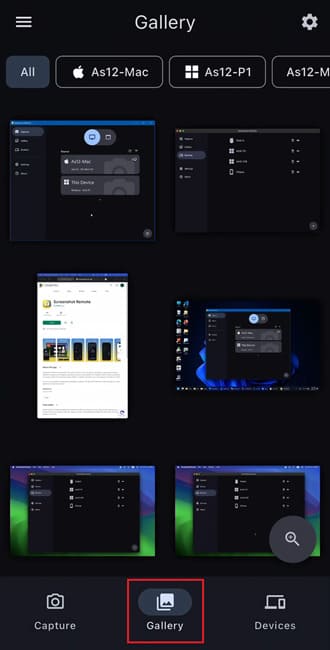
Gallery Tab
Gallery Tab

Advantages of Screenshot Remote

Screenshot Remote places a high value on the security and privacy of your data. All screenshots and related information are stored locally on your device, never uploaded to external servers. Transmission between your devices is secured with industry-standard encryption, ensuring sensitive data is always safe.

In addition, Screenshot Remote also has some other advantages:

  • Free of charge
  • Easy to use
  • Lightweight application, does not take up much storage space on your device.
  • Multi-platform support

See also: How to add Google Drive to File Explorer on Windows 11

Conclusion

Thanks to its outstanding advantages such as intuitive interface, rich features, high security and completely free, Screenshot Remote has become the trusted remote screenshot application used by millions of users worldwide.


Tags: easeRemoteremotelyscreenshotscreenshotssuper
Previous Post

How to return to the old Photos app interface on iOS 18

Next Post

How to shorten a link on Facebook with any content

AnonyViet

AnonyViet

Related Posts

How to transfer music from other services to Apple Music, no app required
Software

How to transfer music from other services to Apple Music, no app required

December 8, 2025
Christmas Advent Calendar Giveaway: Daily software hunt worth ,095
Software

Christmas Advent Calendar Giveaway: Daily software hunt worth $1,095

December 4, 2025
How to update residential address on VNeID, avoid fines from December 15
Software

How to update residential address on VNeID, avoid fines from December 15

December 3, 2025
AOMEI Christmas Carnival Giveaway 2025: Receive 21 free copyrighted software
Software

AOMEI Christmas Carnival Giveaway 2025: Receive 21 free copyrighted software

November 29, 2025
Instructions for editing photos on Google Photos by voice
Software

Instructions for editing photos on Google Photos by voice

November 23, 2025
Instructions for sending a help signal using Zalo when stuck in a flood area
Software

Instructions for sending a help signal using Zalo when stuck in a flood area

November 22, 2025
Next Post
How to shorten a link on Facebook with any content

How to shorten a link on Facebook with any content

0 0 votes
Article Rating
Subscribe
Login
Notify of
guest

guest

0 Comments
Oldest
Newest Most Voted
Inline Feedbacks
View all comments

Recent News

How to transfer music from other services to Apple Music, no app required

How to transfer music from other services to Apple Music, no app required

December 8, 2025
How to create Mind Map and Flowchart using ChatGPT is super simple

How to create Mind Map and Flowchart using ChatGPT is super simple

December 7, 2025
Free Gemini Google certification exam guide and Answers

Free Gemini Google certification exam guide and Answers

December 6, 2025
How to write Shell Script in Linux/Unix

How to write Shell Script in Linux/Unix

December 6, 2025
How to transfer music from other services to Apple Music, no app required

How to transfer music from other services to Apple Music, no app required

December 8, 2025
How to create Mind Map and Flowchart using ChatGPT is super simple

How to create Mind Map and Flowchart using ChatGPT is super simple

December 7, 2025
Free Gemini Google certification exam guide and Answers

Free Gemini Google certification exam guide and Answers

December 6, 2025
AnonyViet - English Version

AnonyViet

AnonyViet is a website share knowledge that you have never learned in school!

We are ready to welcome your comments, as well as your articles sent to AnonyViet.

Follow Us

Contact:

Email: anonyviet.com[@]gmail.com

Main Website: https://anonyviet.com

Recent News

How to transfer music from other services to Apple Music, no app required

How to transfer music from other services to Apple Music, no app required

December 8, 2025
How to create Mind Map and Flowchart using ChatGPT is super simple

How to create Mind Map and Flowchart using ChatGPT is super simple

December 7, 2025
  • Home
  • Home 2
  • Home 3
  • Home 4
  • Home 5
  • Home 6
  • Next Dest Page
  • Sample Page

trang chủ f168 nhà cái 78win https://www.qq8827.com/

No Result
View All Result
  • Home
  • News
  • Software
  • Knowledge
  • MMO
  • Tips
  • Security
  • Network
  • Office

trang chủ f168 nhà cái 78win https://www.qq8827.com/

wpDiscuz
0
0
Would love your thoughts, please comment.x
()
x
| Reply