
• Home
  • News
  • Software
  • Knowledge
  • MMO
  • Tips
  • Security
  • Network
  • Office
AnonyViet - English Version
  • Home
  • News
  • Software
  • Knowledge
  • MMO
  • Tips
  • Security
  • Network
  • Office
No Result
View All Result
  • Home
  • News
  • Software
  • Knowledge
  • MMO
  • Tips
  • Security
  • Network
  • Office
No Result
View All Result
AnonyViet - English Version
No Result
View All Result

Replacing Siri with ChatGPT-4o: A smart solution for voice interaction

AnonyViet by AnonyViet
June 1, 2024
in Software
0

Are you looking for a virtual assistant that's smarter and more powerful than Siri? ChatGPT-4o is a bright candidate for you! This article will show you how to replace Siri with ChatGPT-4o on iPhone, giving you a completely new voice interaction experience.

Join the channel Telegram belong to AnonyViet 👉 Link 👈

ChatGPT-4o: A breakthrough in AI experience

ChatGPT-4o is designed for voice interaction, understanding and responding to complex queries accurately. Whether you need research assistance or just a chat, ChatGPT-4o is here to help.

ChatGPT-4o offers two options: free and paid. The free version lets you experience the basic features, while the paid version unlocks the full potential of the model with advanced features and privileged priority support.

Replacing Siri with ChatGPT-4o: A smart solution for voice interaction
ChatGPT-4o: A breakthrough in AI experience

How to activate ChatGPT-4o on iPhone

Step 1: Go to the App Store, search and download the app'ChatGPT'.
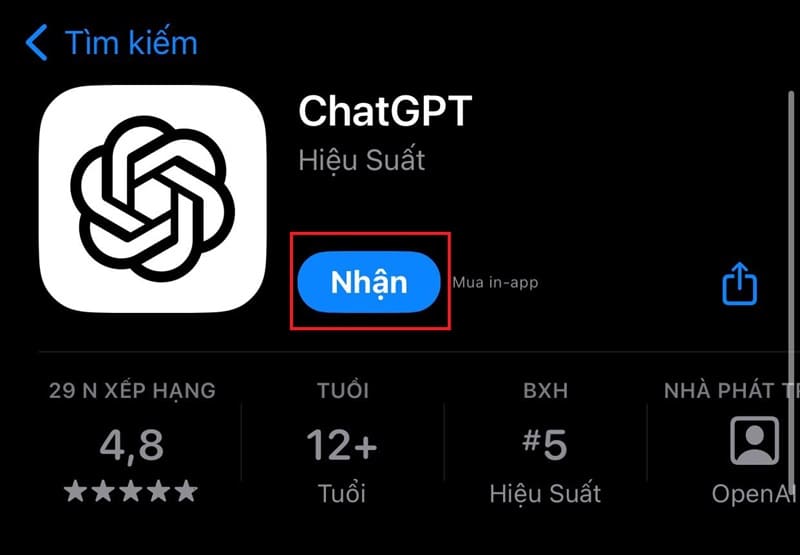
Download the 'ChatGPT' app.

Step 2: Open the Shortcuts app (Usually pre-installed on iPhone).

Step 3: Create a new shortcut by tapping the '+' icon in the top right corner.
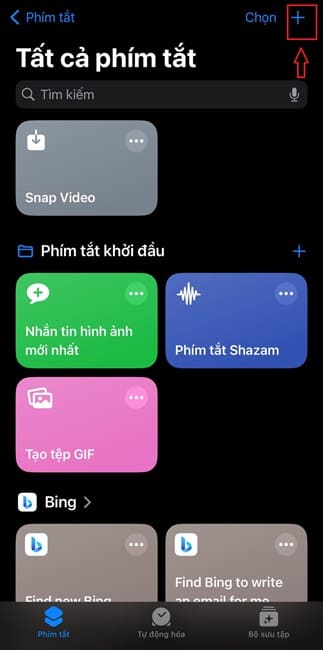
Tap the '+' icon
Tap the '+' icon

Step 4: Select 'Add Task' from the menu that appears.

Select 'Add Task'
Select 'Add Task'

Step 5: Select 'Start a conversation' under ChatGPT.
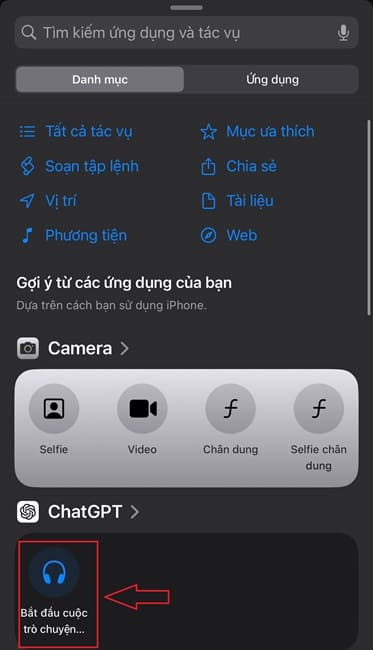
Select 'Start a conversation' under ChatGPT

Step 6: Click the “Done” button to save the shortcut.

How to use ChatGPT-4o keyboard shortcuts

Depending on the iPhone model, you may be able to activate ChatGPT-4o via action button or back tapping feature. Please follow the instructions to use:

Method 1: Use action buttons

The option to activate ChatGPT-4o on your iPhone may vary based on the model you are using. For models with integrated action buttons, you can set this button to open ChatGPT-4o with just one simple operation:

Step 1: Open Settings, select Accessibility, then find Action Button.

Step 2: From the list, select the ChatGPT-4o shortcut you created earlier.

Now, with just one click of the action button, ChatGPT-4o will be ready to serve you.
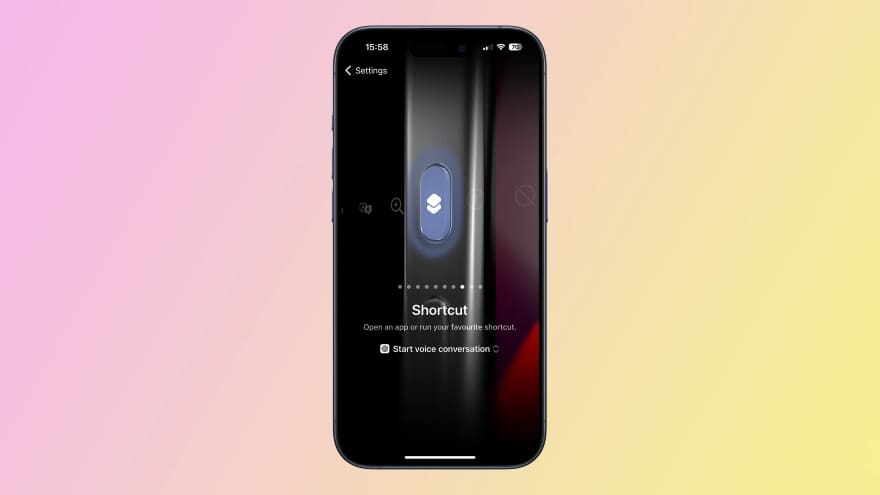
How to use ChatGPT-4o keyboard shortcuts

Method 2: Back typing feature

For models not equipped with action buttons, you can still take advantage of the back tap feature to summon ChatGPT-4o:

Step 1: Go to Settings, then Accessibility, select Touch, and continue to Back Touch.

Step 2: Here, you can set it up to double or triple tap the back of your iPhone to activate the ChatGPT-4o shortcut you installed.
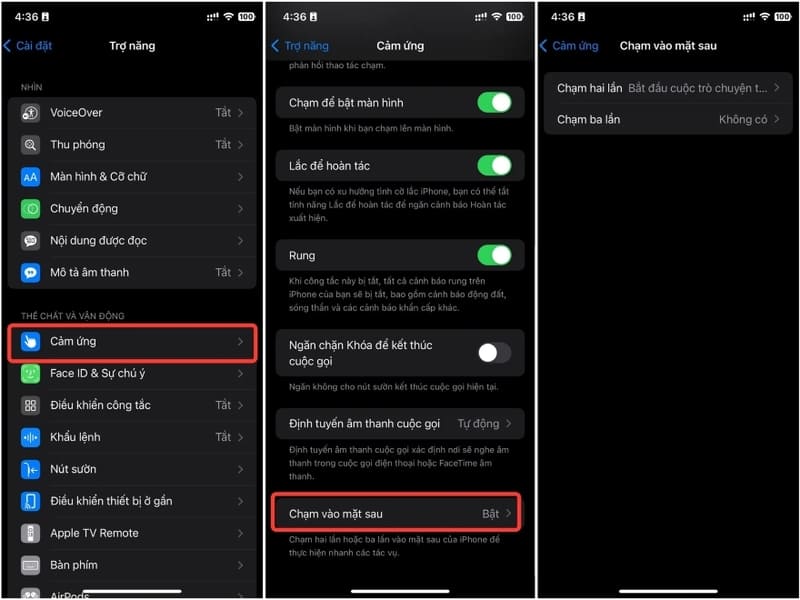
Select Touch the back

Should I use Siri or ChatGPT-4o?

Choosing between ChatGPT-4o and Siri depends on your personal needs. ChatGPT-4o offers natural language understanding and complex query processing, while Siri serves those who prioritize integration with Apple services well.
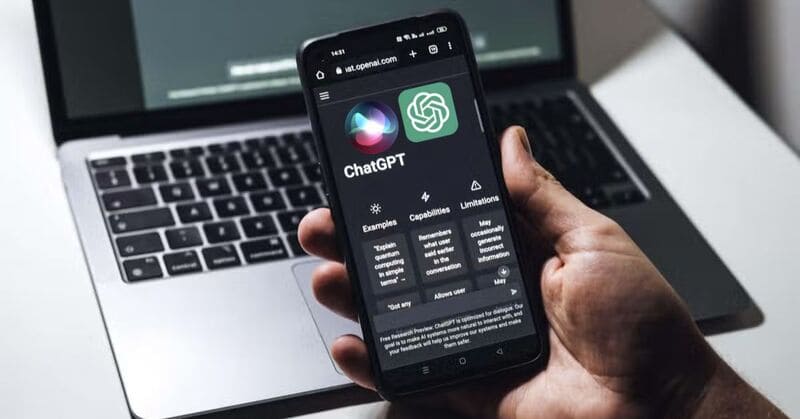
Should I use Siri or ChatGPT-4o?

Epilogue

With how to replace Siri with ChatGPT-4o, iPhone users can now enjoy a virtual assistant that is smarter, more flexible, and responds in more detail. What do you think about the change, please leave a comment below!


Tags: ChatGPT4ointeractionreplacingSiriSmartSolutionvoice
Previous Post

Download Spotify music to MP3 simply with SpotMate

Next Post

[Lập Trình Game] Lesson 4: Create a character tracking camera

AnonyViet

AnonyViet

Related Posts

How to authenticate the owner’s SIM on VNeID from April 15
Software

How to authenticate the owner’s SIM on VNeID from April 15

April 15, 2026
Review of Galaxy A57 and A37: Some are eight ounces, some are half a pound
Software

Review of Galaxy A57 and A37: Some are eight ounces, some are half a pound

April 14, 2026
JOPDF: Versatile PDF editing software for Windows and Mac
Software

JOPDF: Versatile PDF editing software for Windows and Mac

April 10, 2026
MyVehicle: Convenient and secure motorcycle maintenance reminder app
Software

MyVehicle: Convenient and secure motorcycle maintenance reminder app

April 10, 2026
How to turn off AI on Gmail to absolutely protect personal data
Software

How to turn off AI on Gmail to absolutely protect personal data

April 8, 2026
How to add Settings to Control Center using Shortcuts
Software

How to add Settings to Control Center using Shortcuts

April 7, 2026
Next Post
[Lập Trình Game] Lesson 4: Create a character tracking camera

[Lập Trình Game] Lesson 4: Create a character tracking camera

0 0 votes
Article Rating
Subscribe
Login
Notify of
guest

guest

0 Comments
Oldest
Newest Most Voted
Inline Feedbacks
View all comments

Recent News

How to transfer ChatGPT data to Claude is extremely simple

How to transfer ChatGPT data to Claude is extremely simple

April 16, 2026
How to authenticate the owner’s SIM on VNeID from April 15

How to authenticate the owner’s SIM on VNeID from April 15

April 15, 2026
Speak Cells: Excel tool to read spreadsheets by voice very well

Speak Cells: Excel tool to read spreadsheets by voice very well

April 15, 2026
Review of Galaxy A57 and A37: Some are eight ounces, some are half a pound

Review of Galaxy A57 and A37: Some are eight ounces, some are half a pound

April 14, 2026
How to transfer ChatGPT data to Claude is extremely simple

How to transfer ChatGPT data to Claude is extremely simple

April 16, 2026
How to authenticate the owner’s SIM on VNeID from April 15

How to authenticate the owner’s SIM on VNeID from April 15

April 15, 2026
Speak Cells: Excel tool to read spreadsheets by voice very well

Speak Cells: Excel tool to read spreadsheets by voice very well

April 15, 2026
AnonyViet - English Version

AnonyViet

AnonyViet is a website share knowledge that you have never learned in school!

We are ready to welcome your comments, as well as your articles sent to AnonyViet.

Follow Us

Contact:

Email: anonyviet.com[@]gmail.com

Main Website: https://anonyviet.com

Recent News

How to transfer ChatGPT data to Claude is extremely simple

How to transfer ChatGPT data to Claude is extremely simple

April 16, 2026
How to authenticate the owner’s SIM on VNeID from April 15

How to authenticate the owner’s SIM on VNeID from April 15

April 15, 2026
No Result
View All Result
  • Home
  • News
  • Software
  • Knowledge
  • MMO
  • Tips
  • Security
  • Network
  • Office

wpDiscuz
0
0
Would love your thoughts, please comment.x
()
x
| Reply






