

In March 2022, on the Internet appeared many installations of Play Store on Windows 11. This involves an open source project from GitHub. Unfortunately, this project contains malware. So I wrote this article to show you how to fix that problem.
| Join the channel Telegram of the AnonyViet 👉 Link 👈 |
What happened to the Play Store on Windows 11
Windows 11 introduced the feature of installing Android apps but not through the Google Play Store. Naturally, people started looking for ways to solve this problem. The tutorial I wrote covers how to get the script from a third party website. But over the weekend, a team working on the script discovered it contained malware.
Note: Some other sites also recommend this script. Even if you followed the instructions of another website, you may have downloaded this malware script.
What did that script do
This script loads the Windows Toolbox, which includes the Google Play store installation feature, onto your Windows 11 device. Unfortunately, the Windows Toolbox loading script did a lot more than it advertised. It contains malicious code that sets up a series of scheduled tasks and creates an extension that targets Chromium-based browsers – Google Chrome, Microsoft Edge and Brave. Only Windows PCs that set the language to English will be targeted.
The extension is then run in a browser window.”headless” in the background, effectively hiding it from the user. The team that discovered the malware thought that the main purpose of this extension was advertising, not that it could do more dangerous things.
Scheduled tasks also run several other scripts that serve different purposes. For example, a task will monitor the active tasks on the PC and kill the browser and extension being used for advertising whenever the Task Manager is opened. Even if you find your system slow and go check for the problem, you won’t see anything. A separately scheduled task, set to run every 9 minutes, will then restart the browser and the extension.
Other tasks created to use curl download files from the original website that delivered the malicious script, then execute whatever it downloaded. Tasks are set to run every 9 minutes after a user logs into their account. In theory, these tasks could be used to provide updates to malicious code that add additional functionality to the malware, a completely separate malware distribution, or whatever. other than they want.
Fortunately, the person behind the attack didn’t go that far, the once-in-a-lifetime 9-minute task was never used for anything other than downloading a test file named “asd”, it didn’t work. do nothing. The domain that the curl task downloaded files from has been removed thanks to quick action from CloudFlare. That means even if the malware is still running on your machine, it won’t be able to download anything else. You just need to delete it.
Note: Since Cloudflare has removed the domain, the malware cannot download any additional software or receive any other commands.
If you want to read the detailed analysis about how malware distribution is done and what each task does, this software available on GitHub.
How to fix
There are two ways you can fix this problem. The first is to manually delete all affected files and scheduled tasks. The second is to use a script written by the people who discovered this malware.
Note: Currently, no anti-virus software can detect or remove this malware if it is running on your machine.
Fix it manually
We will start by removing all malicious tasks, then will delete all the files and folders it created.
Remove malicious tasks
All created tasks are placed under Microsoft > Windows tasks in Task Scheduler. Here’s how to find and delete them.
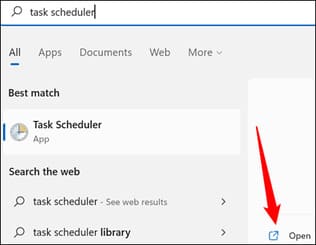
Click Start, then type “Task Scheduler” in the search bar and press Enter or click “Open”.
You need access to Microsoft > Windows tasks. All you need to do is double-click “Task Scheduler Library”, “Microsoft”, then click “Windows”.
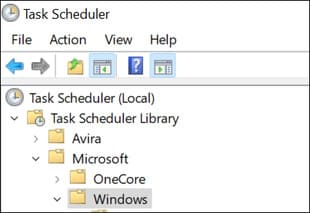
Note: Because malware behaves slightly differently from machine to machine, you may not see all of the tasks listed below.
- AppID > VerifiedCert
- Application Experience > Maintenance
- Services > CertPathCheck
- Services > CertPathw
- Servicing > ComponentCleanup
- Servicing > ServiceCleanup
- Shell > ObjectTask
- Clip > ServiceCleanup
Once you identify a malicious task in the Task Scheduler, right-click the task, then click “Delete”.
Warning: Do not delete any other tasks than the ones I mentioned above. Most of the tasks here are created by Windows itself or by legitimate third-party applications.
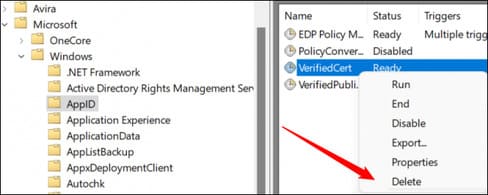
Remove all the tasks from the above list that you can find, then you are ready to move on to the next step.
Delete malicious files and folders
The malware creates only a handful of files, and fortunately, they are contained in only three folders:
- C:\systemfiles
- C:\Windows\security\pywinvera
- C:\Windows\security\pywinveraa
First, open File Explorer. At the top of File Explorer, click “View,” go to “Show,” and then select “Hidden Items.”
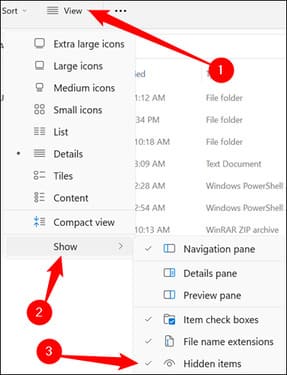
Find a slightly transparent folder called “systemfile” then right click on it and press “Delete”.
Warning: Make sure you correctly identify the folders that you are about to delete. Accidentally deleting other Windows folders can cause system errors. If you delete them by mistake, restore them from the Recycle Bin as soon as possible.
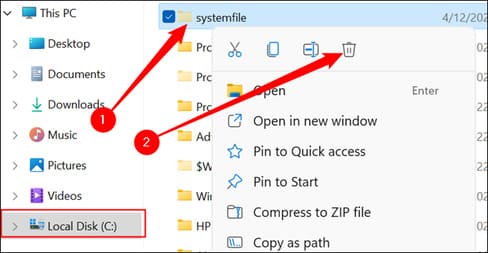
After you delete the “systemfiles” folder, double-click the Windows folder, then scroll until you find the “Security” folder. Find two folders named “pywinvera” and “pywinveraa”. Right click on each one, then click “Delete”.

Note: Deleting files and folders in the Windows folder may require administrative privileges. If prompted, go ahead and allow it. (Make sure you delete only the exact files and folders you mention, though.)
You have already fixed it. Despite its troubles, this malware doesn’t do much to protect itself.
Fix with Script
Those who identified the malware in the first place also spent the weekend analyzing the malicious code, determining how it worked, and finally, writing another script to remove it. I want to sincerely thank this group for their efforts.
First, load the script herethen extract the script anywhere you want.
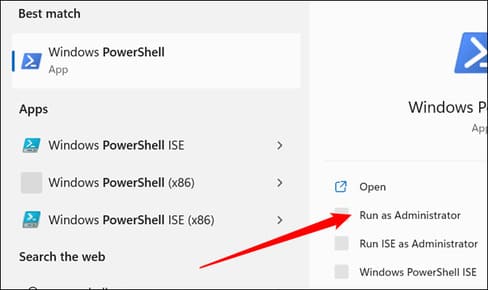
Next, you need to enable the scripts. Click the Start button, type “PowerShell” in the search bar and click “Run as Administrator“.
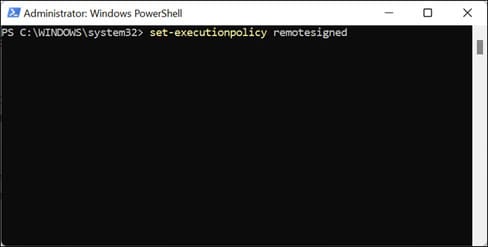
Then type or paste the command set-executionpolicy remotesigned Enter the PowerShell window and press Y. You can then close the PowerShell window.
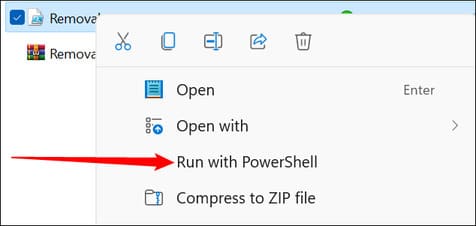
If they are detected, you will be given the option to delete them. Type “Y” or “y” into the PowerShell window, then press Enter.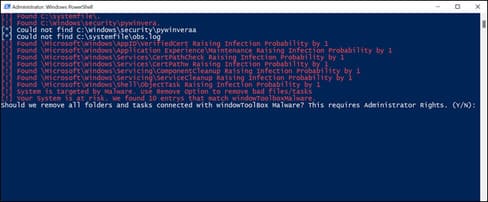
The script will then remove all junk generated by the malware.
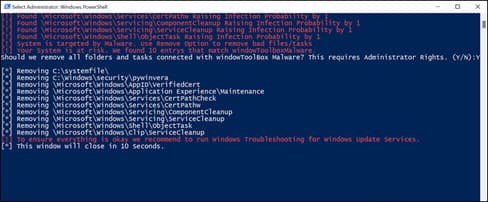
After you run the delete script, return your script execution policy to its default settings. Open PowerShell as administrator, enter the command set-executionpolicy default and press Y. Then close the PowerShell window.
What did
There are still some unanswered questions – such as why some people report that OpenSSH Server is installed on their machines. If any important new information comes out, we’ll make sure to keep you updated.
My little confession: Over the years, I’ve seen many Windows apps and browser extensions go down the wrong path. I try to be very careful and only recommend reliable solutions to you. Due to the increasing risk that malicious actors pose to open source projects, I will work even harder with recommendations in the future.
Also, I want to emphasize once again that there is no evidence that your sensitive information has been compromised. The domain on which the malware depends has now been removed and its creators can no longer control it.
Once again, I’d like to say a big thank you to those who figured out how this malware works and built a script to automatically remove it. The list is not sorted in any special order:
- Pabumake
- BlockyTheDev
- blubbablasen
- Kay
- Limn0
- LinuxUserGD
- Mikasa
- Optional CODE
- Sonnenläufer
- Zergo0
- Zeus
- Cirno
- Harromann
- Janmm14
- luzeadev
- XplLiciT
- Zeryther









