• Home
  • News
  • Software
  • Knowledge
  • MMO
  • Tips
  • Security
  • Network
  • Office
AnonyViet - English Version
  • Home
  • News
  • Software
  • Knowledge
  • MMO
  • Tips
  • Security
  • Network
  • Office
No Result
View All Result
  • Home
  • News
  • Software
  • Knowledge
  • MMO
  • Tips
  • Security
  • Network
  • Office
No Result
View All Result
AnonyViet - English Version
No Result
View All Result

How to install fingerprint for Windows 11 to unlock the computer quickly and safely

AnonyViet by AnonyViet
May 16, 2024
in Tips
0

Windows 11 is the latest version of the Windows operating system, bringing many new and improved features, including fingerprint unlocking. This feature helps you unlock your computer in just one click. However, not everyone knows how Install fingerprint for Windows 11. AnonyViet will guide you how to do it with just a few simple steps in the article below.

Join the channel Telegram belong to AnonyViet 👉 Link 👈

Necessary conditions to install fingerprint for Windows 11

To set up fingerprint unlocking, you must first make sure your computer is equipped with a fingerprint sensor. You can check if your computer supports fingerprint sensors by going to Settings > Accounts > Sign-in options. If you see Fingerprint recognition, it means your computer has a fingerprint sensor.

Steps to install fingerprint for Windows 11

Step 1: Press the Windows + I key combination to quickly open the Settings application.

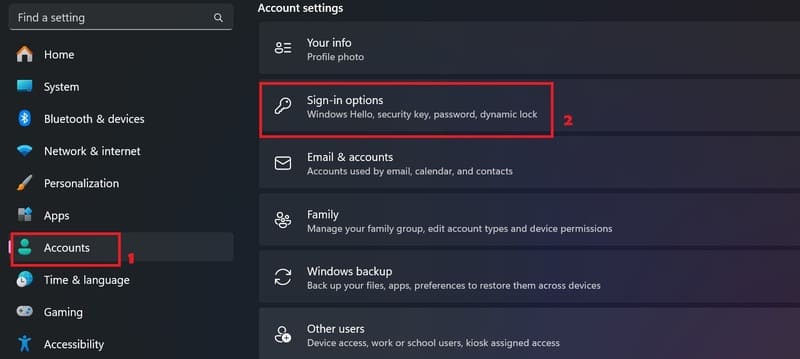
Step 2: Select Accounts, then select 'Sign-in options'.
Install fingerprint for Windows 11
Select 'Sign-in options'.

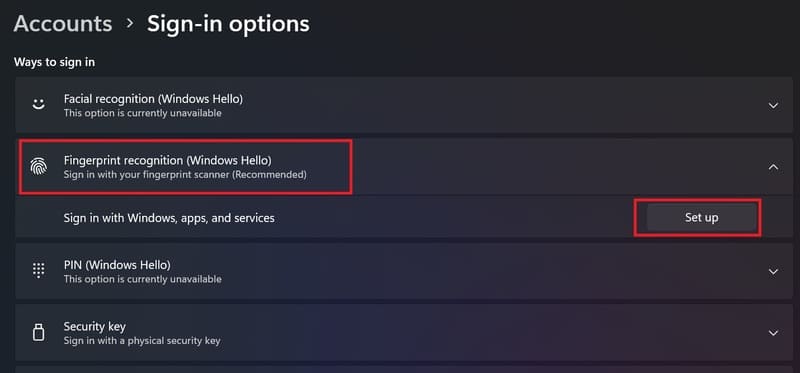
Step 3: Select Fingerprint recognition and select 'Setup', then select 'Getting Started'.
Install fingerprint for Windows 11
Go to Fingerprint recognition > Select 'Setup

Step 4: Next, to add your fingerprint, you must re-enter your PIN to confirm.

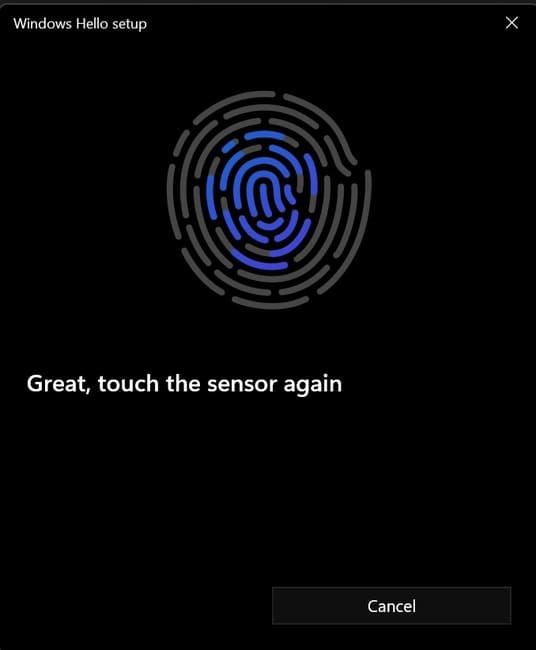
Then, you just need to place your finger on the fingerprint sensor to register a new fingerprint. You should place your fingers at many different angles so that the sensor can recognize your fingerprint more accurately.
Install fingerprint for Windows 11
Set fingerprint for Windows 11

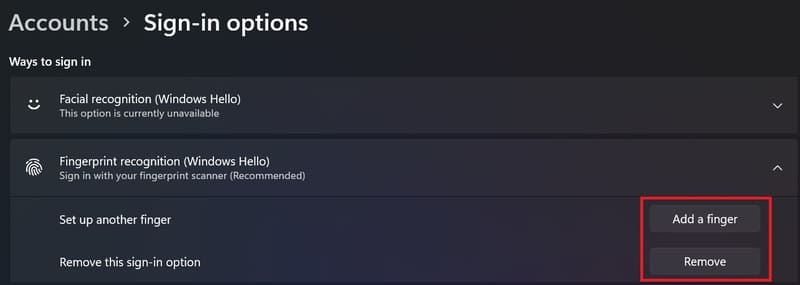
Step 5: In addition, you can register more fingerprints by selecting Add a finger or removing fingerprints at Remove.
Install fingerprint for Windows 11
Register more fingerprints or delete fingerprints

Once you've set up your fingerprint, you can use it to unlock your computer quickly and securely. You just need to place your finger on the fingerprint sensor when the computer is locked, and the computer will automatically log in to the device.

Benefits of installing fingerprints for Windows 11

Installing fingerprints for Windows 11 brings many benefits to users, including:

  • Save time: You don't need to enter a password every time you unlock your computer, just put your finger on the sensor and you're done.
  • Enhanced security: Fingerprints are unique characteristics of each person and cannot be copied or guessed. Therefore, using fingerprints to unlock your computer will help protect your personal data from bad guys.
  • Easy to manage: You can add, remove or change fingerprints anytime you want, just re-enter the PIN to confirm.

Install fingerprint for Windows 11
Benefits of installing fingerprints for Windows 11

Epilogue

Hope this article has helped you know how Install fingerprint for Windows 11 in a simple and effective way. If you have any questions or suggestions, please leave a comment below. Good luck!


Tags: computerfingerprintinstallQuicklySafelyunlockWindows
Previous Post

BOT creates Google Drive Unlimited using Mail Edu Orange Coast College

Next Post

Top 5 easy-to-use and super cute love days counting apps for couples

AnonyViet

AnonyViet

Related Posts

How to add sliders to Facebook Stories to easily rewind videos
Tips

How to add sliders to Facebook Stories to easily rewind videos

April 21, 2026
How to change the default font on Windows 10
Tips

How to change the default font on Windows 10

April 13, 2026
5 tips for using a Browser to replace an App (helps save RAM, time and money)
Tips

5 tips for using a Browser to replace an App (helps save RAM, time and money)

April 13, 2026
How to make funny MeMe photos without Photoshop within 10 seconds
Tips

How to make funny MeMe photos without Photoshop within 10 seconds

April 11, 2026
How to quickly design your own Logo without Photoshop
Tips

How to quickly design your own Logo without Photoshop

April 10, 2026
How to convert Website into App on Windows
Tips

How to convert Website into App on Windows

April 9, 2026
Next Post
Top 5 easy-to-use and super cute love days counting apps for couples

Top 5 easy-to-use and super cute love days counting apps for couples

0 0 votes
Article Rating
Subscribe
Login
Notify of
guest

guest

0 Comments
Oldest
Newest Most Voted
Inline Feedbacks
View all comments

Recent News

Instructions for looking up prescriptions on VNeID instead of paper medical books

Instructions for looking up prescriptions on VNeID instead of paper medical books

April 26, 2026
Tips to completely turn off CAPTCHA codes on iPhone and Mac are super simple

Tips to completely turn off CAPTCHA codes on iPhone and Mac are super simple

April 25, 2026
Compare Poco X8 Pro and Poco X7 Pro: A new step for the “king” of mid-range performance

Compare Poco X8 Pro and Poco X7 Pro: A new step for the “king” of mid-range performance

April 24, 2026
How to compress online videos for free without losing quality

How to compress online videos for free without losing quality

April 24, 2026
Instructions for looking up prescriptions on VNeID instead of paper medical books

Instructions for looking up prescriptions on VNeID instead of paper medical books

April 26, 2026
Tips to completely turn off CAPTCHA codes on iPhone and Mac are super simple

Tips to completely turn off CAPTCHA codes on iPhone and Mac are super simple

April 25, 2026
Compare Poco X8 Pro and Poco X7 Pro: A new step for the “king” of mid-range performance

Compare Poco X8 Pro and Poco X7 Pro: A new step for the “king” of mid-range performance

April 24, 2026
AnonyViet - English Version

AnonyViet

AnonyViet is a website share knowledge that you have never learned in school!

We are ready to welcome your comments, as well as your articles sent to AnonyViet.

Follow Us

Contact:

Email: anonyviet.com[@]gmail.com

Main Website: https://anonyviet.com

Recent News

Instructions for looking up prescriptions on VNeID instead of paper medical books

Instructions for looking up prescriptions on VNeID instead of paper medical books

April 26, 2026
Tips to completely turn off CAPTCHA codes on iPhone and Mac are super simple

Tips to completely turn off CAPTCHA codes on iPhone and Mac are super simple

April 25, 2026
No Result
View All Result
  • Home
  • News
  • Software
  • Knowledge
  • MMO
  • Tips
  • Security
  • Network
  • Office

wpDiscuz
0
0
Would love your thoughts, please comment.x
()
x
| Reply