
• Home
  • News
  • Software
  • Knowledge
  • MMO
  • Tips
  • Security
  • Network
  • Office
AnonyViet - English Version
  • Home
  • News
  • Software
  • Knowledge
  • MMO
  • Tips
  • Security
  • Network
  • Office
No Result
View All Result
  • Home
  • News
  • Software
  • Knowledge
  • MMO
  • Tips
  • Security
  • Network
  • Office
No Result
View All Result
AnonyViet - English Version
No Result
View All Result

Tut “Unique” turns off the computer by swiping the screen

AnonyViet by AnonyViet
May 15, 2024
in Tips
0

Turn off the computer by swiping the screen is a new and interesting feature on Windows 10/11. You can turn off your computer with just one simple movement, without pressing a button or typing a command. This feature not only saves time but also brings an interesting and unique feeling to users.

Join the channel Telegram belong to AnonyViet 👉 Link 👈

The reason many people like to turn off the device by swiping the screen

  • Create an interesting and unique feeling for users when using the computer
  • Save time by not having to perform many operations such as turning off with the mouse or keyboard.

How to turn off the computer by swiping the screen

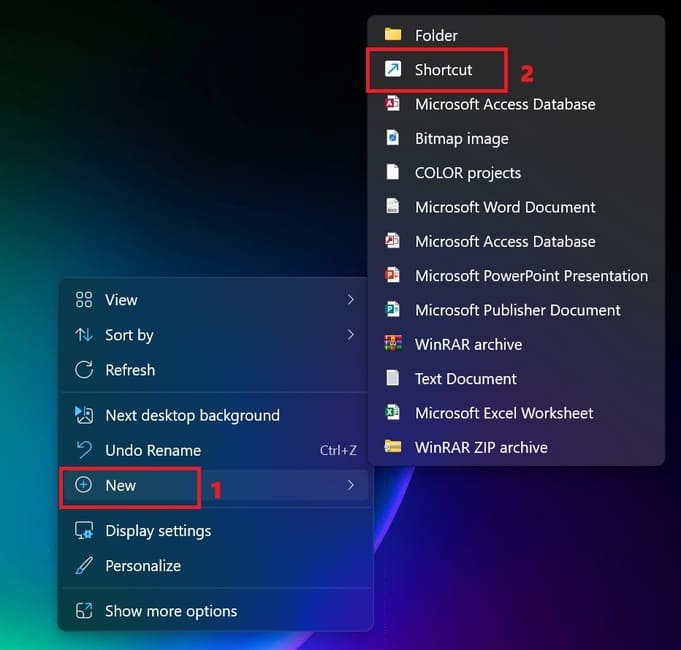
Step 1: On the main screen of your computer or laptop, right-click on an empty location, select New > select 'Shortcut'.
Turn off the computer by swiping the screen
Select New > select 'Shortcut'.

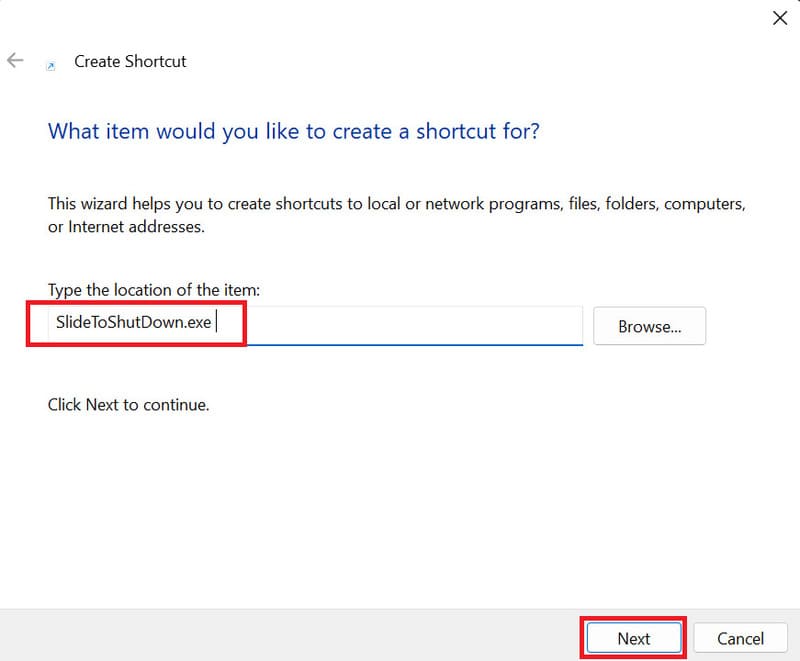
Step 2: In the Create Shortcut window, enter the command SlideToShutDown.exe > then click Next.
Turn off the computer by swiping the screen
Enter the command SlideToShutDown.exe

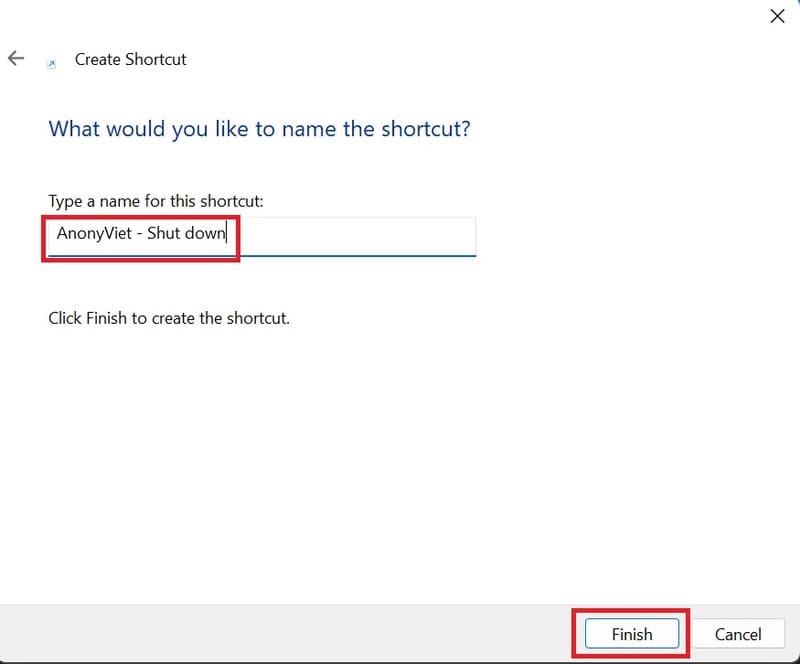
Step 3: Name the shortcut as you like, for example: ShutdownShut down,… > Then click Finish.
Turn off the computer by swiping the screen
Name the shortcut

Step 4: If you want, you can change the icon for the shortcut to make it more vivid. You do the following:

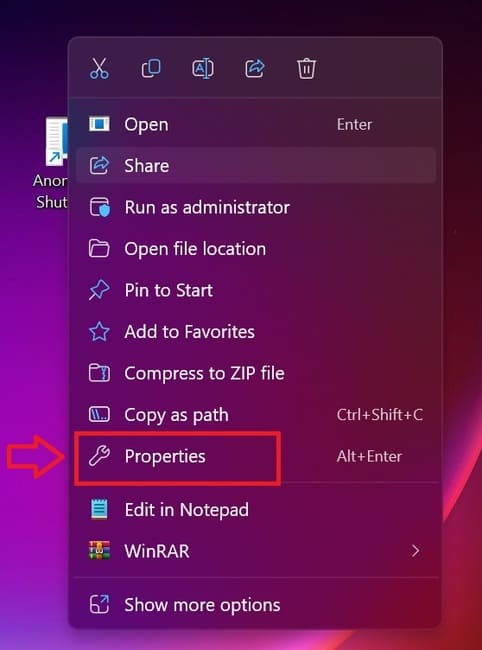
  • Right-click on the newly created shortcut, select Properties.
Turn off the computer by swiping the screen
Select Properties
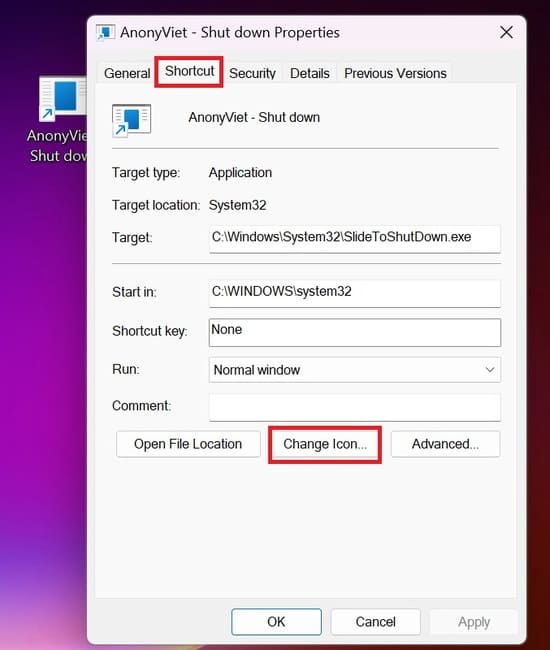
  • In the Properties window, select the Shortcut tab > Select 'Change Icon'
Turn off the computer by swiping the screen
Select the Shortcut tab > Select 'Change Icon'
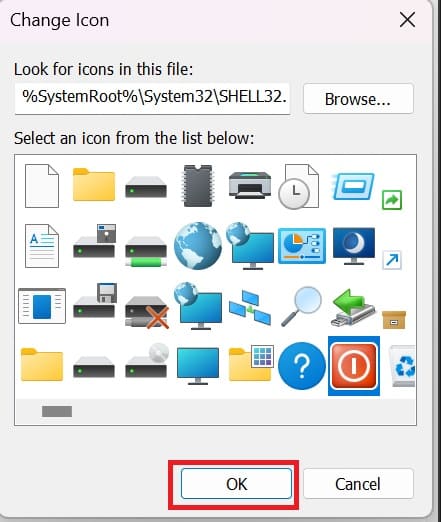
  • You select a suitable icon in the list or click Browse… to select an icon from your computer > OK > Click Apply > OK
Turn off the computer by swiping the screen
Choose a suitable icon

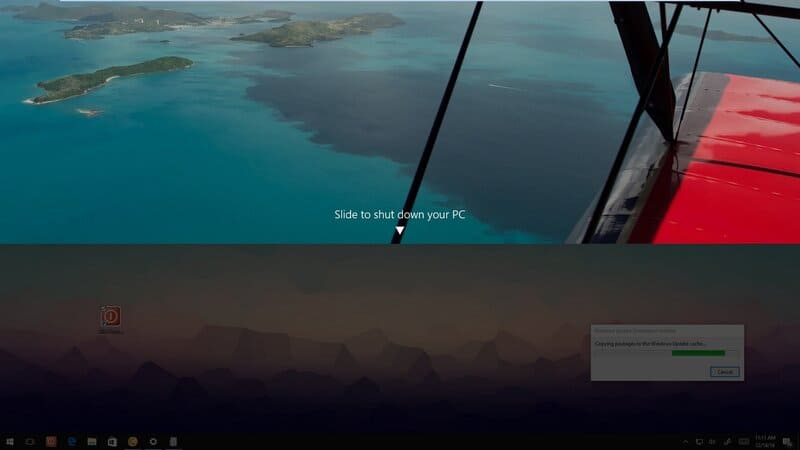
Step 3: You can use it to turn off the computer by double-clicking on the shortcut you just created, a slider will appear on the screen at the top. You swipe down the slider to turn off the device, or swipe up to cancel.
Turn off the computer by swiping the screen

Epilogue

Turn off the computer by swiping the screen is a great tip to end your working day, not only convenient but also brings a new and exciting feeling to the user. Please try it out, good luck!


Tags: computerscreenswipingturnsTutUnique
Previous Post

Upgrade GPT 3.5 to GPT-4o for free – Did you know?

Next Post

How to receive 10,000 free Viettel++ points to exchange data, sms,…

AnonyViet

AnonyViet

Related Posts

How to use CMD environment variables in Windows
Tips

How to use CMD environment variables in Windows

January 18, 2026
How to add or remove columns in File Explorer Windows 11
Tips

How to add or remove columns in File Explorer Windows 11

January 17, 2026
Sign up for Pluralsight One for 1 year of free access to Online courses
Tips

Sign up for Pluralsight One for 1 year of free access to Online courses

January 16, 2026
How to schedule a Batch file (CMD) to run on Windows
Tips

How to schedule a Batch file (CMD) to run on Windows

January 15, 2026
Instructions for downloading Facebook Videos with new interface 2021
Tips

Instructions for downloading Facebook Videos with new interface 2021

January 14, 2026
How to get ChatGPT K-12 Teacher for free
Tips

How to get ChatGPT K-12 Teacher for free

January 13, 2026
Next Post
How to receive 10,000 free Viettel++ points to exchange data, sms,…

How to receive 10,000 free Viettel++ points to exchange data, sms,...

0 0 votes
Article Rating
Subscribe
Login
Notify of
guest

guest

0 Comments
Oldest
Newest Most Voted
Inline Feedbacks
View all comments

Recent News

How to use automatic verification bot to register for ChatGPT K12, Spotify Student,…

How to use automatic verification bot to register for ChatGPT K12, Spotify Student,…

January 18, 2026
Instructions on how to create head-grabbing photos – New trend causing TikTok storm

Instructions on how to create head-grabbing photos – New trend causing TikTok storm

January 18, 2026
How to use CMD environment variables in Windows

How to use CMD environment variables in Windows

January 18, 2026
Instructions for installing the application “Are you dead yet” – Demumu

Instructions for installing the application “Are you dead yet” – Demumu

January 17, 2026
How to use automatic verification bot to register for ChatGPT K12, Spotify Student,…

How to use automatic verification bot to register for ChatGPT K12, Spotify Student,…

January 18, 2026
Instructions on how to create head-grabbing photos – New trend causing TikTok storm

Instructions on how to create head-grabbing photos – New trend causing TikTok storm

January 18, 2026
How to use CMD environment variables in Windows

How to use CMD environment variables in Windows

January 18, 2026
AnonyViet - English Version

AnonyViet

AnonyViet is a website share knowledge that you have never learned in school!

We are ready to welcome your comments, as well as your articles sent to AnonyViet.

Follow Us

Contact:

Email: anonyviet.com[@]gmail.com

Main Website: https://anonyviet.com

Recent News

How to use automatic verification bot to register for ChatGPT K12, Spotify Student,…

How to use automatic verification bot to register for ChatGPT K12, Spotify Student,…

January 18, 2026
Instructions on how to create head-grabbing photos – New trend causing TikTok storm

Instructions on how to create head-grabbing photos – New trend causing TikTok storm

January 18, 2026
  • Home
  • Home 2
  • Home 3
  • Home 4
  • Home 5
  • Home 6
  • Next Dest Page
  • Sample Page

https://sun52.network

No Result
View All Result
  • Home
  • News
  • Software
  • Knowledge
  • MMO
  • Tips
  • Security
  • Network
  • Office

https://sun52.network

wpDiscuz
0
0
Would love your thoughts, please comment.x
()
x
| Reply






