• Home
  • News
  • Software
  • Knowledge
  • MMO
  • Tips
  • Security
  • Network
  • Office
AnonyViet - English Version
  • Home
  • News
  • Software
  • Knowledge
  • MMO
  • Tips
  • Security
  • Network
  • Office
No Result
View All Result
  • Home
  • News
  • Software
  • Knowledge
  • MMO
  • Tips
  • Security
  • Network
  • Office
No Result
View All Result
AnonyViet - English Version
No Result
View All Result

Lesson 8: Transpose – Convert data from rows to columns and vice versa – Basic Excel

AnonyViet by AnonyViet
January 26, 2023
in Office
0

Hello friends! Welcome back to the basic Excel tutorial for beginners. With today’s post, I would like to introduce another feature of Excel Transpose

Join the channel Telegram of the AnonyViet 👉 Link 👈

So what is Transpose?

Transpose is how you change its shape. In Excel it is changing the dimension of 1 Range. For example: What if you have a series of horizontal numbers that you want to convert to vertical. Transpose will help you do that.

Transpose User Manual

Transpose with Special Paste

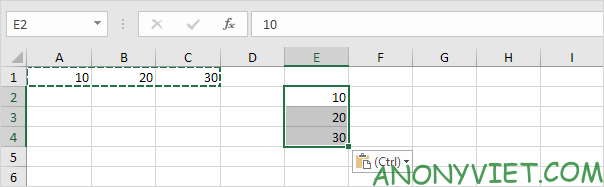
Step 1: Select range from A1:C1

Step 2: Right click and select copy
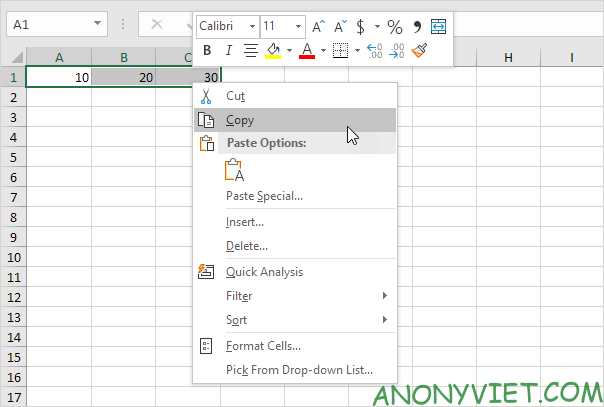
Copy about A1:C1 Excel

Step 3: Select cell E2

Step 4: Right click and select Paste special

Step 5: Check the box Transpose
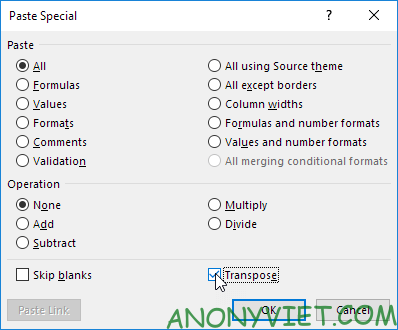
Tick ​​the Transpose Excel box

Step 6: Click OK

Transpose Excel results

Transpose using Function

Step 1: Select the range to fill
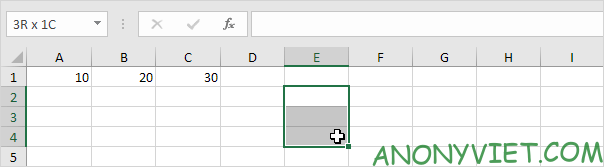
Select the range to Transpose Excel

Step 2: Write =TRANSPOSE(

Step 3: Select range A1:C1
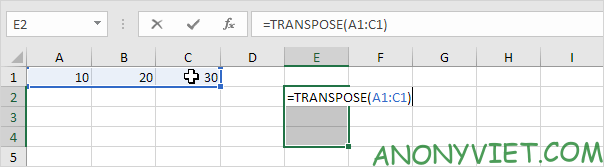
using the Transpose Excel command

Step 4: Press CTRL + SHIFT + ENTER key combination.
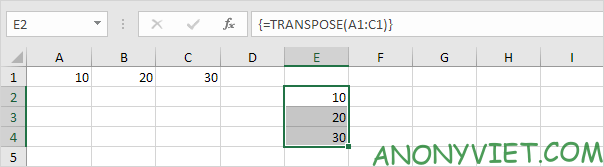
Results using the Transpose Excel command

Transpose with null cell

Example: Cell C4 has no value and the Transpose statement converts the blank to value = 0 (cell G3)
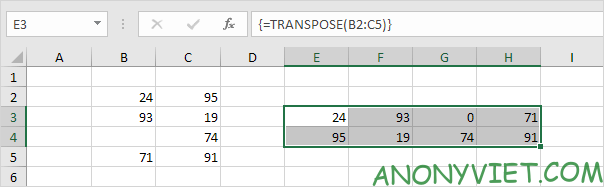
Transpose 1 Excel sheet

So we just need to add an If statement so that when we encounter a cell with no value, it returns a null value for the corresponding cell
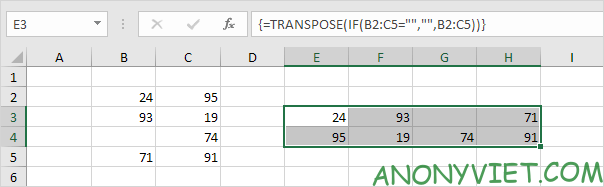
Transpose with null cell

Transpose has a link

Step 1: Select Range A1:E2

Step 2: Right-click and select Copy
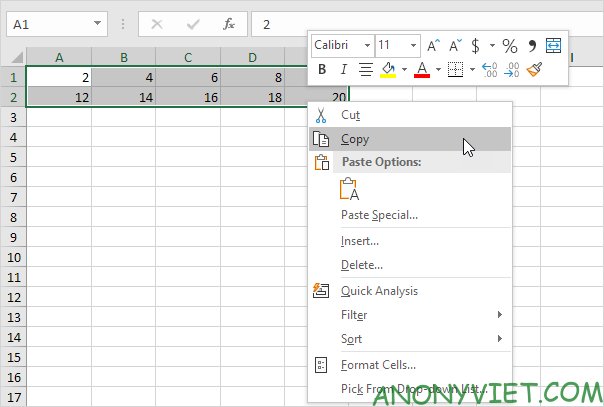
Copy Excel table

Step 3: Select cell A4

Step 4: Right click and select Paste special

Step 5: Select Paste link
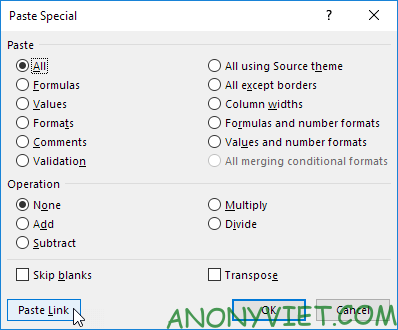
Select Paste Link Excel

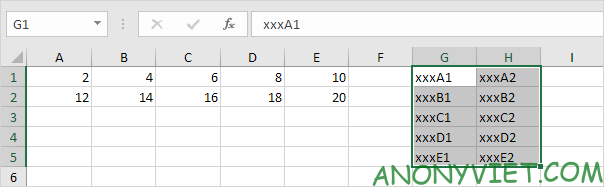
Step 6: select range A4:E5 and change all = signs to xxx
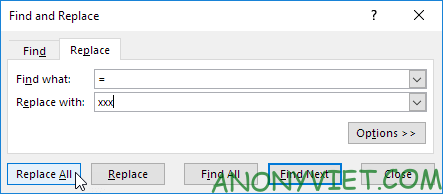
change the = sign to XXX Excel

Step 7: Do the same Transpose above

Transpose Excel data

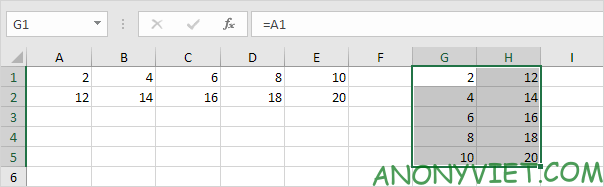
Step 8: Replace the xxx signs with =

Transpose results with Excel link

So I just finished the tutorial on Transpose. If you have any questions, please leave a comment to let me know


The article achieved: 5/5 – (100 votes)

Tags: BasicColumnsconvertdataExcelLessonRowsTransposeversavice
Previous Post

How to Hack Game Friend20 – Who knows you best

Next Post

Ultimate Windows Tweaker 5 – Free Windows 10/11 optimization tool

AnonyViet

AnonyViet

Related Posts

Instructions on how to hide formulas in Excel to secure data
Office

Instructions on how to hide formulas in Excel to secure data

February 6, 2026
Top who creates the most beautiful presentation slide today
Office

Top who creates the most beautiful presentation slide today

September 23, 2025
Automatically check and correct spelling errors on Google Docs
Office

Automatically check and correct spelling errors on Google Docs

February 23, 2025
Instructions for downloading Google Docs files easily on any device
Office

Instructions for downloading Google Docs files easily on any device

December 18, 2024
Launching AI image creation feature on Google Docs
Office

Launching AI image creation feature on Google Docs

November 20, 2024
Instructions for using Google Docs without internet
Office

Instructions for using Google Docs without internet

November 2, 2024
Next Post
Ultimate Windows Tweaker 5 – Free Windows 10/11 optimization tool

Ultimate Windows Tweaker 5 - Free Windows 10/11 optimization tool

0 0 votes
Article Rating
Subscribe
Login
Notify of
guest

guest

0 Comments
Oldest
Newest Most Voted
Inline Feedbacks
View all comments

Recent News

How to intercept traffic using Burp Suite to analyze HTTP/HTTPS

How to intercept traffic using Burp Suite to analyze HTTP/HTTPS

April 18, 2026
How to avoid Adblock detection on Youtube with 4 good tips

How to avoid Adblock detection on Youtube with 4 good tips

April 17, 2026
How to transfer ChatGPT data to Claude is extremely simple

How to transfer ChatGPT data to Claude is extremely simple

April 16, 2026
How to authenticate the owner’s SIM on VNeID from April 15

How to authenticate the owner’s SIM on VNeID from April 15

April 15, 2026
How to intercept traffic using Burp Suite to analyze HTTP/HTTPS

How to intercept traffic using Burp Suite to analyze HTTP/HTTPS

April 18, 2026
How to avoid Adblock detection on Youtube with 4 good tips

How to avoid Adblock detection on Youtube with 4 good tips

April 17, 2026
How to transfer ChatGPT data to Claude is extremely simple

How to transfer ChatGPT data to Claude is extremely simple

April 16, 2026
AnonyViet - English Version

AnonyViet

AnonyViet is a website share knowledge that you have never learned in school!

We are ready to welcome your comments, as well as your articles sent to AnonyViet.

Follow Us

Contact:

Email: anonyviet.com[@]gmail.com

Main Website: https://anonyviet.com

Recent News

How to intercept traffic using Burp Suite to analyze HTTP/HTTPS

How to intercept traffic using Burp Suite to analyze HTTP/HTTPS

April 18, 2026
How to avoid Adblock detection on Youtube with 4 good tips

How to avoid Adblock detection on Youtube with 4 good tips

April 17, 2026
No Result
View All Result
  • Home
  • News
  • Software
  • Knowledge
  • MMO
  • Tips
  • Security
  • Network
  • Office

wpDiscuz
0
0
Would love your thoughts, please comment.x
()
x
| Reply