Ultimate Windows Tweaker 5 is released and everyone can use it for free. Windows Optimizer has just updated to be compatible with Windows 11. Users who have upgraded to Windows 11, can use Ultimate Windows Tweaker 5 (UWT) to tweak Windows 11 and personalize the experience, and at the same time. can make your system faster and more secure.
| Join the channel Telegram of the AnonyViet 👉 Link 👈 |
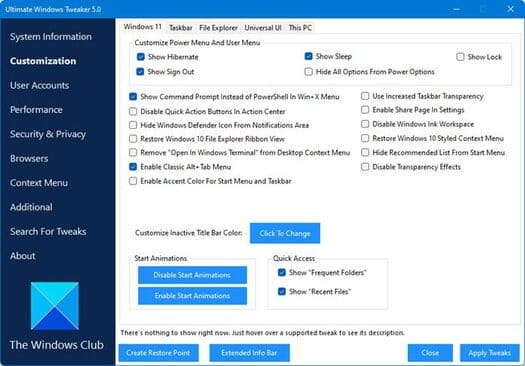
Ultimate Windows Tweaker 5 for Windows 11
This upgrade is only about 219 KB in size and includes over 200 customizations. Like its predecessors, UWT 5 has a clean, minimalistic user interface that offers feature menus on the left and tabs on the top. Hover over any customization and legends will appear telling you what the customization does. Although you can access all of these through the app Settings of Windows 11, Registry Editor or Group Policy Editorbut Ultimate Windows Tweaker makes things easier by providing all the useful tweaks in a single user interface.
New Features Ultimate Windows Tweaker Windows 11
Ultimate Windows Tweaker 5 Windows 11 adds some new features and tweaks. Here are the main highlights:
- A new tab has been added to Windows 11
- Option to control taskbar size
- Added option to revert to Ribbon view in File Explorer
- Windows 10 styled context menu restore option
- Align taskbar content
- Remove Open In Windows Terminal option from Context Menu
- Hide suggested list from Start Menu
- Option to enable Alt + Old Tab
- Option to disable transparency effect on Windows 11
- Option to enable accent color for Start Menu and taskbar.
- Some privacy tweaks in the Privacy section.
- Many tweaks in Context Menu for Store Apps to support Windows 11.
- Calculate the Windows Experience Index (WEI).
- You can run DISM and SFC commands to repair corrupted system files or images with one click
- Refreshed design with command link buttons
- Internet Explorer section has been removed
- Describe the effect of the feature
List of customizations in Ultimate Windows Tweaker 5
All edits have been neatly categorized as follows:
- System Information: When you open UWT5, you will see some basic information about your system like Operating System Version, Build, System Type, Processor, RAM, Computer Name, Username and WEI Score, … You also have the options to restore, run DISM, run a system file checker, or create a system restore point.
- Customization: In this section, you will be able to adjust the settings of the taskbar, Thumbnails, File Explorer, and Modern UI. You can choose to use Light or Dark theme for operating system or application, disable Start effect, use default or change Battery, Date & Time, Volume Control, show or hide Frequent folders or files Recent,…
- User Accounts: In the User Accounts tab, you’ll be able to change User Accounts settings, Login information, and sign-in options. You can also change User Account Control settings here.
- Performance: The Performance tab provides tweaks to optimize Windows 11 to best suit your requirements. Although most of these settings are best left at the default value.
- Security: Enhance your Windows 11 security by changing some settings. You can change Windows privacy settings and disable Telemetry, Biometrics, Advertising ID, Bing search, Cortana, Feedback, Reveal Password button, turn off Wi-Fi awareness, etc.
- Browser: Customize Microsoft Edge.
- Context Menu: Add useful Windows Store apps and features to the right-click context menu. Add Scan with Windows Defender, Clear Clipboard, all built-in default Windows Store apps, and more to the context menu.
- Additional: In this section, you will see some system and network customizations. By default, when you apply an edit and click Apply, UWT5 will automatically restart explorer.exe to apply the tweak. You can change this if you want.
- Search Bar: You can easily search for tweaks, then double-click a search result to access that feature.
- About: Here in addition to the license agreement you will find some useful links. If you need to file a bug, go to the About page and use Submit Bugs. If you need support, you can use Support. Click the Check for Update button to check for any updates.
How to use Ultimate Windows Tweaker 5
1. UWT 5 does not need to be installed.
2. You can download the zip file here, then extract and move the folder to the location you want. Pin its executable to the Start Menu for easy access.
3. First, create a system restore point. You can use the Create Restore Point feature that UWT provides. I emphasize that you must create a restore point before using UWT 5, so that you can revert if necessary.
4. UWT 5 is for people who know what they’re doing. I recommend not tweaking the system too much at once.
5. To run UWT 5, right-click the exe file and select Run as Administrator.
6. To apply the tweak, click the Apply button. Some edits are immediately applicable. If just restart explorer, and the edits will be applied. If the software requires a system restart, when you exit the application, you will be prompted to restart your computer.
The advantages of Ultimate Windows Tweaker 5
1. Easy to use user interface
2. Explanation of tool functions
3. Provides quick access buttons to create a system restore point and restore defaults
4. Super light at only about 219 KB
5. Diversity with over 200 tweaks
6. No installation required. To uninstall you just need to delete the program folder
7. No crapware or software packages
8. Check for available updates.
9. Export and import your edits
10. Easy-to-use search feature
10. Report bugs in tab About.
In addition, you can also see more free and best Windows 10 debugging tools here.