• Home
  • News
  • Software
  • Knowledge
  • MMO
  • Tips
  • Security
  • Network
  • Office
AnonyViet - English Version
  • Home
  • News
  • Software
  • Knowledge
  • MMO
  • Tips
  • Security
  • Network
  • Office
No Result
View All Result
  • Home
  • News
  • Software
  • Knowledge
  • MMO
  • Tips
  • Security
  • Network
  • Office
No Result
View All Result
AnonyViet - English Version
No Result
View All Result

Lesson 70: How to create a drop-down menu in Excel

AnonyViet by AnonyViet
January 26, 2023
in Office
0

Drop-down menu (drop-down or drop-down list) in Excel very useful if you want to be sure that the user is only allowed to select one item from the list, instead of entering their own value.

Join the channel Telegram of the AnonyViet 👉 Link 👈

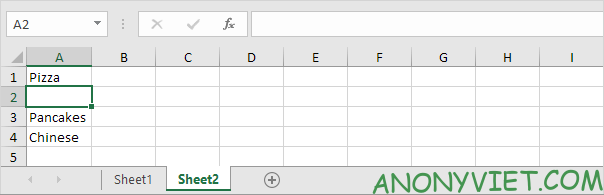
1. On the second sheet, enter the items you want to appear in the drop-down list.
Lesson 70: How to create a drop-down menu in Excel

Note: if you don’t want users to access the items on Sheet2, you can hide Sheet2. By right clicking on Sheet2 and clicking Hide.

2. On the first sheet, select cell B1.

Lesson 70: How to create a drop-down menu in Excel 31

3. On the Data tab, in the Data Tools group, click Data Validation.Lesson 70: How to create a drop-down menu in Excel 32

4. In Allow, click Custom.

5. In Formula, enter the formula shown below and click OK.
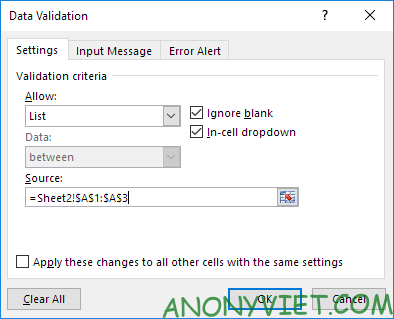
Lesson 70: How to create a drop-down menu in Excel 33

6. Click OK.

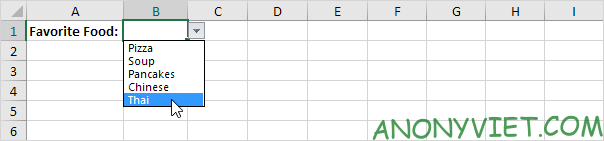
Result:

Lesson 70: How to create a drop-down menu in Excel 34

Note: to copy/paste the dropdown, select the cell with the dropdown and press CTRL+c, select another cell and press CTRL+v.

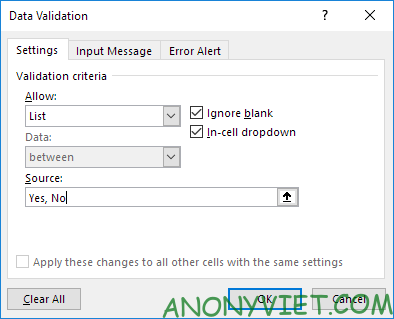
7. You can also import content directly into Source.
Lesson 70: How to create a drop-down menu in Excel 35

Note: Your drop-down list is case sensitive. For example, if the user enters yes, an error warning will be displayed.

Allow other content input

You can also create a drop-down list in Excel to allow users to enter other content.

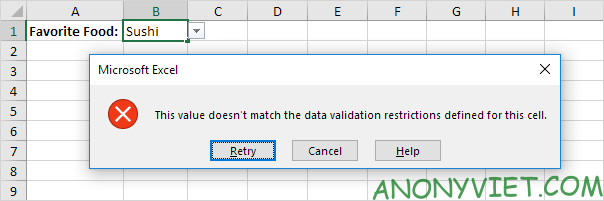
1. First, if you enter a value that is not in the list, Excel will display an error warning.
Lesson 70: How to create a drop-down menu in Excel 36

2. On the Data tab, in the Data Tools group, click Data Validation.

Lesson 70: How to create a drop-down menu in Excel 37

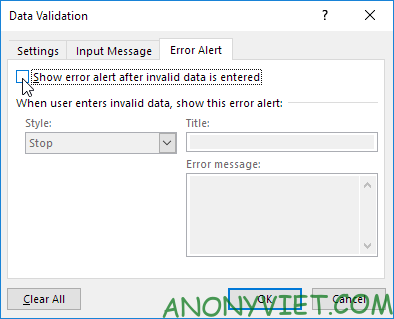
3. On the Error Alert tab, uncheck ‘Show error alert after invalid data is entered’.
Lesson 70: How to create a drop-down menu in Excel 38

4. Click OK.

5. You can now enter a value that is not in the list.

Lesson 70: How to create a drop-down menu in Excel 39

Add/Remove items in the list

You can add or remove items from the drop-down list in Excel without opening the ‘Data Validation’ dialog box and changing the reference. This will help save time.

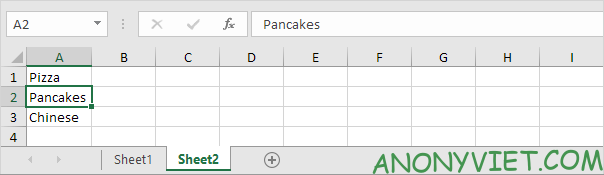
1. To add an item to the drop-down list, go to sheet2 and select an item.
Lesson 70: How to create a drop-down menu in Excel 40

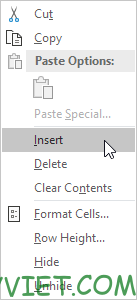
2. Right-click, and then click Insert.
Lesson 70: How to create a drop-down menu in Excel 41

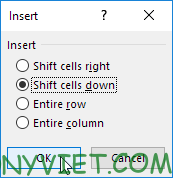
3. Select “Shift cells down” and click OK.
Lesson 70: How to create a drop-down menu in Excel 42

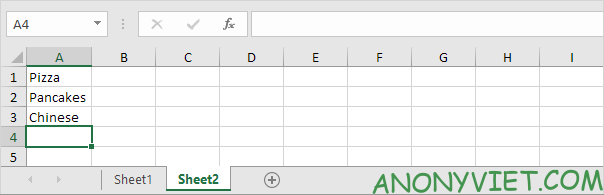
Result:

Lesson 70: How to create a drop-down menu in Excel 43

Note: Excel automatically changed the reference from Sheet2!$A$1:$A$3 to Sheet2!$A$1:$A$4. You can check this by opening the ‘Data Validation’ dialog box.

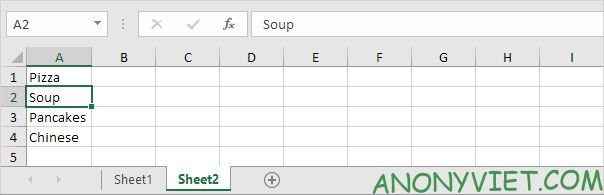
4. Enter a new entry.
Lesson 70: How to create a drop-down menu in Excel 44

Result:

Lesson 70: How to create a drop-down menu in Excel 45

5. To remove an item from the drop-down list, in step 2, click Delete, select “Shift cells up” and click OK.

Dynamic list

You can also use a formula that automatically updates the drop-down list when you add an item to the end of the list.

1. On the first sheet, select cell B1.

Lesson 70: How to create a drop-down menu in Excel 46

2. On the Data tab, in the Data Tools group, click Data Validation.

Lesson 70: How to create a drop-down menu in Excel 32

3. In Allow, click Custom.

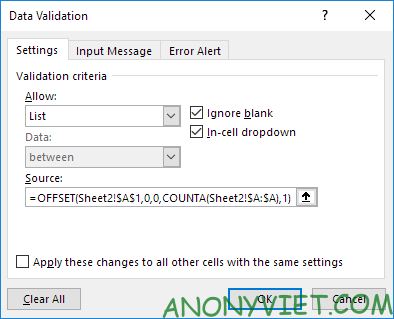
4. Click Source and enter the formula: =OFFSET (Sheet2!$A$1,0,0,COUNTA(Sheet2!$A:$A,1)
Lesson 70: How to create a drop-down menu in Excel 48

5. Click OK.

6. On the second page, simply add a new item to the bottom of the list.
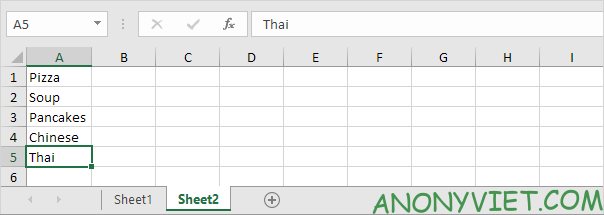
Lesson 70: How to create a drop-down menu in Excel 49

Result:

Lesson 70: How to create a drop-down menu in Excel 50

Remove drop-down list

1. Select the cell with the drop-down list.

Lesson 70: How to create a drop-down menu in Excel 51

2. On the Data tab, in the Data Tools group, click Data Validation.

Lesson 70: How to create a drop-down menu in Excel 32

3. Click Clear All.

Lesson 70: How to create a drop-down menu in Excel 53

Note: to remove all other drop-down lists with the same settings, select “Apply these changes to all other cells with the same settings” before you click Clear All.

4. Click OK.

List of dependencies

1. For example, if the user selects Pizza from the first drop-down list.

Lesson 70: How to create a drop-down menu in Excel 54

2. The second drop-down list will contain Pizza items.

Lesson 70: How to create a drop-down menu in Excel 55

3. But if the user selects Chinese from the first dropdown, the second dropdown will contain Chinese dishes.

Lesson 70: How to create a drop-down menu in Excel 56

You can read this paragraph for how to create a dependency list. In addition, you can also view many other excel articles here.


The article achieved: 5/5 – (100 votes)

Tags: createdropdownExcelLessonmenu
Previous Post

Tips to protect yourself from Internet dangers

Next Post

How to use Netwave-GoAhead Exploit to exploit security camera vulnerabilities

AnonyViet

AnonyViet

Related Posts

How to add Watermark to Google Docs to protect copyright
Office

How to add Watermark to Google Docs to protect copyright

April 19, 2026
Instructions on how to hide formulas in Excel to secure data
Office

Instructions on how to hide formulas in Excel to secure data

February 6, 2026
Top who creates the most beautiful presentation slide today
Office

Top who creates the most beautiful presentation slide today

September 23, 2025
Automatically check and correct spelling errors on Google Docs
Office

Automatically check and correct spelling errors on Google Docs

February 23, 2025
Instructions for downloading Google Docs files easily on any device
Office

Instructions for downloading Google Docs files easily on any device

December 18, 2024
Launching AI image creation feature on Google Docs
Office

Launching AI image creation feature on Google Docs

November 20, 2024
Next Post
How to use Netwave-GoAhead Exploit to exploit security camera vulnerabilities

How to use Netwave-GoAhead Exploit to exploit security camera vulnerabilities

0 0 votes
Article Rating
Subscribe
Login
Notify of
guest

guest

0 Comments
Oldest
Newest Most Voted
Inline Feedbacks
View all comments

Recent News

Tips to completely turn off CAPTCHA codes on iPhone and Mac are super simple

Tips to completely turn off CAPTCHA codes on iPhone and Mac are super simple

April 25, 2026
Compare Poco X8 Pro and Poco X7 Pro: A new step for the “king” of mid-range performance

Compare Poco X8 Pro and Poco X7 Pro: A new step for the “king” of mid-range performance

April 24, 2026
How to compress online videos for free without losing quality

How to compress online videos for free without losing quality

April 24, 2026
Top 5 apps to view good days 2026 for free on iOS and Android

Top 5 apps to view good days 2026 for free on iOS and Android

April 23, 2026
Tips to completely turn off CAPTCHA codes on iPhone and Mac are super simple

Tips to completely turn off CAPTCHA codes on iPhone and Mac are super simple

April 25, 2026
Compare Poco X8 Pro and Poco X7 Pro: A new step for the “king” of mid-range performance

Compare Poco X8 Pro and Poco X7 Pro: A new step for the “king” of mid-range performance

April 24, 2026
How to compress online videos for free without losing quality

How to compress online videos for free without losing quality

April 24, 2026
AnonyViet - English Version

AnonyViet

AnonyViet is a website share knowledge that you have never learned in school!

We are ready to welcome your comments, as well as your articles sent to AnonyViet.

Follow Us

Contact:

Email: anonyviet.com[@]gmail.com

Main Website: https://anonyviet.com

Recent News

Tips to completely turn off CAPTCHA codes on iPhone and Mac are super simple

Tips to completely turn off CAPTCHA codes on iPhone and Mac are super simple

April 25, 2026
Compare Poco X8 Pro and Poco X7 Pro: A new step for the “king” of mid-range performance

Compare Poco X8 Pro and Poco X7 Pro: A new step for the “king” of mid-range performance

April 24, 2026
No Result
View All Result
  • Home
  • News
  • Software
  • Knowledge
  • MMO
  • Tips
  • Security
  • Network
  • Office

wpDiscuz
0
0
Would love your thoughts, please comment.x
()
x
| Reply